In This Article
Introduction
Activities serve as indicators of how often and how reps are engaging with their customers. You can enter an Activity either on your own behalf or for a user who needs to complete a task with a customer, such as a meeting to discuss issues.
Process
1. Start Adding a New Activity
There are several locations where you can enter a new Activity within Equipment CRM:
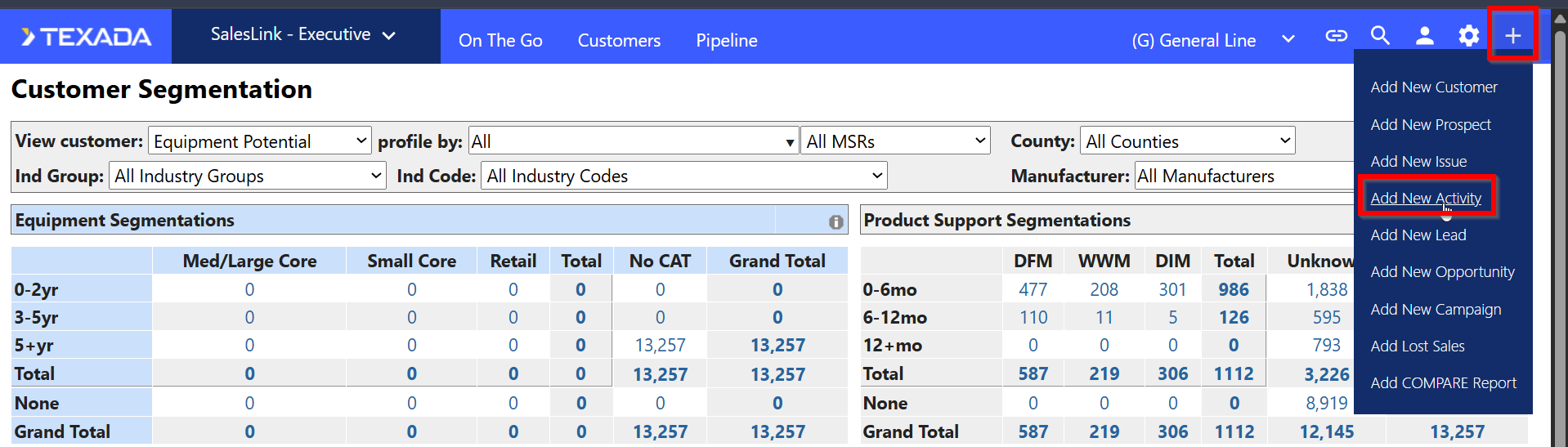
- The Global Navigation Menu: Click the + icon in the top right-hand corner and select “Add New Activity”.
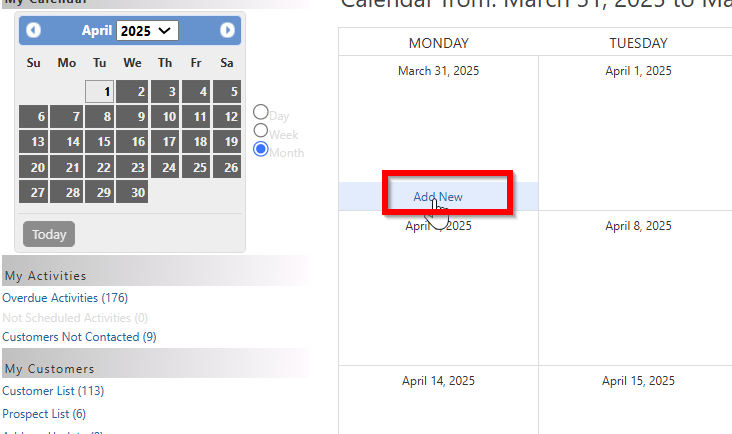
- The Calendar Screen: Select any specific day on the calendar and click "Add New".
- The Rep's Customer List: Drill directly into a Rep's Customer List to add an Activity for a Customer.

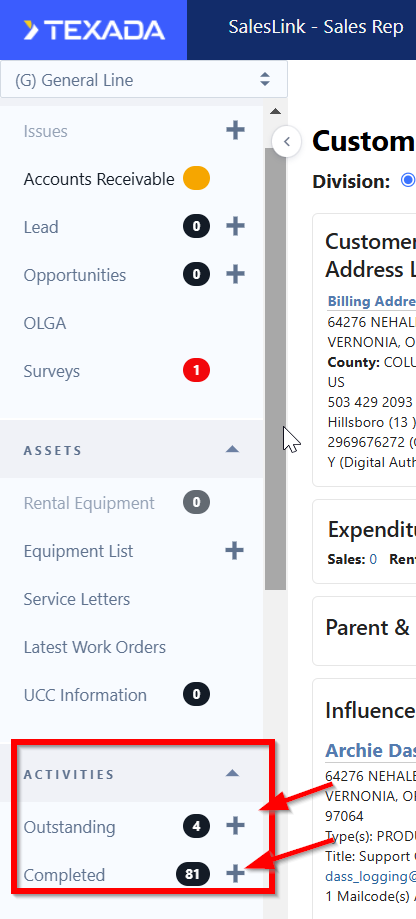
- The Customer Information Left Menu: Create either an outstanding or completed Activity from the left menu while actively reviewing a specific Customer. If you use this option, the Customer details will be pre-populated.
2. Fill in the Activity Details
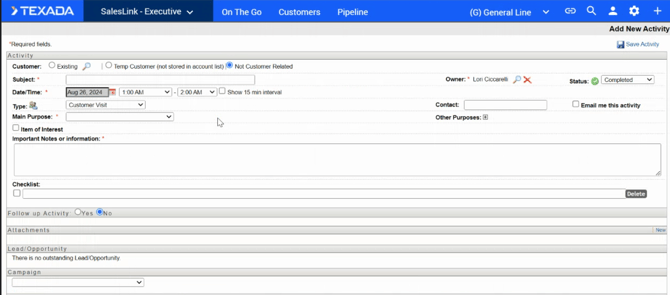
Complete the required fields for the initial Activity:
|
Field |
Instructions/Details |
|
Customer Information |
If adding from the calendar, you must choose the Customer. Options include:
|
|
Subject |
Enter a short sentence summarizing the Activity. |
|
Owner |
This defaults to the logged-in user but can be assigned to another user or rep by using the search icon. The Activity will be saved on that individual’s calendar. |
|
Date/Time |
If you are adding from the calendar, the date will be populated. Otherwise, use the calendar icon to set the date. Time defaults to half-hour intervals, but you can check the box beside ‘Show 15 min interval’ for finer granularity. |
|
Type |
Select the appropriate type (e.g., Email, Fax, Letter, Meeting, Message, Special Event, Telephone). For a meeting, keep notes in the notes section and create a follow up Activity with any outstanding items. |
|
Contact |
If the Customer is existing, influencers will appear in the drop-down list. For a new contact, click the 'New Contact' box to enter their name. |
|
Main Purpose |
Choose the primary reason for the Activity from the drop-down list. |
|
Other Purpose |
Select the '+' sign to select and add any additional reasons that apply to this Activity. |
|
Important Notes |
Enter any notes or detailed information pertaining to the Activity. |
3. Enable the Follow Up Activity Option
To ensure the follow-up Activity option appears, you must set the status of the current Activity correctly:
- Change the Status field to ‘Completed’.
- Note: The option to schedule a follow up Activity is only visible if the Activity status is set to Completed.
- Select 'Yes' for the Follow up Activity option.
4. Schedule the Follow-Up Activity
When you choose 'Yes' for the follow-up Activity, new Activity fields will appear.
- The system will suggest when to make the next Activity based on the Customer’s PAR (Planned Activity Rate).
- If the Activity is 'Not Customer related' or pertains to a new Customer, the PAR is assumed to be 0.
- Fill in the details for the future Activity (Subject, Date/Time, Type, etc.)
5. Save the Activities
- After filling out all the required information and the details for the follow-up Activity, save the entry.
- Upon saving, the system will automatically add the follow-up Activity to the user’s calendar.
- The saved Activity will include a link to the new Activity via the Activity number