In This Article
- Introduction
- Filtering Your View
- Understanding Ticket Flow and Statuses
- Other Features and Sections
- Gear & Eye Icon - Configuring Your View
Introduction
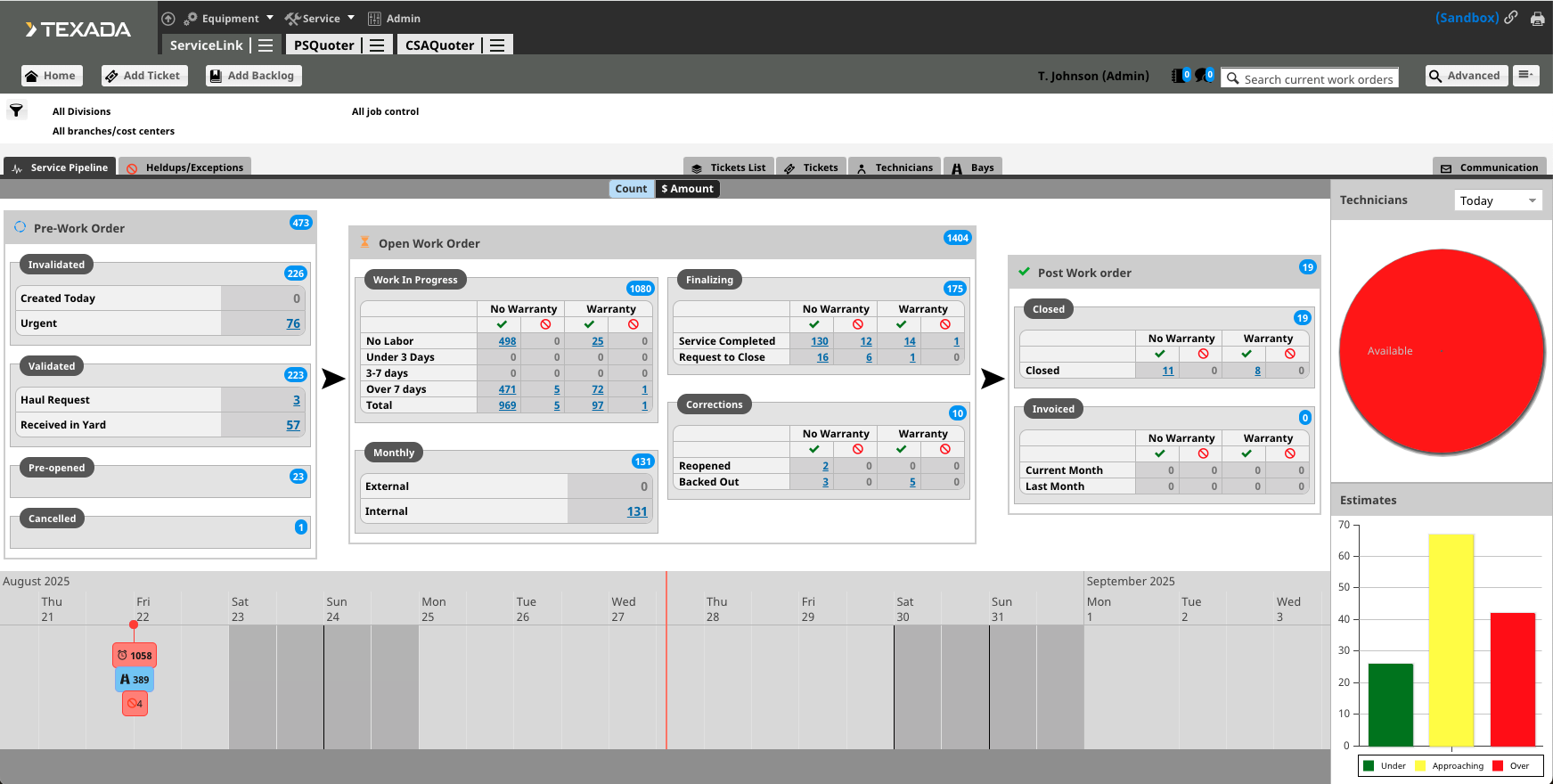
The Service Pipeline is the home page for Service Management CD, providing you with a complete view of all in-progress work. Tickets/Work Orders progress from left to right across the page as repair work is completed.
Filtering Your View
You can filter the information displayed on the Service Pipeline to see only the Tickets relevant to you.
- To apply a filter, select the dropdown menus at the top of the page for Divisions, Branches/Cost Centers, and/or Job Control.
- You can select any combination of these filters.
- If you do not select a filter, the page will display all available information for the dealership.
- Your filter settings will be saved for future visits.

Understanding Ticket Flow and Statuses
Tickets/Work Orders enter the Service Pipeline through various methods and progress through distinct statuses.
Every Work Order is linked to a Ticket, but not all Tickets have an associated Work Order. The Pre-Work Order Section contains the Tickets that don't have a Work Order, though some Tickets with Work Orders may also appear there.
The numbers displayed in each section are hyperlinks that show you how many Tickets are in each category. Select the number to see a detailed list of all Tickets in that category.
Creation
Tickets can be manually created by a user or automatically generated by other Service Suite applications such as Parts & Service Quoting, Equipment Monitoring Toolkit, or Service Agreement Quoting.
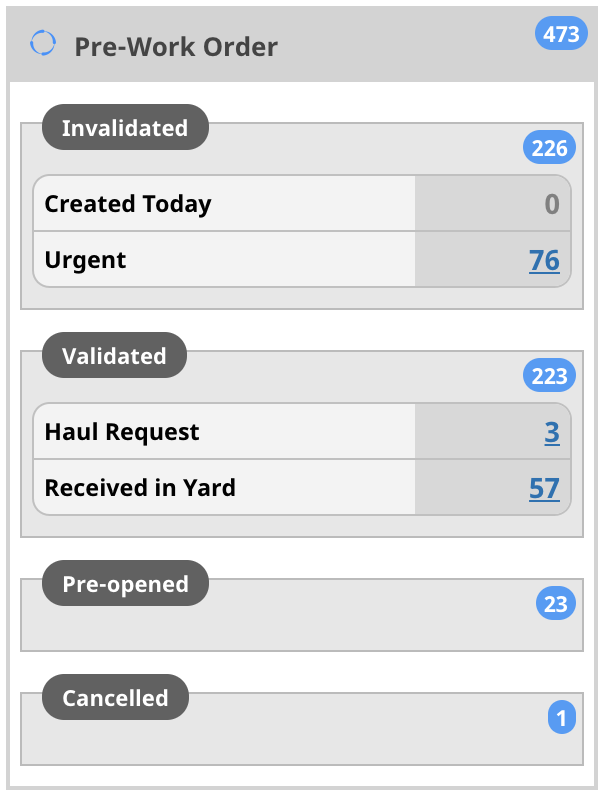
Pre-Work Order
These are Tickets that may have a Work Order associated with them but are not yet open for work to be done.
- Invalidated: Automatically generated Tickets start in this status. They remain invalidated until you change their status to Validated. Manually created Tickets can be set directly to Validated.
- Validated: These are Tickets that have been reviewed and may have a Work Order attached but are not yet in the Estimated or Open status.
- Pre-Opened: Tickets that are in an estimated status are displayed here.
- Cancelled: These are Tickets that were canceled because the work was not performed.
Open Work Order
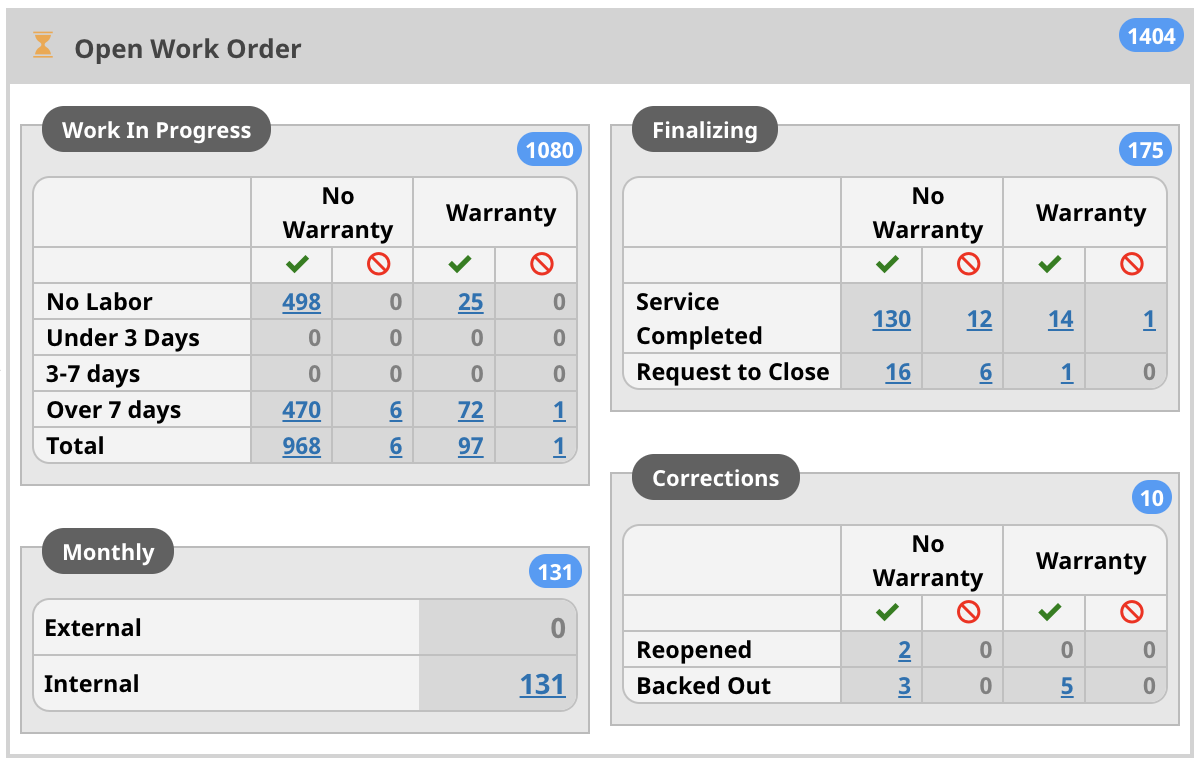
These are Tickets with an associated Work Order that is in the Open status within the ERP system. Service Management CD uses various other statuses to help you manage these jobs. These sections separate Warranty repairs from Revenue (non-warranty) repairs and separate jobs with and without Manual Heldups.
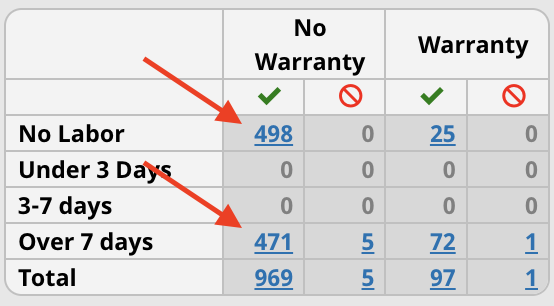
- Work in Progress: This section shows all ongoing repair work. It has separate rows for jobs that have no labor yet and for jobs based on age (Under 3 Days, 3-7 Days, Over 7 Days).
- Finalizing: When all of the segments for a Ticket have a Segment Status of Service Completed, the Ticket moves to the Service Completed row in this section. Once the Ticket has been reviewed and is ready to close, you change the status of the Ticket to Request to Close for final review.
- Monthly: This section displays automatically opening and closing Work Orders each month, separating External (revenue) jobs from Internal (expense) jobs.
- Corrections: This section provides visibility into Work Orders that have been Reopened (ERP status changed from Closed to Open) or Backed Out (ERP status changed from Invoiced to Open).
Post-Work Order
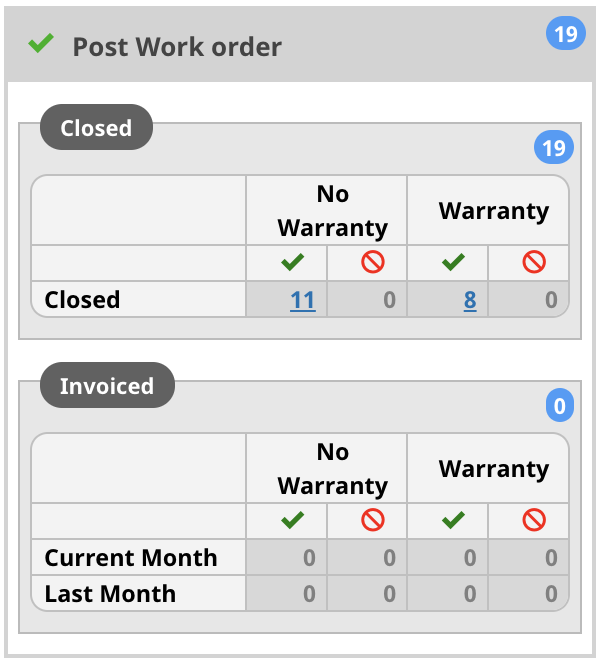
These are Tickets that have been closed and invoiced.
- Closed: This section shows all Work Orders that are in the Closed status in the ERP system.
- Invoiced: This section shows all Work Orders in the Invoiced status in the ERP system.
Other Features and Sections
- Equipment: Use this dropdown to access other applications like the Condition Monitoring Portal or the Inventory application.
- Service: Use this dropdown to access other service applications like Parts & Service Quoter or CSA Quoter.
- Admin: Use this to access admin settings.

- Production or Sandbox: This is located at the top right of the page and indicates what environment you are in.
- Chain Icon: Select this icon to access the Admin Page (if you have access), return to the application's homepage, or set default preferences in Service Management CD.
- Printer Icon: Select this icon to format the page for printing.

- ServiceLink / PSQuoter / CSAQuoter: You can access other Service apps by selecting these tabs.
- Hamburger Icon (three horizontal lines): Select this icon next to the application name to display the menu.

- Home: Select this to return to the Service Pipeline page.
- Add Ticket: Select this to manually create a new Ticket.
- Add Backlog: This allows you to create a record for a customer to appear when opening future Tickets.

- User and Role: This indicates who is logged in and what role is assigned to them.
- Blog Icon: This icon displays any blogs that require your attention.
- Message Icon: This icon displays any communication conversations that need to be addressed.

- Search: You can type various information here to find current or past Work Orders or Tickets.
- Advanced Search: This option allows you to search for jobs using more criteria, such as Job and Component codes or symptoms.
- Hamburger Menu (next to Advanced Search): This section shows the last 10 Tickets you have been in.

- Service Pipeline: This is the home page.
- Heldups/Exceptions: This section shows Tickets that have a heldup preventing them from being closed.

- Tickets List: This lists all of the Pre-Opened Tickets.
- Tickets: This shows all Tickets with a technician or bay assigned to them. You can assign new technicians or bays here.
- Technicians: This shows all of the technicians and their assigned Tickets. You can assign new Tickets here.
- Bays: This shows all of the bays and their assigned Tickets. You can assign new Tickets here.

- Communication: This section shows any communication between customers and Service personnel.

- Count / $ Amount: This adjusts the hyperlinked numbers to display the dollar value of jobs. You can further filter by Parts, Labor, or Miscellaneous.

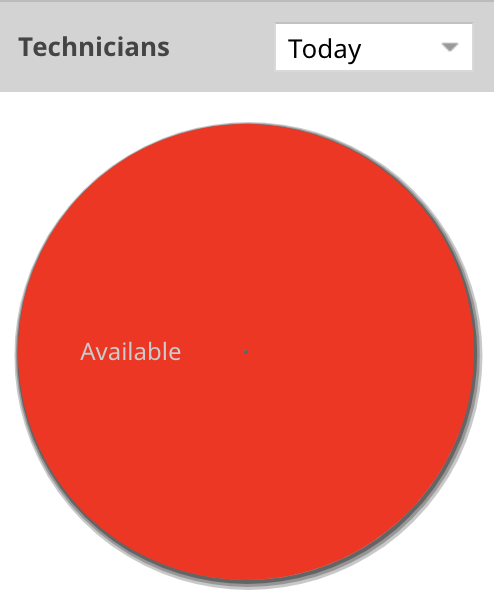
- Technicians: This pie chart provides a quick view of what type of job technicians are scheduled for.
- Green: Revenue jobs
- Yellow: Internal jobs
- Red: No job assigned
- Gray: Not available
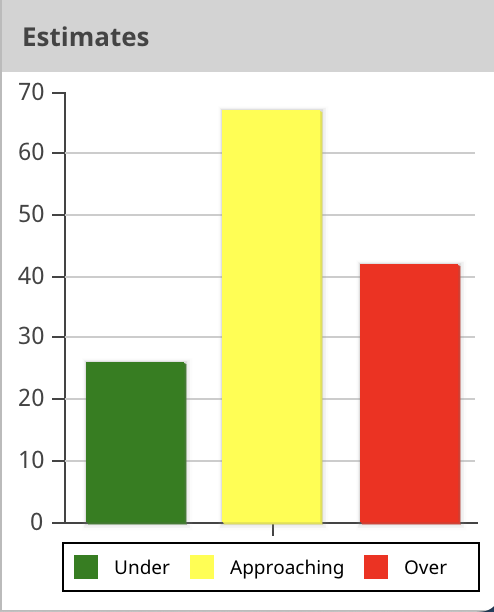
- Estimates: This bar chart represents the number of Tickets approaching or exceeding the financial estimate.
- Timeline: This section provides reminders for important dates on a Ticket.
- Alarm Clock Icon: The promise date assigned to the Ticket.
- Red: Past due
- Yellow: Approaching
- Green: Greater than 3 days out
- Road Icon: The arrival date assigned to the Ticket. This will always be blue.
- Red Circle Crossed Out Icon: For manual held-ups with a due date.
- Red: Past due
- Yellow: Approaching
- Green: Greater than 3 days out
- Dot Color: This is determined by the event that was set most recently, also visible by the event that is on the bottom.

Gear & Eye Icon - Configuring Your View
Within various pages of Service Management C, you will see a gear and an eye icon  . This means that you can customize the information displayed on your screen.
- To select which columns are visible, Select the eye icon. This will open a list of all available columns. Select the columns you want to display.
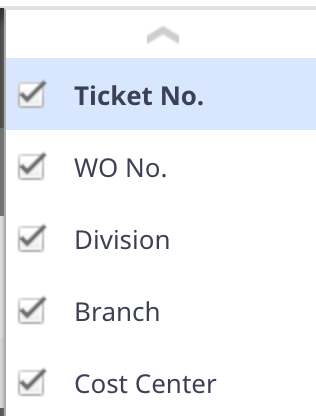
- To rearrange columns, drag and drop them into your desired order.

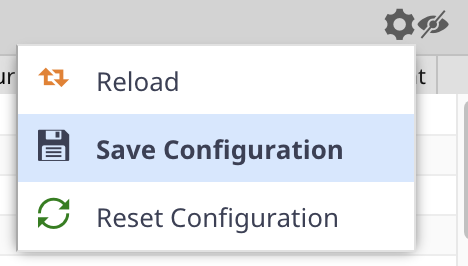
- To save your customized view for future use, Select the gear icon. This will ensure that the next time you navigate to this page, your preferred column layout is automatically applied.