In This Article
Introduction
The Add Ticket button is the primary (but not only) way to create new tickets in Service Management CD.
Add a Ticket
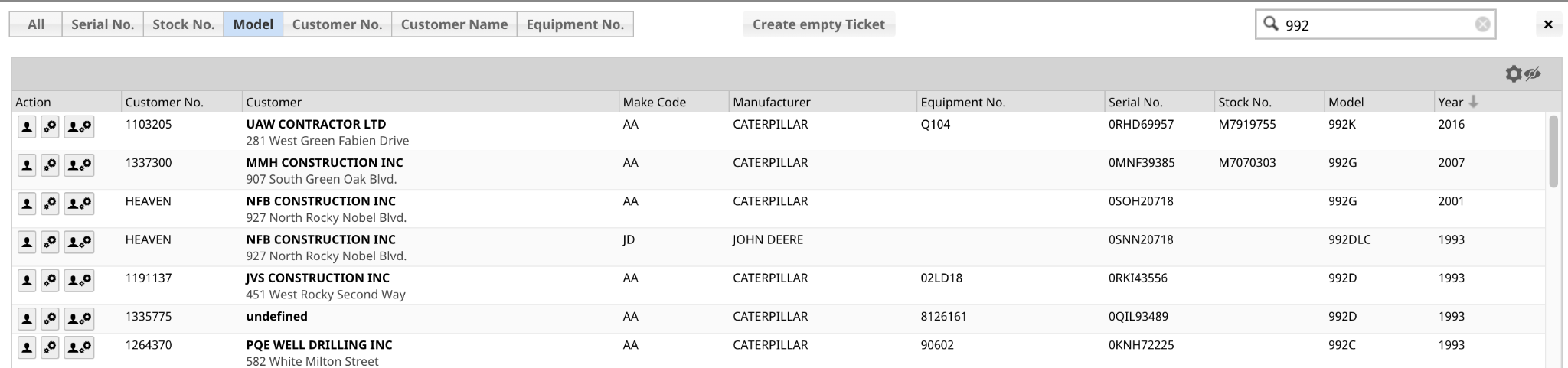
- Select the Add Ticket button. A search function will appear in a pop-up window.

- In the search field, you can type in various information to find the customer and machine you are looking for.
- Alternatively, if the customer and equipment are new to your dealership, you can Select the Create Empty Ticket option to start a new ticket from scratch.
- To narrow your search, Select one of the categories listed across the top, such as Model, and then enter your information. This will search the customer and equipment files for matching records.
- Note: The gear and eye icons in this pop-up allow you to customize the columns of the search results.
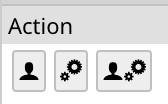
- The search results will populate the pop-up window. Under the Action column, you will see three icons for each result. Select the appropriate icon to add the information to your new ticket.
- Person Icon: Select this icon to add only the customer's information to the ticket.
- Gears Icon: Select this icon to add only the equipment information to the ticket.
- Person and Gears Icon: Select this icon to add both the customer and equipment information to the ticket.