
In This Article
Introduction
The primary purpose of this tab is to provide a consolidated view of the Need by Date and Percent Complete for all segments within a Ticket. On this tab, these are the only fields available for editing.
Key Metrics and Editing
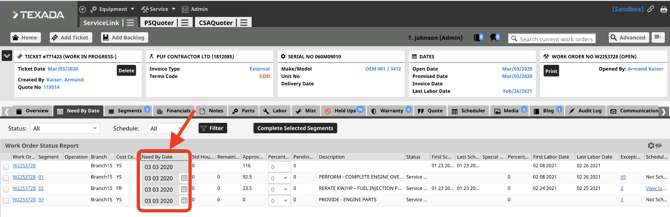
Need by Date: This indicates when a segment must be finished.
- The top row displays the Need by Date pulled from the Overview tab. Dates for segments or operations listed below cannot exceed this date.
- While all segments default to the Overview tab date initially, you can manually update them by selecting the Calendar icon next to the specific date.
- Select the Update button to save your changes.
- Note: Once you manually change a date on this tab, it will no longer sync with the Overview tab. You must manage any future changes for that segment manually.
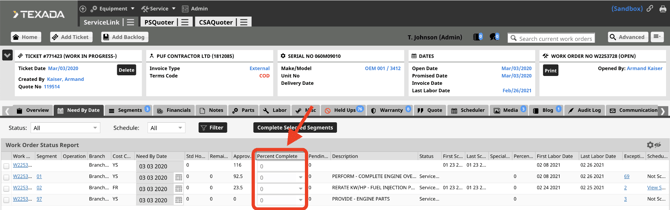
Percent Complete: This represents the estimated progress of a segment or operation.
- The top row displays a weighted average based on the Percent Complete percentage of Standard Hours assigned.
- You can update this field directly on this tab. Alternatively, it updates automatically when a technician enters labor on a timesheet; the most recent entry will always be displayed.
Navigating and Managing the View
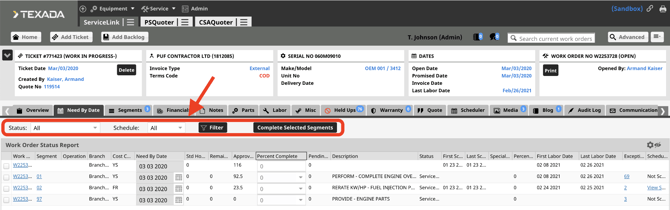
You can refine the information displayed by using the filters at the top of the screen to sort by Segment Status and Schedule (whether a segment/operation is assigned to a technician).
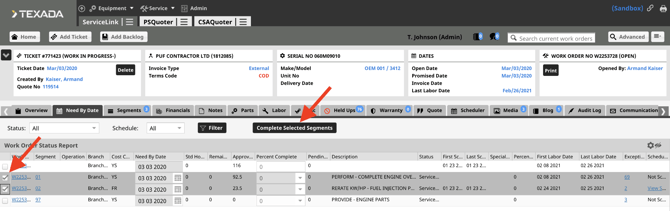
- Bulk Completion: Select the checkbox in the first column for one or more segments/operations, then select the Complete Selected Segments button at the top. This automatically sets the Percent Complete field to 100 and moves the Status to Review Completed.
- View Customization: Use the Gear icon and Eye icon to adjust your column view or export data.
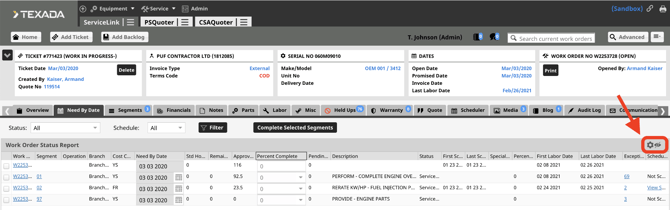
Columns
- Work Order: Displays the work order number; select the link to go to the Segments tab.
- Segment: Displays the segment number; select the link to view details in the Segments tab.
- Operation: Displays the operation number; select the link to view details in the Segments tab.
- Branch: The branch for the segment/operation.
- Cost Center: The cost center for the segment/operation.
- Need By Date: The deadline for the segment/operation.
- Std Hours: Total standard hours assigned.
- Remaining Scheduled Hours: The number of hours this segment/operation is scheduled for a technician in the future.
- Approved Hours: Total number of labor hours already approved.
- Percent Complete: Current progress percentage.
- Pending Hours: Labor hours currently awaiting approval.
- Description: Job, Component, and Modifier code descriptions.
- Status: The current Segment Status.
- First Scheduled Date: The first date a technician was scheduled. This remains blank if the job has not been scheduled.
- Last Scheduled Date: The last date a technician was scheduled. This remains blank if the job has not been scheduled.
- Special Instructions: Select this link to view instructions on the Segments tab.
- Percentage of Hours Used: A ratio of Approved Hours to Standard Hours.
- First Labor Date: The first date approved labor was recorded.
- Last Labor Date: The last date approved labor was recorded.
- Exceptions: Displays the number of exceptions; select the link to open the Held Ups window.
- Scheduled: Select this link to open the Scheduler tab. Note: This displays your default scheduler view.