
In This Article
Introduction
The Notes tab serves as a central repository for all notes recorded across every Segment and Operation within the Ticket. This view allows you to quickly audit communication without navigating to individual Segments. You cannot add new notes here and instead need to do that in the Segments tab.
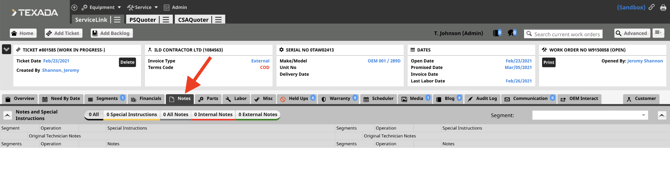
Navigating the Notes View
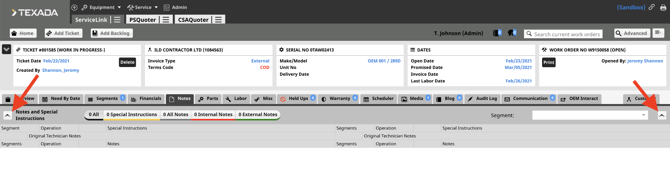
- Expand and Retract: Select the Arrow icons located on the far left and far right of the screen to expand or collapse the notes view.
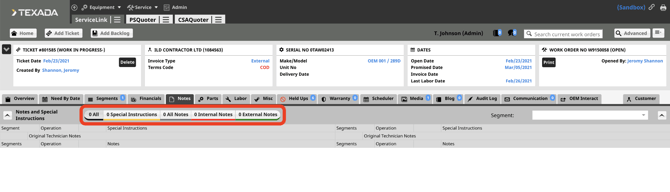
- Filter by Category: Select any of the category tabs at the top of the page to filter the notes displayed. The number next to each label indicates how many notes exist in that category.
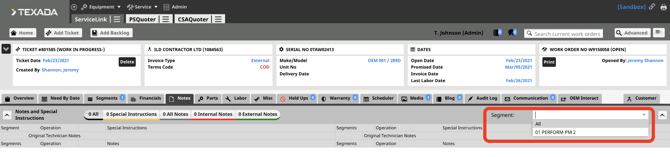
- Filter by Segment: Use the dropdown menu at the top to select a specific Segment and view only the notes associated with it.
Special Instructions
The first section displays Special Instructions.

- Header Notes: If a note does not have a Segment or Operation number next to it, it is a Ticket header note. To view these, select the Segments tab and navigate to the WO Header Notes section.
- Segment/Operation Notes: If a note is tied to a specific Segment or Operation, the Segment or Operation number will be hyperlinked. Select the link to navigate directly to that section in the Segments tab.
Original Technician Notes
This section displays the Original Technician Notes and the Notes.

- If a note is tied to a specific seg, the Segment or Operation number will be hyperlinked. Select the link to navigate directly to that section in the Segments tab.
- There will also be a red checkmark for internal only notes and a green checkmark for external notes, seen by the customer on the Proforma Invoice.