In This Article
Introduction
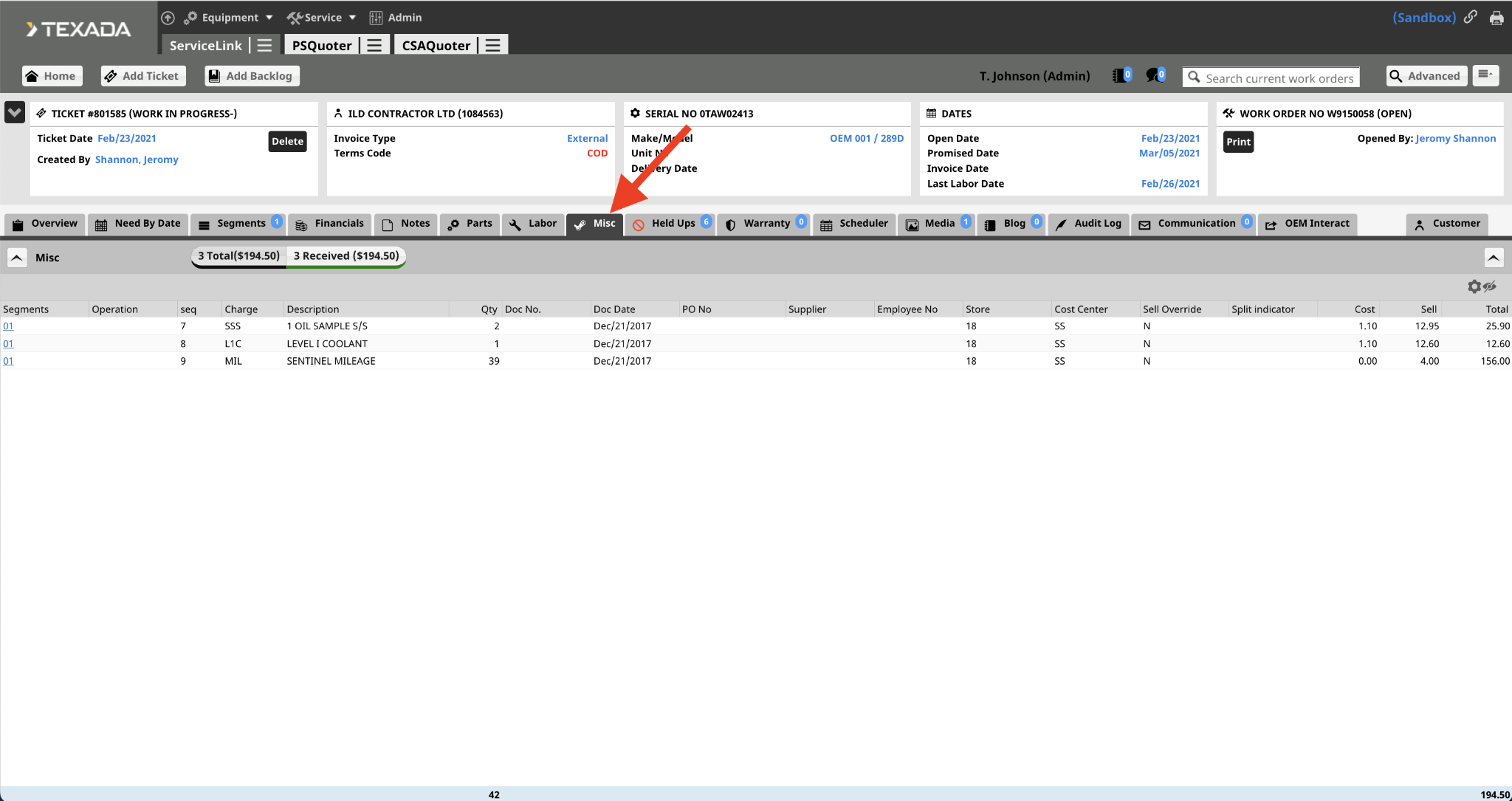
The Misc tab serves as a central repository for all Miscellaneous items recorded across every Segment and Operation within the Ticket. This view allows you to quickly audit Miscellaneous items without navigating to individual Segments. New Miscellaneous items cannot be added here; this can be done via the Segments tab.
Navigating the Misc View
- Filter by Category: Select any of the category tabs at the top of the page to filter the Miscellaneous displayed. The number next to each label indicates the Ext Amount price for each category.
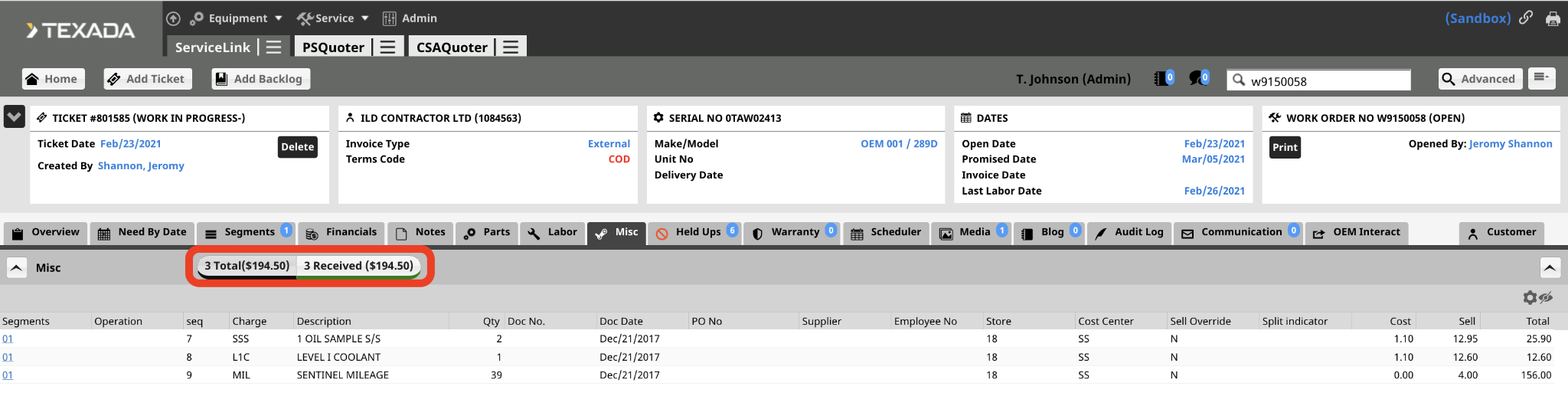
- View Customization: Use the Eye icon to adjust your columns.
- Total: The blue row on the bottom of the page shows the totals for the Quantity and Total columns.
Columns
- Segment: Displays the Segment number. Click the link to view details in the Segments tab.
- Operation: Displays the Operation number. Click the link to view details in the Segments tab.
- Seq: The sequence number assigned by the ERP system once labor is approved to uniquely identify the entry.
- Charge: The charge code for the entry. This dictates the specific cost and sell parameters.
- Description: A brief explanation or name for the Miscellaneous charge.
- Qty: The total quantity associated with the entry.
- Doc No: Displays document numbers for specific charges, such as freight costs associated with expediting backordered parts.
- Doc Date: The specific date associated with the transaction or document. PO No: The Purchase Order number associated with the entry.
- Supplier: The vendor or supplier providing the service or item.
- Employee No: The identification number of the employee associated with the charge. Store: The store assigned to the entry.
- Cost Center: The cost center assigned to the entry.
- Sell Override: Displays Y if the sell price was manually entered; displays N if the price was system-calculated.
- Split Indicator: Displays H or S if the entry is split between the Header and Segment customer. This remains blank if no split exists.
- Cost: The raw cost of the entry.
- Sell: The price charged to the customer for the entry.
- Total: A system-calculated value determined by multiplying Sell by Qty.
- Blank: If an entry is eligible for changes, an Edit icon will appear here. Select this icon to modify the entry details.