In This Article
Introduction
This tab shows the technicians and bays that are scheduled for the job. It is set up the same way as the main schedule views on the home pipeline screen. You can review the Scheduler - Tickets / Technicians / Bays page in this guide for full details on managing your shop timelines.
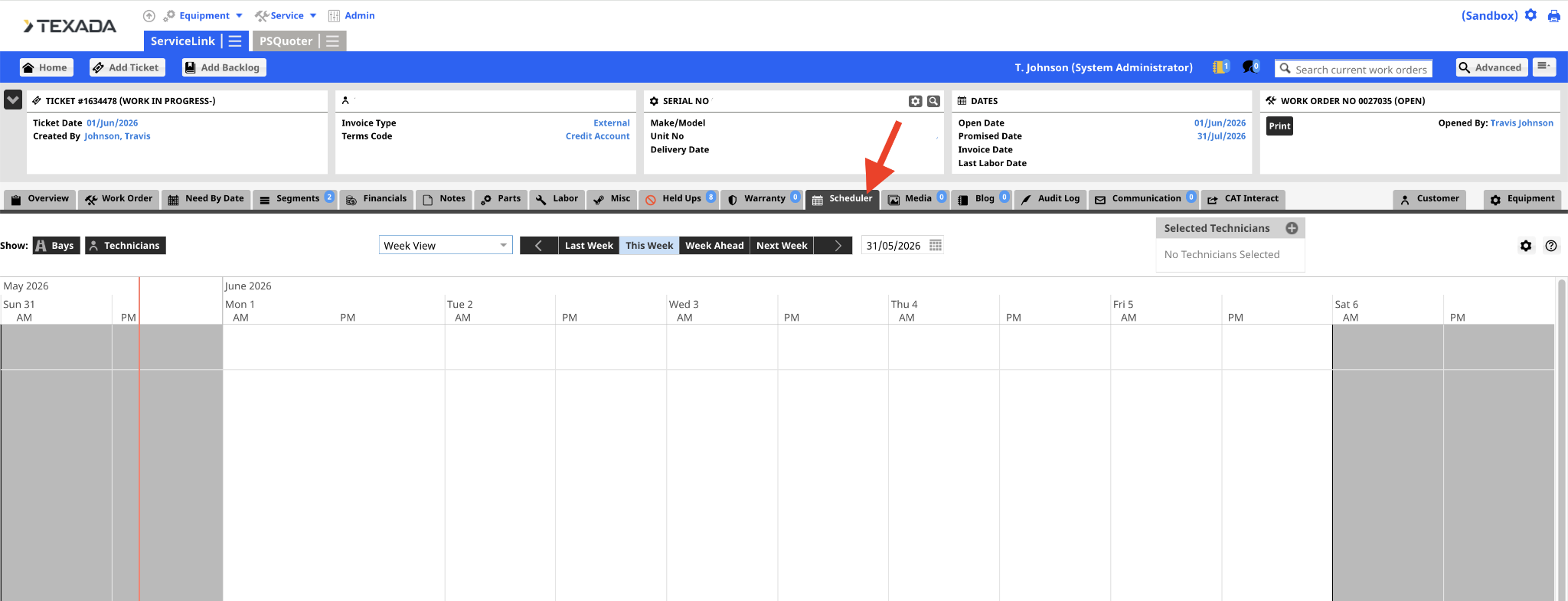
You can schedule a bay or a technician to the job using a simple drag-and-drop process:
Schedule Bays or Technicians
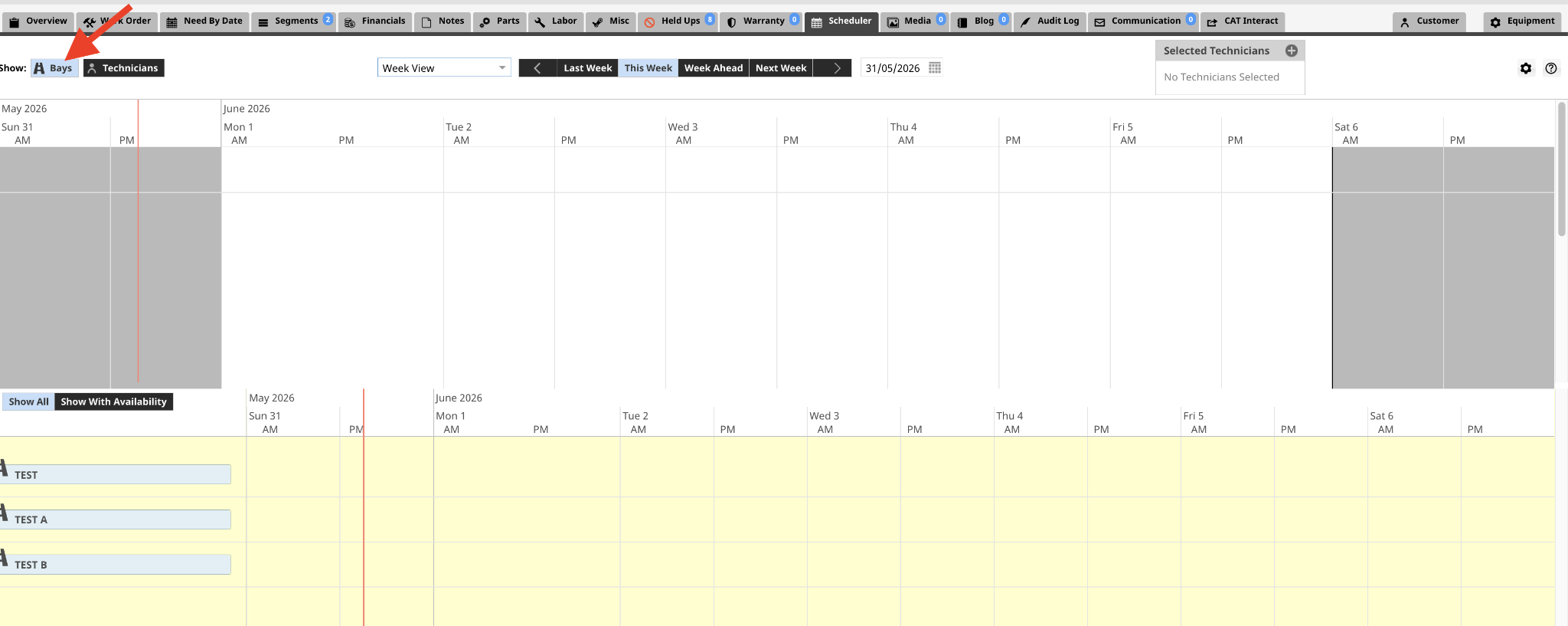
- Select the Bays or Technicians button above the grid to display a list of individual shop bays.
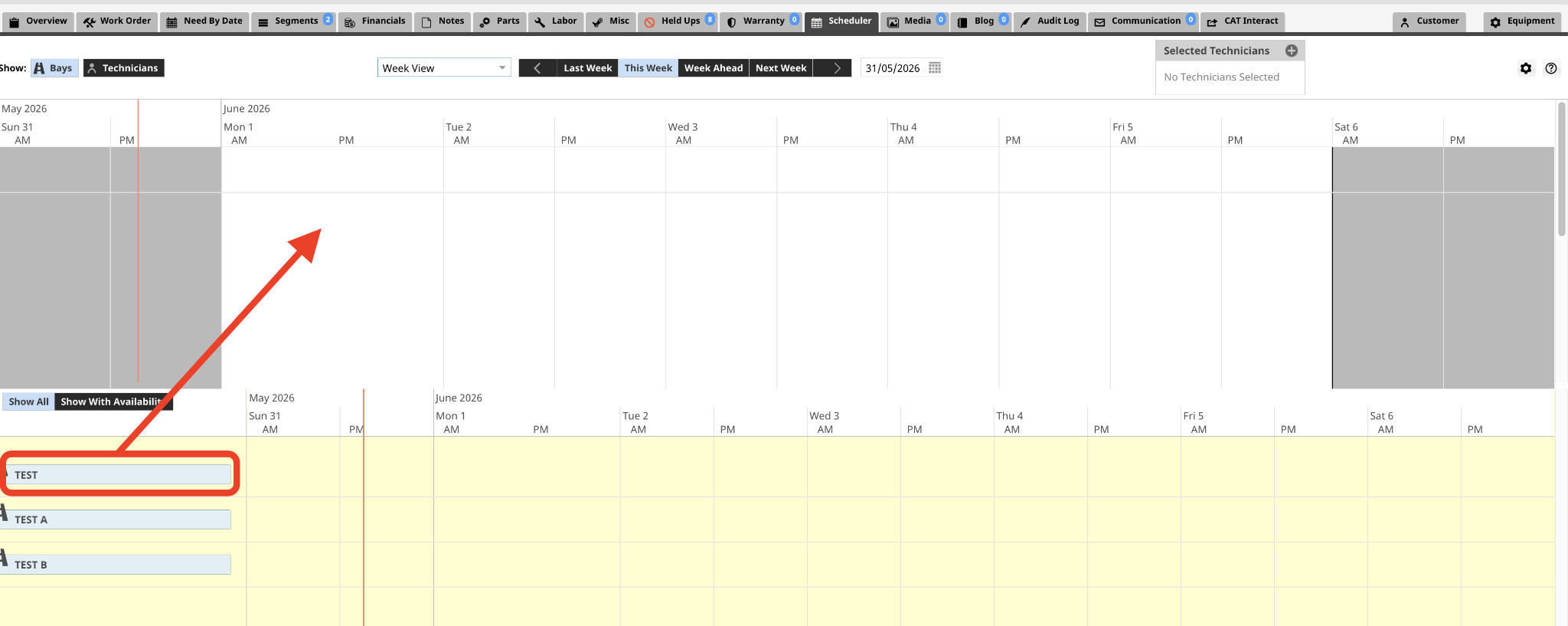
- Select and hold the desired bay from the list, drag it onto the calendar day you want, and drop it into place.
- A configuration pop-up window will appear. Fill out the required assignment information and select Save.
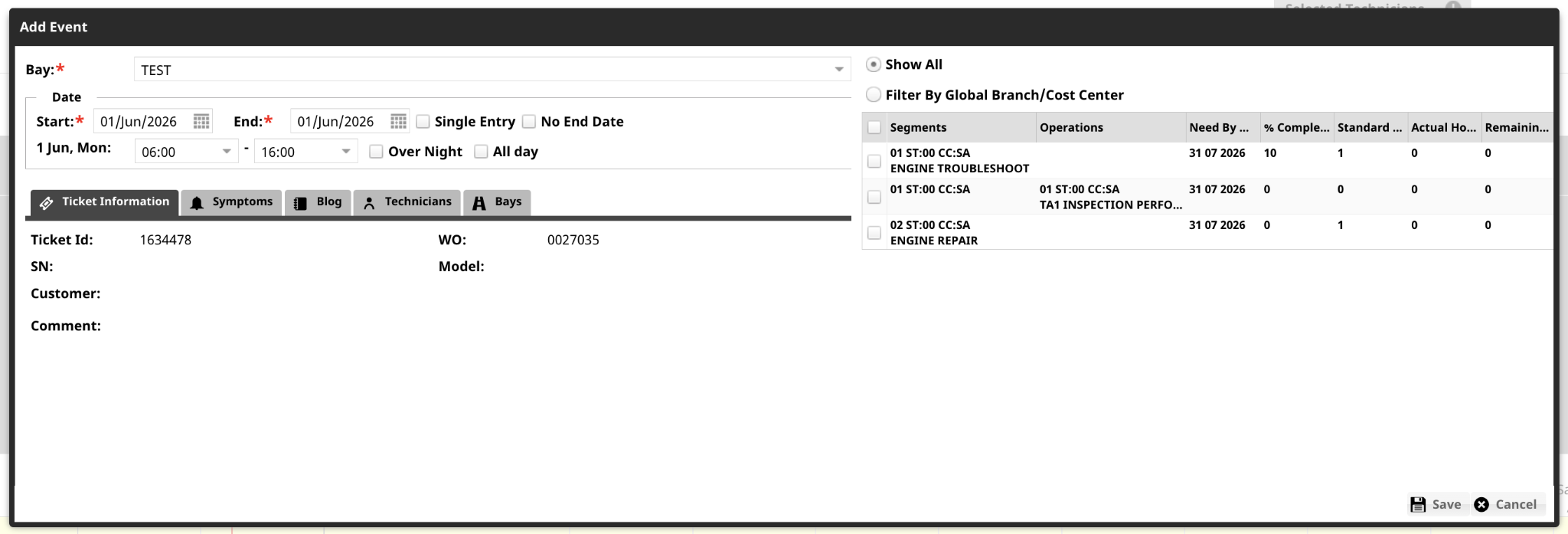
Alternative: Right-Click Method
Instead of dragging and dropping, you can right-click anywhere directly inside the schedule grid on the day you want and choose Add New Event. This will open the assignment pop-up window, allowing you to manually search for and fill out the technician or bay information.
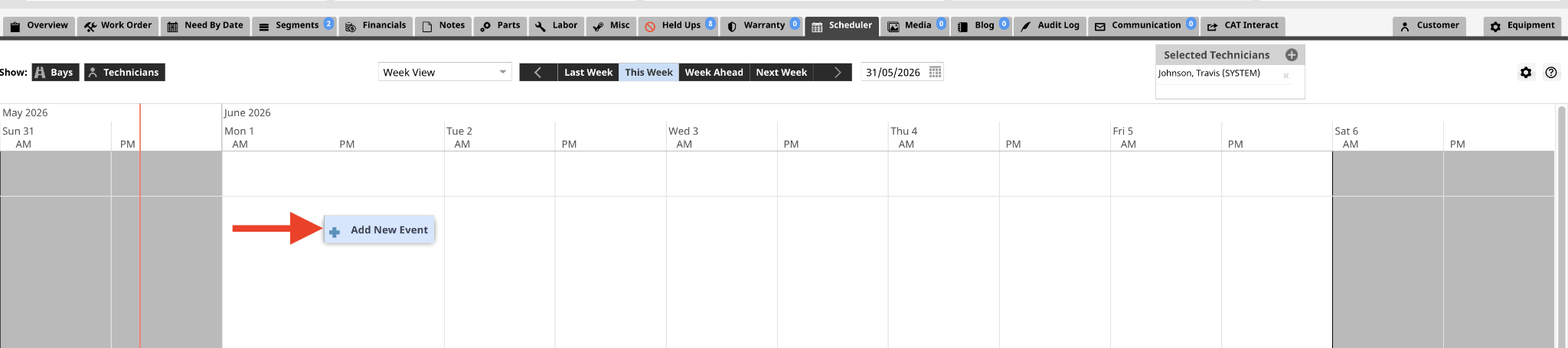
Filtering the Schedule View
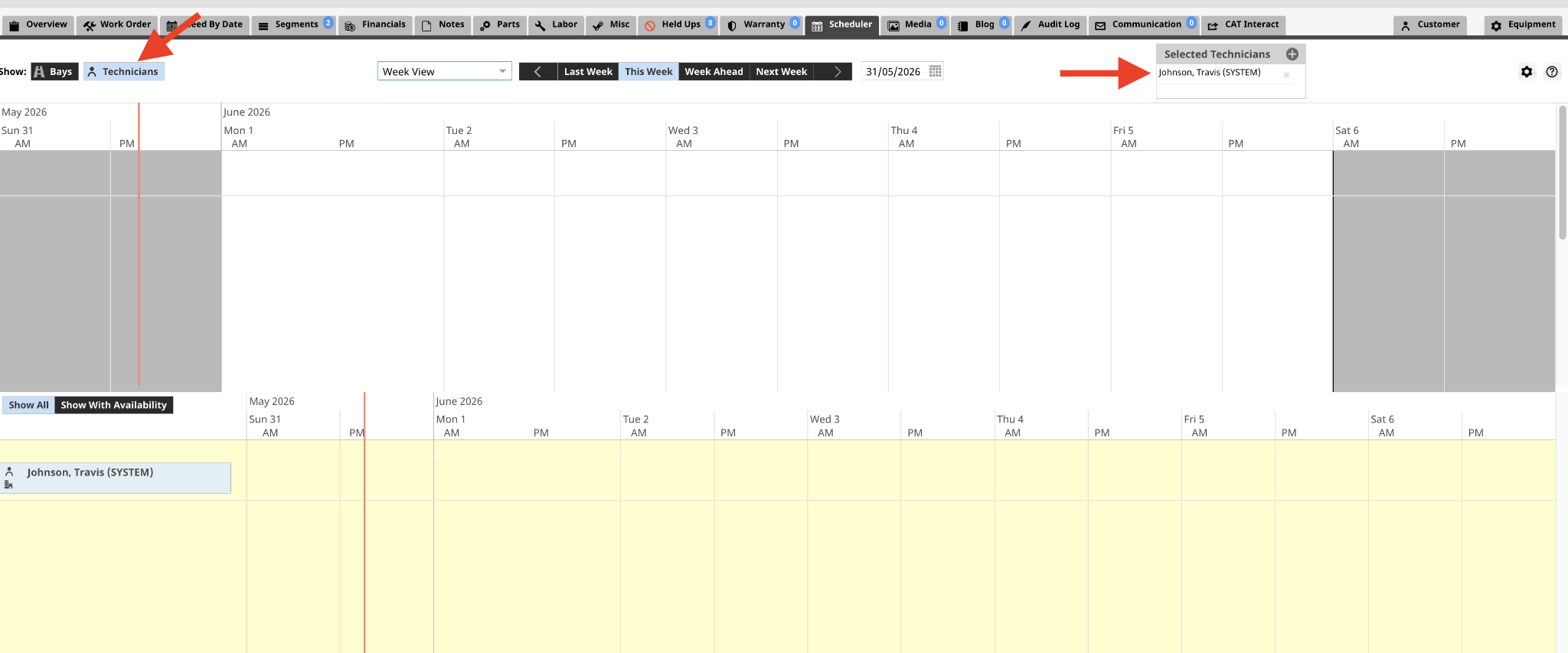
- Selected Technicians: If you are managing a large shop and only want to focus on specific people, you can select individual names in the Selected Technicians section. This filters your view so that only those specific technicians show up in the grid, making it much cleaner and easier to schedule your team.