
In This Article
Introduction
The Media tab allows you to store files directly to a Ticket.
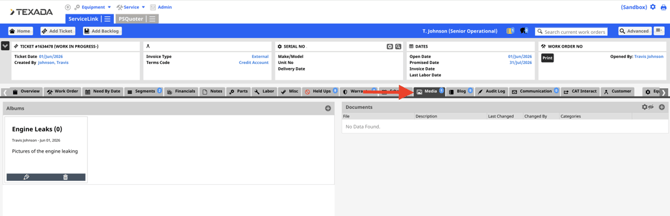
This tab consolidates all your visual and text documentation, organized into two main sections:
Albums Section
- Purpose: Optimized specifically for image files such as photos captured in the field or shop.
- File Size Limit: 50 MB per file
- Supported Types: TIFF, PNG, JPEG, ETC
Documents Section
- Purpose: Versatile section used to upload a wide array of business and customer documents.
- File Size Limit: 500 MB per file
- Supported Types: Broad range of file types
How to Add Content to the Media Tab
Adding to the Albums Section
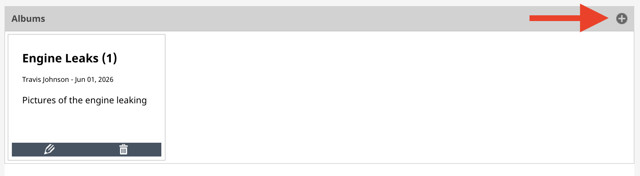
- To build a new folder, select the + (Plus) icon in the upper corner, fill out the mandatory Album Name field, and select Submit. Note that a folder is needed to upload photos.
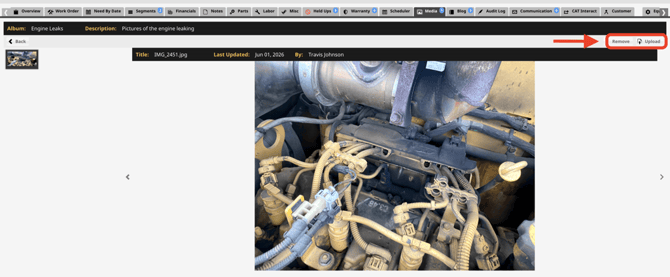
- Click into the folder and you can view the photos within the folder, Remove photos, or Upload new ones.
Adding to the Documents Section
- To upload files, navigate to the Documents section and select the + (Plus) icon in the upper corner.

- Drag and drop your file or use the Browse feature to look for it on your computer.
- To Edit the description or Delete the document, select the Pencil and Paper or the Red Circle.

Some features will automatically add a file to this section. There is a configuration key to automatically add a Parts Return document here when one is generated.