
In This Article
- Introduction
- What is Data Quality Enforcement?
- In Equipment CRM
- In Equipment CRM Mobile
- Configuration
- Appendix A: Data Enforcement Rules
Introduction
Data Quality Enforcement is a new feature for Equipment CRM (SalesLink) and Equipment CRM Mobile (SalesLink Flex) that helps dealerships improve the quality and consistency of company and contact data at the point of entry.
By applying stricter validation rules when users add or edit records, this feature helps reduce incomplete or incorrectly-formatted data and supports cleaner reporting and follow-up activity.
What is Data Quality Enforcement?
When enabled, Data Quality Enforcement adds validation rules to company and contact records when users modify them in Equipment CRM. If any field fails validation, the record cannot be saved until the issue is corrected.
Data Quality Enforcement applies to records of the following types:
- Company/customer records
- Prospect records
- Contact/influencer records
Data validation will be performed both when creating new records and editing existing records. See Appendix A for a comprehensive list of affected fields and the rules used to perform validation on them.
Data validation is only performed on data entered directly in Equipment CRM. It is NOT performed on data imported into Equipment CRM from your organization’s ERP (e.g. DBS) or via the Bulk Import Prospects tool.
If an imported record contains invalid data, users will be required to correct that data before saving changes to the record in Equipment CRM.
In Equipment CRM
Adding and Editing
In Equipment CRM, Data Quality Enforcement applies anywhere users can add or edit company or contact information. This includes company/customer and prospect records, as well as contact/influencer records. It also applies to temporary customer entry and other views where these records can be modified.
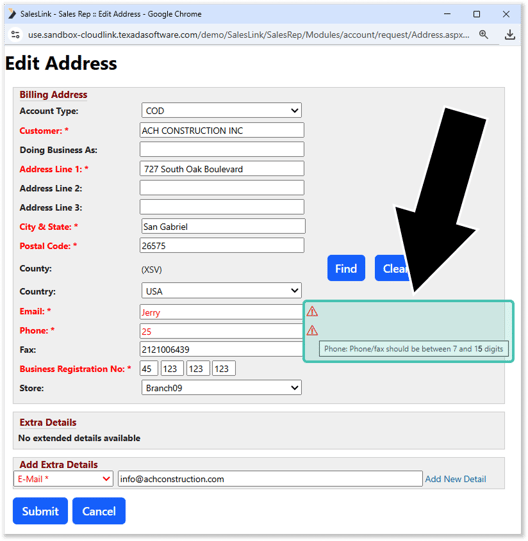
In the above example, the user has entered an invalid Email address and Phone number when editing a customer record. The invalid records are indicated by a red triangle symbol  . Hover your mouse over this symbol to see more information on why a value was rejected; for example, the Phone number field requires a value between 7 and 15 digits long.
The Customer Information Screen
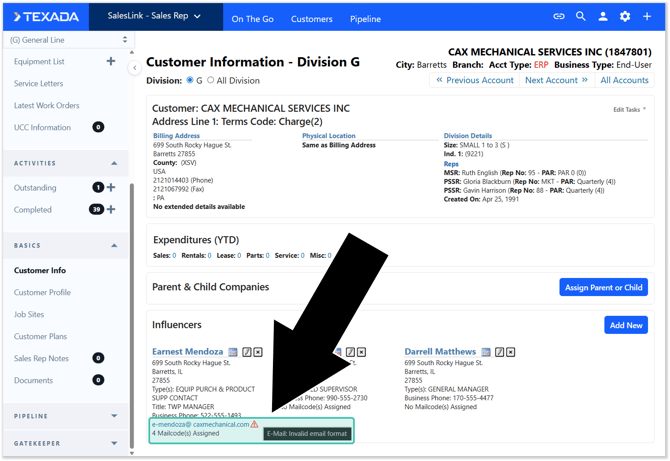
Invalid data will also be flagged on the Customer Information screen. Hover your mouse over any red triangles you see to learn more about why a given record was flagged.
In Equipment CRM Mobile
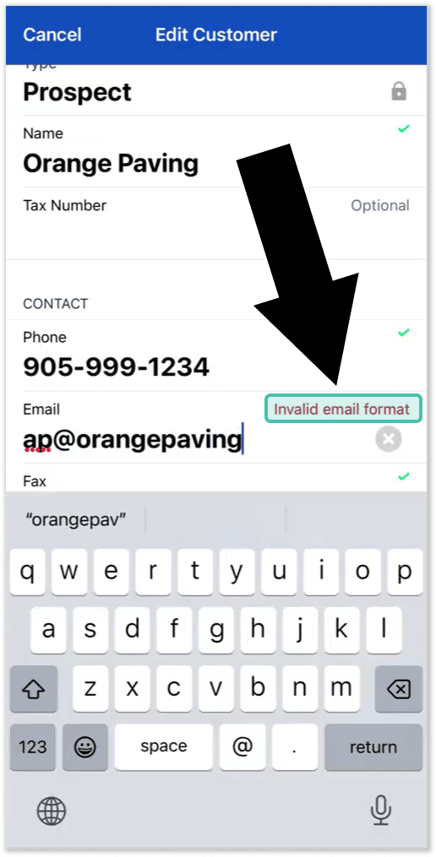
Data Quality Enforcement also applies in Equipment CRM Mobile. Data validation will be performed in real time as the user modifies company or contact information, and invalid records will be flagged with red text indicating why the value is invalid:
Configuration
The following section details how Data Quality Enforcement and related features can be configured. For more information on modifying configuration keys in CloudLink Console, see “Manage Configuration Keys”.
Enforce Strict Data Quality Rules in Company and Contact (Influencer) Records
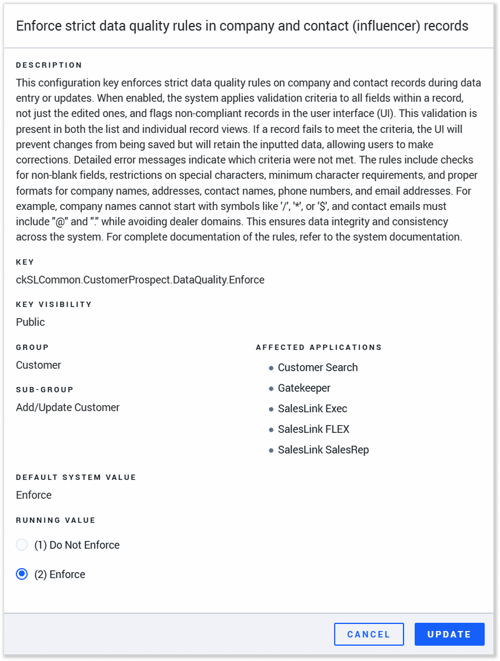
Data Quality Enforcement can be enabled and disabled via the Enforce strict data quality rules in company and contact (influencer) records (ckSLCommon.CustomerProspect.DataQuality.Enforce) configuration key in CloudLink Console. This key has two possible values:
- (1) Do Not Enforce: Data quality is not enforced.
- (2) Enforce: Data quality is enforced in Equipment CRM and Equipment CRM Mobile.
The default value of this configuration key is Do Not Enforce. If you want to enforce data quality in your system, you will need to opt in by enabling this key.
Data Quality Enforcement Account Scope
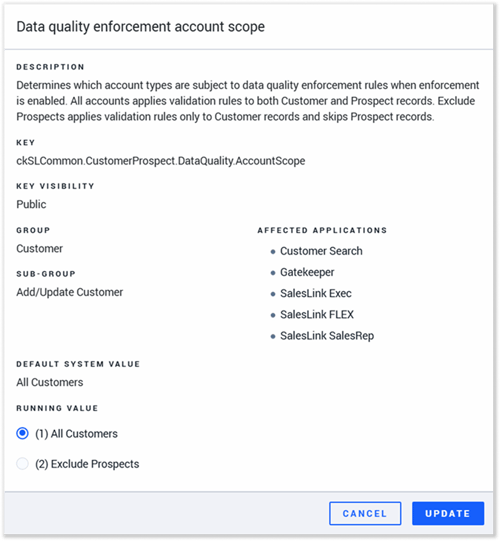
The Data quality enforcement account scope (ckSLCommon.CustomerProspect.DataQuality.AccountScope) configuration key determines which account types are subject to data quality enforcement rules when enforcement is enabled. This key has two possible values:
- (1) All Customers: Data quality enforcement rules apply to both Customer and Prospect records.
- (2) Exclude Prospects: Data quality enforcement rules apply only to Customer records. Prospect records are exempt.
Contact Step Visibility During Customer Creation
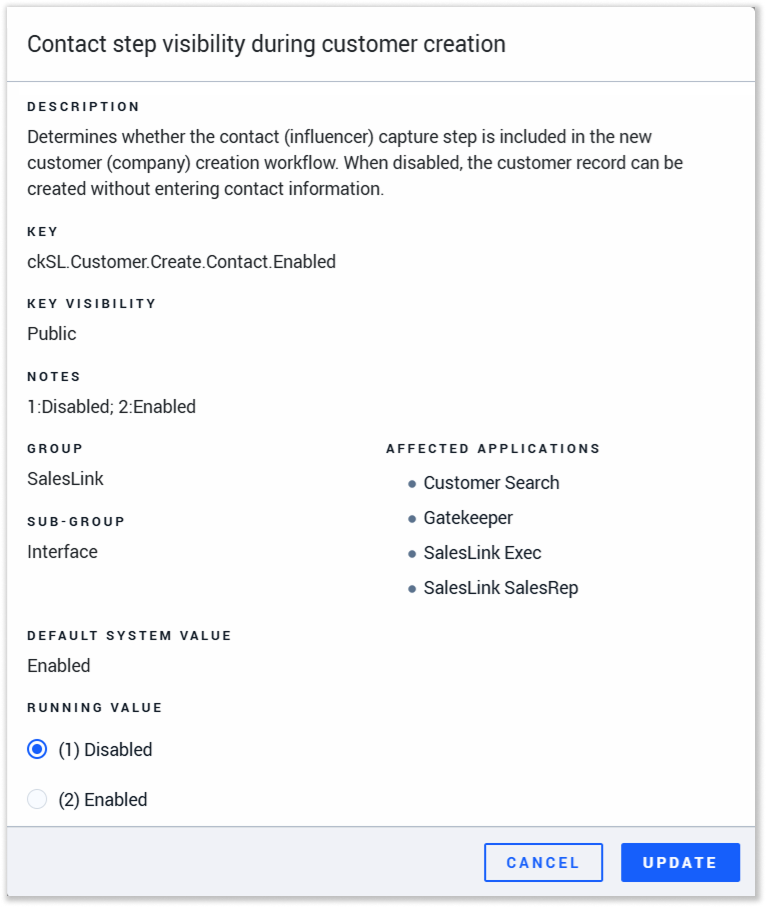
The Contact step visibility during customer creation (ckSL.Customer.Create.Contact.Enabled) configuration key determines whether the contact (influencer) capture step is included in the new Customer creation workflow. When disabled, Customer records can be created without entering contact information.
Data quality enforcement at the contact level only applies during Customer creation when this key is set to Enabled. When this key is Disabled and the contact capture step is hidden, contact data quality enforcement during Customer creation will NOT apply.
Compatibility with Existing Configuration Keys
A number of configuration keys for enforcing data requirements already exist in CloudLink Console. For example, the Customer Address1 field mandatory (ckSLCommon.CustomerProspect.Mandatory.Address1) key makes the “Address Line 1” field mandatory when editing a customer’s billing address.
Data Quality Enforcement is fully compatible with all existing data enforcement configuration keys. If multiple such keys are enabled, the strictest possible data requirements will be enforced. In other words, data entered in Equipment CRM must fulfill the requirements of all enabled configuration keys.
To ensure your system behaves as expected, Texada recommends reviewing your current configurations before enabling Data Quality Enforcement.
To modify the mandatory status of the E-Mail field under “Add Extra Details” on the Add New Customer screen, please contact Texada support with reference number CLA-42341.
Appendix A: Data Enforcement Rules
This appendix lists the fields affected by Data Quality Enforcement, and the requirements they must meet in order to be valid. These rules are informed by Caterpillar’s Digital Excellence Program (Dealer Trifecta) and cannot be modified.
Company Name
- Mandatory (cannot be null or blank)
- Cannot contain more than 2 spaces in a row
- Cannot start with /, *, or $
Company Phone, Office Phone, Mobile Phone, and Fax
- Optional (may be null or blank)
- Cannot start with /, *, or $
- Must be numeric, though these characters are allowed: #, x, ext, ., -, (, ), +
- Cannot be fewer than 7 digits
- Cannot be more than 15 digits
- Cannot consist of repeating digits only (for example, 333-3333)
- Cannot start with an alphabetic character
Company Email
- Optional (may be null or blank)
- Must contain exactly one “@” symbol separating the username and domain
- Username (before the “@”) must be at least one character long and can include letters, numbers, and the following symbols: ., _, %, +, -
- Domain (after the “@”) must be at least one character long and can include letters, numbers, and the following symbols: ., -
- Domain cannot be the same as the current user’s
- Must contain at least one period “.” after the domain name
- The domain extension (after the final period “.”) must contain only letters and be at least 2 characters long
- Cannot contain any extra characters before the start or after the end of the email address
Company Address Lines 1, 2, and 3
- Mandatory (at least one of the three address lines must be populated)
- Address lines cannot start with /, *, or $
Company City, State, Country
- Mandatory (cannot be null or blank)
- Cannot start with /, *, or $
- Cannot start with a non-alphabetic character
Company Postal Code
- Mandatory (cannot be null or blank)
- Cannot start with /, *, or $
Contact Name
- Mandatory (cannot be null or blank)
- Cannot start with /, *, or $
- Must be greater than 3 characters and include at least one space for first and last name
- Cannot be all numeric
- Cannot be all special characters
- Cannot be a mixture of only numeric and special characters
Contact Business Phone, Mobile Phone, and Phone
- Mandatory (cannot be null or blank)
- Cannot start with /, *, or $
- Must be numeric, though these characters are allowed: #, x, ext, ., -, (, ), +
- Cannot be fewer than 7 digits
- Cannot be more than 15 digits
- Cannot consist of repeating digits only
- Cannot start with an alphabetic character
Contact Email
- Mandatory (cannot be null or blank)
- Must contain exactly one “@” symbol separating the username and domain
- Username (before the “@”) must be at least one character long and can include letters, numbers, and the following symbols: ., _, %, +, -
- Domain (after the “@”) must be at least one character long and can include letters, numbers, and the following symbols: ., -
- Domain cannot be the same as the current user’s
- Must contain at least one period “.” after the domain name
- The domain extension (after the final period “.”) must contain only letters and be at least 2 characters long
- Cannot contain any extra characters before the start or after the end of the email address
Contact Title
- Mandatory (cannot be null or blank)
- Cannot start with /, *, or $
- For English titles, must not be fewer than 3 characters
- Cannot be all numeric
- Cannot be all special characters
- Cannot be a mixture of only numeric and special characters