In This Article
- Introduction
- Overview of Changes
- New Login Process
- Step 1: Enter Email Address
- Step 2: Select Tenant and Environment
- Step 3: Single Sign-On (SSO) Authentication
- Differentiating Between Production and Sandbox
- Previewing Mobile Changes
Introduction
A new login experience is coming to two of Texada’s mobile applications: Equipment CRM Mobile (SalesLink Flex) and Service Management CD Mobile (ServiceLink Flex)!
This update simplifies the authentication process and unifies the mobile Production and Sandbox environments into a single application.
Overview of Changes
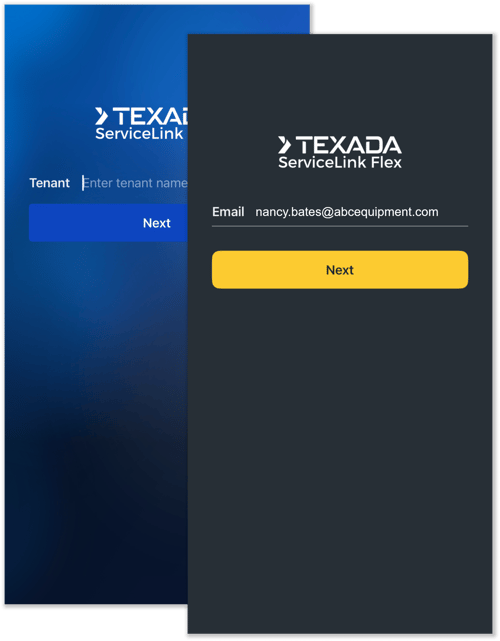
With this update, the old tenant-based login process is being replaced with an email-based authentication model. This change comes with three major benefits:
- Email-Based Login: Users will now login by entering their email address instead of a tenant code. This means that users with access to multiple tenants no longer need to remember several different codes.
- One App for All Environments: Users no longer need to download separate Sandbox and Production applications. One application is now used for both environments. The existing Sandbox applications will be discontinued.
- Persistent Logins: Users can now remain logged in for an extended period of time. It is no longer necessary to re-enter login credentials on every launch.
These changes are designed to bring Equipment CRM Mobile and Service Management CD Mobile’s login flows in line with other Texada products, specifically the Global Landing Hub.
As of this update, the existing Equipment CRM Mobile and Service Management CD Mobile Sandbox applications will be discontinued. We recommend uninstalling these applications, as they will no longer be updated.
For information on how you can preview upcoming changes to our mobile applications, see Previewing Mobile Changes.
New Login Process
The new login process for Equipment CRM Mobile and Service Management CD Mobile is as follows.
Step 1: Enter Email Address
Launch the Equipment CRM or Service Management CD mobile application. On the initial login screen, enter the email address associated with your account and tap Next.
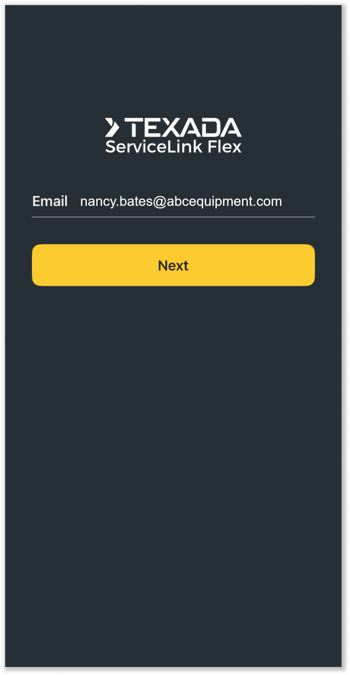
The application will determine your access rights based on the entered email address:
- Users with access to multiple tenants or environments will be able to select which tenant and environment to log in to (Step 2).
- Users with access to a single tenant and environment will progress directly to SSO authentication (Step 3).
Step 2: Select Tenant and Environment
If the account you entered in Step 1 has access to multiple tenants or environments, you will see the following screen:
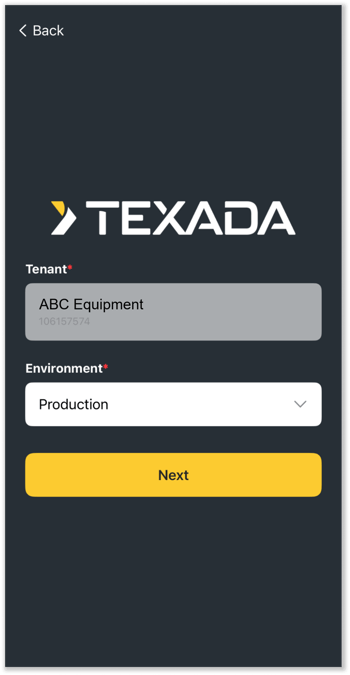
- Tenant: Select the tenant (company) to which you want to log in.
- Environment: Select either Production or Sandbox to log in to that environment.
If only one option exists for either of these fields, the field will be pre-selected and grayed out.
Once you have made your selections, tap Next.
Step 3: Single Sign-On (SSO) Authentication
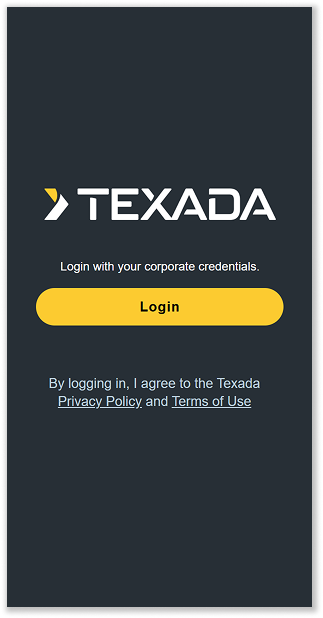
You will now be able to login using your organization's authentication provider. Enter your credentials as prompted by your provider to finish logging in.
Differentiating Between Production and Sandbox
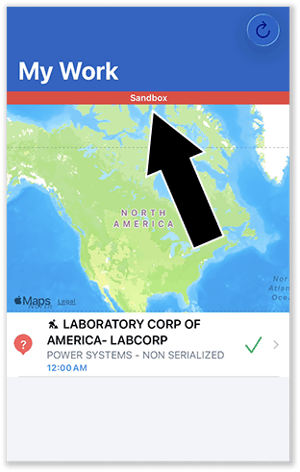
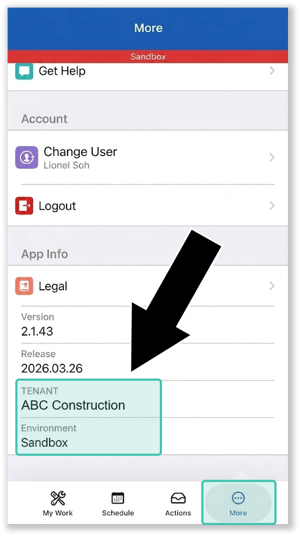
Since Equipment CRM Mobile and Service Management CD Mobile now include both Production and Sandbox environments in a single application, changes have been made to make it clear which environment the user is currently in.
When in Sandbox, a red Sandbox banner will appear at the top of all screens (left). You can also review your current tenant and environment at any time via the More tab (right).
Previewing Mobile Changes
As of this update, the Equipment CRM Mobile and Service Management CD Mobile Sandbox applications will be discontinued. However, you can still preview upcoming changes to these applications by joining the beta programs via Apple TestFlight (iOS) or the Google Play store (Android):
- TestFlight (iOS): These beta programs are open to anyone. To join a TestFlight beta program, select the appropriate link from the table below, then follow the provided instructions.
- Google Play Store (Android): These beta programs are invite-only. If you are interested in joining one of these programs, please contact Texada support. Once you have been added to the beta program, you will be able to download the beta version of the application from its Play Store link below.
|
Application |
iOS |
Android |
|
Equipment CRM Mobile |
||
|
Service Management CD Mobile |