In This Article
- Introduction
- How it Works
- Document Designer
- Using Document Designer
- Using Custom Templates in Parts & Service Quoting
Introduction
Texada is pleased to announce that support for custom document generation is coming to a number of Texada products!
Generating formatted PDF documents to share with customers is a key piece of functionality in many Texada products. Previously, the layout and contents of these documents could only be changed by Texada staff. With this update, Texada is adding new tools to give your staff the ability to create custom documents on their own!
Custom document generation is currently supported for Quote documents in Parts & Service Quoting. Support for additional products and documents will be added in future releases.
How it Works
Many Texada products are capable of generating documents such as quotes and service agreements. With the introduction of document generation, Texada will still provide the default templates for these documents, but your staff will have the ability to copy these System templates to create new Custom templates.
Texada may intermittently update the provided System templates to reflect product changes. Custom templates will not be affected by these updates.
Document Components
Each document can be thought of as a combination of two entities: a template and a JSON entry. A document’s template determines its physical appearance, while a document’s JSON entity determines which data fields it uses.
|
Template |
JSON Entry |
|
|
Example Structure
The below diagram illustrates the relationship between templates and JSON entries:
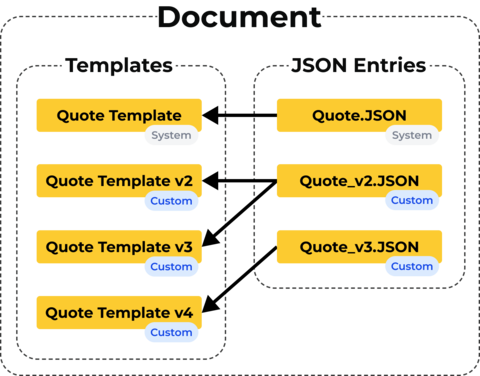
In this example, four templates and three JSON entries exist for a document. The original Quote Template and Quote.JSON are System objects, provided by Texada staff. The remaining three templates and two JSON entries are Custom, created from copies of the System objects.
The Quote Template uses the Quote.JSON JSON entry. Both the Quote Template v2 and Quote Template v3 use the Quote_v2.JSON JSON entry. Quote Template v4 uses the Quote_v3.JSON JSON entry.
Document Designer
Both templates and JSON objects can be managed via a new tool called Document Designer.
Location
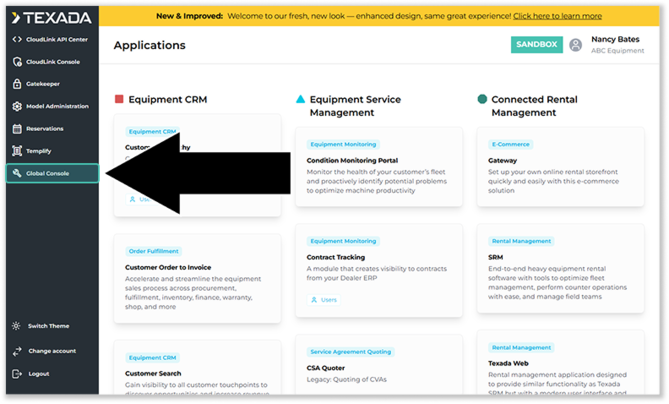
Document Designer can be accessed from the Global Console, which in turn can be reached from the Global Landing Hub.
- Log in to the Global Landing Hub and select “Global Console” from the left navigation menu.
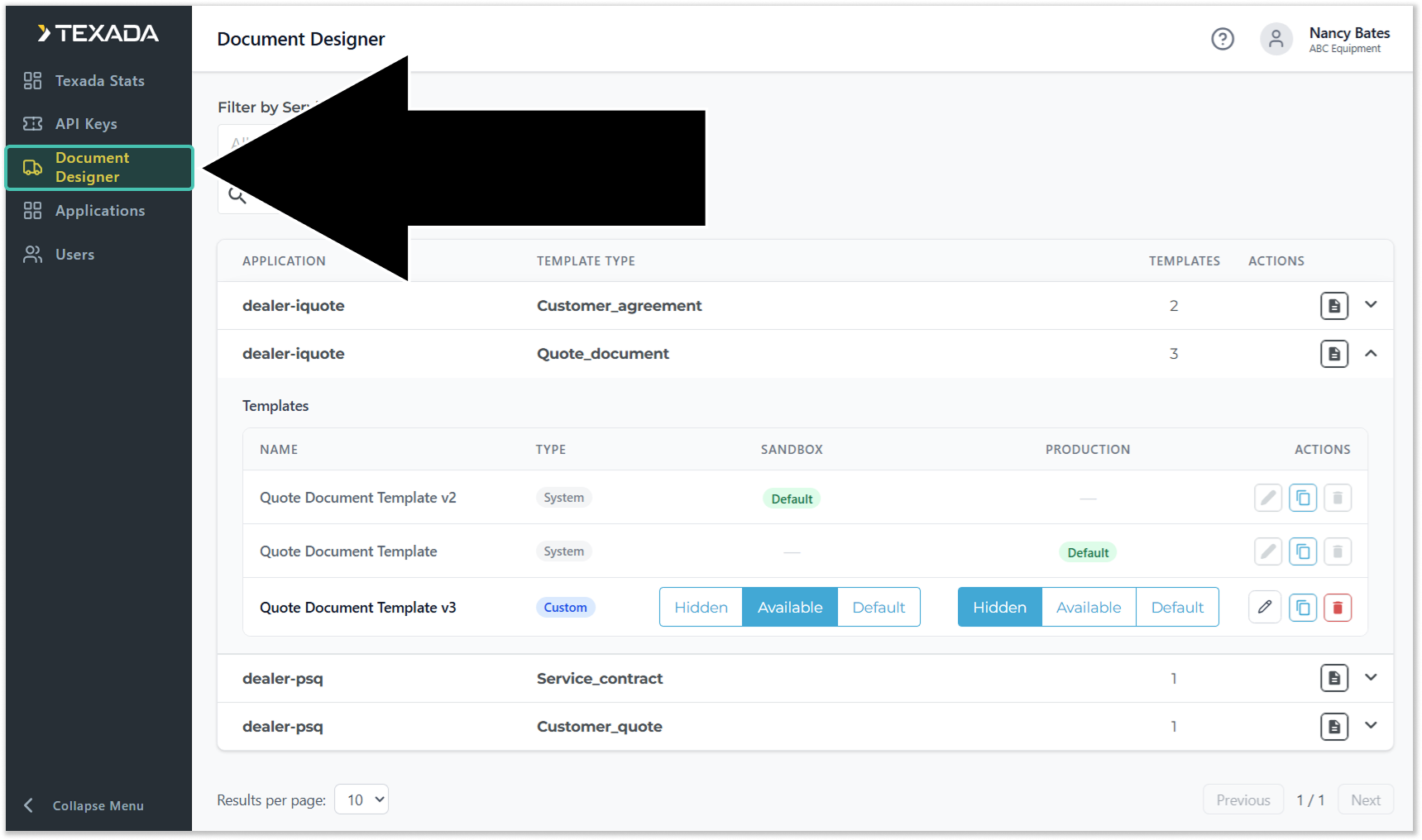
- Select “Document Designer” from the left navigation menu.
Permissions
In order to access Document Designer, you must possess the “Document Generation Administrator” permission. This permission can be granted by a CloudLink administrator via the Global Console itself:
- Log in to the Texada Global Console and select “Users” from the left navigation menu.
- Enter the name of the user you’d like to edit into the search bar, then click the pencil icon
 next to their name.
 - Click the “Add access to app” button, then select the following options:
- Application: global-console
- Role: Document Generation Administrator
- Click “Add role” to save your changes.
The user should now see the “Document Designer” option in the left navigation menu of the Texada Global Console. If not, try logging out and back in to the Global Landing Hub.
Using Document Designer
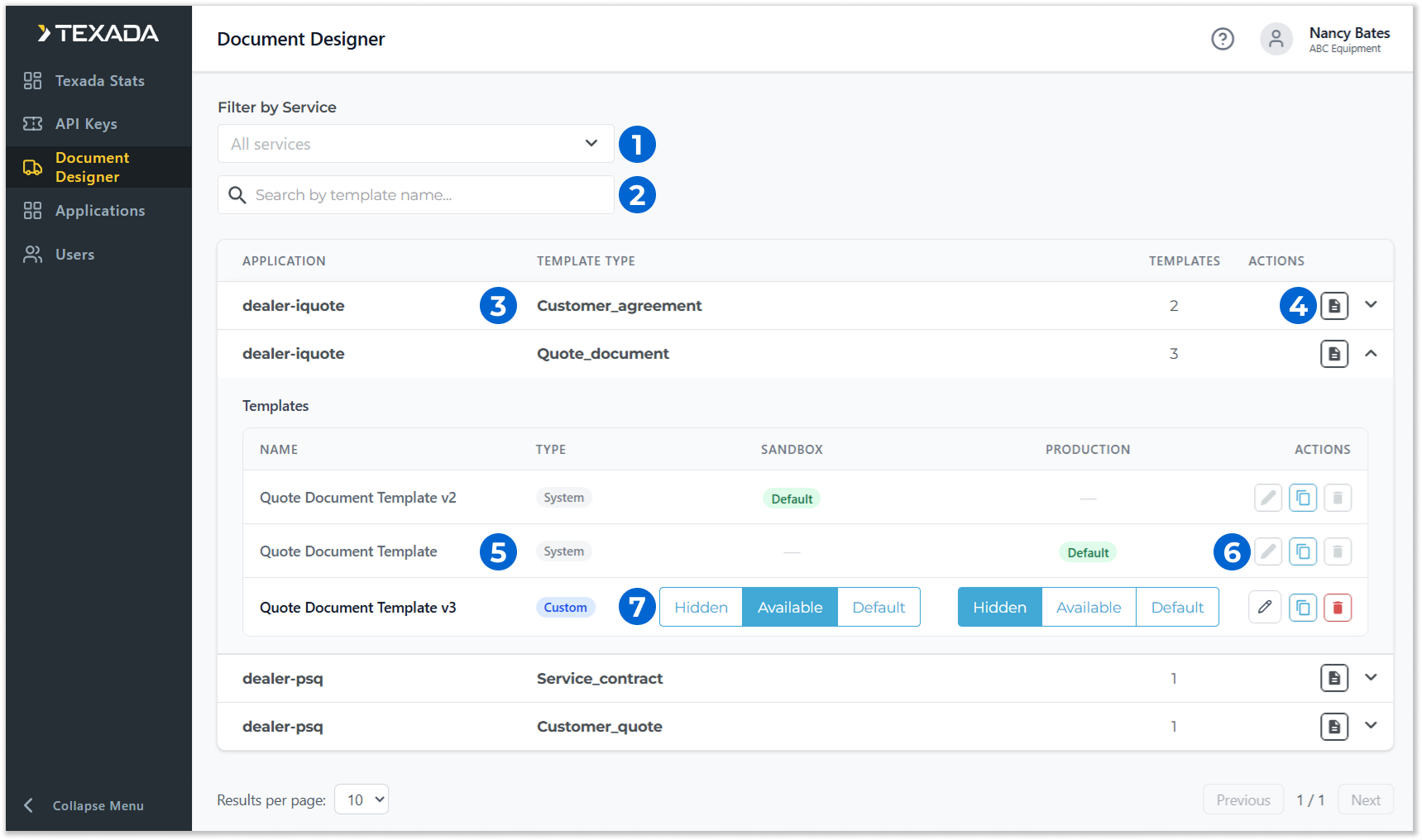
- Filter by Service
Select one or more Texada applications from the drop-down to view templates for those products. - Search Bar
Begin typing into the search bar to filter the list of templates by name. - Template List
Templates used for document generation are listed here. Templates are grouped under the document to which they belong; click on a document to expand its template list.- Application: The Texada application in which the document appears.
- Template Type: The document’s name.
- Templates: The number of templates that currently exist for the document.
- Update Template JSON Button
Click to edit the JSON entries available for the document. See “Update Template JSON” for more information. - Template
Click on a document to list its current templates.- Name: The template’s name.
- Type: Indicates whether the template is a System template (i.e. created by Texada staff) or a Custom template (i.e. created by a user at your organization).
- Sandbox: The current status of this template in your Sandbox environment. Click on one of the buttons to update the template’s status.
- Hidden: This template is not available in your Sandbox environment.
- Available: This template is available in your Sandbox environment.
- Default: This is the default template for your Sandbox environment. Only one template can be the default for each environment; setting a new template as Default will automatically deselect the previous one.
- Production: The current status of this template in your Production environment. Click on one of the buttons to update the template’s status.
- Hidden: This template is not available in your Production environment.
- Available: This template is available in your Production environment.
- Default: This is the default template for your Sandbox environment. Only one template can be the default for each environment; setting a new template as Default will automatically deselect the previous one.
- Template Actions
Use the buttons under the “Actions” column to manage a template.- Edit: Click to edit a template. See “Edit Template” for more information. System templates cannot be edited.
- Copy: Click to duplicate a template. This is useful for creating editable copies of System templates, or for making changes to an active template in a risk-free way.
- Delete: Click to delete a template. System templates cannot be deleted.
Update Template JSON
Working with JSON files can be technically challenging and is not recommended for users inexperienced with the format.
To prevent data loss, Texada strongly recommends making a copy of each JSON file before editing it.
Click the document icon  next to a document in the list to open the Update Template JSON window. This window allows you to manage a document’s associated JSON entries. This, in turn, will affect which wildcards are available when editing that template. This is useful in situations where your system includes custom fields not present in the default System templates.
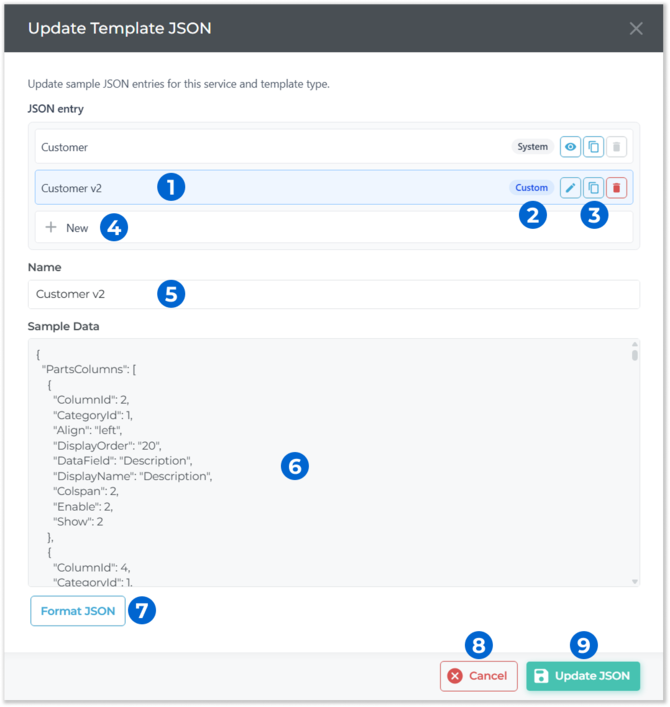
- JSON Entry
Existing JSON entries for the current document are listed here. - Type
Indicates whether the JSON entry is a System JSON entry (i.e. created by Texada staff) or a Custom JSON entry (i.e. created by a user at your organization). - Actions
Use these buttons to manage JSON entries.- View / Edit: Click to load the JSON entry’s name (5) and sample data (6). System JSON entries are view-only and cannot be edited; Custom JSON entries can be edited once loaded.
- Copy: Click to create a copy of the JSON entry. This will have the effect of clicking the “New” button (4) as well as loading the existing entry’s name (5) and sample data (6) so they can be modified.
- Delete: Click to delete the JSON entry.
- New JSON Entry Button
Click to create a new JSON entry. This will blank out the name (5) and sample data (6) fields so new information can be entered. - Name
The JSON entry’s name. - Sample Data
The JSON entry’s contents. - Format JSON Button
Click to automatically format the contents of the sample data field. - Cancel Button
Click to close the Update Template JSON window without saving your changes. - Update JSON Button
Click to save your changes and close the window.
Edit Template
To prevent data loss, Texada strongly recommends making a copy of each template before editing it.
Click the pencil icon  next to a template in the Document Designer to edit it. Editing a template allows you to modify both the document’s appearance and the data it includes.
If multiple JSON entries exist for a document, you will be prompted to select which entry to use. Select the desired JSON entry from the drop-down and click “Continue” to begin editing.
For detailed instructions on using the template editor, please refer to the PDF Generator API knowledge base.
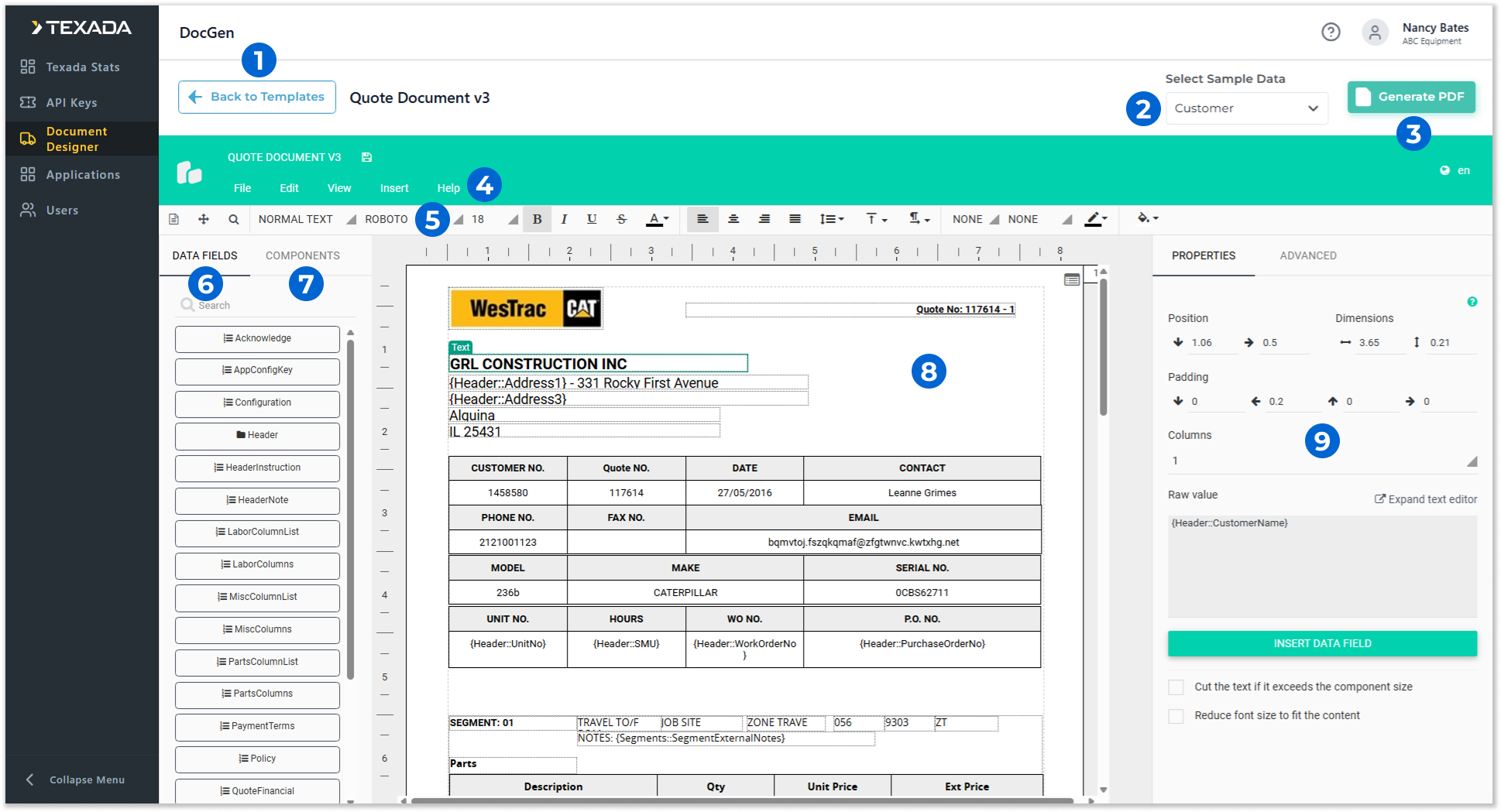
- Back to Templates Button
Click to return to the Template List. - Select Sample Data
This drop-down lists the existing JSON entries for this document. Select a JSON entry from the list to apply it to the current template. This will affect both which wildcards are available via the Data Fields panel (6) and which sample data appears when generating a PDF preview of the template (2). - Generate PDF Button
Click to generate and download a preview PDF of the template. This preview is an accurate representation of what the final document will look like, and can be used for testing. - Top Menu
This menu contains functions for managing the current template, including save, undo/redo, and different view options.
Select Help → Support Portal → All articles to quickly access the PDF Generator API knowledge base. - Toolbar
This menu contains options for editing the template, including font and text styling, alignment, color, and paragraph options. - Data Fields
Click the “Data Fields” tab to open the Data Fields panel. This panel lists all of the data fields (wildcards) that can be inserted into the template based on the JSON entry it is currently using.
Click and drag a wildcard from the Data Fields panel into the editing area (8) to add it to the template. Once added, wildcards can be modified and repositioned just like any other component. - Components
Click the “Components” tab to open the Components panel. This panel contains generic form elements such as text boxes, tables, images, headers/footers, and symbols that can be inserted into the template.
Click and drag a component from the Components panel into the editing area (8) to add it to the template. - Editing Area
The contents of the template are displayed here. Click on a component to select it and load its details into the properties panel (9). Click and drag a component to reposition it. - Properties Panel
The properties of the currently-selected component are displayed here.
Using Custom Templates in Parts & Service Quoting
Custom templates are currently supported for Quotes in Parts & Service Quoting. Support for additional products and document types will be added in future releases.
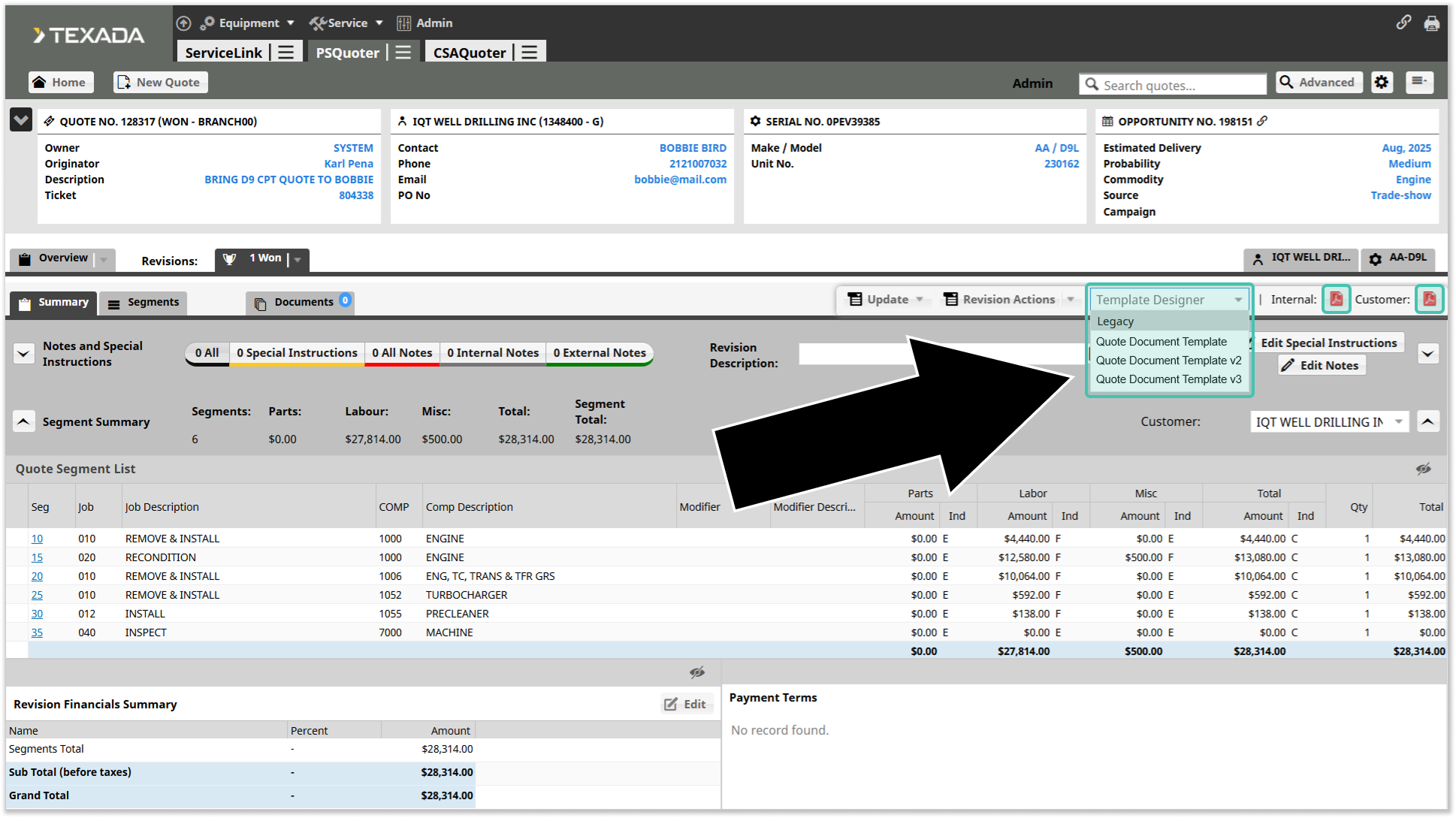
Using custom templates in Parts & Service Quoting is easy. When viewing a Quote’s details, click on the new “Template Designer” drop-down near the top-right corner of the screen. Templates previously created in Document Designer will be listed here. Select the template you’d like to use, then click the PDF download icon  next to “Internal” or “Customer” to download the internal or customer-facing version of that document, respectively.
Select “Legacy” from the Template Designer drop-down to use the original, pre-Document Designer version of the Quote document template.
Custom documents can currently only be printed in PDF format. To print documents in Word or Excel format, switch to the Legacy document.