
In This Article
Introduction
Texada CRM for Outlook is an add-in for Microsoft Outlook that allows users to log Outlook emails as customer activities in Texada's Equipment CRM (CloudLink) platform.
How It Works
When the user opens an email in Microsoft Outlook and clicks Log Activities, the add-in:
- Identifies the email sender/recipients and matches them to contacts (influencers) in Equipment CRM.
- Authenticates the user against their Equipment CRM tenant using SSO (JumpCloud).
- Posts the email as an activity record to the Equipment CRM backend web API.
This is a one-way integration from Outlook to Equipment CRM. Once an email has been converted into an Activity in Equipment CRM, further changes made in Equipment CRM will not be reflected in Outlook.
Prerequisites
|
Requirement |
Detail |
|
Email client |
Outlook on Windows (desktop) or Outlook on the web. (Mailbox 1.8+ for desktop ribbon button, Mailbox 1.1+ minimum.) |
|
Texada platform access |
Access credentials for the Texada platform are required to sign in to the Texada CRM for Outlook add-on. If you are not already a Texada user, contact your internal Equipment CRM administrator for credentials. |
Installation
The best way to enable the Texada CRM for Outlook add-in for your staff is to deploy it via the Microsoft 365 admin center. This option allows your IT team to give the necessary employees access to the application while reducing the risk of installation issues.
To learn more, refer to the following Microsoft help article: Deploy Office Add-ins in the Microsoft 365 admin center.
To install the Texada CRM for Outlook add-in for a single user, follow the steps below.
- In Outlook, select More Apps (grid icon
 ) → Add Apps from the ribbon (top menu) or left navigation menu.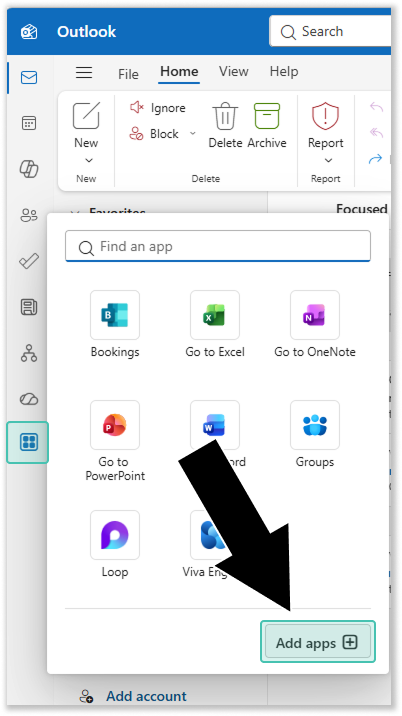
- Search for and install Texada CRM for Outlook from AppSource.
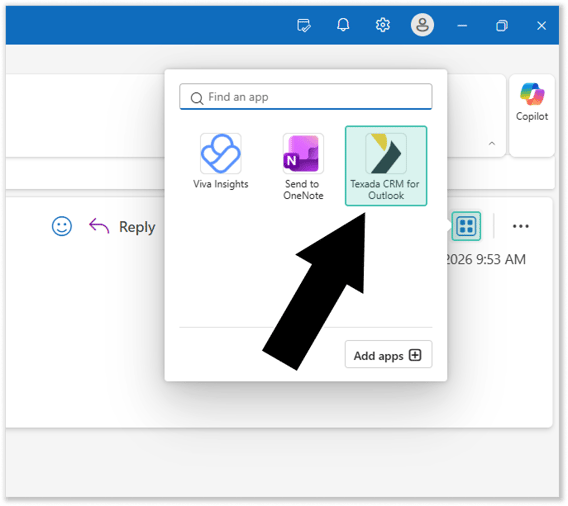
- To verify that the installation was successful, open any received or sent email and click on the Apps icon . Texada CRM for Outlook should appear in the list of available apps.
Log an Email as an Activity
Once you have installed the Texada CRM for Outlook add-in, you can start logging Outlook emails as Equipment CRM activities. To do this, follow the steps below.
- Open a sent email
In Microsoft Outlook, navigate to your Sent Items list and open the email you’d like to log as an activity. Note that, in order for an email to be eligible for activity logging, both of the following conditions must be met:- The email’s sender (you) must be an Equipment CRM user.
- The email’s recipients must be Equipment CRM influencers or contacts.
- Launch the add-in
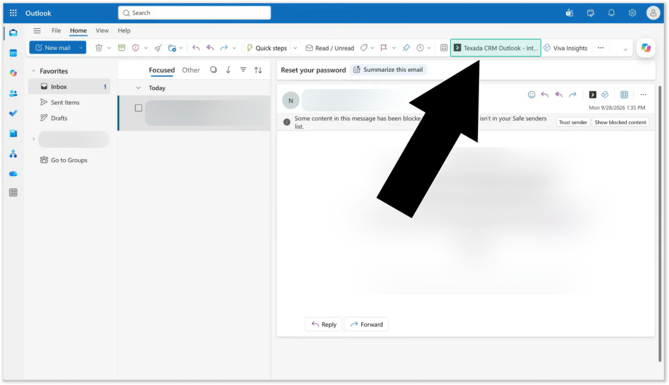 Locate the Equipment CRM group in the ribbon (top menu) and click the add-in button to open the Texada CRM for Outlook task pane.
Click “Sign In” to open a window containing the Texada SSO (JumpCloud) sign-in page. Submit your login credentials to complete the SSO process.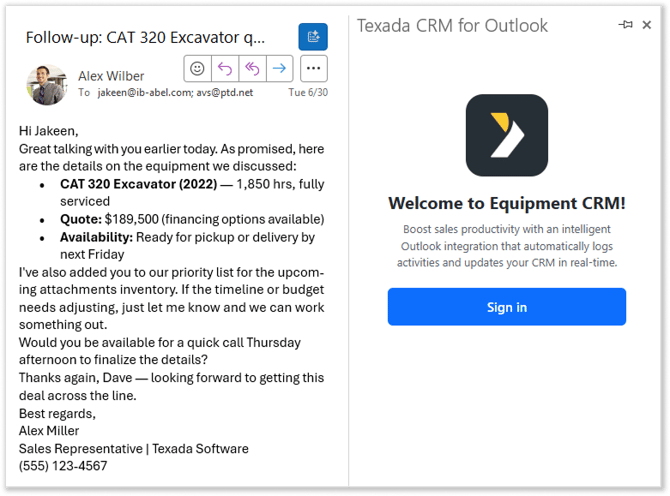
- Select contacts and log activities
Following a successful login, the SSO sign-in window will close, and a list of contacts will be displayed in the Texada CRM for Outlook task pane. These are the email participants that were matched with influencer records in Equipment CRM.
Select one or more contacts from this list. Note that if a contact belongs to multiple divisions, they will appear in the list multiple times – make sure to select the division appropriate to the activity you want to create.
Once your are finished selecting contacts, click “Log Activities”. The add-in will automatically post the email as an activity in Equipment CRM for the selected contacts. A success message will appear in the task pane following successful activity creation.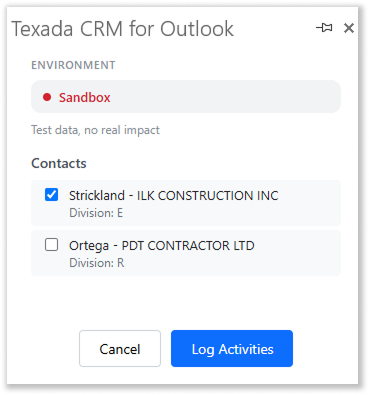
- Verify
Close and reopen the same email, then launch the Texada CRM for Outlook add-in again. The influencers you selected in steps 5-6 should now appear pre-checked in the Contacts list, confirming that an activity has already been recorded for these contacts.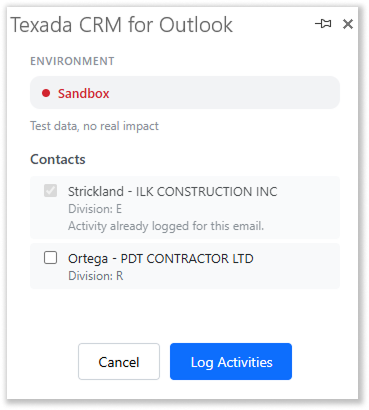
In Equipment CRM
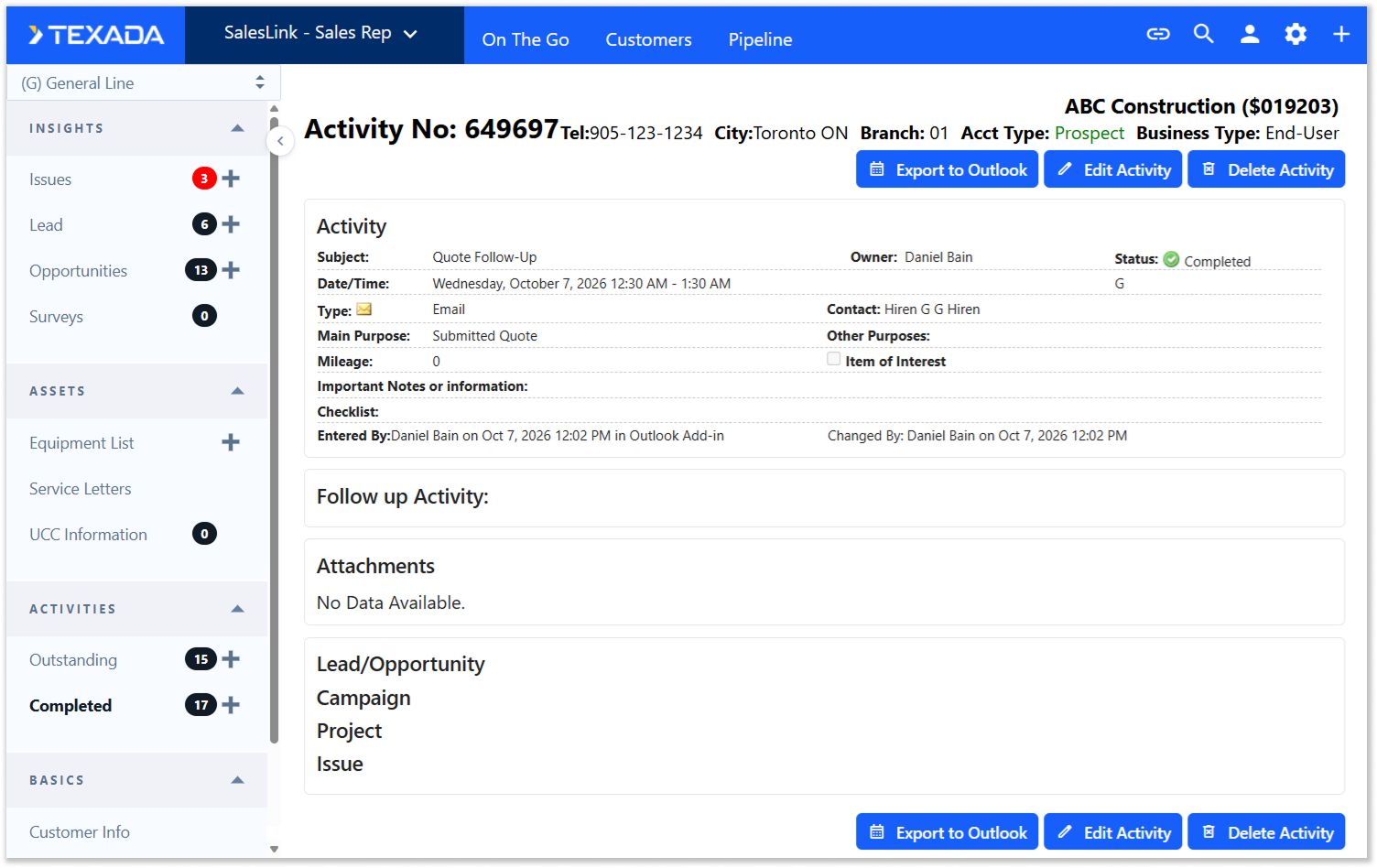
Once an email has been logged as an Activity, it will appear in Equipment CRM with the following information automatically filled out:
- Subject: The subject line of the email.
- Date/Time: The time at which the original email was sent.
- Type: Email
- Status: Completed
- Entered By: The user who sent the email and the time at which the email was converted into an Activity, followed by “in Outlook Add-in”.
- Notes: The body of the email.
Support
For any issues during implementation or use of this feature, contact:
- Support / Provider: Texada Software
- Support URL: https://customer.texadasoftware.com
- Texada Privacy Policy:
Troubleshooting
|
Symptom |
Resolution |
|
"Sideload your add-in to see app body" message |
The task pane host page did not load; reopen the task pane from the ribbon. |
|
Login dialog does not close / no session |
Ensure pop-ups/dialogs are allowed and your Texada credentials are correct, then attempt to sign in to the add-on again. |
|
Contacts list empty |
The email participants are not present in Equipment CRM. Add the appropriate contact (influencer) records in Equipment CRM, then run the add-on again. |