In This Article
- Introduction
- Header
- Segments
- QuoteTotalByCustomer
- QuoteFinancial
- Configuration
- TotalSegments
- InternalOrExternal
Introduction
This document explains where the data fields come from that are transplanted into the PDF when you click “generate”. If you generate a PDF from within the editor the data will come from a generic sample data. If you generate the quote using PSQ, the data will come from your sandbox/production environment.
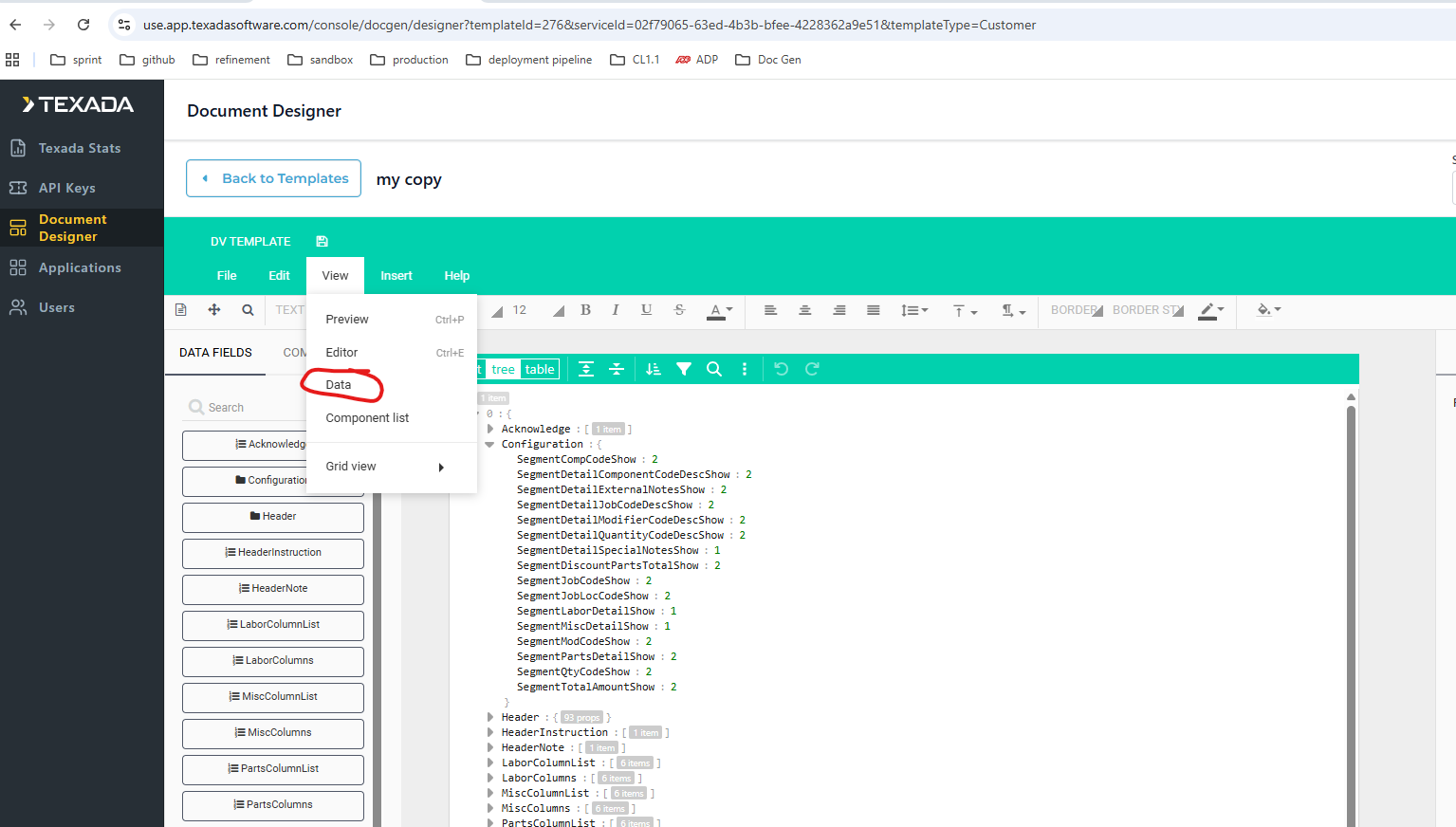
You can see the structure of the data by clicking View > Data in the editor. The values for these fields will come from the generic sample data when viewing in the editor. When you generate the PDF in PSQ, the values will be replaced with your data from your sandbox/production environment.
Header
These data fields are for the quote as a whole, not for any specific segment. From the Quote Overview page:
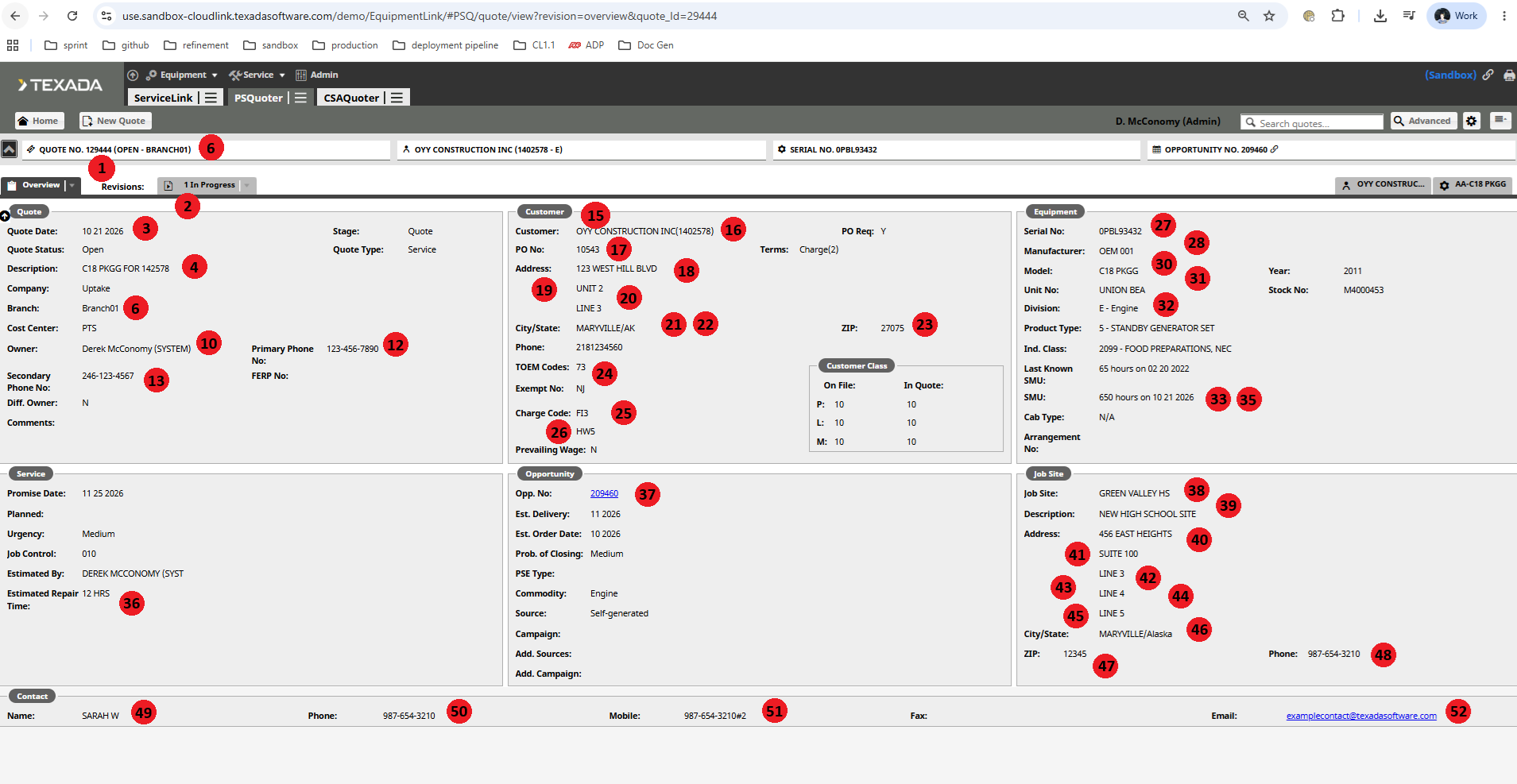
- QuoteNo
- RevisionNo
- QuoteDate: The date on which the quote was created
- QuoteDescription
- BranchNo: Branch/Store code (e.g., “01”)
- BranchName: Branch/Store name
- BranchAddress1
- BranchAddress2
- BranchPhone
- SRFName: Owner/Sales Rep first name
- SRLName: Owner/Sales Rep last name
- OwnerPhoneNo: Owner/Sales Rep phone number
- OwnerCellPhoneNo: Owner/Sales Rep cell number
- SREmail: Owner/Sales Rep email
- CustomerNo: Customer number from the Quote Overview page. This might not be the customer you are generating the quote for if there are multiple customers. See “Customers” section below for other customer fields, specifically the “Current” Customer
- CustomerName
- PurchaseOrderNo
- HeaderAddress1
- HeaderAddress2
- HeaderAddress3
- HeaderCity
- HeaderState
- HeaderZip
- TaxCode1, TaxCode2, TaxCode3, TaxCode4, TaxCode5
- ChargeCode1
- ChargeCode2
- SerialNo
- ManufacturerCodeDescription: Full manufacturer name (e.g., "CATERPILLAR").
- Make: Manufacturer code (e.g., “AA”)
- Model
- UnitNo
- Division
- SMU: SMU from the Quote Overview page
- SMUIndicatorCode: SMU type code (e.g., "H")
- SMUIndicatorDesc: SMU type description (e.g., “hours")
- EstimatedRepairTime
- OppNo - Opportunity Number
- JobSiteName
- JobSiteDescription
- JobSiteAddress1
- JobSiteAddress2
- JobSiteAddress3
- JobSiteAddress4
- JobSiteAddress5
- JobSiteCity
- JobSiteState
- JobSiteZip
- JobSitePhone
- ContactName
- PhoneNo: Contact phone number
- MobileNo: Contact mobile phone number
- Email: Contact email
- Notes: Notes from the quote header (not from a segment). Shows internal/external note lines depending on whether the internal/external PDF generate button was clicked.
- SpecialInstructions
Note on Customers
There are 3 sets of customer address fields in the data fields:
- The customer and address fields from the Quote Overview page (see above)
- The address fields of the quote’s customer. These address fields come from the ERP and cannot be edited on the Quote Overview page:
- Address1
- Address2
- Address3
- CityState
- ProvinceState
- ZipCode
- The "Current" Customer. If you are printing a quote for a specific customer, this is that customer:
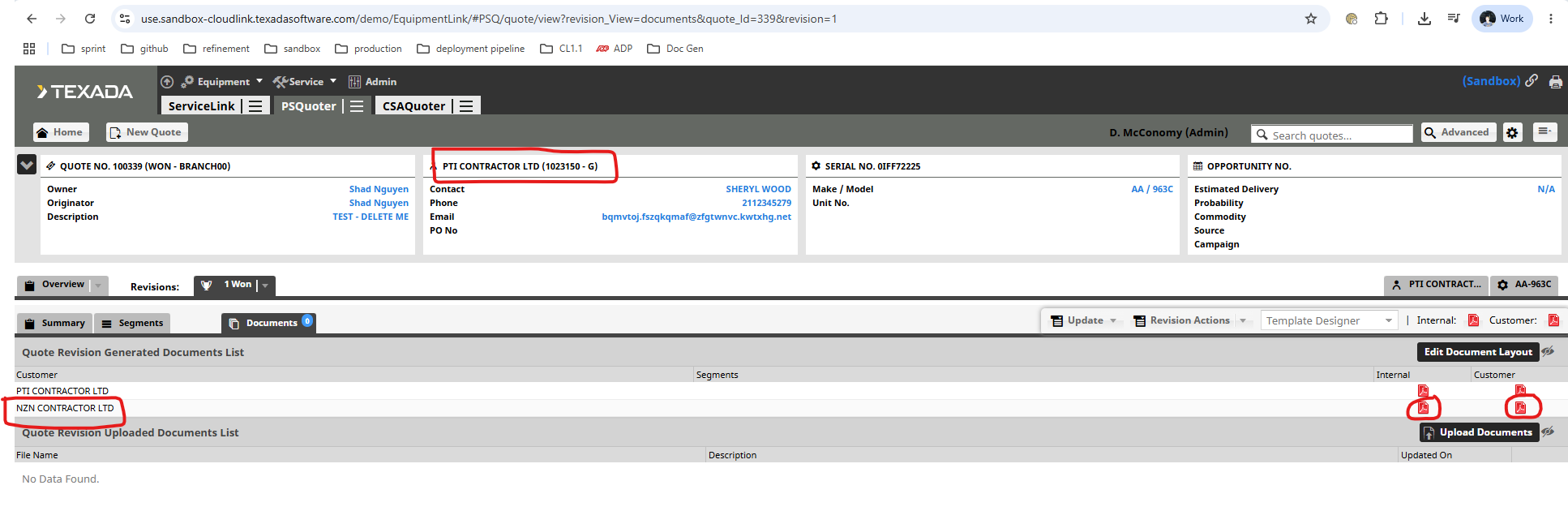
- CurCustomerNo
- CurCustomerName
- CurAddress1 / CurAddress2 / CurAddress3
- CurCityState
- CurCity
- CurProvinceState
- CurZipCode
Segments
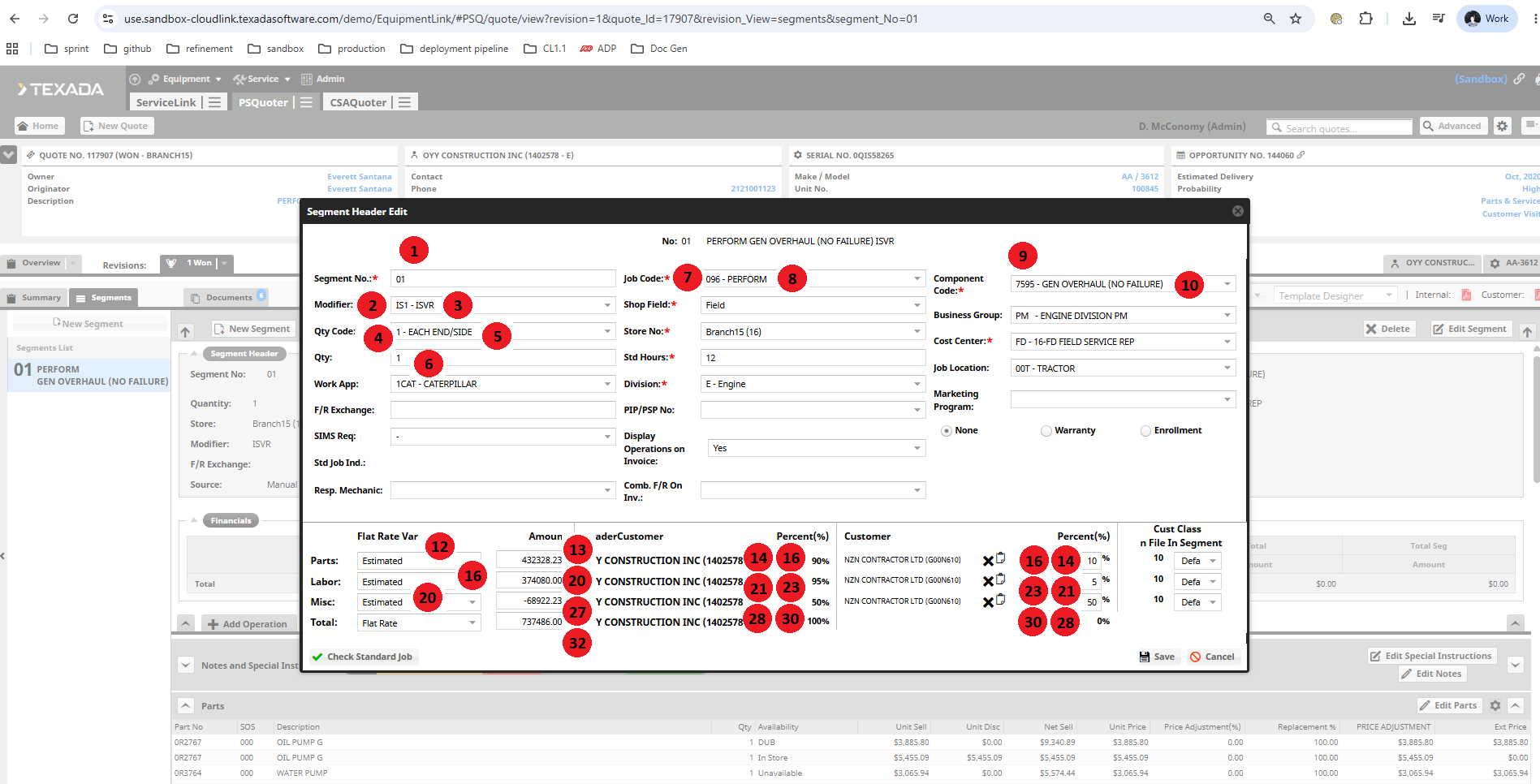
- SegmentNo: See #35 SegmentCombinedCodes below for a formatted string including job code, component code, modifier code, quantity code, including codes and descriptions.
- ModifierCode
- ModifierDesc: Description of the Modifier
- QuantityCode
- QuantityDesc: Description of the Quantity
- SegmentQty
- JobCode
- JobCodeDesc: Description of the Job Code
- ComponentCode
- ComponentCodeDesc: Description of the Component Code
- PartFlatRateInd: “E”, “F” or “C”
- PartsFlatRateIndicatorDisplayText: “Estimated”, “Flat Rate” or “Time and Material”
- AllCustomerPartsLockedTotal: Total parts amount. For “Time and Material” this will be the sum of the individual parts. For “Estimated” or “Flat Rate” this will just be the amount in the segment header.
- PartsPercent: Percent of parts amount assigned to the selected customer.
- PartsLockedTotal: Total parts amount for the selected customer. For “Time and Material” this will be the sum of the individual parts. For “Estimated” or “Flat Rate” this will just be the amount in the segment header.
- PartsDiscountPercent: Percent of parts amount not assigned to the selected customer. PartsPercent + PartsDiscountPercent = 100%
- PartsLockedDiscountTotal: Total parts amount not assigned to the selected customer. PartsLockedDiscountTotal = AllCustomerPartsLockedTotal - PartsLockedTotal
- LaborFlatRateInd: “E”, “F” or “C”
- LaborFlatRateIndicatorDisplayText: “Estimated”, “Flat Rate” or “Time and Material”
- AllCustomerLaborLockedTotal: Total labor amount for all customers. For “Time and Material” this will be the sum of the individual labor items. For “Estimated” or “Flat Rate” this will just be the amount in the segment header.
- LaborPercent: Percent of labor amount assigned to the selected customer.
- LaborLockedTotal: Total labor amount for the selected customer. For “Time and Material” this will be the sum of the individual labor items. For “Estimated” or “Flat Rate” this will just be the amount in the segment header.
- LaborDiscountPercent: Percent of labor amount not assigned to the selected customer. LaborPercent + LaborDiscountPercent = 100%
- LaborLockedDiscountTotal: Total labor amount not assigned to the selected customer. LaborLockedDiscountTotal = AllCustomerLaborLockedTotal - LaborLockedTotal
- MiscFlatRateInd: “E”, “F” or “C”
- MiscFlatRateIndicatorDisplayText: “Estimated”, “Flat Rate” or “Time and Material”
- AllCustomerMiscLockedTotal: Total misc amount for all customers. For “Time and Material” this will be the sum of the individual misc items. For “Estimated” or “Flat Rate” this will just be the amount in the segment header.
- MiscPercent: Percent of misc amount assigned to the selected customer.
- MiscLockedTotal: Total misc amount for the selected customer. For “Time and Material” this will be the sum of the individual misc. For “Estimated” or “Flat Rate” this will just be the amount in the segment header.
- MiscDiscountPercent: Percent of misc amount not assigned to the selected customer. MiscPercent + MiscDiscountPercent = 100%
- MiscLockedDiscountTotal: Total misc amount not assigned to the selected customer. MiscLockedDiscountTotal = AllCustomerMiscLockedTotal - MiscLockedTotal
- SegmentTotal
- SegmentNotes: Notes from the segment. Shows internal/external note lines depending on whether the internal/external PDF generate button was clicked.
- SegmentSpecialInstructions
- SegmentCombinedCodes: A formatted string containing the job, component, modifier, quantity code descriptions followed by the job, component, modifier, quantity codes in parentheses. Each description or code is hidden or shown depending on the document settings in PSQ. (e.g., "REMOVE & INSTALL FOR CUSTOMER PICKUP ENGINE (010 1000 004)")
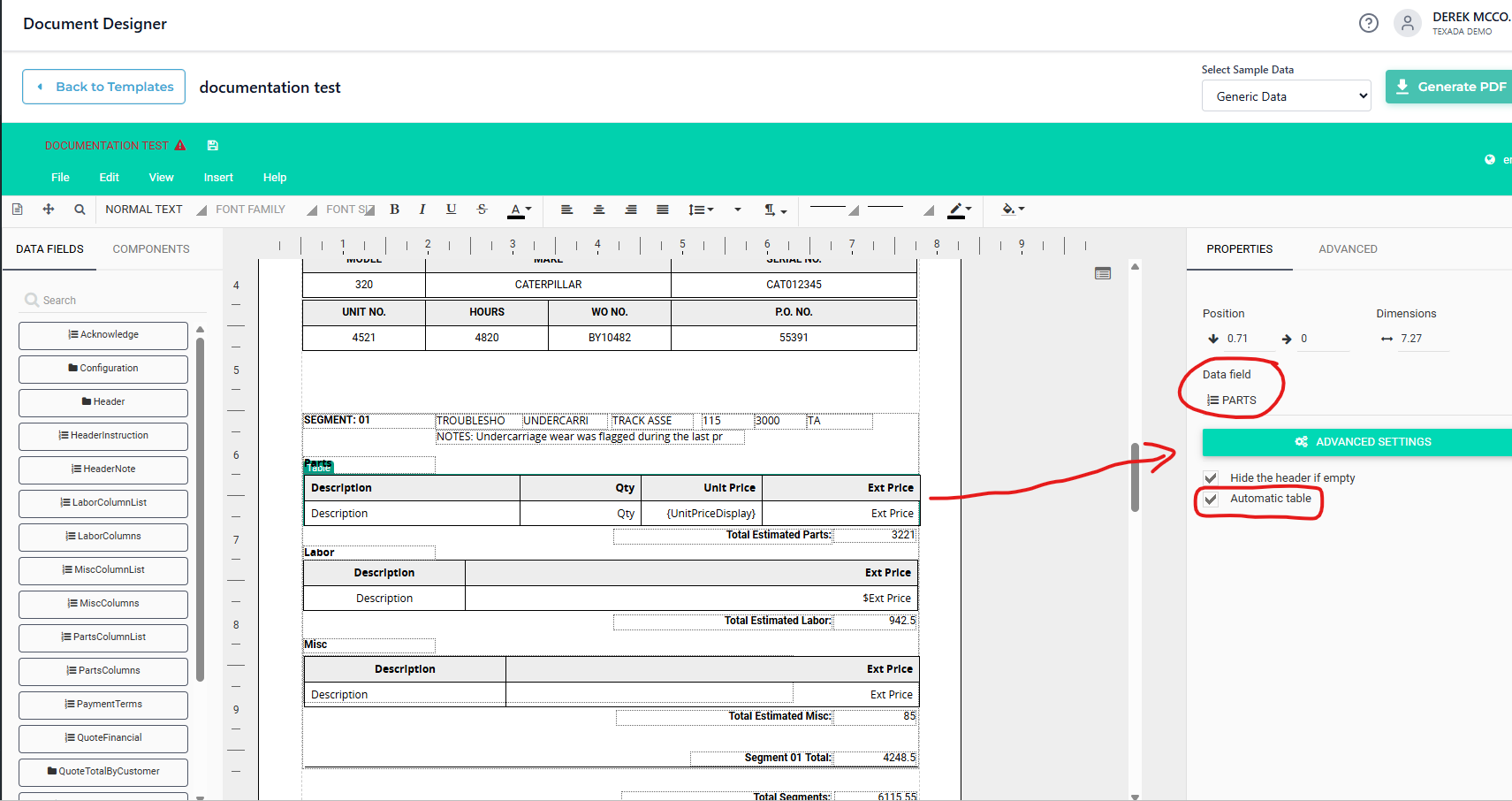
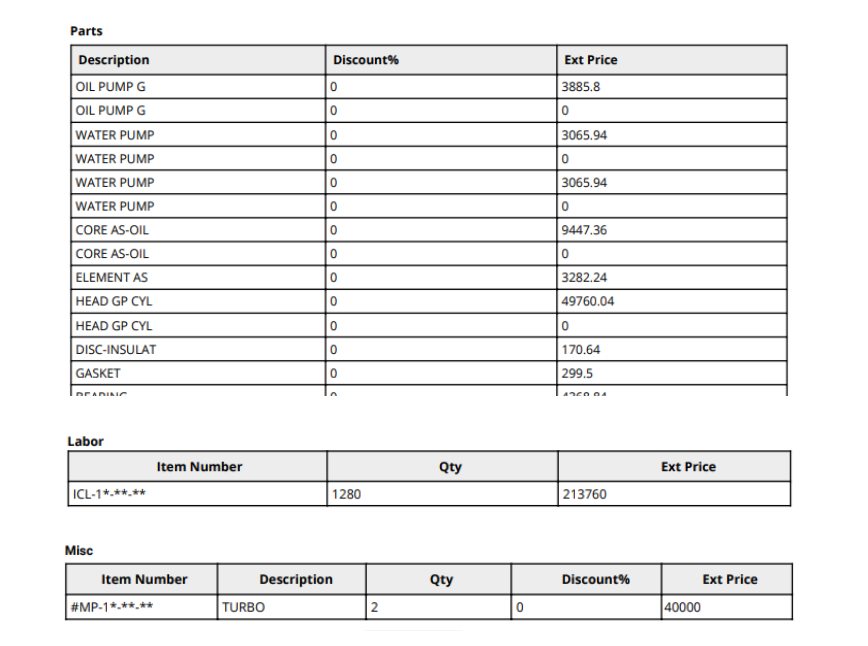
- Parts: A specially-formatted array of the parts for the segment. It’s formatted to be used as an “Automatic table” in the editor. The resulting table will contain only the columns that are selected to be visible in the “Document Settings” page
- Labor: A specially-formatted array of the labor for the segment. It’s formatted to be used as an “Automatic table” in the editor. The resulting table will contain only the columns that are selected to be visible in the “Document Settings” page
- Misc: A specially-formatted array of the misc for the segment. It’s formatted to be used as an “Automatic table” in the editor. The resulting table will contain only the columns that are selected to be visible in the “Document Settings” page
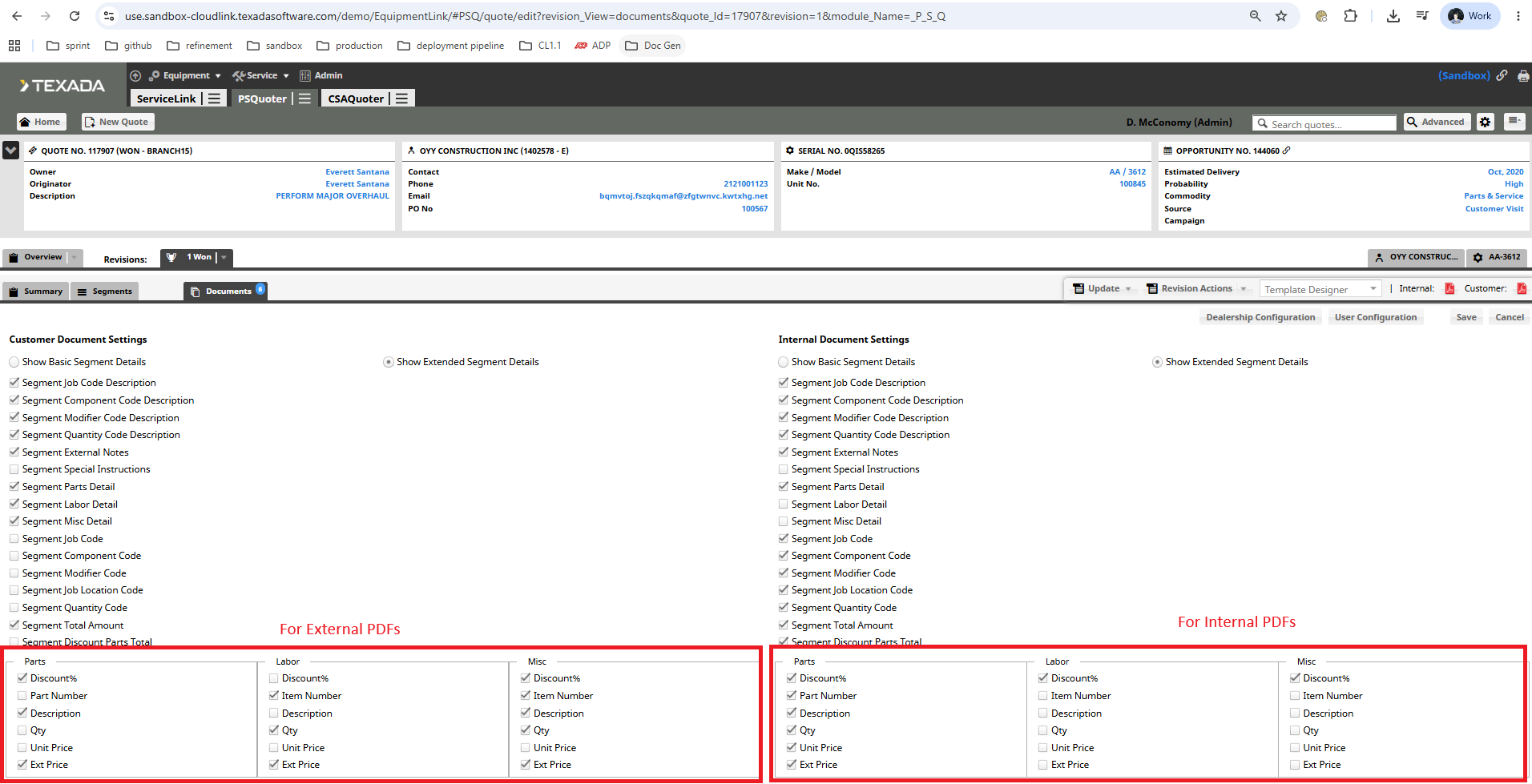
When using the settings on the left to generate an “External” PDF, this is the result:
QuoteTotalByCustomer
- QuoteTotalByCustomer: Total amount for the quote for the customer that is selected. If you click here, it will be the total amount for the header customer from the Quote Overview page:
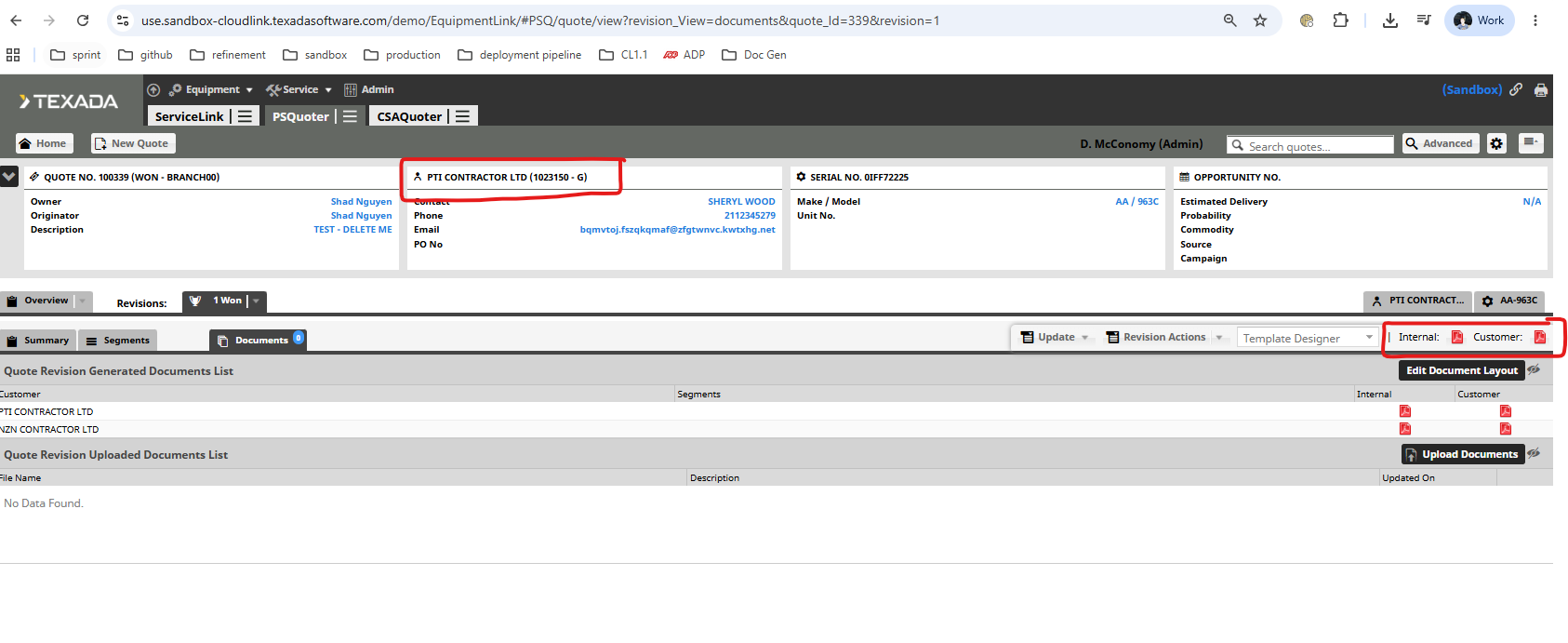
If you click here from the Document Settings tab, it will be the total amount for the customer which you’ve selected: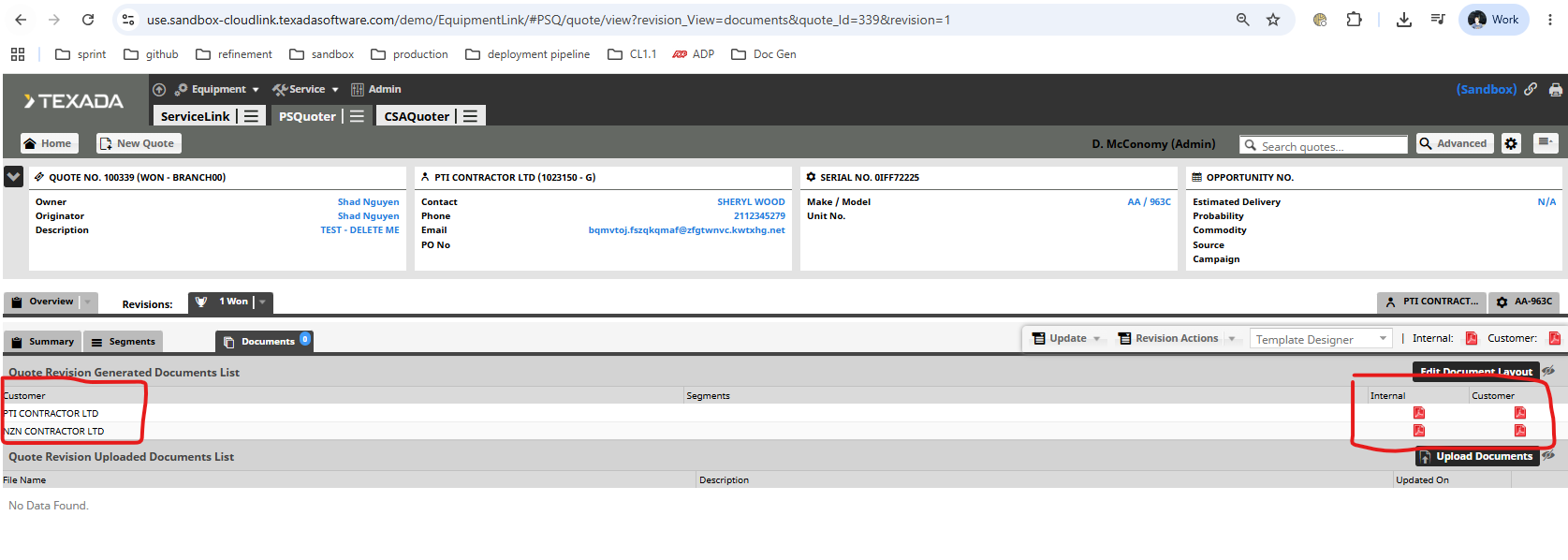
- QuoteTotalCoreCharges: Total Core Part Charges for the quote
- CorePartCount: Total number of Core Parts for the quote
QuoteFinancial
- FinancialItemDisplayName: Label shown on PDF (e.g., "SUB TOTAL (BEFORE TAXES)" or “ENVIRONMENTALS” etc.)
- FinancialItemAmount: The dollar amount of the item
- SubTotalInd: Indicates whether the item is a regular item or a sub/grand total. This is set to 0 for regular items and 2 for sub/grand totals
Configuration
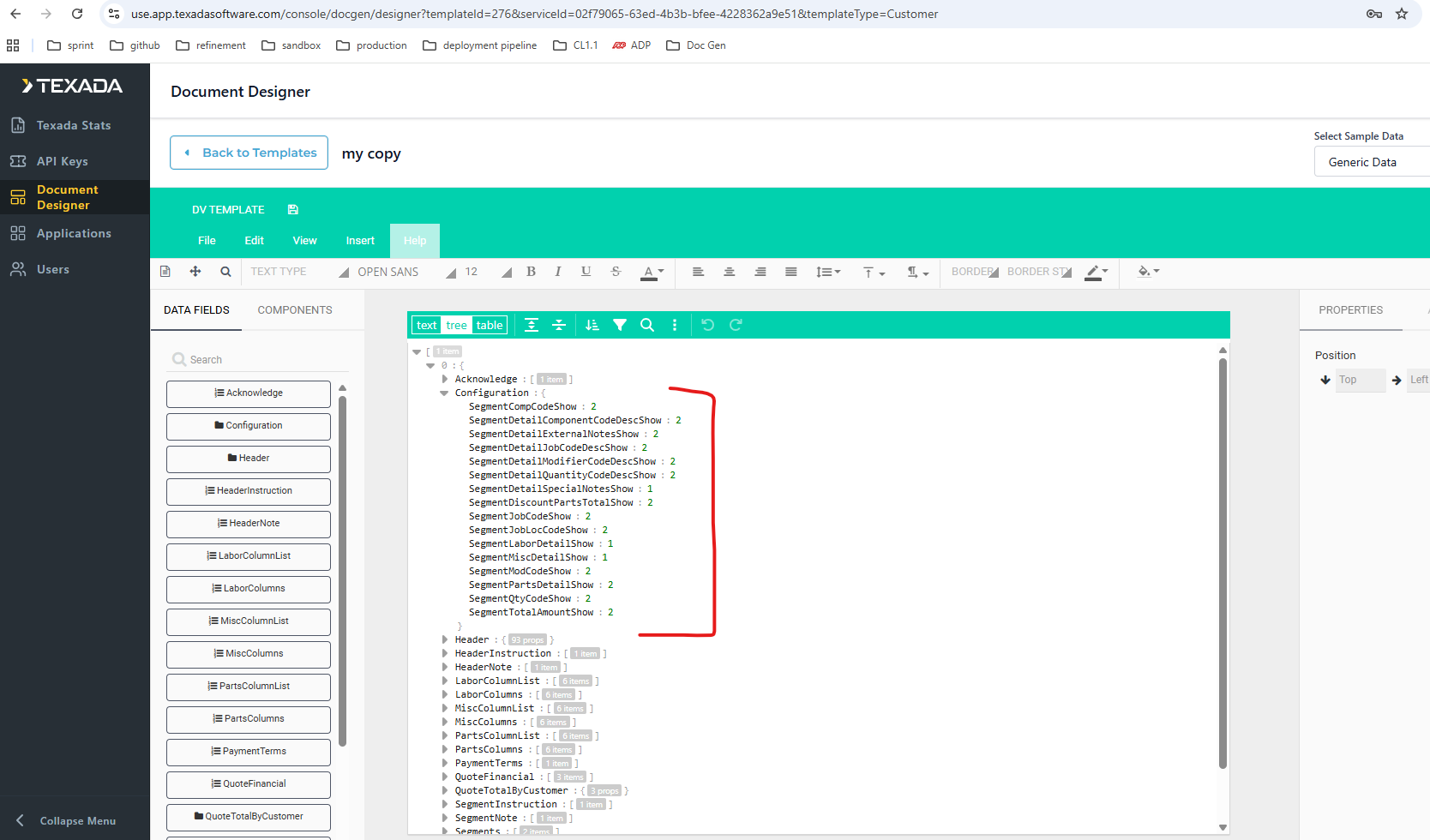
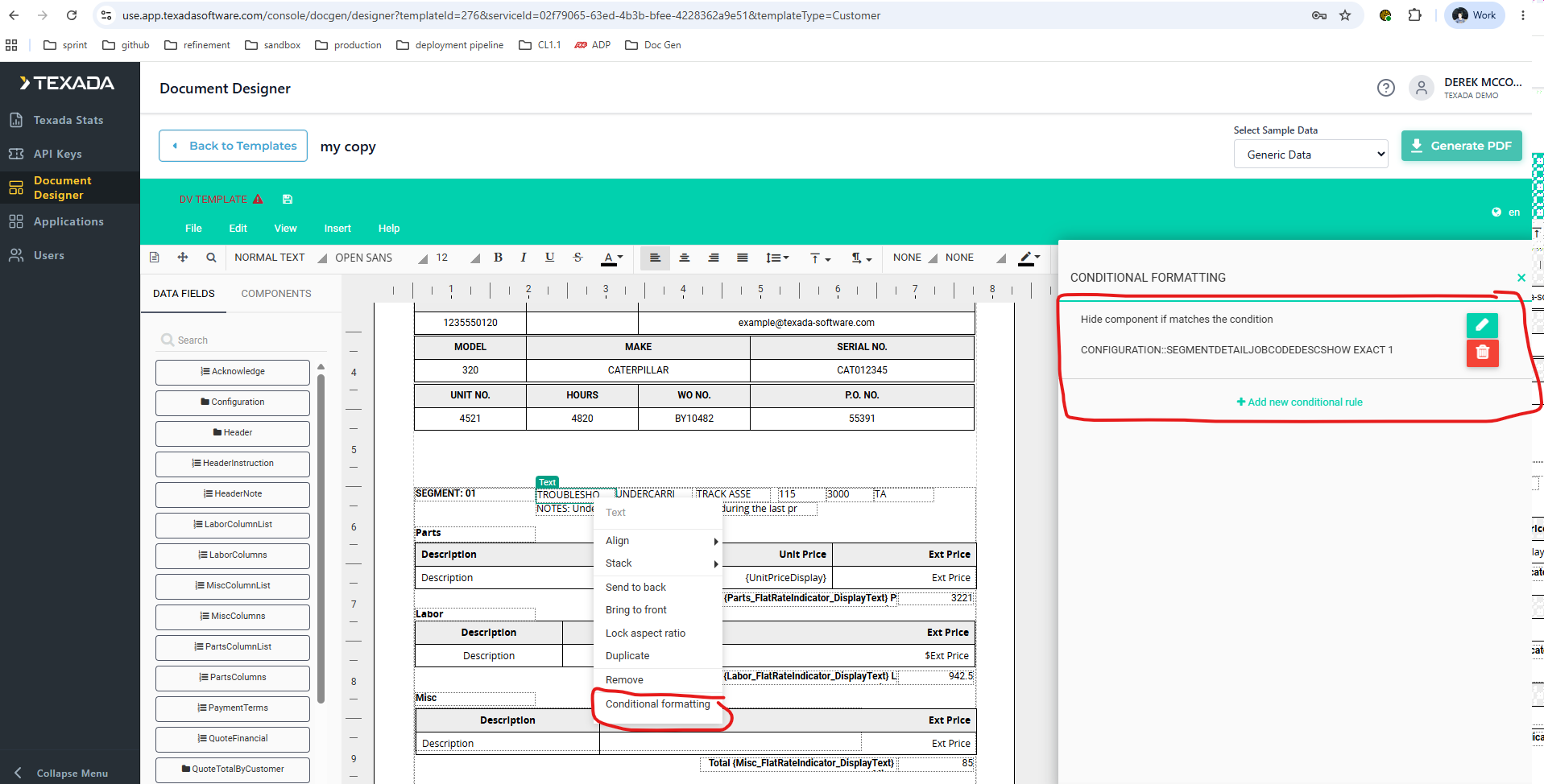
These are the settings that have been selected using the checkboxes in the document settings page in PSQ. If they’re checked, they’ll show as “2”, if they’re unchecked, they’ll show as “1”. If you click on the “Internal” button to generate a PDF, it will use the “Internal Document Settings” (on the right side of the page). And if you click on “External”, it will use the “External” settings on the left.
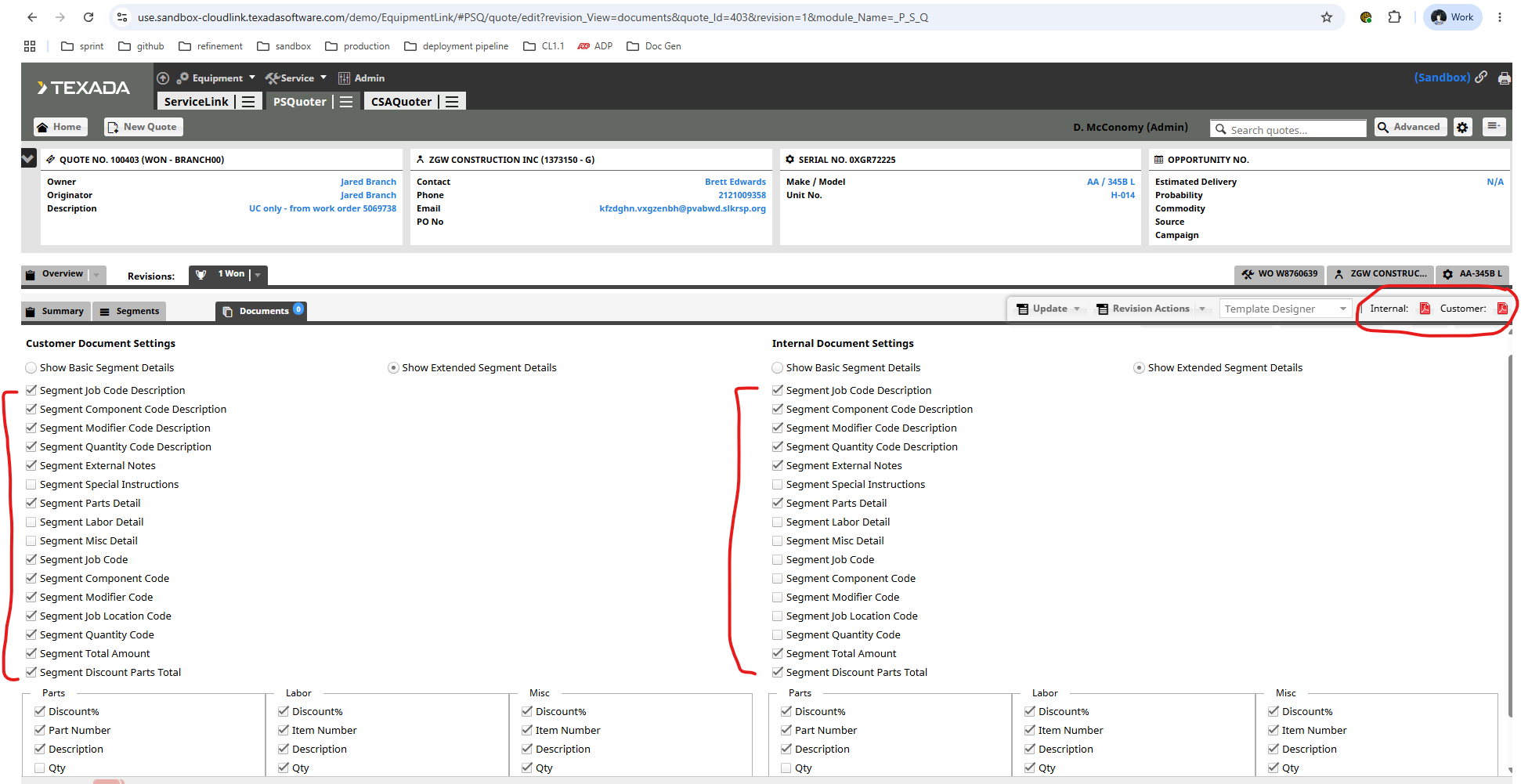
You can use them to hide or show elements in the quote PDF based on whether the corresponding checkbox has been selected like this:
TotalSegments
- TotalSegments: The total number of segments on the quote.
InternalOrExternal
- InternalOrExternal: Whether the user clicked the “Internal” or “External” PDF generate button. This has 2 possible values - “Internal” or “External” and is meant to be used to hide or show elements in the PDF.