
In This Article
- Introduction
- There Are Still Parts On Back Order
- Cannot Close Work Order With Zero Cost Parts
- Locked By Another Process
- Invalid Charge Code
Introduction
When you attempt to close a Work Order in Service Management (Next), you may receive an error message that prevents you from successfully closing the Work Order. The following article describes common errors that may occur when attempting to close a Work Order, and how to resolve them.
There Are Still Parts On Back Order
When you receive this error, the reason is that the quantity of Parts requested and Parts issued are not the same. This means that the Mechanic needed a part to complete a Work Order, but no Parts were actually used.

Solution
- Navigate to the details page of the Work Order with the error in Service Management (Next).
- In the Parts tab, locate the Part where the Requested and Issued columns are not the same amount, and do one of the following:
- If the Part was actually issued and just not recorded, click edit
 and adjust the quantity of the Issued column to match the Requested column.
 - If the Part was not actually issued, click delete
 to delete the Part.
- If the Part was actually issued and just not recorded, click edit
- Click Save and close the Work Order.
Cannot Close Work Order With Zero Cost Parts
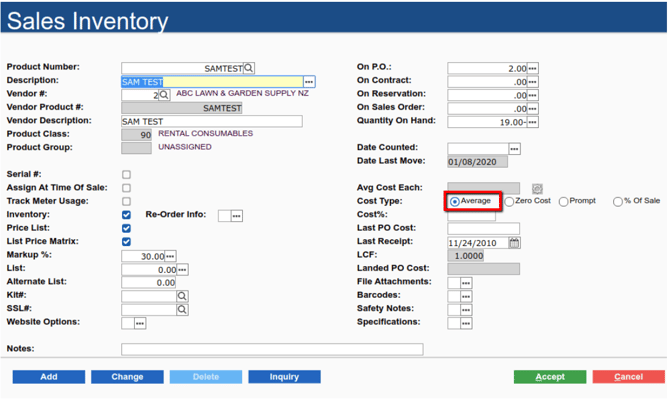
When you receive this error, the reason is: in Service, Rental, and Financials (Classic), the cost type for the Product is set to Average, but there is no actual price set up for the Product.
Solution
- To resolve the error, open Service, Rental, and Financials (Classic) and navigate to Inventory Control → Sales Inventory.
- Use the Product Number field to search for the Product with the issue.
- Next to Cost Type, select Zero Cost.
- Click Accept to save your changes.
- Return to Service Management (Next) and close the Work Order.
Locked By Another Process
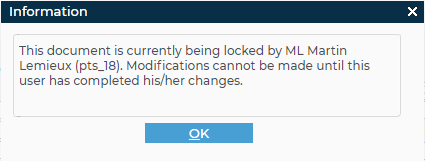
The reason for this error is that the Work Order record is locked. This can occur for a number of reasons:
- A user is working on the same Work Order in Service Management (Classic) at the same time you are working on that Work Order in Service Management (Next).
- A user was working on the Work Order in Service Management (Classic), but closed the tab they were working in without saving or cancelling out of the Work Order, resulting in a lock.
Solution
To resolve the error, the user that worked on the Work Order in Service Management (Classic) must unlock the Work Order by doing the following:
- Open Service Management (Classic) and navigate to Work Orders → Work Orders.
- Click Change.
- Type the Work Order number of the locked Work Order in the Work Order # field and press Enter.
- Complete any updates to the Work Order, then click either Accept or Cancel.
The user who encountered the error can now close the Work Order in Service Management (Next).
Invalid Charge Code
This error occurs because the charge code for the Product Class to which the Asset belongs has a default charge code that is not set up. The reason for this is often that the charge code for an Asset is not set.
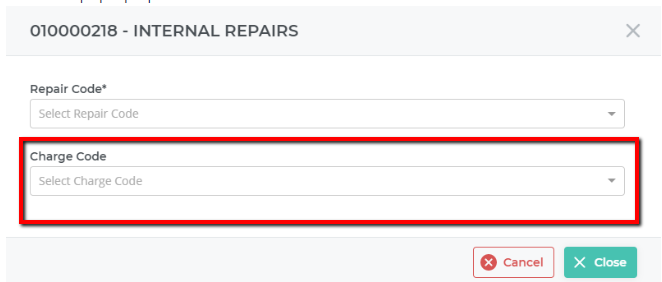
Even though it looks as though the Asset has no charge code, in reality, not setting the code was the same as setting it to the default charge code. If the default charge code is incorrect, the error occurs.
Solution 1: Select Repair Code and Charge Code
- In Service Management (Next), access the details page of the Work Order you need to close.
- Click Close. The internal Repairs popup will open.
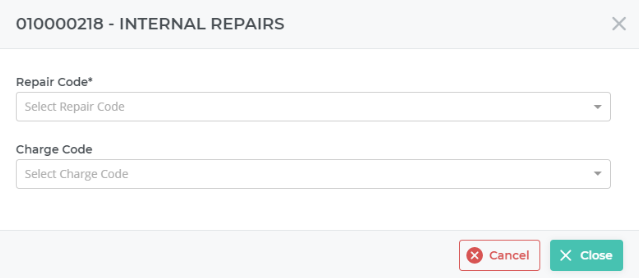
- Use the Repair Code dropdown to select the repair code that applies to the Work Order.
- Use the Charge Code dropdown to select a valid charge code that applies to the Work Order.
- Click Close.
Solution 2: Set Default Repair Charge Code
- In Service Management (Next), access the details page for the Work Order you need to close.
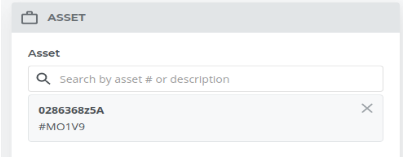
- Locate the Asset tab and record the asset number (MO1V9 in the example).
- Navigate to Inventory → Assets and search for the Asset number found in step 2.
- Click the Asset, then click Edit Asset to open the Asset details page.
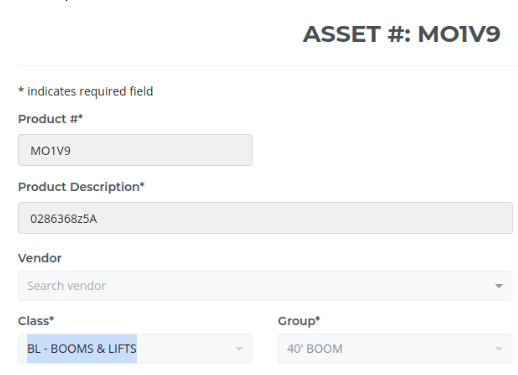
- Record the class information found in the Class field (BL - Booms & Lifts in this example).
- In Service, Rental, and Financials (Classic), navigate to System Maintenance → Configure System Settings → Accounting → Inventory.
- Next to Rental Classes, click more options
 to open the Rental Classes popup.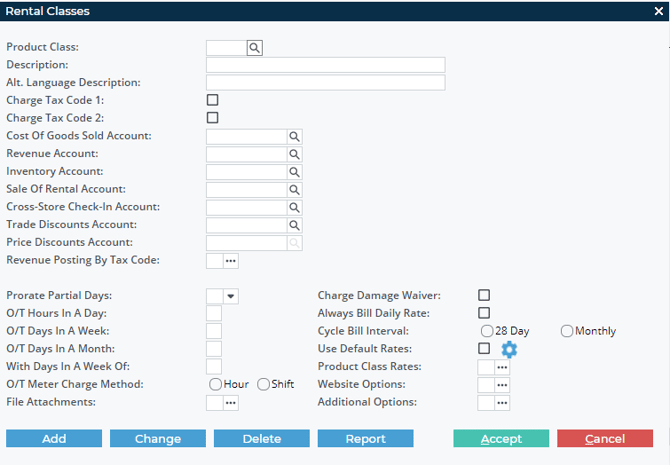
- Enter the Class information from step 5 in the Product Class field.
- Next to Additional Options, click more options.
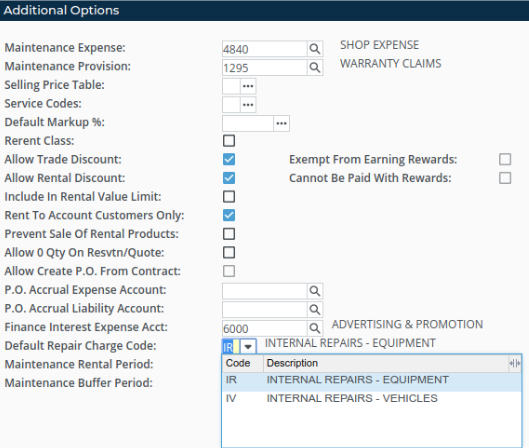
- Use the Default Repair Charge Code dropdown to select a default charge code that is valid and should apply whenever the Mechanic does not select a charge code for Work Orders using this Asset.
- Click Accept, Accept, Accept to save your changes.
- In Service Management (Next), navigate to the details page of the Work Order you want to close.
- Click Close. The Internal Repairs popup will open.
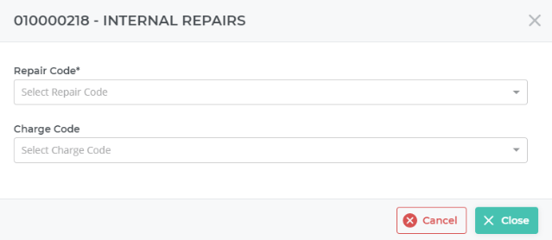
- Use the Repair Code dropdown to select the repair code that applies to the Work Order.
- Use the Charge Code dropdown to select the valid charge code from step 10.
- Click Close to close the Work Order.