
In This Article
Introduction
The Web Requests page in the new E-Commerce administration panel allows you to view a history of requests made to your eCommerce sites, including payments and requests for quotation.
To reach this page, select Logs → Web Requests from the left navigation menu.
Web Requests
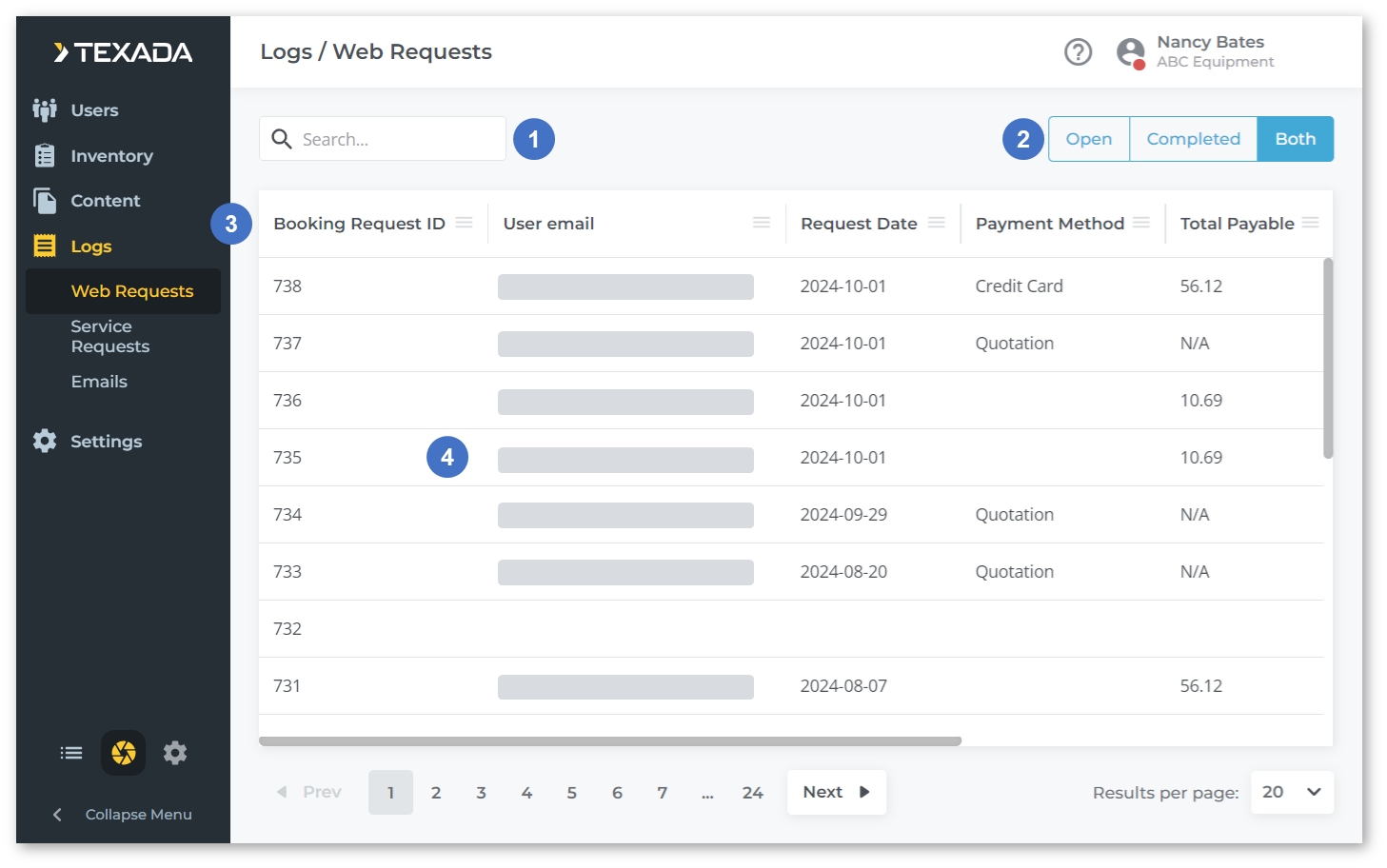
- Search Bar
Begin typing into the search bar to filter the list of requests by the text entered. This will search by Booking Request ID, User email, and Site Name. - Open / Completed / Both Toggle
Use this toggle to filter requests by status - open, completed, or both. - Requests Table
Requests are listed in this table. The appearance of this table can be modified; for more information, see “Working with Tables”. - Request
Each incoming request appears as a row in the requests table. Click on a request to open the Order Info window, containing more information on the order in question.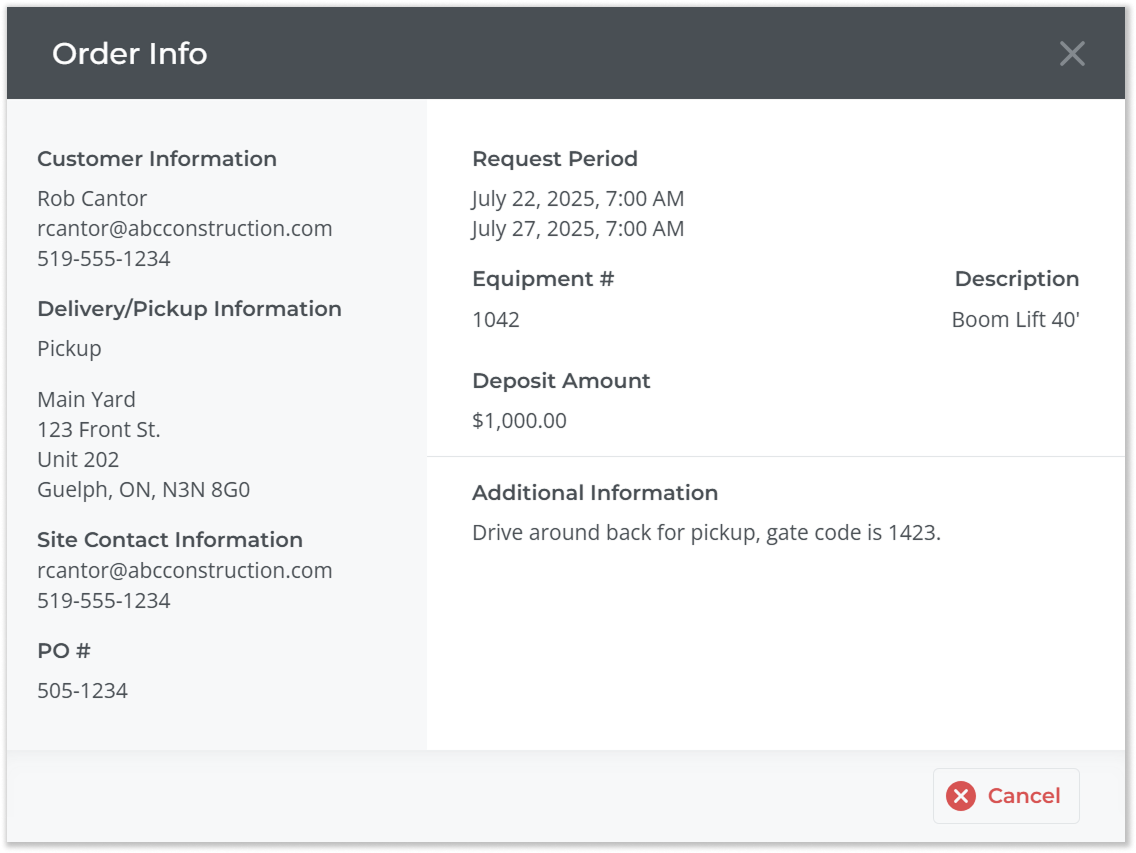
Requests Table - Columns
The requests table comprises the following columns:
- Booking Request ID: The request’s unique ID. Booking Request IDs are assigned in ascending order – the request submitted after request 756 will have a booking ID of 757.
- User email: The email address of the user who submitted the request.
- Request Date: The date on which the request was submitted.
- Payment Method: The request’s payment method.
- Total Payable: The request’s total payable amount, if any. Quotation requests will show N/A in this column.
- Site Name: The name of the job site entered by the user at the time the request was submitted.
- Instructions: Any additional instructions entered by the client at the time the request was submitted.