
Quick Reference
- Note: as there is a considerable number of configuration parameters that can affect the creation of Counter Documents so that specific prompts and appearance may change. This is intended as fundamental reference only.
- A Quote is a proposal between the rental company and their Customer, containing details of a rental or sale.
- It does not represent a commitment of resources of financial obligation until converted to a Reservation or Contract. Consequently assets that are not otherwise available due to stock or other commitments can be entered on a Quote without impacting asset availability.
- To manually create a new Quote in Classic (SRM):
- Navigate to Counter → Quotes → Quotations in the left side menu.
- Enter all relevant information for the Quote, including Customer, Site, Product, Service, and financial information.
- Click “Accept” to save the new Quote.
Introduction
A Quote is a proposal document between a rental company and their Customer, containing potential details of a rental, sale, or service. Most rentals and sales processed using Texada software will have an associated Contract, and starting with a Quote is a quick way to propose details without impacting existing inventory or availability parameters.
The following article will detail the process of manually creating a new Quote in Texada Classic (SRM).
Create a Quote
To create a new Quote in Texada Classic (SRM), follow the steps below.
- Initialization
Log in to Texada Classic (SRM) and navigate to Counter → Quotes → Quotations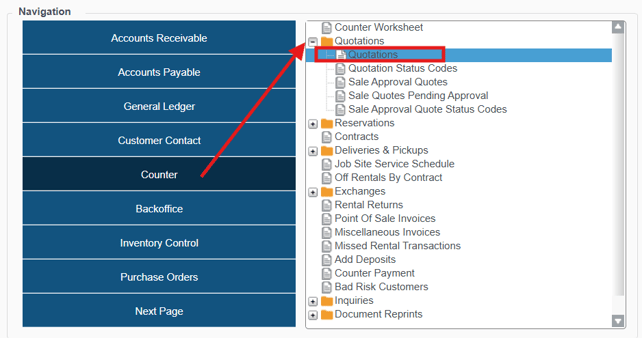
- Enter Quote Information
On the Create Quote screen, fill out all the information for the new Quote, including at minimum:- A Division and Location.
- The Salesperson responsible for securing the Quote.
- The Quote's proposed start date.
- A Customer and Customer Site.
- At least one Product (Rental or Sale).
- Any possible Services.
- Create Quote
Once you have entered all relevant information for the Quote, Accept the details screen and review your totals. After completing the review and if no further changes are required, Accept the Totals screen to complete the Quote creation.
Note: While a Deposit Amount can be indicated on the Quote Totals screen, the Customer is not required to provide that Deposit until the Quote is converted to a Reservation or a Contract.
Convert a Quote
To convert an existing Quote in Texada Classic (SRM), follow the steps below.
- Log in to Texada Classic (SRM) and navigate to Counter → Quotes → Quotations
Do not enter any information and immediately click the CONVERT button at the bottom of the screen: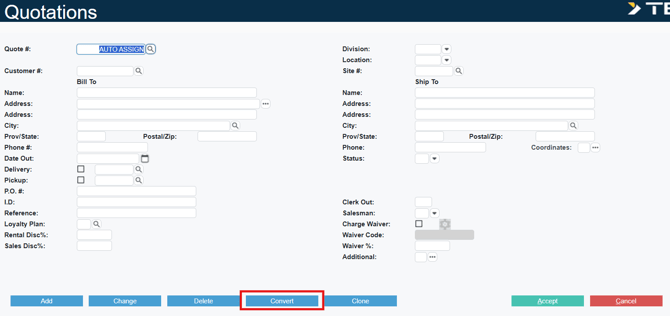
- There will be three options for conversion: Invoice, Reservation, and Contract.
Note: A Quote can only be directly converted to an Invoice if it does not have any Rentals (IE A Quote for Sales products or Services only) - Converting a Quote to a Reservation first can be necessary depending on security configuration or for a future commitment of assets. If the asset is needed immediately, a Quote would typically be converted directly to a Contract.
- Both screens to Convert to a Reservation or a Contract are similar, allowing the Operator to confirm the document details or adjust as needed. A Deposit can also be taken at this point, directly if using Texada Pay, or as a record if not.
- The Quote can be deleted after conversion, or retained for later reference/re-use.
Note: While a Quote can theoretically be used to convert to another counter document later, if the details overlap the previous conversion it can cause availability conflicts. For that reason it is generally recommended to create a new quote for each distinct business opportunity.