
In This Article
Introduction
You can enable your customers to electronically make a payment using their own device by sending them an invoice for payment in Financials (Next).
Note: Electronically sending an invoice for payment does not work for Cash Customers.
When a customer elects to electronically pay an invoice, they must follow a three-step process to complete the signing:
- Review the invoice for accuracy and to view the terms and conditions (if any)
- Electronically pay the invoice
- A payment receipt will be automatically emailed to the customer
Send an Invoice for Payment
To electronically send an invoice to a customer for payment:
- Do one of the following:
- Locate the invoice you need to send and click on it to open it.
- Use the menu bar in Service, Rental, and Financials (Next) to navigate to Invoices → List.
- Navigate to Edit → Send for Payment.

- Use the menu bar in Service, Rental, and Financials (Next) to navigate to Invoices → Create Invoice
- Provide invoice details.
- Click Send for Payment.
- Locate the invoice you need to send and click on it to open it.
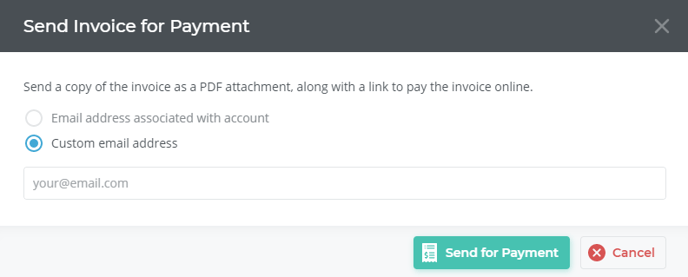
- The Send Invoice for Payment screen opens.
- Do one of the following:
- Select Email address associated with account.
- Select Custom email address and add the email to which you need to send the invoice.
- Click Send for Payment. The customer will receive a link to review the invoice details and pay on their device.
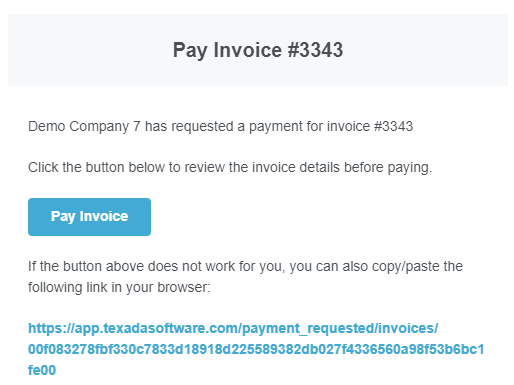
- After paying, the customer will receive a payment receipt.