In This Article
Introduction
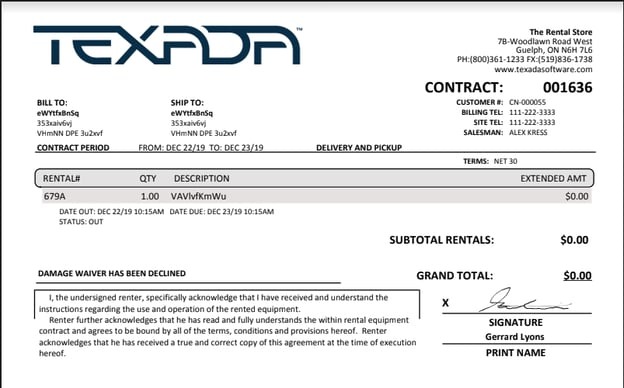
You can enable your customers to electronically sign a contract in Rental Management (Next) using a device with touch compatibility when the customer is physically present at your counter. Electronically signing the document enables you to save time and money by not printing and physically storing copies of signed contracts. Your customers can elect to send the signed contract as an email attachment to as many individuals as needed, saving them the time and expense of having to distribute multiple copies.
When a customer elects to electronically sign a contract, they must follow a three-step process to complete the signing:
- Review the contract for accuracy and to view the terms and conditions (if any)
- Electronically sign the contract
- A copy of the signed contract will be automatically be emailed to the signer
Note: If you begin a signing, you cannot exit the process until it is complete or until you close the current browser tab.
After the Contract is signed, the signed document is stored as a PDF attachment to the Contract and can be accessed at any time.
Note: You can check the signature status and events history at any point in the signing process. See "View the Electronic Signature Status of a Contract".
Electronically Sign a Contract
To electronically sign a contract, do the following:
- On a touch-enabled device, use the menu bar in Service, Rental, and Financials (Next) to navigate to Contracts → List.
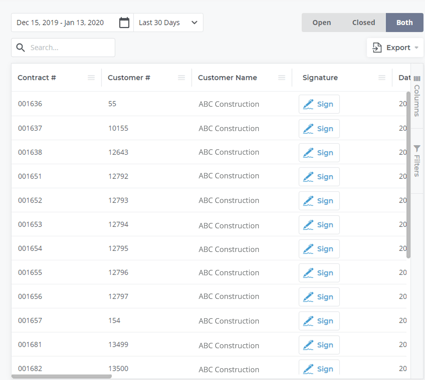
- Locate the contract you need to sign and tap Sign. The Review Contract popup opens and displays the contract the customer is signing for.
Note: Once you begin the signing process, you cannot stop until you complete it or close the current browser tab.
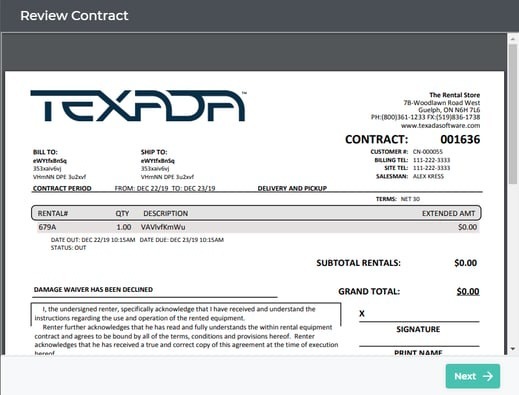
- Hand the device to the customer and instruct them to review the contract and tap Next when they are ready to sign. This will open the Signature window.
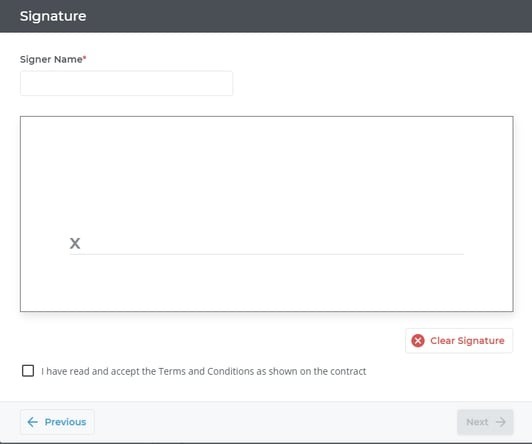
- Instruct the customer to type their name as it will appear on the contract in the Signer Name field.
- Instruct the customer to draw their signature as it should appear on the contract in the central field.
Note: The customer can tap Clear Signature to erase the signature they draw if they are unsatisfied with it. - Instruct the customer to check I have read and accept the Terms and Conditions as shown on the contract.
Note: The customer can tap Previous to review the contract at any time, but will need to redo steps 4 - 6 if they do so. - Instruct the customer to tap Next.
- Optional: If the customer already has an email address associated with this company in Service, Rental, and Financials and needs to receive an email copy of the signed contract, instruct the customer to do the following:
- Type the email address(es) in the Search email addresses field
- The list of email addresses is updated to reflect their search terms
- Optional: Check Select All if they need to send the email to every recipient in the list
- Check any email address(es) in the list that they need to send the email to
- Optional: If the customer does not already have email addresses associated with this company in Service, Rental, and Financials and needs to receive an email copy of the signed contract, instruct the customer to type the email address(es) in the Enter custom email address(es) field
Note: The user can use commas to separate multiple email addresses - Instruct the customer to tap Complete. The Thanks popup will open.
- A copy of the signed contract is automatically emailed to you.
- Instruct the customer to hand the touch-enabled device back to you. You can tap off the popup to resume working in Service, Rental, and Financials (Next).
The contract is signed
The signed contract is stored as an attachment to the contract document in Service, Rental, and Financials (Classic).
If the customer elected to email a copy, a copy of the signed contract is emailed to any specified email addresses as a PDF attachment.