In This Article
Introduction
Email a Work Order as a PDF when you need to share a Work Order with someone who does not have access to Service Management, but still needs the Work Order information. For example, if your Technician carried out a repair on a piece of equipment and later a customer disputes the condition of the equipment at the time of the repair, you can email a PDF of the Work Order to show the customer the results of the inspection the Technician carried out.
In order to use this functionality, system emails must be enabled in Service, Rental, and Financials (Next). See “Configure Service, Rental, and Financials (Next) to Send System Emails” for more information.
Email a Work Order
To email a Work Order in Service Management (Next), follow the steps below.
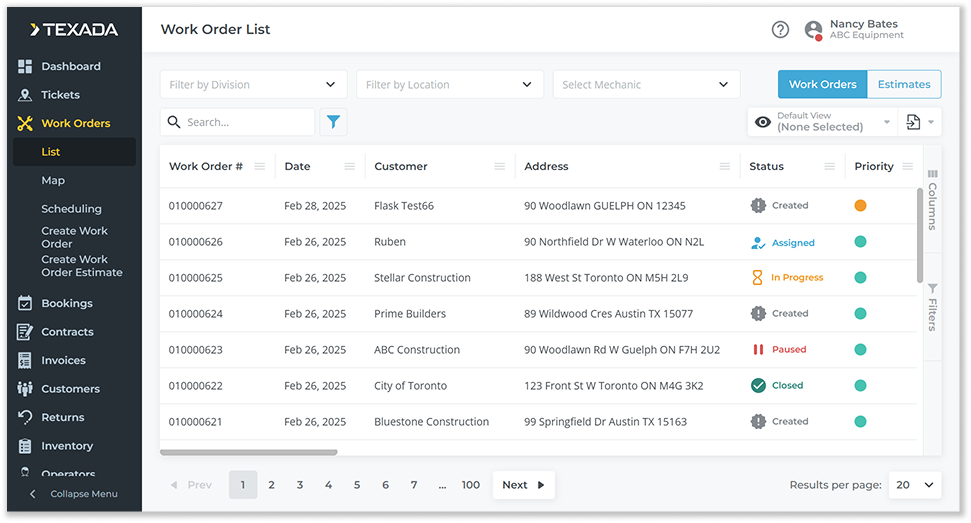
- Log in to Service Management (Next), then select Work Orders → List from the left navigation menu to open the Work Order List.
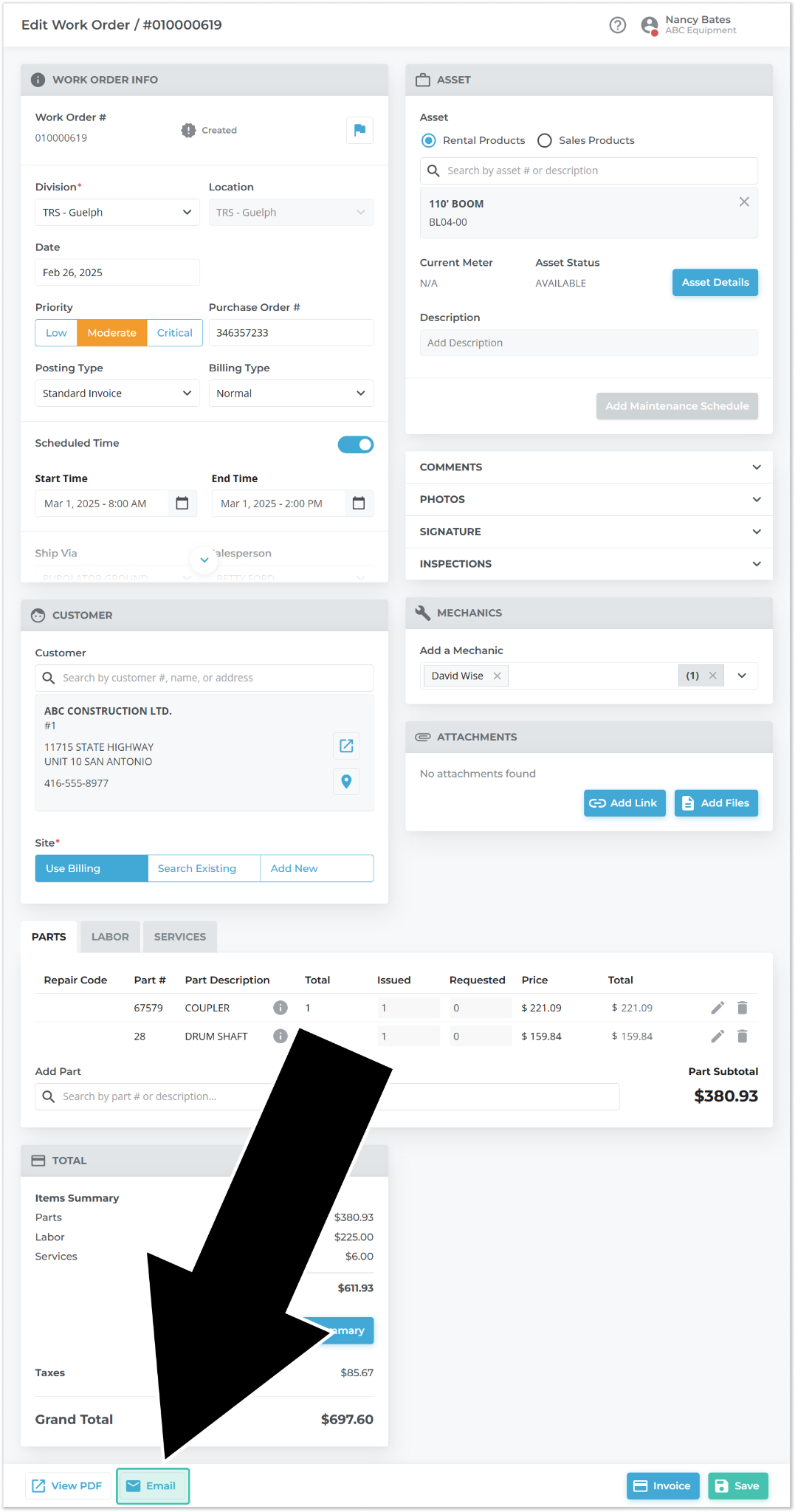
- Select the Work Order you would like to email to open the Work Order details page. Scroll down and click the “Email” button in the bottom-left corner of the screen.
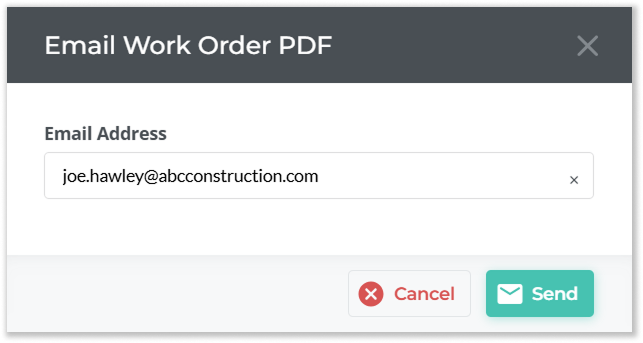
- Enter the email address of the person to which you’d like to send the Work Order, then click “Send”. A PDF version of the Work Order will be sent to specified address.