
In This Article
Introduction
Print a tag when you need to mark a piece of equipment as requiring service, or when it has been serviced and is ready to be rented again. Generally, red tags are used to indicate that service is needed, while green tags indicate that equipment is ready for rental.
You can only print tags for work orders in the Completed status. See “About Work Order Statuses” for more information.
Tags are printed directly to your printer. You can only print to a printer that you have permission to access, as configured in Service, Rental, and Financials (Classic).
Print a Tag
To print a tag, follow the steps below.
- Log in to Service, Rental, and Financials (Next) and select Work Orders → List from the left navigation menu.
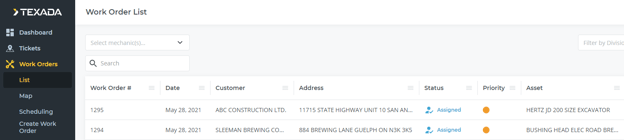
- Locate the Work Order for which you want to print a tag and click on it to open its details page.
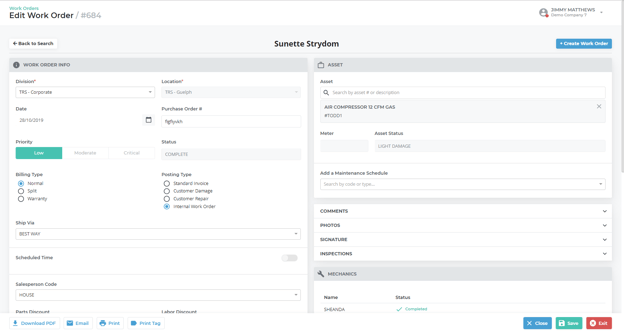
- Scroll to the bottom of the page and click the “Print Tag” button to open the Print window.
- Use the “Select Printer” dropdown to select the printer you want to use.
- Use the “Select Tag” dropdown to do one of the following:
- Select “Red tag” if you need to print a red tag because the piece of equipment requires service.
- Select “Green tag” if you need to print a green tag because the piece of equipment has completed servicing and is ready to be rented.
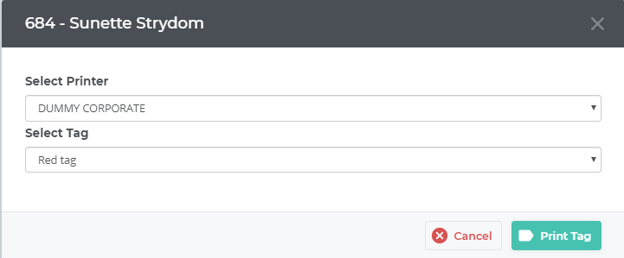
- Click “Print Tag” to print the tag to the selected printer.