In This Article
Introduction
Print a Work Order as a PDF when you need to share a Work Order with someone that does not have access to Service Management, but still needs the Work Order information. For example, if your Mechanic carried out a repair on a piece of equipment and later a customer disputes the condition of the equipment at the time of the repair, you can print a PDF of the Work Order to show the customer the results of the inspection the Mechanic carried out.
Print a Work Order
To print a Work Order in Service Management (Next), follow the steps below.
- Log in to Service Management (Next), then select Work Orders → List from the left navigation menu to open the Work Order List.
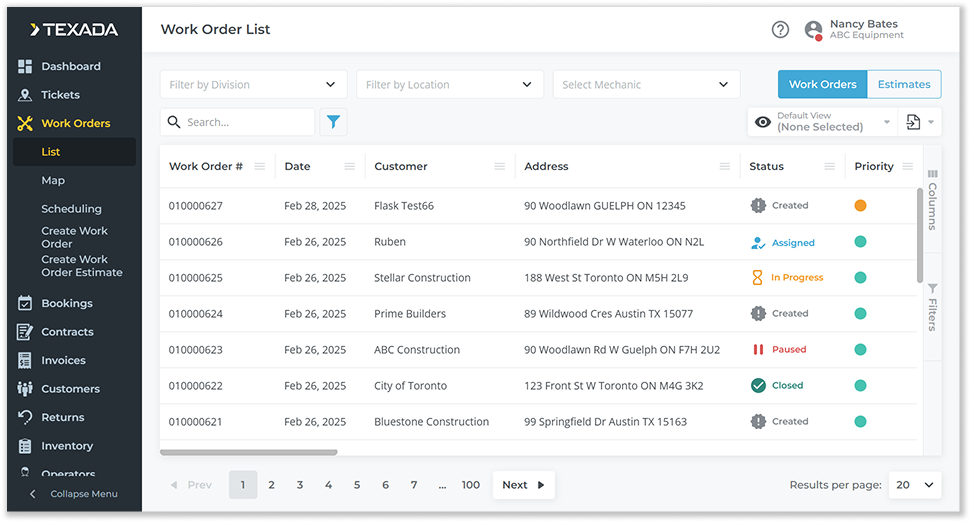
- Select the Work Order you would like to email to open the Work Order details page.
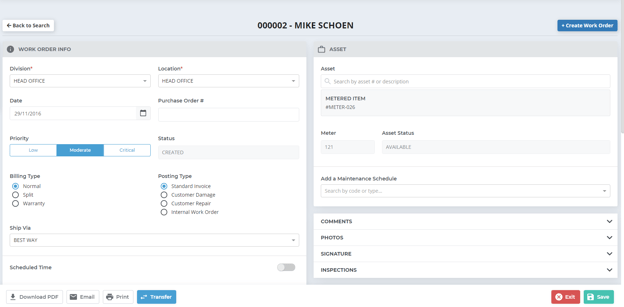
- Scroll down to the bottom of the page and click the “Print” button. The PDF view page will open, displaying the current Work Order in PDF format.
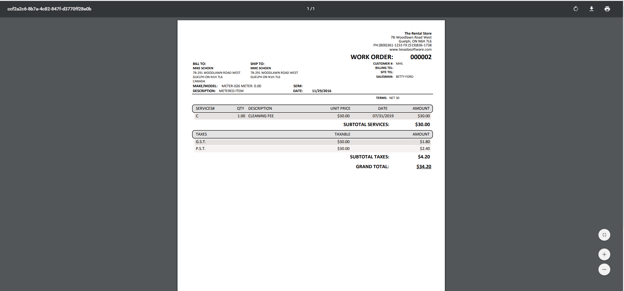
- Click the print button
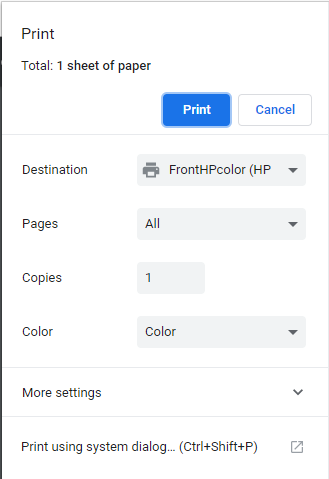
 to open the Print window. Select the printer and print settings, then click “Print”.