In This Article
Introduction
Close a Work Order when the Work Order is completed and ready to be invoiced to a customer or charged internally.
You can only close Work Orders that are in the Completed status.
The invoice posting type controls the workflow you follow to close a Work Order:
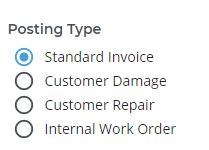
Standard Invoice, Customer Damage, and Customer Repair result in the creation of a Work Order payment request. For cash customers, the payment must be made before the Work Order is closed. For on-account customers, this step can be skipped.
Internal Work Orders do not result in the creation of a Work Order payment request and can simply be closed.
See “About Work Order Posting Types” for more information on each posting type.
Close a Standard or Customer Work Order
- Log in to Service Management (Next) and select Work Orders → List from the left navigation menu to open the Work Order List.
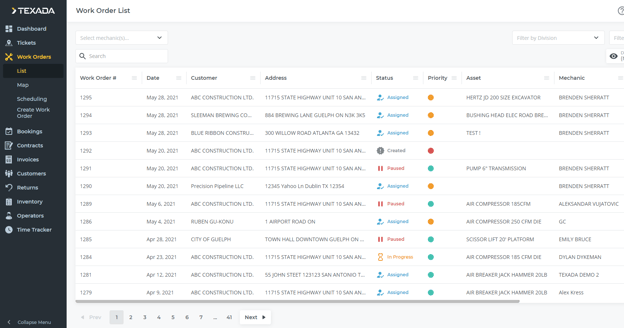
- Select the Work Order you need to close to open the Work Order details page.
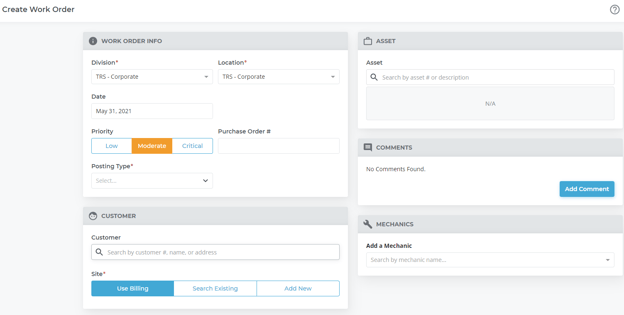
- Click the “Invoice” button at the bottom of the screen to open the Invoice window.
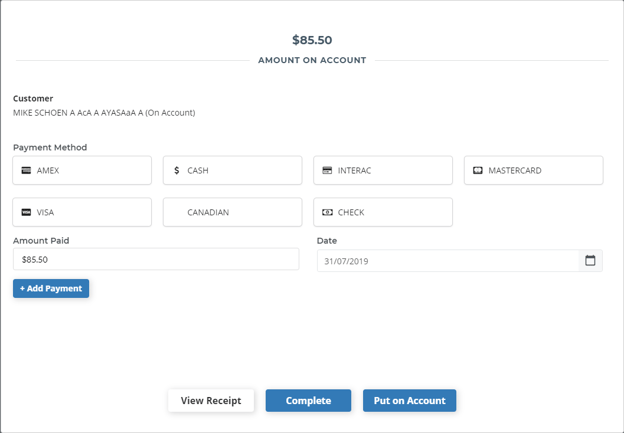
- Complete the invoicing process, then click “Complete” to close the Work Order. For more information on how to complete the invoicing process, see “Pay an Invoice in Financials (Next)”.
Close an Internal Work Order
- Log in to Service Management (Next) and select Work Orders → List from the left navigation menu to open the Work Order List.
- Select the Work Order you need to close to open the Work Order details page.
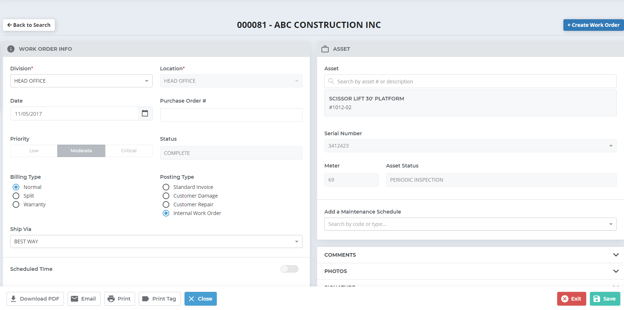
- Click the “Close” button at the bottom of the screen to open the Close Work Order window.
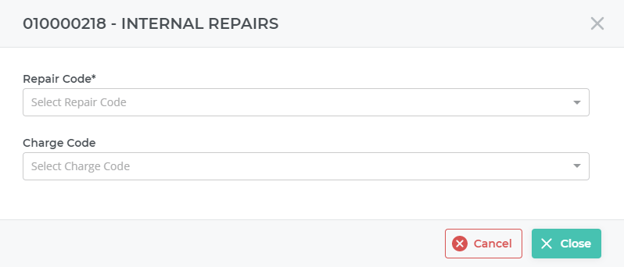
- Use the “Repair Code” and “Charge Code” drop-downs to select the repair and charge codes that apply to the work performed on the equipment. Once you have made your selections, click “Close” to return to the Work Order details page. The status of the Work Order will be updated to Closed.