In This Article
Introduction
A Work Order is a document indicating that an Asset needs servicing, either for repairs or routine maintenance. Work Orders can be created in Service Management (Classic), (Next), or Mobile, and are assigned to a Mechanic for completion. The Mechanic can then use Service Management Mobile to complete the Work Order, including tracking their Parts consumed, labor hours spent, and additional services provided, as well as take pictures and complete an Asset inspection.
The following article will outline the process of creating a new Work Order in Service Management (Next).
Creating a Work Order
To create a new Work Order in Service Management (Next), follow the steps below.
- Log in to Service Management (Next) and select Work Orders → Create Work Order from the left navigation menu. This will open the Create Work Order screen, where you can fill out all the information for your Work Order.
For a full breakdown of this screen’s contents, see “The Create / Edit Work Order Page”.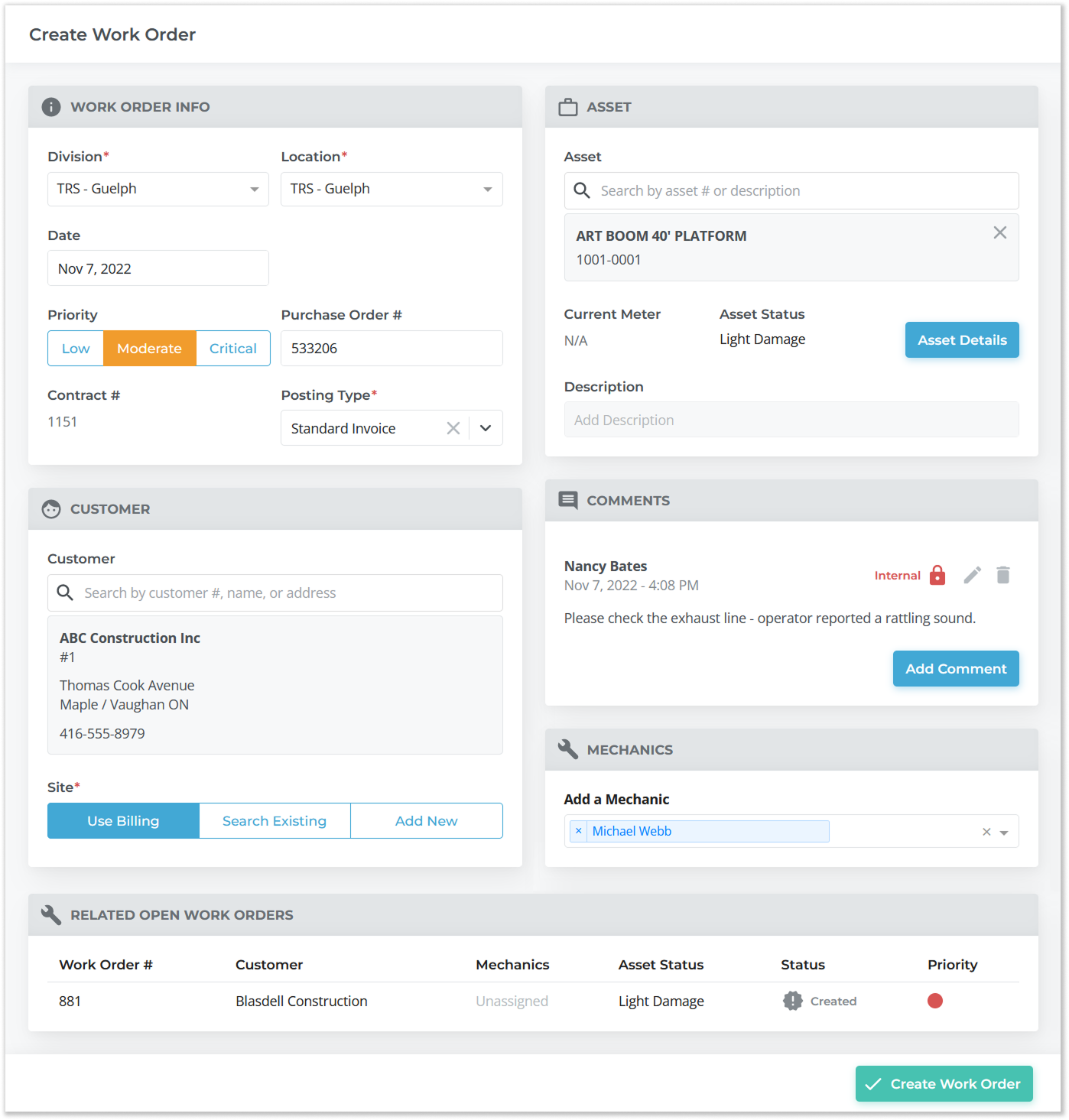
- Fill out your Work Order. Required fields are marked with a red asterisk
 . In order to create a Work Order, you must at least select a Division, Location, Posting Type, Customer*, and Asset to be serviced.
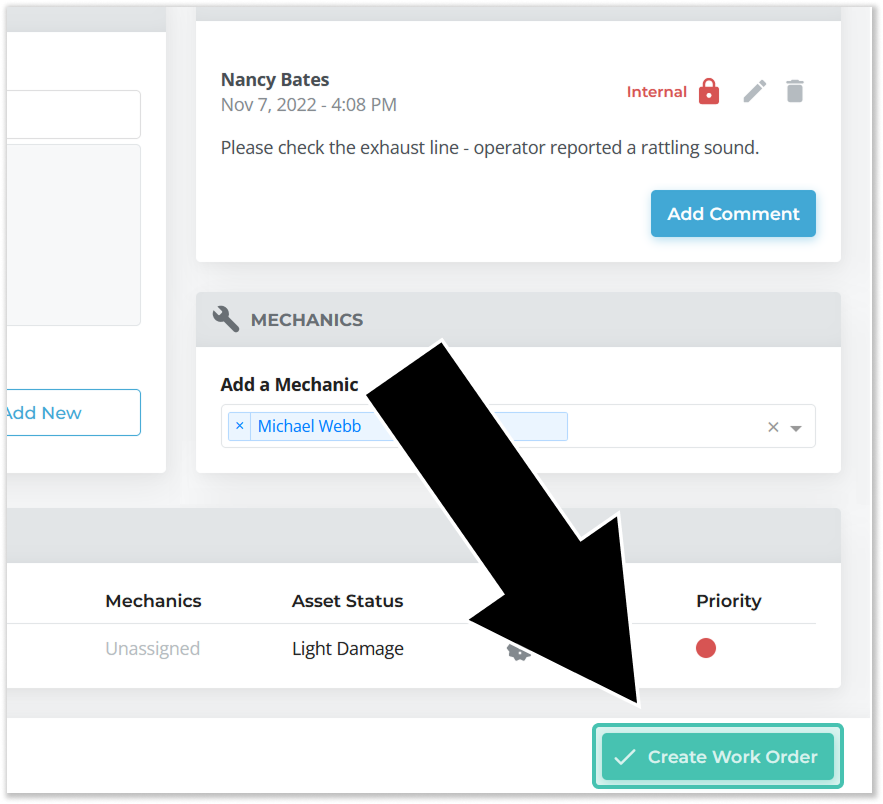
* You must select a Customer even if the Work Order is internal. For this reason, it is recommended to set up an “Internal Repairs” Customer so you can assign internal Work Orders to them. - Once you have entered all of the information for your Work Order, click the “Create Work Order” button in the bottom-right corner of the screen to save your changes and return to the Work Order List. If creation was successful, you will receive a message that reads “Work Order created successfully! View #[Work Order number]”. Click on this message to view and edit your Work Order.
If you assigned a Mechanic to the Work Order at the time of creation, they will also receive a notification from Service Management Mobile at this time.