
In This Article
Introduction
Service, Rental, and Financials (Next) is a web-based application that offers much of the same functionality as Service, Rental, and Financials (Classic), presented with a sleek, modern user interface. (Next) also offers some features not available in (Classic), such as the Dashboard Calendar, the Ticket Map, and the Work Order Scheduling page. Designed primarily for counter operations, Service, Rental, and Financials (Next)’s current feature set includes Tickets, Work Orders, Contracts, Invoices, Returns, Customer and Inventory management, and more.
Service, Rental, and Financials (Next) is freely available to all Texada customers that have a (Classic) license, and can be accessed via your web browser. For best results, Texada recommends Google Chrome. Most major web browsers are also supported.
It is important to log out of Service, Rental, and Financials (Next) once you are done working, as this helps protect your company against data and identity theft. Service, Rental, and Financials (Next) does not automatically log Users out after a certain period of time, so remembering to always log out is vital.
Log In
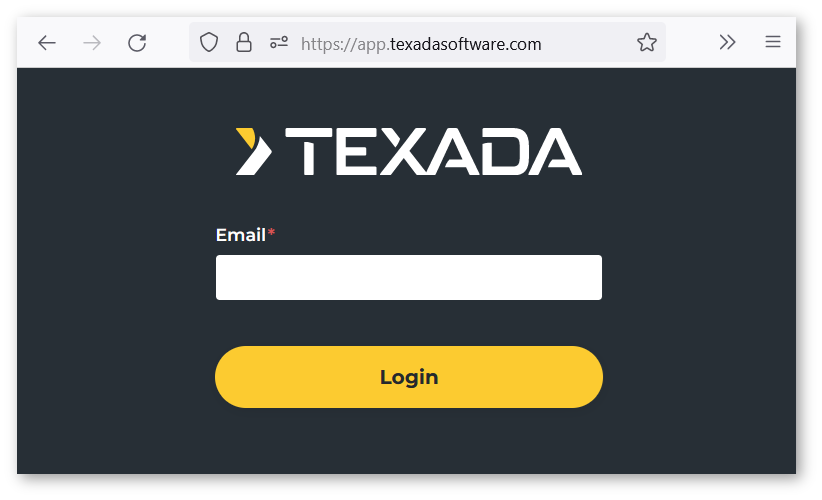
- Open your web browser and navigate to https://app.texadasoftware.com. Note that your login URL may be different depending on your geographical region.
- Enter your email address into the Email field, then click the “Login” button.
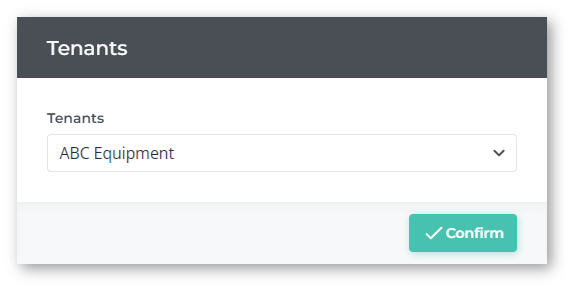
- Select the environment to which you’d like to log in, then click the “Confirm” button. The environments you have access to are determined by the email address you entered, and may include Play / Production versions of the same organization, or multiple organizations.
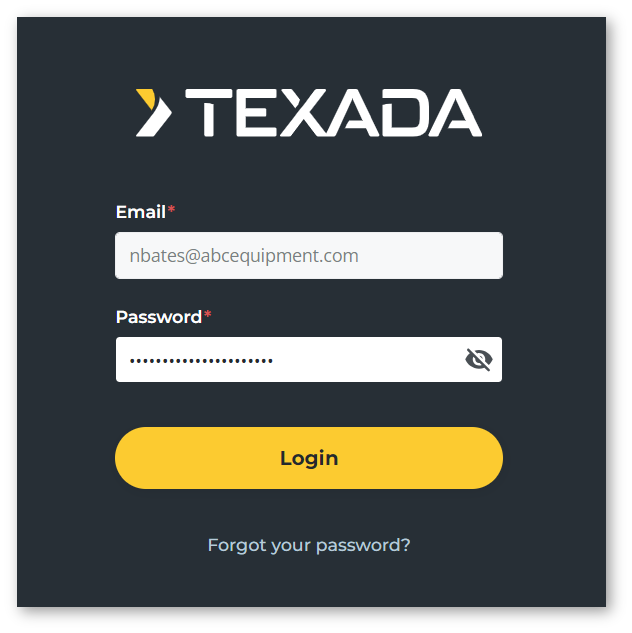
- Enter your password and click the “Login” button.
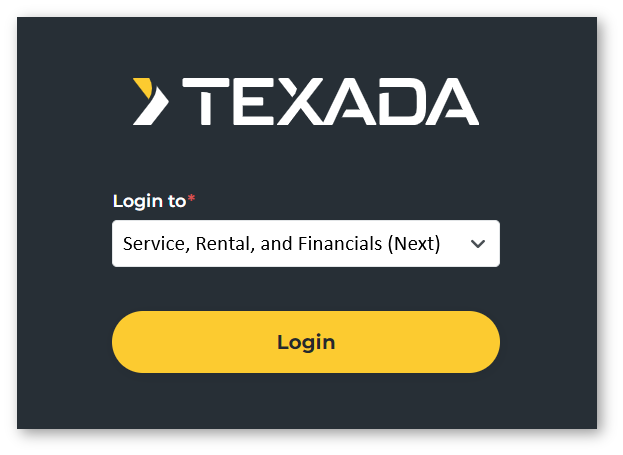
- If your password was correct, you will be prompted to select whether to login to Service, Rental, and Financials (Next) or (Classic). Select “Service, Rental, and Financials (Next)” and click “Login”.
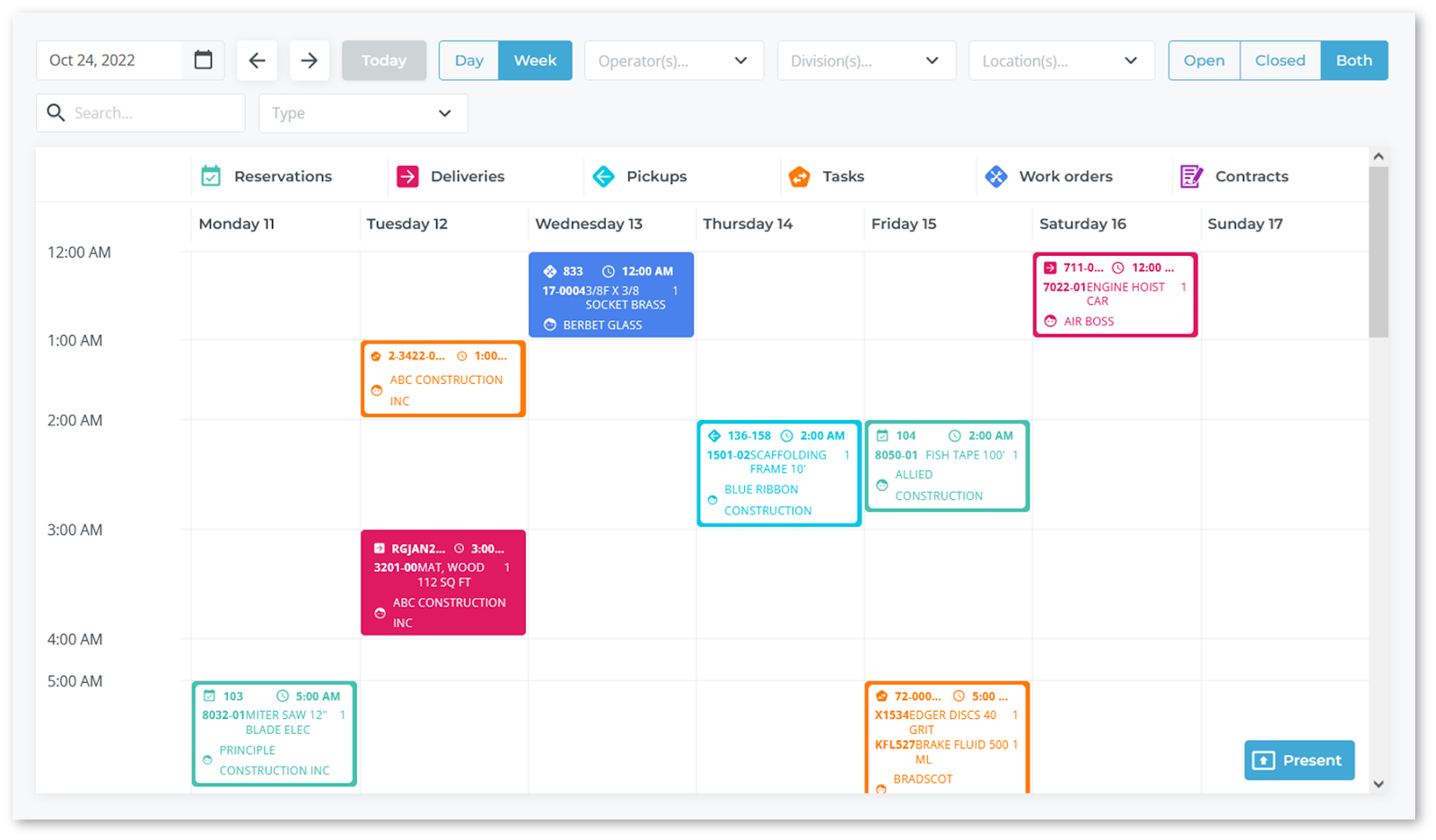
- You will be logged in to Service, Rental, and Financials (Next) and redirected to the Dashboard Calendar screen.
Log Out
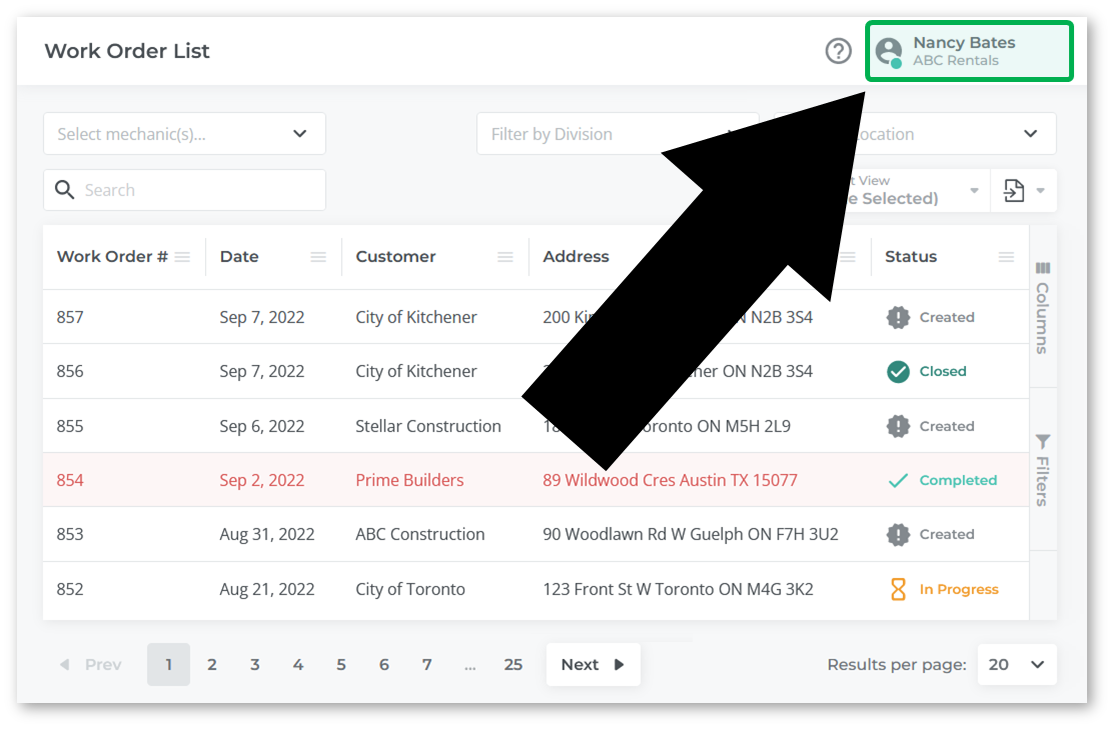
- Open the User Menu by clicking on your name in the top-right corner of the screen on any page in Service, Rental, and Financials (Next).
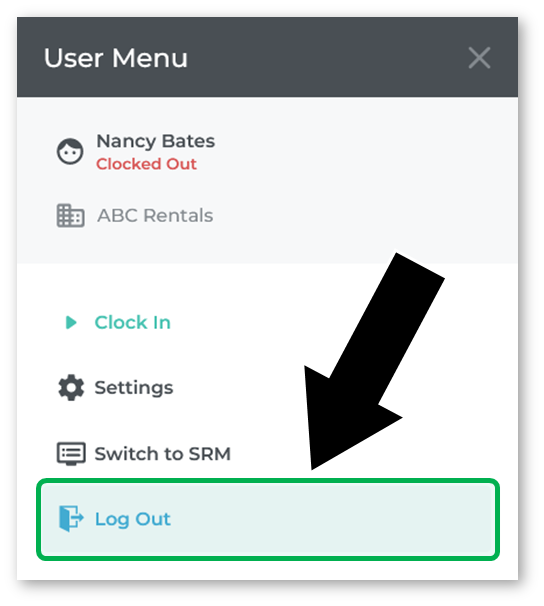
- Click “Log Out”. You will be logged out and redirected to the login screen.
Common Login Issues
If you are having issues logging in to Service, Rental, and Financials (Next), try the following:
- Make sure your email address is correct.
Make sure you are logging in using your primary email address as displayed in the “E-Mail Address” field on your Operator record in Service, Rental, and Financials (Classic).
See “Operator Codes” for more information. Note that you cannot log in using your Operator Code as you do in Service, Rental, and Financials (Classic). - Reset your password.
If you do not know your password, you may need to reset it by clicking the “Forgot your password?” button at the bottom of the login page. See “Reset a Password in Service, Rental, and Financials (Next)” for more information. - Make sure your User account has been given access to Service, Rental, and Financials (Next).
In order to login to Service, Rental, and Financials (Next), your User account must first be given access. This is done by checking the “Service, Rental, and Financials (Next) Access” checkbox on your Operator record in Service, Rental, and Financials (Classic). See “Enable a User to Access Service, Rental, and Financials (Next) or Mobile” for more information.