
In This Article
Introduction
The following article outlines the process of granting Service & Rental Mobile access to an existing Service, Rental, and Financials (Classic and Next) user. For information on creating new users, see “Create a User in Service, Rental, and Financials (Classic)”.
Divisions and Locations
The Divisions and Locations to which a user are assigned is vitally important. You can enable a user to view the information related to one, some, or all of the Divisions and Locations in your system. See “Add a Service, Rental, and Financials (Classic) User to Multiple Divisions” for more information on how to add a user to multiple Divisions.
In addition, when setting up a user for multiple Divisions, you have the ability to set different security roles for each Division, giving you full flexibility in terms of what your users can see and do in Service, Rental, and Financials. For example, a user might have permission to edit Work Orders in one Division, but only view Work Orders in another. See “About Permissions and Menu Access for Service, Rental, and Financials (Next) and Mobile” for more information on controlling what users can see and do.
Drivers and Mechanics
When enabling a Driver or Mechanic, additional steps are required. These steps add the Driver(s) or Mechanic(s) to any Driver or Mechanic selection dropdowns throughout Service, Rental, and Financials.
- See “Add a Mechanic in Service, Rental, and Financials (Classic)” for more information on how to enable access as a Mechanic.
- See “Add A Driver in Service, Rental, and Financials (Classic)” for more information on how to enable access as a Driver.
Grant a User Access to Service & Rental Mobile
To grant a user access to Service & Rental Mobile, follow the steps below.
- Log in to Service, Rental, and Financials (Classic) and navigate to System Maintenance → Configure System Settings → Security → Operators.
- Enter the ID of the user for which you want to enable access into the “System ID” field, or click the search icon
 to search for a user. Once you’ve located the user you want to edit, double-click their name to open the Operator window.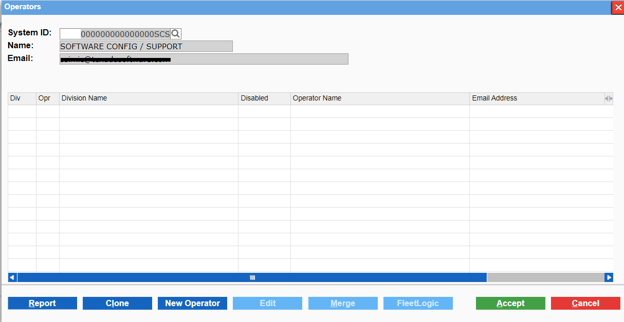
- Check the “Mobile Access” checkbox to enable Service & Rental Mobile access for that user.
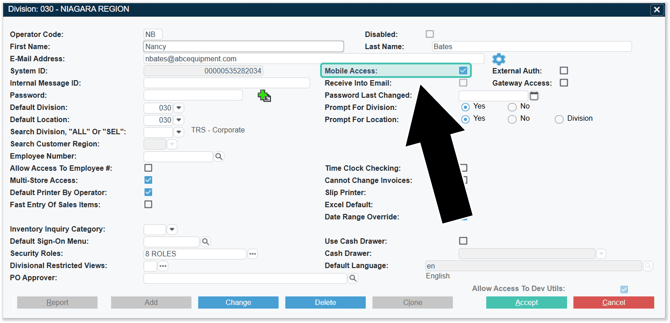
- Use the “Default Division” dropdown to do one of the following:
- Select the Division the user can access if the user can only access a single Division
- Select nothing if the user can access the Head Office only
- Do one of the following next to “Prompt for Division”:
- Click “Yes” if the user can access all Divisions
- Click “No” if the user can only access a single Division
- Use the “Default Location” dropdown to do one of the following:
- Select the Location the user can access if the user can only access a single Location
- Select nothing if the user can access the head office only
- Do one of the following next to “Prompt for Location”:
- Click “Yes” if the user can access all Locations
- Click “No” if the user can only access a single Location
- Click “Division” if the Location should always be the same as the Division
- Next to Security Roles, click more options
 to open the Assigned Security Roles window and select security roles for this user. Check any security roles that apply to this user profile for this Division/Location(s). Note that you must select a minimum of one security role in order for the user to be able to log in.
See “Assign Permissions to a Security Role in Service, Rental, and Financials (Classic)” for more information on what permissions and menu access apply to the security role(s).
Once you are finished assigning security roles, click “Accept” to apply your changes.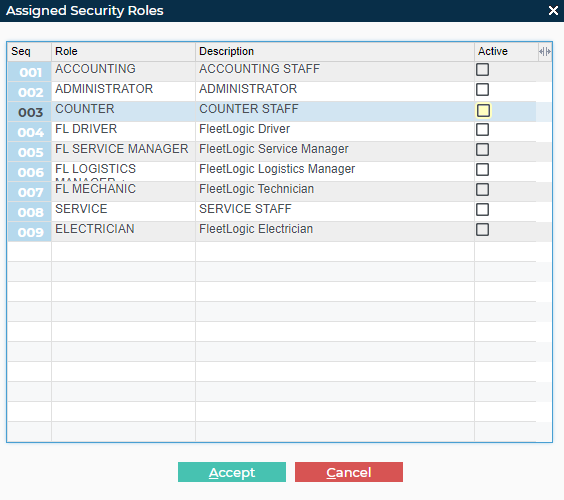
- Click “Accept” on the Operator window to save your changes. The user can now access Service & Rental Mobile.