In This Article
Introduction
A Work Order estimate is a pre-Work Order document that allows counter operators to draft a Work Order and share its potential cost with the customer without affecting inventory or committing to performing work. Once a Work Order estimate has been approved, it can be converted to a regular Work Order.
The following article will describe how to view and edit existing Work Order estimates in Service Management (Next).
Open a Work Order Estimate
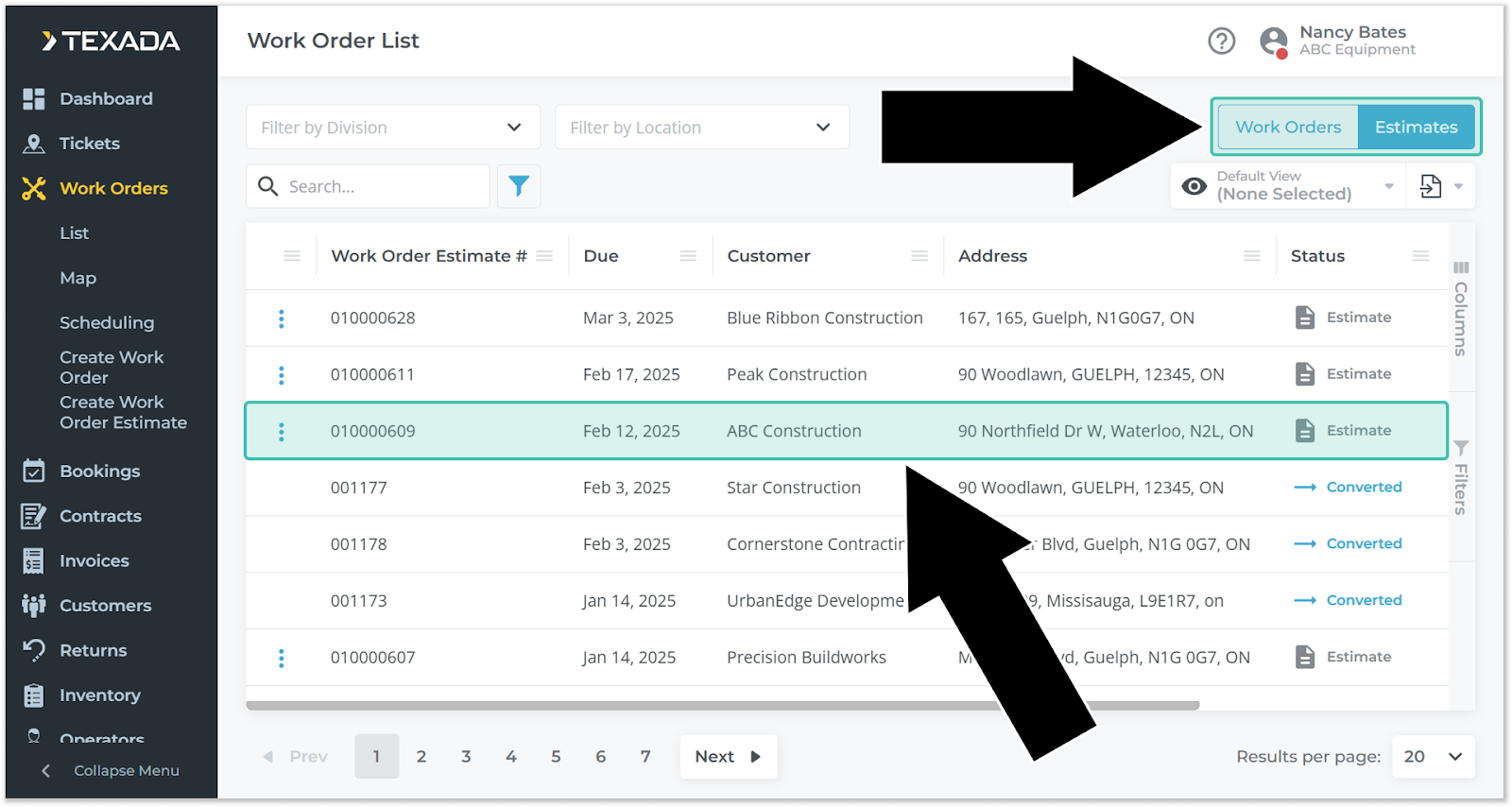
Existing Work Order estimates can be opened via the Work Order List.
- Select Work Orders → List from the left navigation menu.
- Click the Work Orders / Estimates toggle
in the top-right corner of the screen to switch to viewing Work Order estimates.
- Use the controls at the top of the page to filter the list of Work Order estimates by Division or Location. Begin typing into the search bar to filter Work Order estimates by Work Order Estimate #, Customer name, and Asset name.
- Once you have located the Work Order estimate you wish to view, click on it to access the Edit Work Order Estimate page.
View and Edit a Work Order Estimate
The Edit Work Order Estimate page allows you to view and edit all of a Work Order estimate's details. For a full breakdown of the elements on this page, see “The Work Order Details Page”.
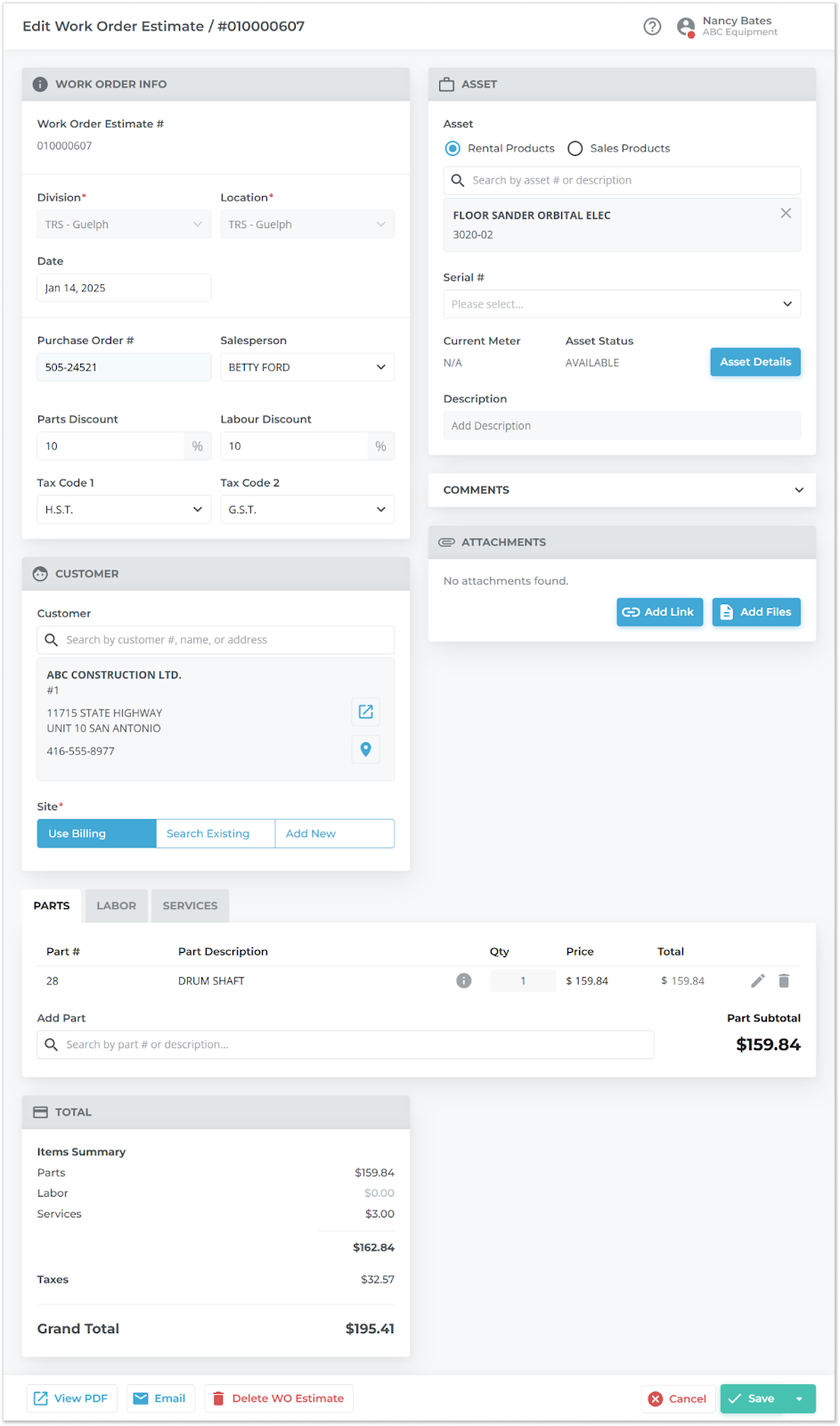
Upon accessing this page, you will be able to view and edit the full details of your Work Order estimate. Once you are finished, click the “Save” button in the bottom-right corner of the screen to save your changes.