
In This Article
Introduction
Clock in to Service, Rental, and Financials (Next) when your work shift begins and clock out when it ends to ensure your work hours are recorded accurately.
You can clock out either by using the clock out functionality or by logging out of Service, Rental, and Financials (Next), but you can only clock in by using the clock in functionality.
You can update your clock in/out information retroactively if you forgot to clock in/out and need to add this information for recording purposes.
Clock In
- Log in to Service, Rental, and Financials (Next) and open the User Menu by clicking on your name in the top-right corner of the screen.
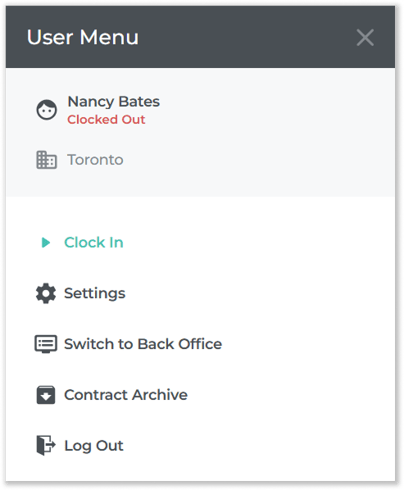
- Click “Clock In”. You will be clocked in, and your start time will be registered in the Time Tracker.

Clock Out
- Log in to Service, Rental, and Financials (Next) and open the User Menu by clicking on your name in the top-right corner of the screen.
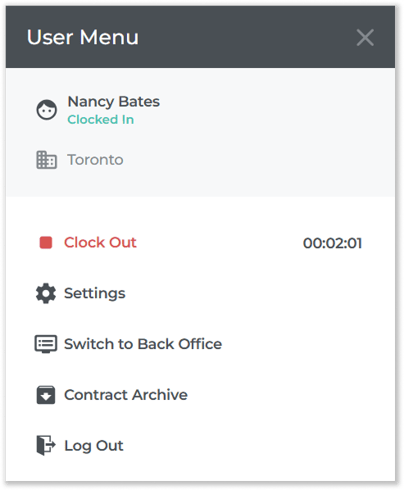
- Click “Clock Out”. You will be clocked out, and your end time will be registered in the Time Tracker.
Set a Clock In/Out Retroactively
- Log in to Service, Rental, and Financials (Next) and select Operators → Time Tracker in the left navigation menu.
- Click “Add New” to add a new row to the list of clock ins and outs.

- Select an Operator, Start Time, and End Time for your Time Tracker entry. Once you are finished, click “Confirm” to save the entry.