
In This Article
Introduction
Once you create a security role, you can assign permissions and menu access to that role. The permissions and menu access are what dictate what users assigned to a particular security role can see and do in Service, Rental, and Financials (Classic), (Next), and Mobile.
For more information on creating the required security roles, see “Create a Security Role in Service, Rental, and Financials (Classic)".
For more information on which permissions and menu access to assign to a specific security role, see "About Permissions and Menu Access for Service, Rental, and Financials (Next) and Mobile".
Assign Permissions
To assign permissions and menu access to a security role, do the following:
- Log in to Service, Rental, and Financials (Classic) and navigate to System Maintenance → Configure System Settings → Security → Security Roles.
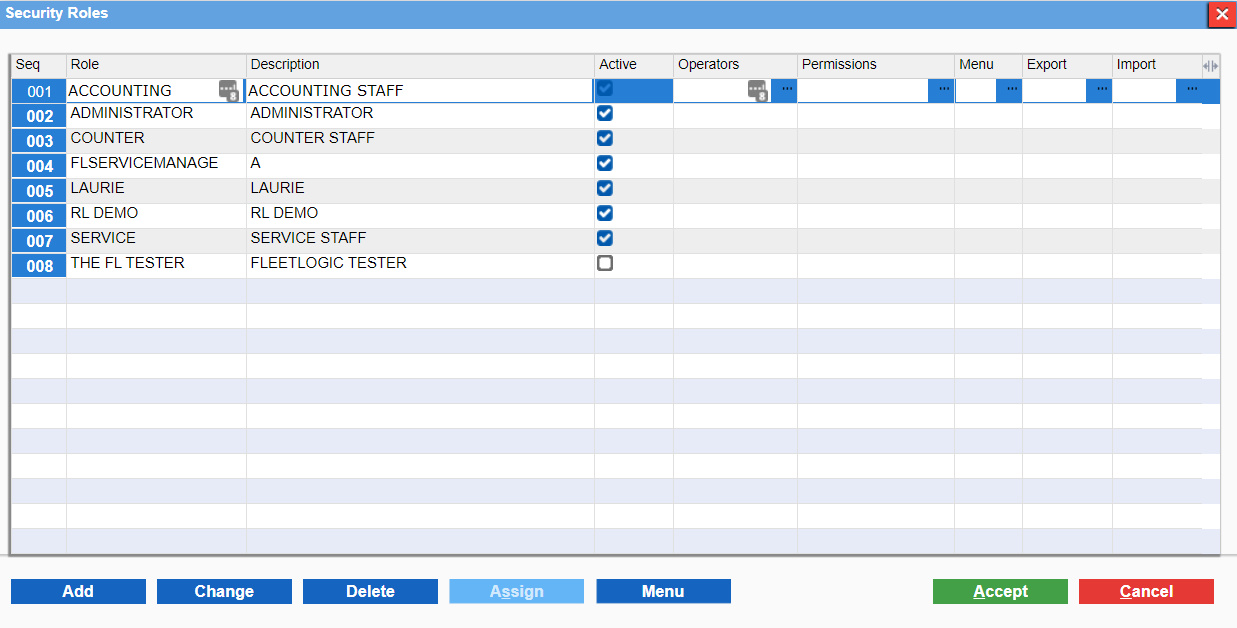
- Select the role to which you want to add permissions and click the three dots
 under Permissions to open the Security Role Permissions popup.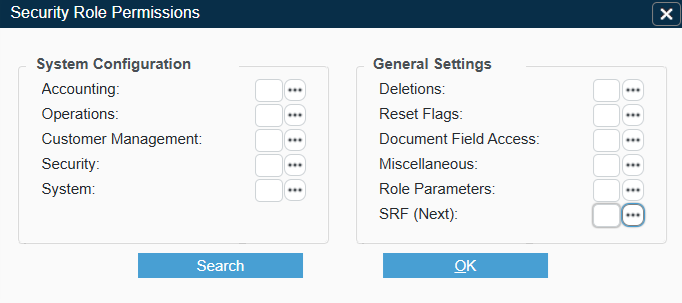
- Select SRF (Next) to open the SRF (Next) popup.
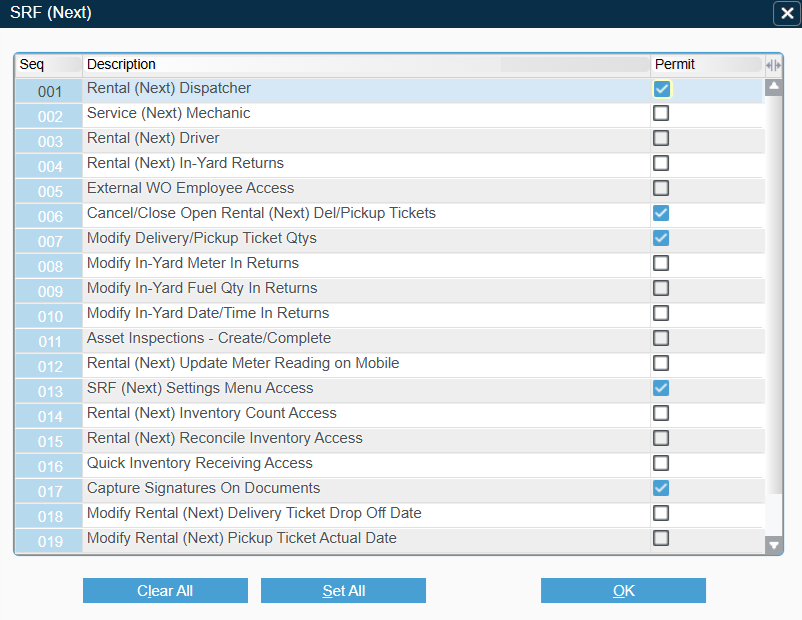
- Check any required/optional permissions you need for this security role.
- Click “OK”, then “OK” to save your changes and return to the Security Roles utility.
- Click the three dots under Menu to open the Menu Security popup.
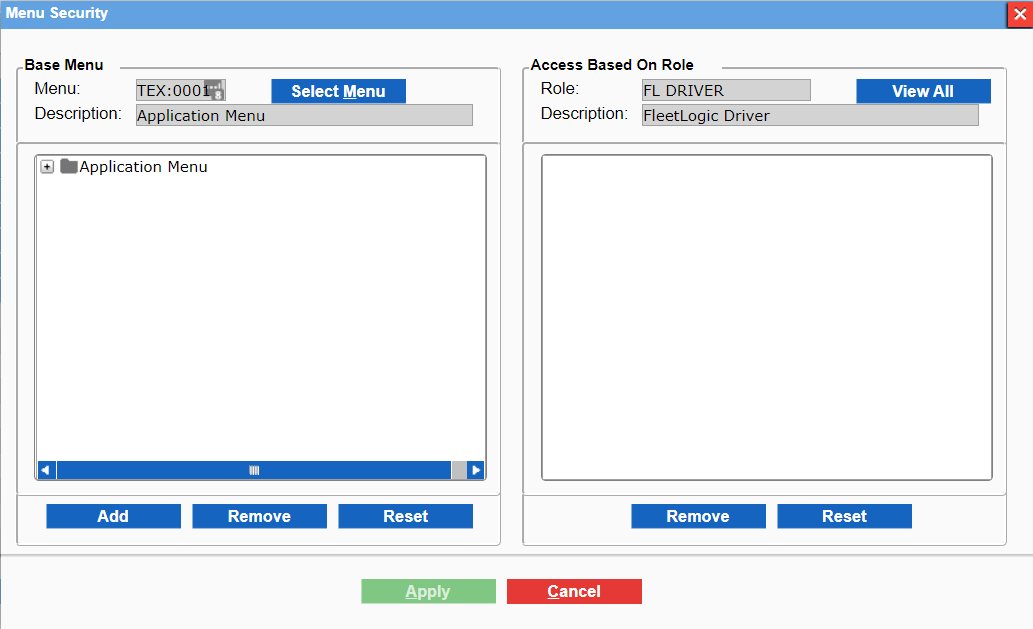
- In the left-hand panel, select a menu option and click “Add” to move it to the right-hand panel, granting the security role access to that option. Repeat this process for each menu option to which you want the security role to have access.
- Click “Apply”, to save your changes.
- Repeat steps 2-8 for each security role to which you want to assign permissions. Ensure that you have set up permissions for at least the following roles: Driver, Technician, Service Manager, and Logistics Manager. Once you are finished, return to the Security Roles window and click “Accept” to save all of your changes.