.png?width=365&height=50&name=Texada%20Logo%20(Black).png)
In This Article
- Introduction
- Prime Product+ API Versions
- Importing Lead Information
- Exporting Opportunity Information
- Equipment CRM Source Field Changes
- Reason Mapping
- Opportunity Source Management
- Configuration Keys
- Appendix A: Caterpillar to Equipment CRM Field Mapping
- Appendix B: Equipment CRM to Caterpillar Field Mapping
Introduction
A Prime Product+ lead is a lead for a new equipment sale generated by Caterpillar and communicated to equipment dealers who deal in Caterpillar products. Prime Product+ leads are similar to Prioritized Service Events (PSEs) in that they represent potential revenue opportunities flagged by Caterpillar, except they inform dealers of potential sales of new machines instead of parts or service opportunities.
By integrating Equipment CRM with Caterpillar’s Prime Product+ API, dealers can:
- Import new Prime Product+ leads created by Caterpillar into Equipment CRM
- Import changes made to existing Prime Product+ leads by Caterpillar into Equipment CRM
- Export new leads created in Equipment CRM that meet the Prime Product+ criteria to Caterpillar
- Export changes made to Caterpillar-originated leads in Equipment CRM to Caterpillar
The following article will tell you everything you need to know about Equipment CRM’s integration with Prime Product+.
Prime Product+ API Versions
Caterpillar currently supports two different versions of the Caterpillar Product Content REST API, Version 2 and Version 3. Texada supports both of these versions for the purposes of Prime Product+ integration.
The API version used by your system can be modified using the “CAT Prime Product API Version” configuration key in CloudLink Console. This will affect the logic used for reason mapping.
Requesting the CAT Prime Product V3 API
To request the Prime Product V3 API, Texada requires a member of your staff to sign and submit a data consent form. For more information, see Requesting the CAT Prime Product V3 API.
Importing Lead Information
Equipment CRM imports new Prime Product+ information from Caterpillar every 15 minutes, starting at 6:00 AM and ending at 11:45 PM system time each day. The information imported from Caterpillar will include both new and updated lead records, as determined by the leadState API field.
- When a new lead is imported from Caterpillar, a new lead record will be created in Equipment CRM.
- When an existing lead is updated, the leadId API field will be used to locate and update the corresponding lead in Equipment CRM.
For a detailed breakdown of how lead information is mapped from Caterpillar to Equipment CRM, see “Appendix A: Caterpillar to Equipment CRM Field Mapping”.
Exporting Opportunity Information
In addition to importing Prime Product+ lead information into Equipment CRM, opportunity information is also regularly exported to Caterpillar. These exports are performed daily at 4:00 AM system time. All opportunities that were updated since the last export will be included.
For a detailed breakdown of how opportunity information is mapped from Equipment CRM to Caterpillar, see “Appendix B: Equipment CRM to Caterpillar Field Mapping”.
Export Requirements for Dealer-Originated Opportunities
In order for an opportunity that originated from Equipment CRM to be exported to Caterpillar, it must meet the following criteria:
- Type: Sales
- Machine Make: Caterpillar (AA)
- Source: Marked as “Include in OEM Feedback” in Opportunity Source Management.
- Lead or Opportunity: Must have been promoted to an opportunity.
Equipment CRM Source Field Changes
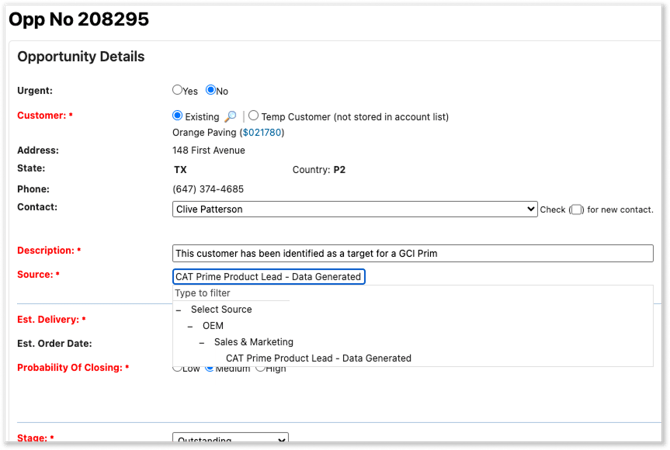
This update adds two new options to the “Source” drop-down on the Opportunity details page in Equipment CRM: CAT Prime Product Lead - Customer Generated and CAT Prime Product Lead - Data Generated.
When a lead is imported from Caterpillar, its source will be set automatically based on the value of the “leadType” field:
|
leadType Field (Caterpillar) |
Opportunity Source (Equipment CRM) |
|
Customer Generated |
CAT Prime Product Lead - Customer Generated |
|
Data Generated Convert Data Generated Replace Data Generated Optimize Data Generated Acquire |
CAT Prime Product Lead - Data Generated |
As part of this update, the existing “CAT Leads” Source option has been removed. All opportunities using this Source will be updated to have a Source of “CAT Prime Product Lead - Customer Generated”.
These changes will be reflected in any reports that offer the ability to filter leads by Opportunity Source.
Reason Mapping
The logic used for reason mapping depends on the version of the Prime Product+ API your organization uses.
Version 2
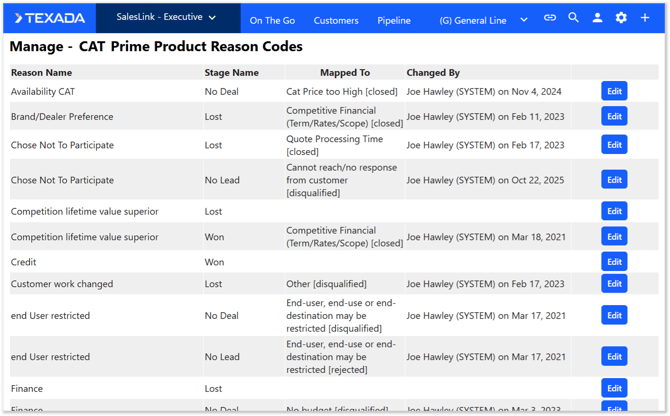
For organizations using Version 2 of the Prime Product+ API, the Manage - CAT Prime Product Reason Codes secured module can be used to manage the reason values that users can select for lead / opportunity records.
To access this module, log in to Equipment CRM - Executive, then select Settings (gear icon in the top bar) → Manage - CAT Prime Product Reason Codes. Access to this module is controlled via Manage - Secured Modules.
Version 3
For organizations using Version 3 of the Prime Product+ API, Texada will no longer maintain reason mapping directly within Equipment CRM and the Manage - CAT Prime Product Reason Codes secured module will be unavailable. Instead, dealers will be able to manage the mapping of reason values via the Caterpillar dealer portal.
Opportunity Source Management
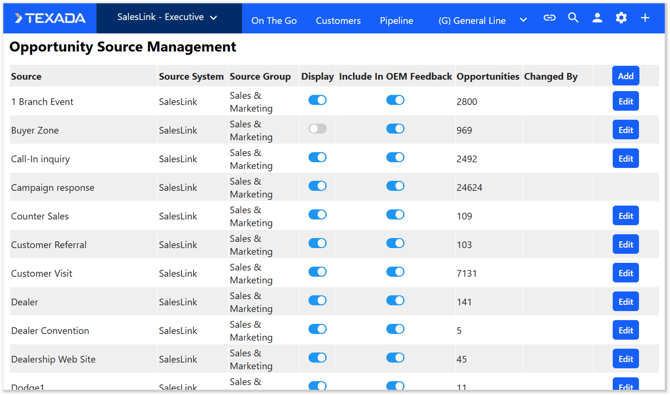
The Manage - Opportunity Source secured module can be used to include or exclude opportunities from being exported to Caterpillar based on their Source.
To access this module, log in to Equipment CRM - Executive, then select Settings (gear icon in the top bar) → Manage - Opportunity Source. Access to this module is controlled via Manage - Secured Modules.
The “Include in OEM Feedback” toggle for each Source determines whether opportunities with that Source will be exported to Caterpillar. By default, opportunities of all Sources are enabled. To exclude opportunities of a given Source from being exported, disable this toggle.
Configuration Keys
The following section lists the configuration keys that affect the behavior of the Prime Product+ integration. See “Manage Configuration Keys” for more information.
CAT Prime Product API Version
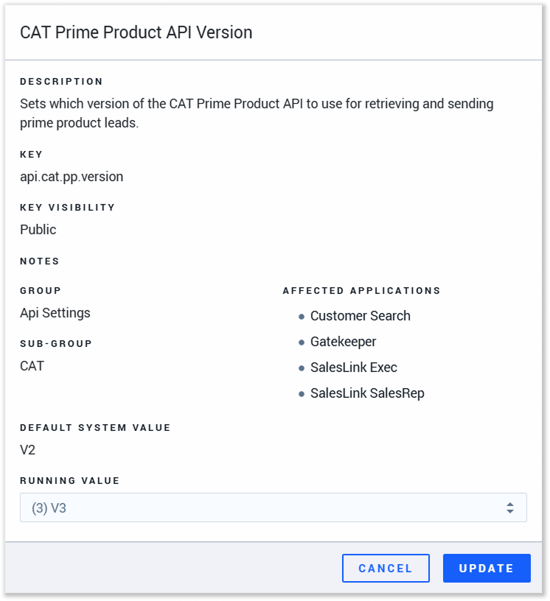 Key: api.cat.pp.version
This key determines the version of the Prime Product+ API used by your system.
- (2) V2: Version 2 of the API will be used.
- (3) V3: Version 3 of the API will be used.
The API version used will affect the logic used for reason mapping.
CAT Prime Product API Client ID
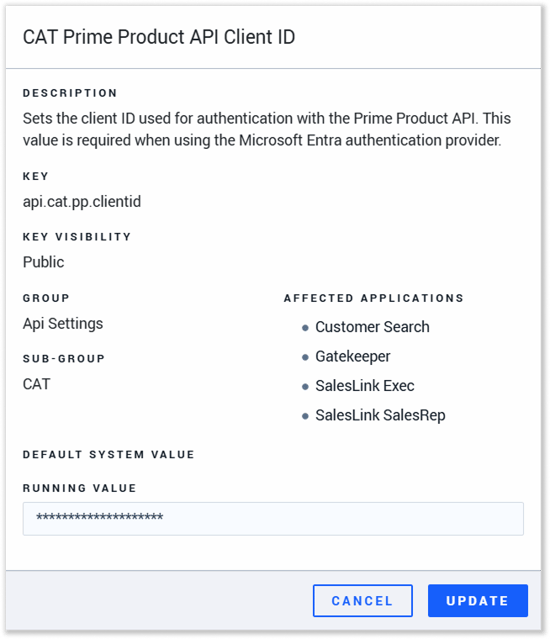 Key: api.cat.pp.clientid
This key sets the Client ID used for authentication with the Prime Product API.
The value of this key will be provided by Caterpillar.
CAT Prime Product API Client Secret
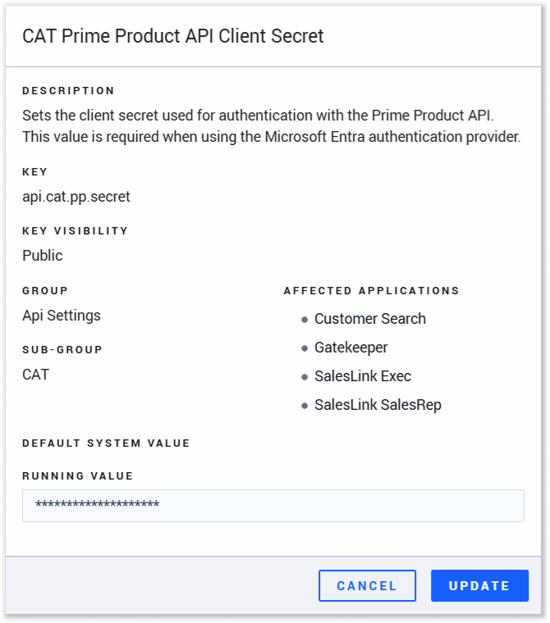 Key: api.cat.pp.secret
This key sets the Client Secret used for authentication with the Prime Product API.
The value of this key will be provided by Caterpillar.
CAT Prime Product API Scope
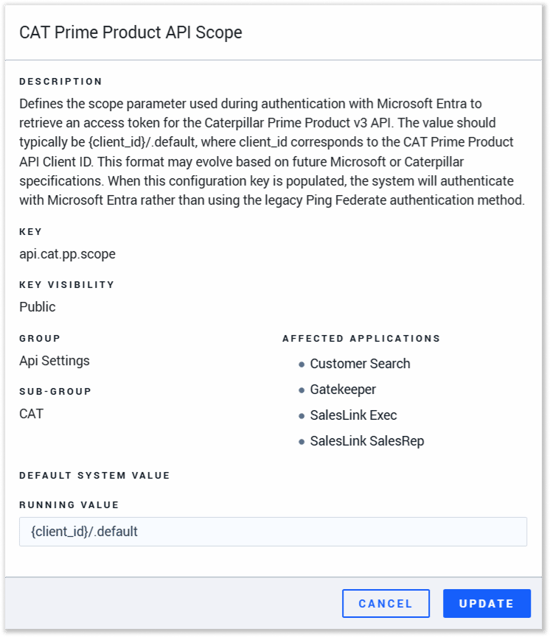 Key: api.cat.pp.scope
This key defines the scope parameter used during authentication with Microsoft Entra to retrieve an access token for the Caterpillar Prime Product v3 API.
The value for this key will be provided by Caterpillar and will generally be in the format “{client_id}/.default”.
CAT Prime Product API URL
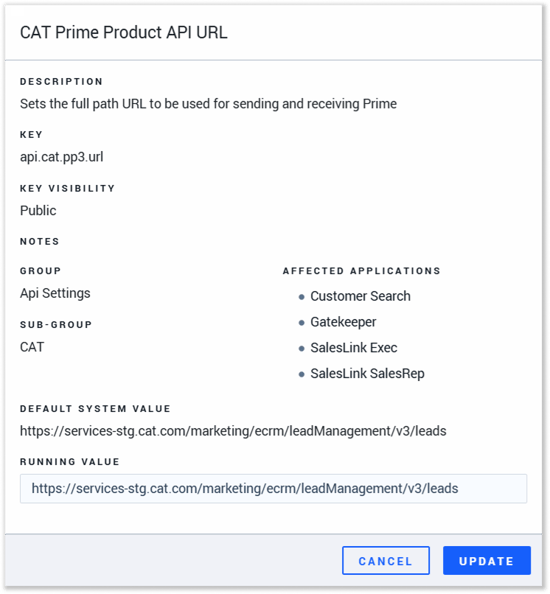 Key: api.cat.pp3.url
This key specifies the URL used for calling the Prime Product+ API.
The system default value for this key is the URL for Staging environments. The Production environment URL will be provided by Caterpillar at the time of implementation.
Auto-Assign Prime Product Leads to MSR
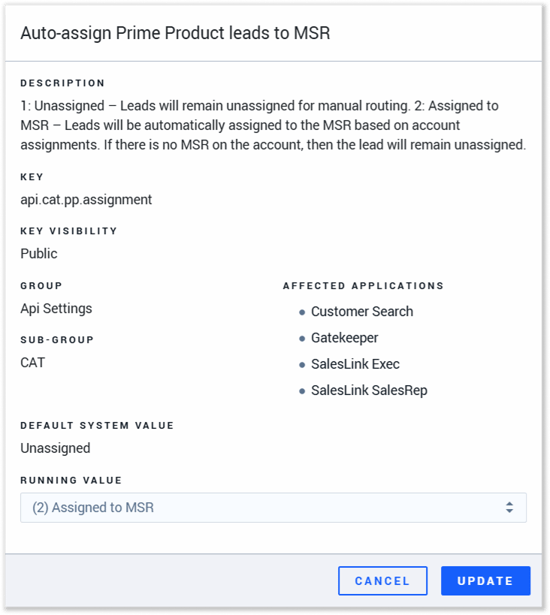 Key: api.cat.pp.assignment
Enabling this key allows you to automatically assign Prime Product+ leads to the customer’s Machine Sales Representative (MSR) when imported.
- (1) Unassigned: Imported leads will be unassigned.
- (2) Assigned to MSR: Imported leads will be automatically assigned to the MSR for the lead’s customer.
Appendix A: Caterpillar to Equipment CRM Field Mapping
The following table shows how lead information imported from Caterpillar is mapped into Equipment CRM.
- Caterpillar: The name of the field as provided by Caterpillar.
- Equipment CRM: The Equipment CRM field into which the value of the Caterpillar field is imported.
- Comments: Additional notes on import logic.
Several of the values provided by Caterpillar for each Lead are imported as Notes on that Lead. Specifically, 5 different Notes are created for each Lead, each containing one or more imported values. Refer to the “Comments” column for more information.
Notes are displayed in descending order, so the contents of Note 5 will appear first, followed by the contents of Notes 4, 3, 2, and 1.
|
Caterpillar |
Equipment CRM |
Comments |
|
address1 |
Customer Address |
|
|
address2 |
Customer Address |
|
|
address3 |
Customer Address |
|
|
businessPhone |
Phone |
Only if a “mobilePhone” value is not provided. |
|
catDealerCode |
||
|
catPrequalificationStatus |
Cat Financing Approved |
|
|
city |
Customer City |
|
|
company |
Customer Name |
|
|
country |
||
|
countryCode |
Customer Country |
|
|
dealerBranch |
Branch |
|
|
dealerCustomerNumber |
Customer Number |
|
|
descriptionEnglish |
Opportunity Description |
First 60 characters only. |
|
emailAddress |
|
|
|
equipmentAge |
||
|
firstName |
The “name” field is used instead. |
|
|
industry |
Industry Code |
|
|
lastName |
The “name” field is used instead. |
|
|
leadState |
||
|
mobilePhone |
Phone |
|
|
model |
Base Model |
|
|
systemModel |
Model |
|
|
name |
Customer Contact Name |
The customer’s full name. |
|
newUsedRental |
Type & Product Status |
|
|
serialNumber |
Product Serial Number |
|
|
stateOrProvince |
Customer Province/State |
|
|
targetDate |
Estimate Delivery Year, Delivery Month |
|
|
zipOrPostal |
Postal Code |
|
|
behavioralData |
Link |
|
|
leadType |
Note 1 |
These fields are imported together as Note 1. |
|
additionalInformationMaster |
Note 1 |
|
|
commentsMaster |
Note 2 |
This field is imported as Note 2. |
|
callCenterComments |
Note 3 |
These fields are imported together as Note 3. |
|
callCenterProcessDate1 |
Note 3 |
|
|
businessUnit |
Note 4 |
These fields are imported together as Note 4. |
|
catCampaignMostRecent |
Note 4 |
|
|
clFleetSize |
Note 4 |
|
|
contactForQuestions |
Note 4 |
|
|
contactSourceOriginal |
Note 4 |
|
|
county |
Note 4 |
|
|
currencyIsoCode |
Note 4 |
|
|
currentProductMaster |
Note 4 |
|
|
customerSegment |
Note 4 |
|
|
dateCreated |
Note 4 |
|
|
dealerSalesRep |
Note 4 |
|
|
dealerSalesRepNumber |
Note 4 |
|
|
digitalActivity |
Note 4 |
|
|
enginePerformanceNumber |
Note 4 |
|
|
featureCode |
Note 4 |
|
|
financingMethod |
Note 4 |
|
|
jobRole |
Note 4 |
|
|
leadCategory |
Note 4 |
|
|
leadScore |
Note 4 |
|
|
levelOfInterest |
Note 4 |
|
|
liftingCapacity |
Note 4 |
|
|
parentVertical |
Note 4 |
|
|
productOfInterest |
Note 4 |
|
|
productOfInterestList |
Note 4 |
|
|
productOfInterestQuantity |
Note 4 |
|
|
purchaseTimeframe |
Note 4 |
|
|
rebuildMethodology |
Note 4 |
|
|
sfmcActivity |
Note 4 |
|
|
shippingInformation |
Note 4 |
|
|
smu |
Note 4 |
|
|
systemFamily |
Note 4 |
|
|
systemLanguage |
Note 4 |
|
|
systemModel |
Note 4 |
|
|
systemModelId |
Note 4 |
|
|
systemSubFamily |
Note 4 |
|
|
rentalEndDate |
Note 4 |
|
|
rentalStartDate |
Note 4 |
|
|
utmCampaign |
Note 4 |
|
|
leadId |
Note 5 |
These fields are imported together as Note 5. |
|
descriptionEnglish |
Note 5 |
Appendix B: Equipment CRM to Caterpillar Field Mapping
The following table shows how lead information exported from Equipment CRM is mapped into Caterpillar.
- Caterpillar: The name of the field in Caterpillar’s system.
- Value: The value exported to Caterpillar. Values in quotation marks “” are literal. Values not in quotation marks are field names in Equipment CRM.
- Conditions: The conditions under which the value will be exported. If none of the conditions are met, the field will not be exported.
|
Caterpillar |
Value |
Conditions |
|
catDealerCode |
Lead Dealer Code |
If one exists. Note: The Lead Dealer Code is generated by Caterpillar. As such, it only exists for Caterpillar-generated leads. |
|
Branch Dealer Code |
If no Lead Dealer Code exists. |
|
|
Value of the Dealer Code (ck.Dealer.Code) configuration key |
If neither a Lead Dealer Code nor Branch Dealer Code exist. |
|
|
leadId |
Caterpillar Prime Product leadId |
|
|
dealerLeadId |
Opportunity Number |
|
|
dealerOpportunityId |
Opportunity Number |
If the lead’s Stage is NOT “Lead” or “No Lead”. |
|
customerPreviouslyKnown |
“Yes” |
If the lead’s customer existed in Equipment CRM before the lead was initially imported. leadStatus is NOT "Rejected". |
|
“No” |
If the lead’s customer did NOT exist in Equipment CRM before the lead was initially imported. leadStatus is NOT "Rejected". |
|
|
customerContacted |
“Yes” |
If there is a completed activity linked to the lead in Equipment CRM. leadStatus is NOT "Rejected". |
|
“No” |
If there is NOT a completed activity linked to the lead in Equipment CRM. leadStatus is NOT "Rejected". |
|
|
dateContacted |
The date of the first completed activity linked to the lead. |
|
|
dealerCustomerNumber |
The Customer Number of the customer associated with the lead. |
If the lead’s Stage is NOT “Lead”. |
|
targetDate |
Opportunity Est. Delivery |
If the lead Stage is NOT “Lead” or “No Lead”. |
|
dealerSalesStage |
Opportunity Stage Name |
leadStatus is NOT "Rejected". |
|
dealerSalesRep |
Opportunity Assigned To |
If the lead’s Stage is NOT “Lead” or “No Lead”. Note: This is the assigned sales rep’s full name. Only the first 50 characters will be sent. |
|
dealerSalesRepNumber |
Opportunity Assigned To Sales Rep Number |
If the lead’s Stage is NOT “Lead” or “No Lead”. |
|
opportunityAmount |
Opportunity Estimated Revenue |
If the lead’s Stage is NOT “Lead” or “No Lead”. |
|
leadStatus |
“Rejected” |
If the lead was deleted. For Caterpillar-originated leads, if the lead’s Stage is “No Lead”. |
|
“Accepted” |
If none of the “Rejected” criteria are met and the lead has been promoted to an opportunity. |
|
|
rejectedReasonWhy |
No Lead Reason |
If the lead’s Stage is “No Lead”. |
|
“Other” |
If the lead was deleted. |
|
|
rejectedReasonComments |
No Lead Comment |
If the lead’s Stage is “No Lead”. |
|
"Deleted by user {ID} on {date_time}" |
If the lead was deleted. |
|
|
currencyIsoCode |
Value of the CatCss DefaultCurrency (ckSlCommon.CatCss.DefaultCurrency) configuration key |
|
|
dateCreated |
NULL |
If the lead is Caterpillar-originated. |
|
Lead / Opportunity Create Date |
If the lead is dealer-originated. Note: If an opportunity started as a lead record, this will be the lead’s Create Date. |
|
|
quoteSentDate |
Linked Quote’s Submission Date |
|
|
quoteId |
Linked Quote Number |
|
|
serialNumber |
NULL |
If the lead is Caterpillar-originated. |
|
First Product Serial Number or Linked Submitted Quote Serial Number |
If the lead is dealer-originated. |
|
|
rating |
Lead / Opportunity Probability Of Closing |
|
|
dateClosed |
Won / Lost / No Deal Date |
If the lead’s Stage is “Won”, “Lost”, or “No Deal”. |
|
primaryClosedReason |
Opportunity Close Reason |
If the lead’s Stage is “Won”, “Lost”, or “No Deal”. leadStatus is NOT "Rejected". |
|
secondaryClosedReason |
Opportunity Close Comment |
If the lead’s Stage is “Won”, “Lost”, or “No Deal”. leadStatus is NOT "Rejected". |
|
dealerOpportunity |
“Yes” |
If this is a dealer-created opportunity. |
|
“No” |
||
|
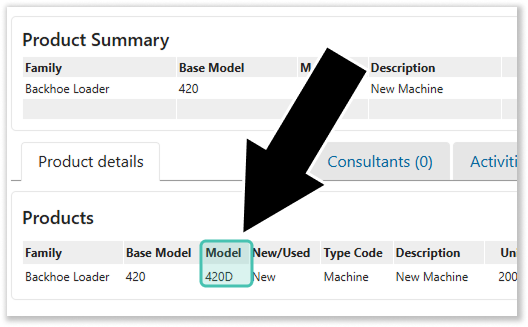
model |
First Product Model |
Note: This is the Model of the product that occupies the leftmost tab in the Product Details section of the Opportunity Details page:
|
|
newUsedRental |
"Rental" + First Product Status ("New" or "Used") |
If the lead’s leadType is “Rent”. |
|
First Product Status ("New" or "Used") |
If the lead’s leadType is “Sales”. |
|
|
productOfInterestQuantity |
First Product Quantity |
leadStatus is NOT "Rejected". |
|
currentProductOfInterestDetails |
Product Item Family and Quantity |