.png?width=365&height=50&name=Texada%20Logo%20(Black).png)
In This Article
Introduction
Improvements are coming to iQuote’s Docusign integration!
With this update, your team can now create custom documents that automatically populate using live deal data, then send these documents to customers for signing using the existing Docusign integration.
Watch the video above or keep reading to learn more!
How it Works
To create a custom document that is compatible with this update, you’ll need to use field anchors (also called field tags). Field anchors are essentially wildcards that will be printed over with live data at the time a document is sent through Docusign. Refer to Appendix A for a list of anchors that can be used with this integration.
Up to 4 signees are supported with this integration. When a document is sent out via Docusign, it will be sent to each signee in the following order:
- Customer: The first signee, also called the Buyer. This signee is required.
- Customer Witness: Witness to the first signee. This signee is optional.
- Seller: The second signee. This signee is required.
- Seller Witness: Witness to the second signee. This signee is optional.
For information on collecting witness signatures, see “Witness Information”.
For detailed instructions on creating custom documents, adding them to iQuote, then sending them through Docusign, refer to the steps below!
- Create document
Create a document, such as a trade-in bill of sale (proof of customer sale to dealership), in a word processing program of your choice. This feature supports both Microsoft Word (.doc, .docx) and PDF (.pdf) documents. - Add field anchors
To include a field anchor in your document, simply paste the value in the “Anchor” column from Appendix A anywhere in your document. When this document is uploaded to iQuote, the anchor will automatically be replaced with the corresponding live deal data.
See “Placing Field Anchors” for tips on how to successfully include field anchors. - Upload Document to iQuote
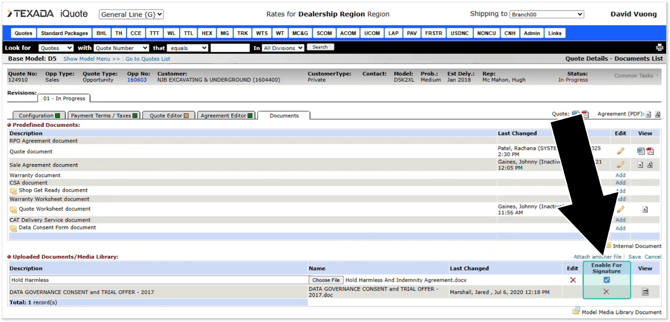
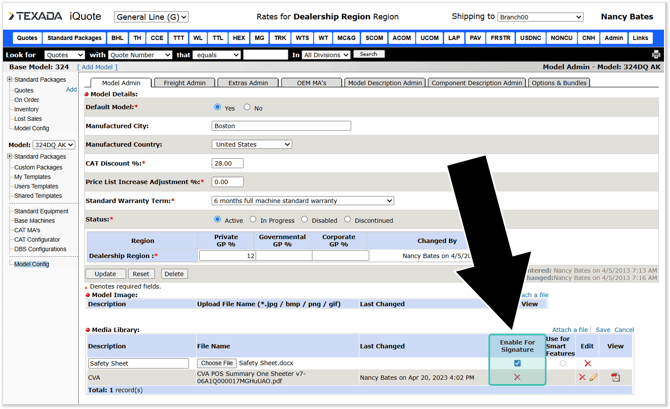
Log in to iQuote and open the Quote or Model to which you’d like to add a document. Click “Attach a File” to upload a new document, then select the document you prepared in steps 1-2. Add a description and check the “Enable for Signature” checkbox to allow the document to be sent through Docusign. Once you’ve finished uploading your document, click “Save”.
The “Enable for Signature” can be found in the following locations:
- The Documents tab of the Quote Details screen:
- The Model Admin tab of the Model Config screen for a machine model or base model:
- The Documents tab of the Quote Details screen:
- Send document to customer
Once a document has been uploaded to a Quote, it can be sent to the customer using the existing Send to Docusign feature (Quote Details → Common Tasks → Send to Docusign).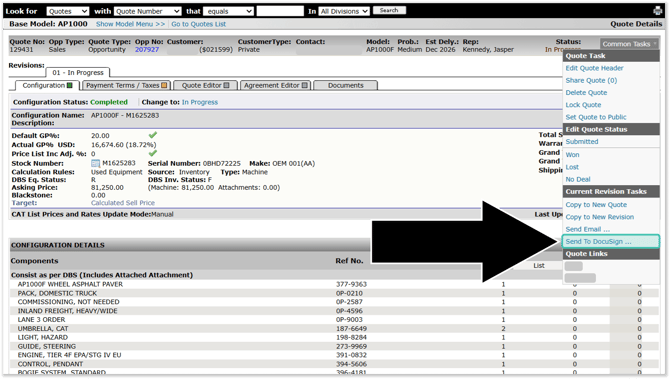 When you open this tool, you’ll notice that any documents you uploaded in step 3 will be available for selection via the “Document for Signature” drop-down.
Select the document you’d like to send and click “Send to Docusign” to send it to the customer. In the version of the document sent to the customer, any field anchors present will be filled out using live data.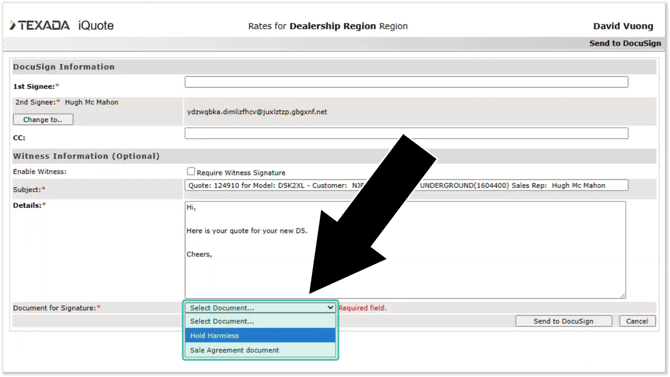
Placing Field Anchors
Including field anchors in documents can be tricky, since it’s not always possible to predict what the final generated document will look like once Docusign has replaced the anchors with live data. Following the below guidelines can help ensure a professional appearance for your documents.
- Change field anchors’ color to white
It is important to note that when Docusign is generating a document, it doesn’t actually replace field anchors with the corresponding values – instead, it pastes these values on top of the anchors.
For this reason, the text color of all included field anchors should be changed to white once the document is ready for use. This allows the anchors to blend in with the background and for the live data to be legible when pasted over them.
In the example below, the “ds_BuyerCompany” and “ds_BuyerAddress” anchors are shown in grey to reveal their location – in the final document, these anchors should be white.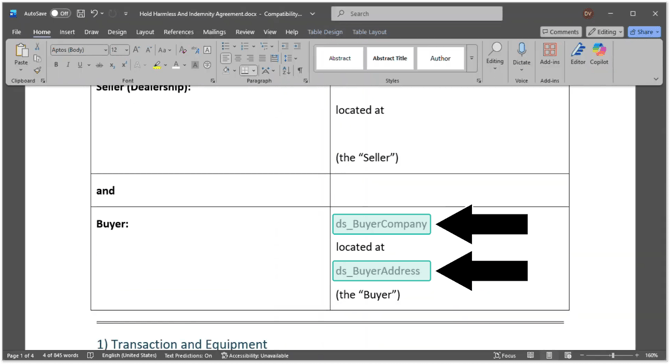
- Use text boxes
The most precise and reliable method of placing field anchors is to use Microsoft Word’s text box feature. Putting each field anchor in its own text box allows you to place anchors at exact and arbitrary positions. This also allows anchors to be repositioned without affecting the rest of the document.
For information on using text boxes, refer to the following help article from Microsoft: Add, copy, or remove a text box. - Test, then adjust anchor position
Docusign places the live value near, but not exactly at the position of each anchor. This behavior is affected by many factors and will differ from document to document. For this reason, it is always recommend to test a document first using the Send to Docusign feature, then adjust the anchors to create the desired effect.
Witness Information
Accessing the functionality outlined in this section may require a change to your organization’s Docusign subscription. For more information, please contact your Texada or Docusign account representative.
In addition to the buyer and seller, it is also possible to require signatures from up to two witnesses when sending a document through Docusign. To do this, check the “Require Witness Signature” box in the Send to Docusign window:
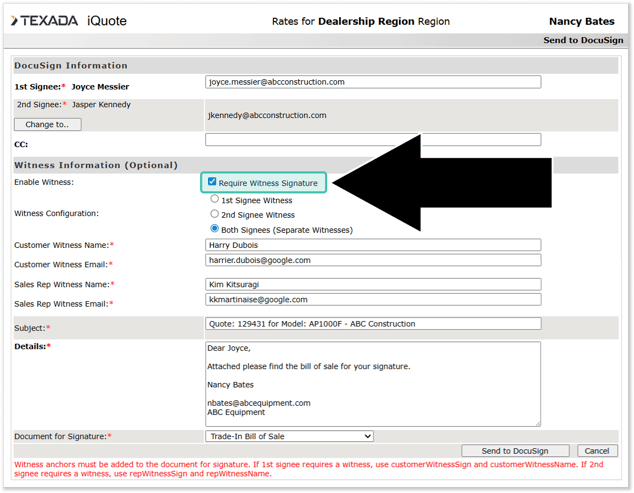
Once this box is checked, the following fields will appear:
- Witness Configuration: Specify whether first witness, second witness, or both witness signatures are required.
- 1st Signee Witness: A signature from the first witness (customer witness) is required.
- 2nd Signee Witness: A signature from the second witness (seller witness) is required.
- Both Signees (Separate Witnesses): Signatures from both witnesses are required.
- Customer Witness Name: The name of the first witness. In the final document, this will be placed at the location of the “customerWitnessName” anchor.
- Customer Witness Email: The email address of the first witness.
- Sales Rep Witness Name: The name of the second witness. In the final document, this will be placed at the location of the “repWitnessName” anchor.
- Sales Rep Witness Email: The email address of the second witness.
There are three requirements that must be respected when including witness information on a document:
- Required Field Anchors: Just like with buyer and seller signatures, the proper field anchors must be included in your document for witness signatures to function. These anchors can be found under “Appendix A - Witness Information”.
- Witness Identity: A witness cannot be the same person as the first signee (buyer) or second signee (seller).
- Unique Witnesses: Witness 1 (customer witness) cannot be the same person as Witness 2 (sales rep witness).
Configuration Keys
This feature can be enabled and disabled using configuration keys. For more information on managing configuration keys in CloudLink Console, see “Manage Configuration Keys”.
Enable sending uploaded documents to Docusign
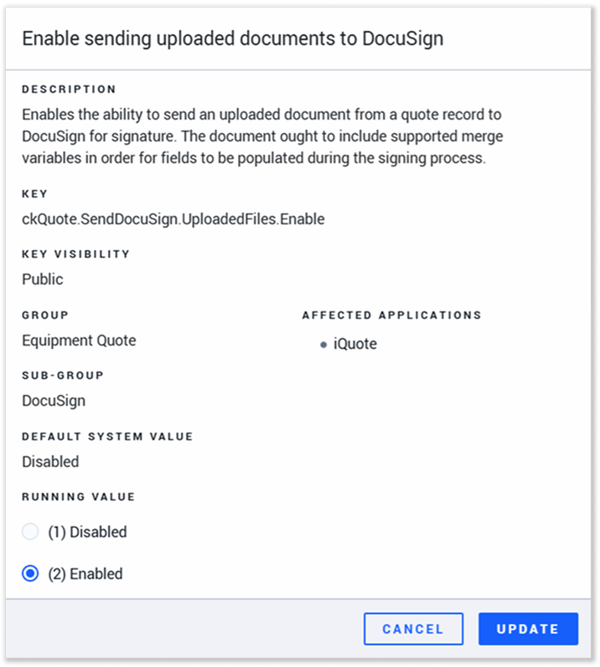 Key: ckQuote.SendDocusign.UploadedFiles.Enable
This key enables the ability to send an uploaded document from a Quote record to Docusign for signature.
- (1) Disabled: Uploaded documents cannot be sent to Docusign.
- (2) Enabled: Uploaded documents can be sent to Docusign.
Enable Witness Functionality in Docusign
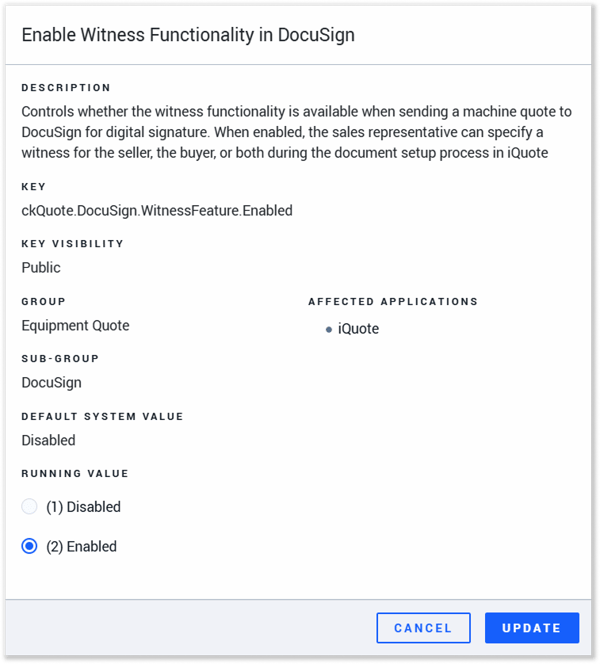
Key: ckQuote.Docusign.WitnessFeature.Enabled
This key determines whether or not witness information can be requested in the Send to Docusign window.
- (1) Disabled: Witness functionality is disabled.
- (2) Enabled: Witness functionality is enabled.
Appendix A: Field Anchors
This appendix lists all of the anchors that can be used when creating documents for the Docusign integration. Simply include the value in the “Anchor” column in your document to automatically replace that anchor with live data when that document is sent through Docusign.
Buyer & Date Information
|
Name |
Source |
Type |
Description |
Anchor |
|
Buyer Signature |
Docusign |
Mandatory input |
Generates a signature block for the Buyer (1st signee). |
CustomerSign |
|
Buyer Initials |
Docusign |
Mandatory input |
Generates an "Initial Here" box for the Buyer. |
ds-init1 |
|
Date Signed (Buyer) |
Docusign |
Label |
Auto-populates with the date the Buyer signs. |
ds-dt1 |
|
Buyer Contact Name |
Docusign |
Mandatory input |
The name of the 1st signee, which is also the Quote Contact Name. Note: If the email address of the 1st signee changes, the Quote Contact Name will still show in Docusign – it will not change based on the signee email. |
ds_BuyerContactName |
|
Buyer Contact Title |
Docusign |
Mandatory input |
Comes from the Influencer Title field in Equipment CRM. |
ds_BuyerContactTitle |
|
Buyer Address |
Docusign |
Mandatory input |
Comes from the Agreement Editor Sold To Field in iQuote. |
ds_BuyerAddress |
|
Buyer State |
Docusign |
Mandatory input |
Sales Agreement Sold To state. |
ds_BuyerState |
|
Buyer Company |
Docusign |
Mandatory input |
Comes from the Agreement Editor Purchaser Field in iQuote. |
ds_BuyerCompany |
|
Buyer Contact Email Address |
Docusign |
Optional input |
Quote contact email address. |
ds_BuyerContactEmail |
|
Buyer Contact Phone Number |
Docusign |
Mandatory input |
Quote contact phone number. |
ds_BuyerContactPhone |
|
Today’s Date (Day) |
Docusign |
Label |
Auto-populates with the current day. |
ds_DateDay1 |
|
Today’s Date (Month) |
Docusign |
Label |
Auto-populates with the current month (as text). |
ds_DateMonth1 |
|
Today’s Date (Year) |
Docusign |
Label |
Auto-populates with the current year. |
ds_DateYear1 |
Seller & Company Information
|
Name |
Source |
Type |
Description |
Anchor |
|
Seller Signature |
Docusign |
Mandatory input |
Generates a signature block for the seller (2nd signee). |
RepSign |
|
Seller Initials |
Docusign |
Mandatory input |
Generates an "Initial Here" box for the seller. |
ds-init2 |
|
Date Signed (Seller) |
Docusign |
Label |
Auto-populates with the date the Seller signs. |
ds-dt2 |
|
Seller Contact Name |
iQuote |
Label |
Pre-fills the sales rep name as listed in the Quote, OR the name of 2nd signee if different the Quote sales rep. |
ds_SellerContactName |
|
Seller Contact Title |
iQuote |
Label |
Pre-fills the 2nd signee’s title as listed in the Quote. |
ds_SellerContactTitle |
|
Seller Company |
iQuote |
Label |
Pre-fills the company name (Division name description). |
ds_SellerCompany |
|
Seller State |
iQuote |
Label |
Pre-fills state based on the billing address (Quote division address). |
ds_SellerState |
|
Seller Corporate Billing Address |
iQuote |
Label |
Pre-fills the seller’s full billing address (Quote division address). |
ds_SellerAddress |
|
Today’s Date (Day) |
Docusign |
Label |
Auto-populates with the current day. |
ds_DateDay2 |
|
Today’s Date (Month) |
Docusign |
Label |
Auto-populates with the current month (as text). |
ds_DateMonth2 |
|
Today’s Date (Year) |
Docusign |
Label |
Auto-populates with the current year. |
ds_DateYear2 |
Trade-In Machine Information
|
Name |
Source |
Type |
Description |
Anchor* |
|
Trade-in Make |
iQuote |
Label |
Pre-fills the machine make. |
ds_TradeInMake1 ds_TradeInMake2 ds_TradeInMake3 ds_TradeInMake4 ds_TradeInMake5 |
|
Trade-in Model |
iQuote |
Label |
Pre-fills the machine model. |
ds_TradeInModel1 ds_TradeInModel2 ds_TradeInModel3 ds_TradeInModel4 ds_TradeInModel5 |
|
Trade-in Manufacturing Year |
iQuote |
Label |
Pre-fills the manufacturing year. |
ds_TradeInManufactureYear1 ds_TradeInManufactureYear2 ds_TradeInManufactureYear3 ds_TradeInManufactureYear4 ds_TradeInManufactureYear5 |
|
Trade-in Serial Number |
iQuote |
Label |
Pre-fills the serial number. |
ds_TradeInSerialNumber1 ds_TradeInSerialNumber2 ds_TradeInSerialNumber3 ds_TradeInSerialNumber4 ds_TradeInSerialNumber5 |
|
Trade-in Purchase Price |
iQuote |
Label |
Pre-fills the purchase price value. |
ds_TradeInPrice1 ds_TradeInPrice2 ds_TradeInPrice3 ds_TradeInPrice4 ds_TradeInPrice5 |
|
Estimated Delivery Month |
iQuote |
Label |
Auto-populates with the Quote’s estimated delivery month (as text). |
ds_EstimatedDeliveryMonth |
|
Estimated Delivery Year |
iQuote |
Label |
Auto-populates with the Quote’s estimated delivery year. |
ds_EstimatedDeliveryYear |
* Note: The system supports up to 5 trade-in units. Replace the number at the end of the “Anchor” field with 1, 2, 3, 4, or 5 to reference that machine.
Witness Information
|
Name |
Source |
Type |
Description |
Anchor |
|
Customer Witness Signature |
Docusign |
Optional input |
Generates a signature block for the Customer Witness (first witness). |
customerWitnessSign |
|
Customer Witness Name |
Docusign |
Optional input |
customerWitnessName |
|
|
Seller Witness Signature |
Docusign |
Optional input |
Generates a signature block for the Seller Witness (second witness). |
repWitnessSign |
|
Seller Witness Name |
Docusign |
Optional input |
repWitnessName |