.png?width=365&height=50&name=Texada%20Logo%20(Black).png)
In This Article
Introduction
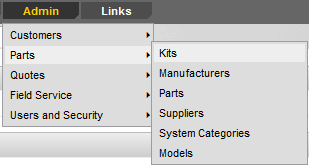
The Parts administration tools allow you to manage parts-related data in iMACS, including parts and kits, manufacturers and suppliers, system categories, and models.
Kits
Creating parts kits is an efficient way to add multiple parts at one time to a stock class BOM.
Look For parts kits by Kit # or Description, Edit kit information or add a new kit from the main search screen.

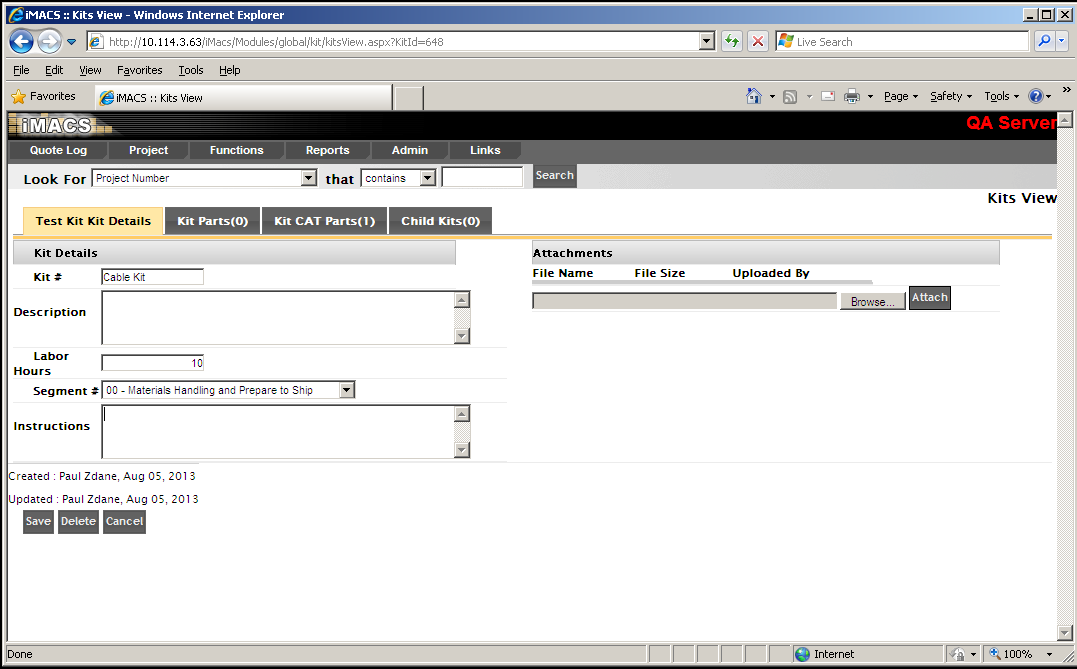
When adding or editing a kit, populate specific sections or walk through the tabs for the complete process. To add, you must first, complete the kit details. Next you can associate Cat parts as well as other manufacturers, and there’s even a function to map a ‘child’ to the parent kit.
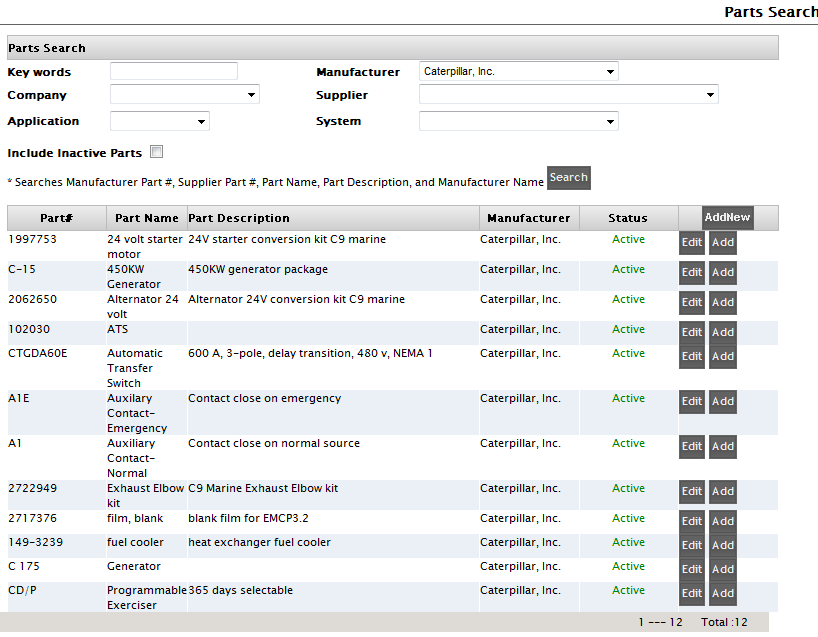
To add parts to a kit, find the parts through the Parts Search function. Filter by Key Words, Manufacturer, Supplier, Application or System, and if you do not find your part be sure to check the Include Inactive Parts option before you add a new and possibly duplicate part.
Manufacturers
Manufacturers must be manually added in iMACS and assigned to an iMACS part. Prior to adding a part to the database, make sure that the associated manufacturer is available. Search through the list thoroughly to ensure that you don’t add a duplicate manufacturer. The AddNew function will add one field at the bottom of the list to add the Manufacturer Name. Click Save.

Parts
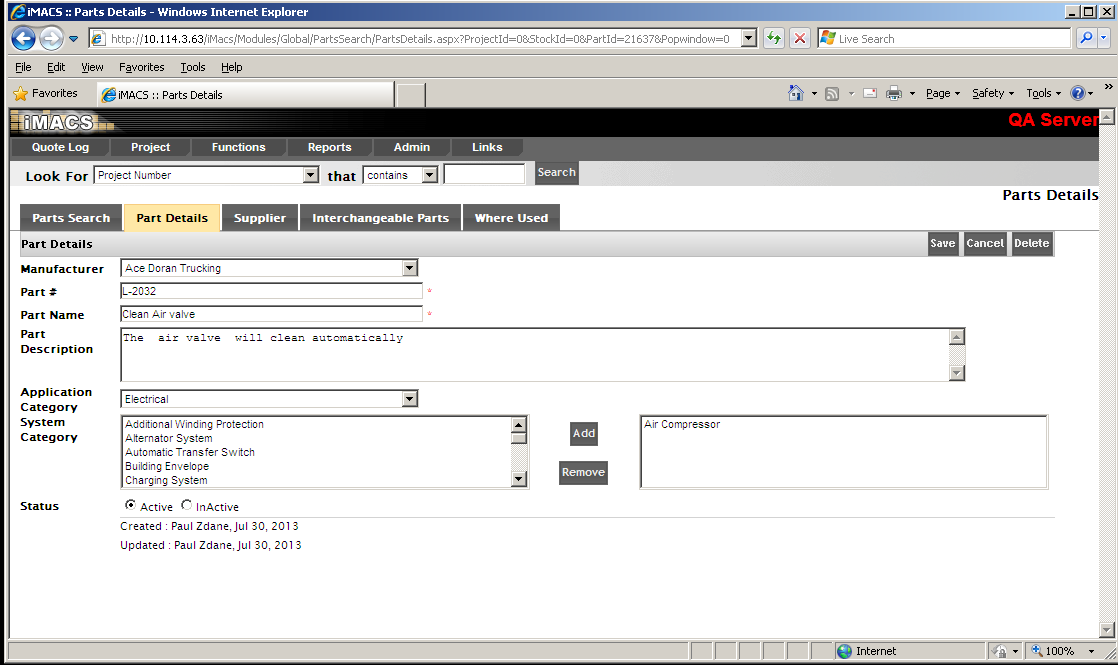
iMACS utilizes the DBS Master Parts File, but also provides an admin function to manually add parts that are not in the dealer’s DBS system.
Many dealers report that keeping the iMACS parts database ‘clean’ is a challenge. It’s important to do a thorough search using various search criteria and filters prior to adding a new iMACS part. Be cautious when searching only on key words. For instance, one part may have multiple suppliers, but those suppliers likely have different internal part numbers. Using the manufacturer’s part number is a best practice, as is adding additional suppliers and populating the Interchangeable Parts section. The more information provided, the less likely the user is to add a duplicate part number.
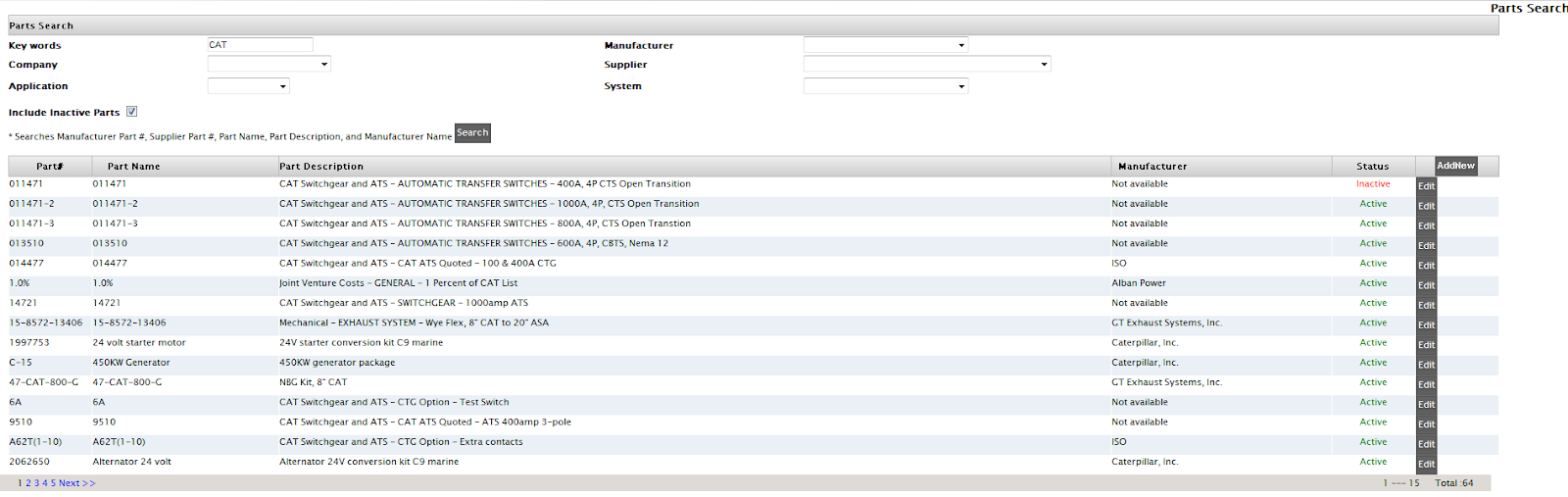
The first step when adding or editing a part is to ALWAYS do a thorough search. Filter by Key Words, Manufacturer, Supplier, Application or System, and if you do not find your part be sure to check the Include Inactive Parts option before you add a new and possibly duplicate part.
Suppliers
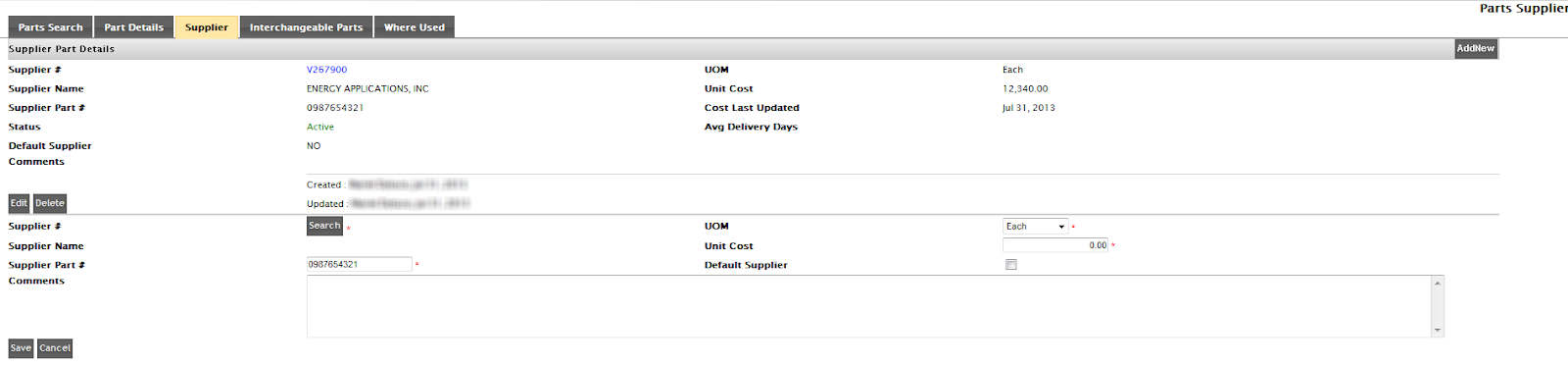
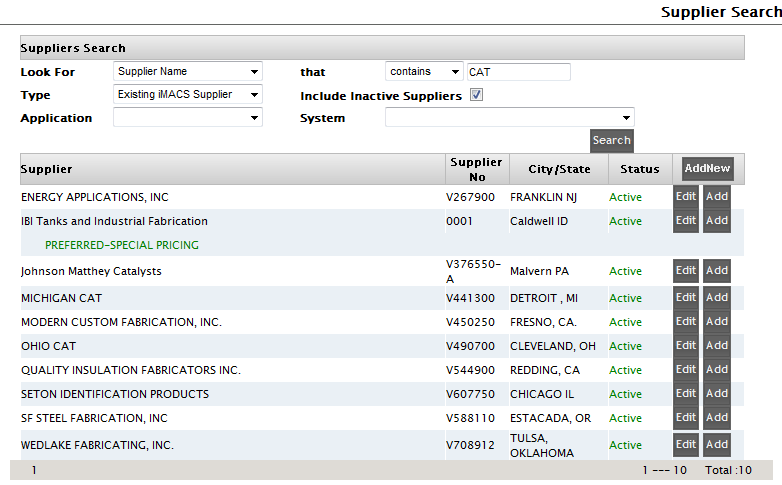
Search for supplier
System Categories

Models
