.png?width=365&height=50&name=Texada%20Logo%20(Black).png)
In This Article
Introduction
A quote can be created by adding a new quote to the system or copying an existing quote. Both options can be found on the search bar in the Quote search menu (located under the Quote Log tab on the upper navigation bar).

Add a New Quote
When adding a new quote, the information required will depend on the industry tab you choose; however, there are fields common to all quotes:
- Project name
- Status (see Quote Status section for more information)
- Sales rep
- End user (customer or prospect)
- Division
- Bid/Opportunity
- Owner
- Industry Code
To create a quote, you must first choose the correct industry. Specific industry-based templates are provided to gather information pertinent to the quote.

‘Add Additional Quote’ allows you to create a quote with the same iMACS quote number.
‘Add New Quote’ lets you create a brand new quote.
Choosing a Customer
To add a new quote, look for an existing DBS customer or SalesLink prospect by using the search button (or binocular image  on the rental tab) in the End User section. Select the Division of the customer to add to the quote. This page gives the user the opportunity to send a request to the SalesLink gatekeeper to update the customer’s address, division details, influencers or delete the customer altogether.
If there’s no customer information available, the End User Unknown option may be used.
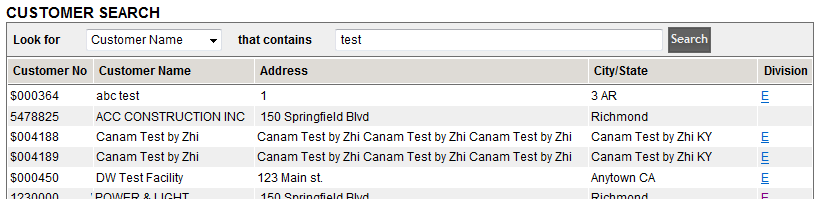
Adding a Prospect
A Prospect is a non-DBS account that is indicated with a leading $ on the account number. For information on converting a Prospect account to a DBS Customer, please contact your SalesLink gatekeeper.
There are two ways to add a prospect in iMACS:
- In an EPG quote, select ‘Add Prospect’ and enter in the customer name before saving the quote.
NOTE: This method only assigns the prospect a customer number. All other information including address and contact numbers needs to be updated either within iMACS through the ‘Customers and Prospect’ page (located under the Quote Log tab on the upper navigation bar) or in one of the other CRM applications (Customer Search or SalesLink.
- For those with Administrative rights in iMACS, in the ‘Admin’ menu, there is an option to ‘Add New Prospect Customer’ (see screenshot below). Fill in the fields, hit ‘Submit’ and the prospect will be added to the system.
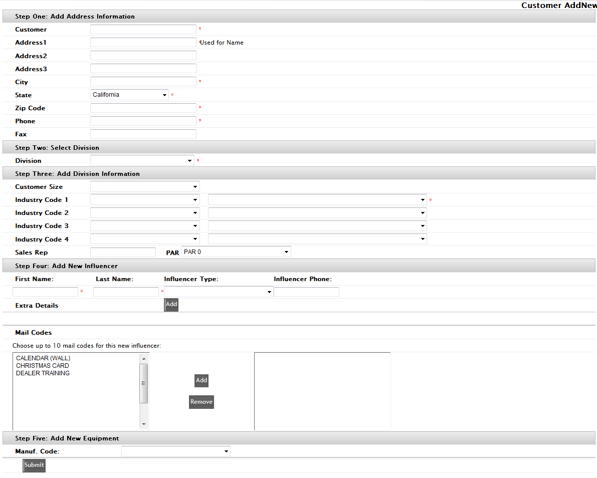
You can also set up a new Prospect in the Customer Search and SalesLink applications.
In the Accounts menu, select Add New Prospect, fill out the necessary information and select Submit. Unlike customers in DBS which are added overnight, Prospects appear in the system immediately. After setting up the Prospect, you can return to iMACS to add them to the new quote.
Adding a Model
In an EPG, Industrial or Marine quote, there is an ‘Add Primary’ button which gives you the option to add models to the quote. Information fields such as rating, application, quantity and price will need to be completed for each Primary model added.
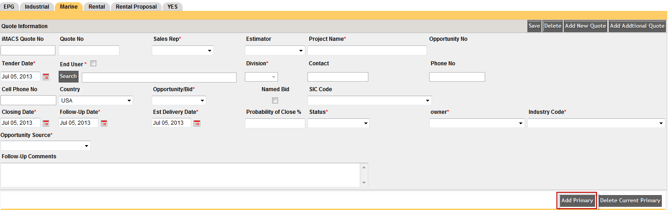
If there are alternative options offered for that model, select the green plus sign to add to the quote.
Selecting the primary button for a particular model will move that model to the top of the list and the ‘Total Quoted Package Price’ will reflect the total combined price of all Primary models.

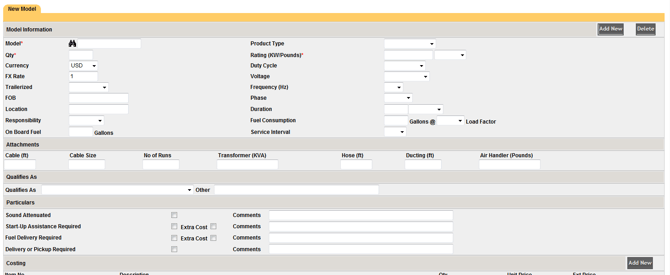
The screenshot below illustrates the New Model section of a Rental Quote.
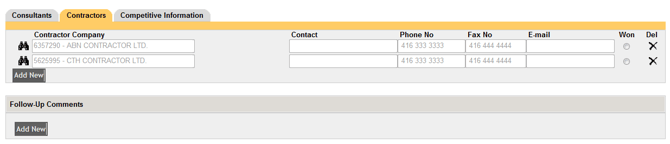
Consultants, Contractors and Competitive information can be entered now or after saving your quote.