In This Article
Introduction
Support for user-defined fields for Trade-Ins has been added to Equipment CRM (SalesLink)! This feature allows your sales team to capture the exact equipment attributes that drive valuation and deal approvals, improving pricing accuracy, forecast quality, and close rates without forcing workarounds.
Manage - Trade-In Fields
To facilitate the management of Trade-In fields, a new “Manage - Trade-In Fields” secured module has been added to Equipment CRM - Executive. For information on how to enable this module for your staff, see “Manage - Secured Modules”.
To use this feature, log in to Equipment CRM - Executive as a user who has access to the module, then select Settings (gear icon in the top-right corner of the screen) → Manage - Trade-In Fields.
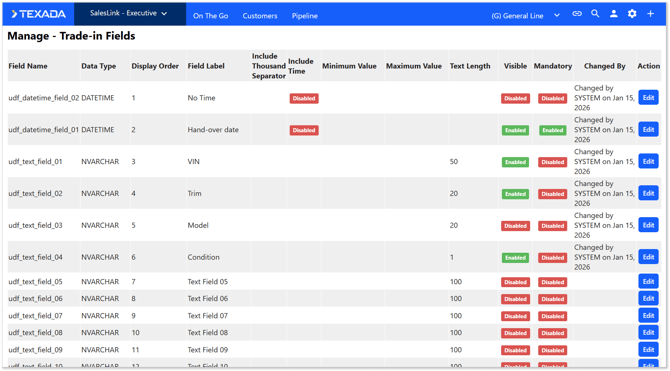
There are a total of 60 user-defined fields that you can edit from this module:
- 10 text fields
These fields appear as a small text box and can be used to input plain text. A maximum length anywhere between 1 and 500 characters can be specified. - 5 large text (textarea) fields
These fields will appear as a large, resizable text box, and can be used to input large amounts of text. As such, they can be used to store additional comments or other long-form content such as conversations with clients. - 10 integer (whole number) fields
These fields can be used to specify a whole number. Minimum and maximum values can be specified, forcing the user to enter a number between those two values. If the “Include Thousand Separator” toggle is enabled, a comma will be automatically inserted every 3 digits. - 20 decimal number fields
These fields can be used to specify a number that includes decimal values. Up to two decimal places are supported - for example, 400.56 is a valid input, but 400.567 is not. Minimum and maximum values can also be specified. If the “Include Thousand Separator” toggle is enabled, a comma will be automatically inserted every 3 digits. - 10 checkbox fields
These fields can be checked on or off to indicate that a statement is either true or false. If set to mandatory, the box must be checked in order to submit the record. - 5 date/time fields
These fields include an icon that allows the user to select a date from the calendar. Optionally, they can also include time parameters (hours and minutes).
To edit a field, simply click the blue Edit button  next to it. Each field can be renamed, reordered, enabled/disabled, and made mandatory or optional as desired. Depending on the type of field, you may be able to adjust additional parameters, such as the maximum length of a text field. Once you are finished, click Save
  to save your changes.
Where do user-defined fields appear?
Once enabled in the Manage - Trade-In Fields secured module, user-defined fields will appear in the following locations:
When adding a new Trade-In
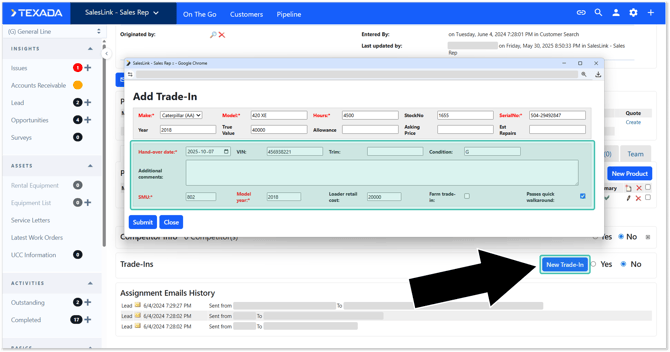
Open a Lead or Opportunity in Equipment CRM, then click the “New Trade-In” button to log a new Trade-In. Your user-defined fields will appear below the standard fields in the Add Trade-In window.
When viewing a Trade-In
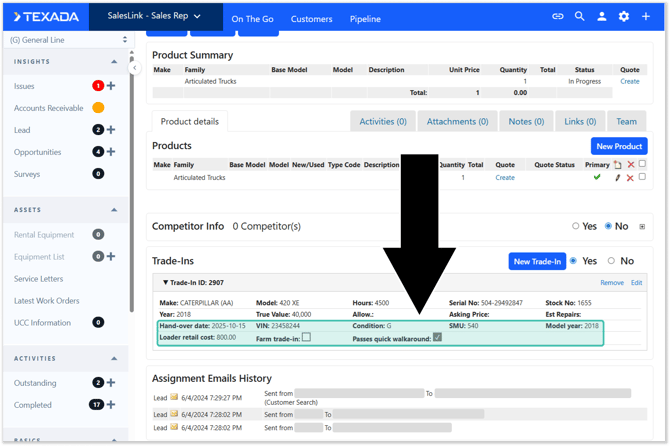
When viewing existing Trade-Ins from the Lead/Opportunity details page, user-defined fields will appear directly below the standard fields in the Trade-Ins panel:
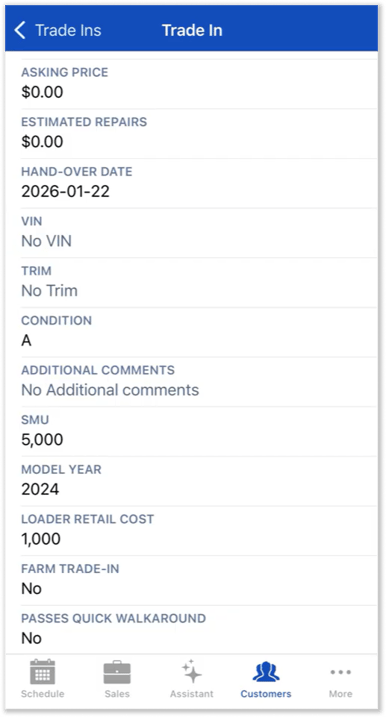
In Equipment CRM Mobile
User-defined fields will also appear when viewing Trade-Ins in Equipment CRM Mobile!
Handling Bad Inputs
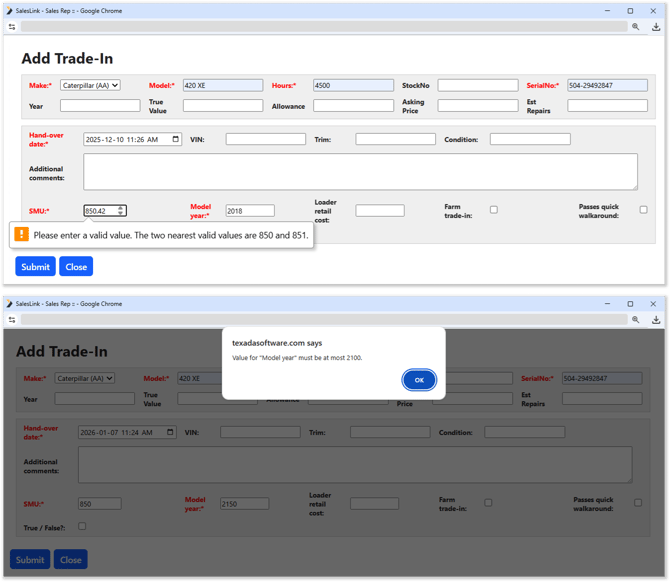
Equipment CRM will automatically prevent users from entering invalid data into user-defined fields. This includes cases such as:
- Not filling out a mandatory field.
- Entering too many decimal numbers into a decimal field (or any decimal numbers into an integer field). If the user tries to do this, the system will suggest the nearest acceptable value (e.g. 400.78 instead of 400.777).
- Entering a number into an integer or decimal field that is below the specified minimum or above the specified maximum.
- Entering text into a number field.
- Trying to paste too much text into a text field. In this case, the pasted text will simply be cut off at the maximum length.