.png?width=365&height=50&name=Texada%20Logo%20(Black).png)
In This Article
- Introduction
- Financials
- Bill of Materials
- Add a Kit
- Copy Bill of Material
- Request for Quotation
- Purchase Orders
- Receiving
Introduction
IMACS allows project managers and purchasers to build the bill of materials and keep track of purchases and invoices.
After a project has been approved by the sales manager, an email alert will be automatically sent to the Engineering Manager for approval (if enabled in the Admin → Users and Security → Email Lists function). The Engineering Manager will add the Project Managers to the project team generating another email notice. Now project management can create the bill of materials (BOM) for a purchaser.
Financials
Financials can be imported from PSQ by clicking on the Import PSQ V5 button. In PSQ, open the quote, click quote on the upper left hand corner and select export. Save the file to your desktop, or another place you can easily find it. To import from PSQ in iMACS, click the Import button in the top right corner. The financial details may also be entered manually in each text box.
Bill of Materials
The bill of materials will default to the budget for the CAT consist on the stock number level.
However, the project manager needs to add the Bill of Materials for CAT Parts, Equipment, and External Services. Each part added to the bill of materials must be referenced to a budget item for these classes. The bill of materials is only edited on the stock number level.
To add CAT Parts to the bill of materials from the items in PSQ, navigate to the stock number and then the CAT Parts BOM tab, then click the ‘Copy BOM’ button.
Note: The same procedure applies for Equipment and External Services. If an item is being copied that does not have a Supplier listed, a pop up window will force a Supplier to be linked with the part.

Note: CAT Parts come from DBS. If a CAT part is not on the list. Your parts department should be able to add it.
To add Equipment not found in PSQ to the Bill of Materials from an outside vendor, select ‘Add New’.

Search for a part using at least 3 characters, and click Add next to the part you want to add to the bill of materials. The part must exist in iMACS to do a search.
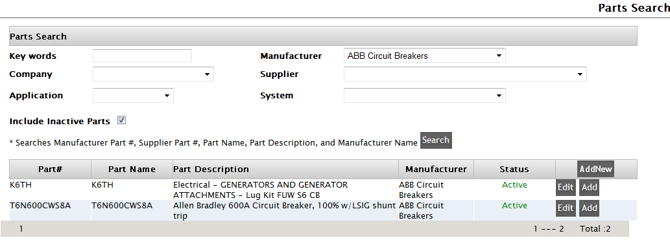
If your part is not in iMACS follow the following steps. If your part is not available after the search, click on ‘Add New’ to add it. The parts details screen will appear.
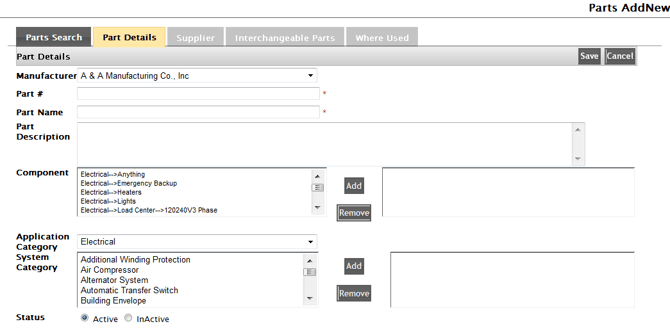
Fill in all sections of the Parts Details tab. The Part No used here would be the manufacturer’s part number. If the part number is not available by the manufacturer, use the suppliers quote number. A best practice is to add the component name and size to the Part Name.
For example:
- ATS
- ATS, 200 Amp
- ATS, 600 Amp
- Fuel Tank
- Day Tank, 75 Gallon
- Base Tank, 400 Gallon
- Breaker
- Circuit Breaker, 10 Amp
- Circuit Breaker, 1.5 Amp
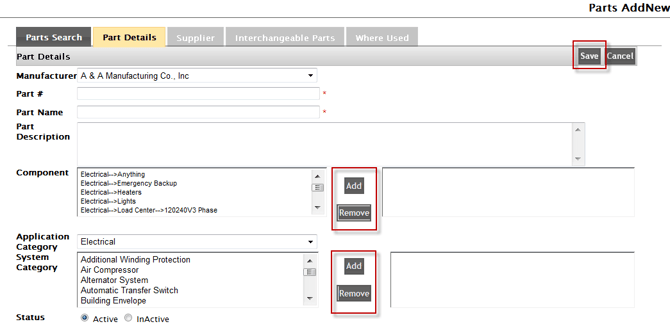
In the Description section, type as much information as you can about the part. To map to a Component or System Category, just highlight the option then click ‘Add’. To remove from the list, click ‘Remove’. Once all fields have been filled out click ‘Save’.
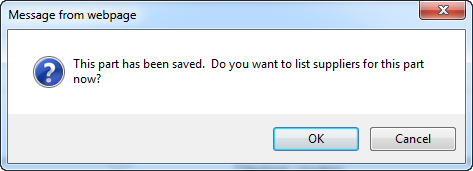
A prompt will appear to add a Supplier. Click ‘OK’ and the Suppliers tab will open.
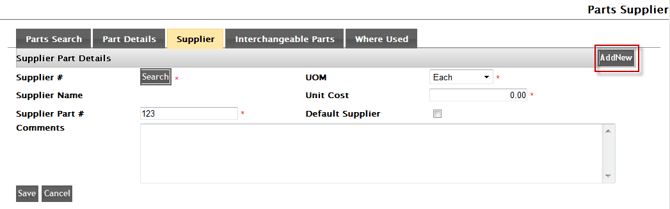
To map or add a Supplier to this part, click ‘Add New’. It can be selected multiple times until all suppliers associated with this part have been entered.
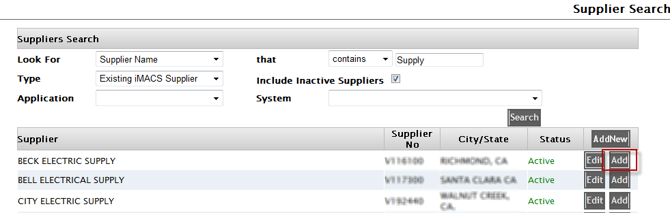
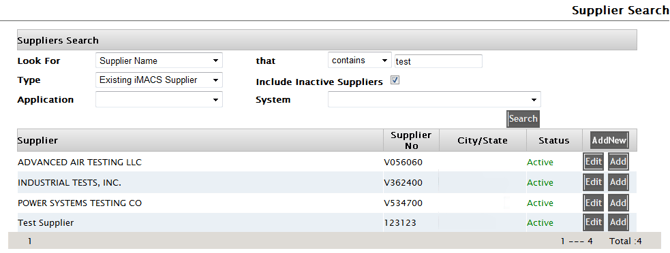
First, you will need to search for a supplier in iMACS. This is an important step, to ensure that you don’t add a duplicate entry. If the supplier is not found, a best practice is to unclick the box ‘Include Inactive Suppliers’ and perform a second search. When you find an appropriate Supplier, click ‘Add’.
In the ‘Type’ drop down menu, ‘Existing IMACS supplier’ means that the supplier has been added and used in iMACS.
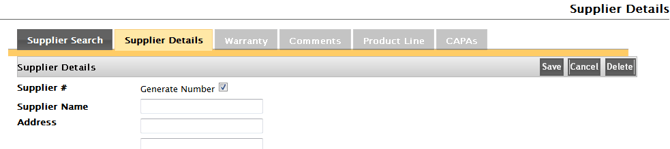
Suppliers are imported from CODA at the time of installation. The user may also add ‘local’ suppliers to the iMACS database. Select ‘Add New’, complete the Supplier Details and other related tabs.
In the supplier parts detail type Supplier’s Part # or the supplier’s quote # if the supplier part # is not available. In the supplier comments, type the part’s quote number and it’s expiration date if available. Once the supplier is added, you can click ‘Add to BOM’ to add to the stock number’s BOM. You can also click on the interchangeable parts to add alternate parts. Where Used will tell you what other stock numbers the part has been used in.
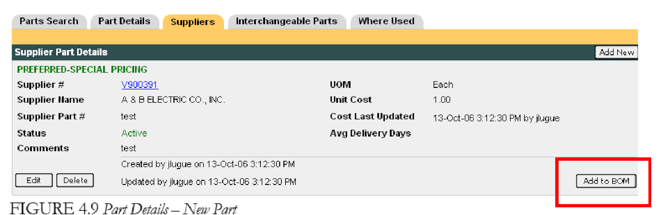
Note: Suppliers are uploaded from DBS; however, if a supplier does not exist in iMACS, contact the iMACS administrator with a request to add the supplier. However, if supplier’s name does not appear after the search be sure you are not searching for a manufacturer’s representative. Remember these suppliers are pulled from DBS so the company that sends the invoice or issues the part number is the one you need to search.
Once you added a part, you must fill out the information left on the Parts Details page. The Component Location would be where the part is located on the unit. Each part must be referenced to a budget item. Internal comments would be comments used within the company and will not be shown on the PO. External comments will show up next to the item and would be comments for the supplier.
Note: Tag# is a number to reference an item’s location on the unit. Include in Manual is checked if this item is going to be included in the manual or submittal.
Note: Procurement Code indicates the department that will be issuing the purchase order. Will it be purchased through purchasing, engineering, or by production?
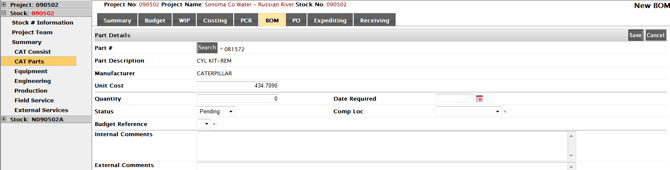
To add a Supplier on the BOM screen, a part needs to be chosen first. Select the ‘Search’ button and a list of suppliers that provide that part will be listed. Select ‘Add’ beside the preferred supplier or select ‘Add New’ if the supplier is not listed.
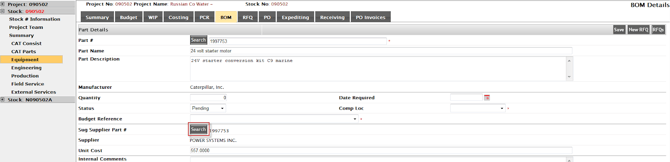
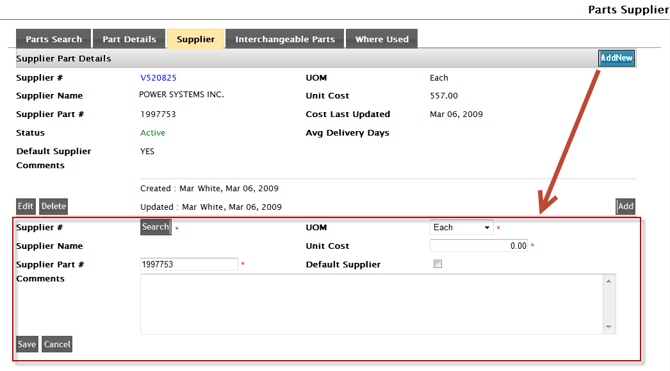
To edit an existing part in the BOM, click ‘Edit’ and click ‘Save’ after all information has been updated. Click on the 'BOM’ tab to return to the BOM.
Once you have built the Bill of Materials, you may now choose which items you want to release for purchase.
To release an item, check the items you want released and click the ‘Release Items’ button on the top of the page. To release all items, click the double check marks to select all items and click ‘Release Items’.

The system will ask if you’re sure you want to release the items. Click ‘OK’ and the status of each item will now change to Released. Once an item is released no changes can be made. However, the purchaser can change a released part back to pending if a PO has not been created.
Add a Kit
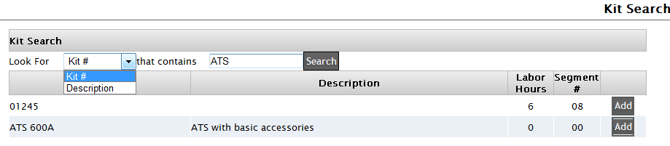
To add a Kit, search for a Kit # or Description and click ‘Search’.

Click the ‘Add’ button next to the kit you want to add.
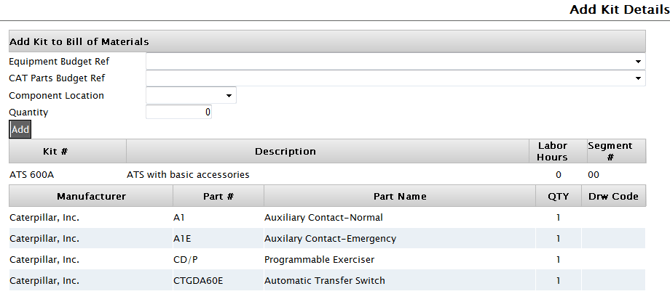
A list will appear with all the parts that make up the Kit. Add the Equipment Budget Reference, CAT Parts Budget Reference, Component Location, and Quantity. Then click the ‘Add’ button.
Copy Bill of Material
To copy a BOM, select the ‘COPY BOM’ button and search for a stock no., project, or project name.

Select ‘Copy’ beside the appropriate project.

Select the items you would like to copy, choose the Budget Reference and Component Location and select ‘Add Selection’ to copy to the existing stock #.

Request for Quotation
A Request for Quote to be sent to the Supplier, can be created for the Equipment and External Services sections.
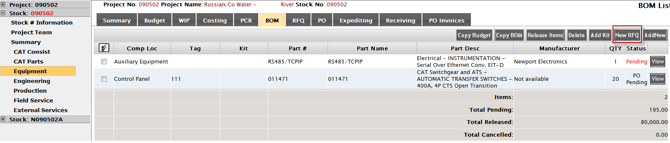
To request a quote, click ‘New RFQ’ on the Bill of Materials (BOM) screen.
The screen will default to the RFQ tab. IMACS will assign a RFQ number.
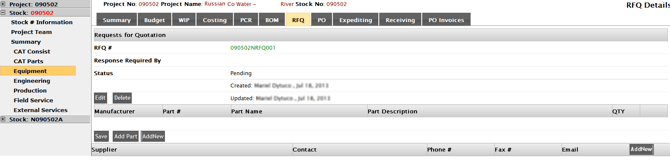
When you click ‘Add Part’ the Parts Search screen will pop up. When you do a search a list of parts will show up under ‘Search Results’. Click ‘Add’ beside the specific part and the screen will refresh with the part added.
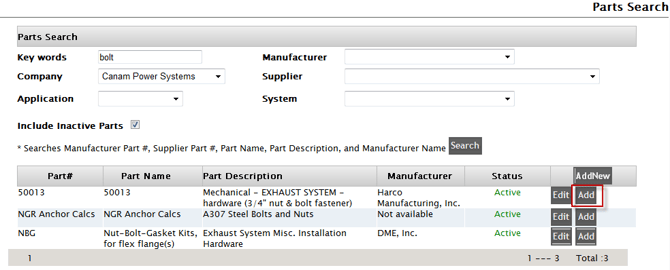
If you select ‘Add New’ in the RFQ screen, you’ll have to enter the manufacturer, part number, part name, part description, and quantity. If you click ‘Add Part’ it will lead you to the ‘Parts Search’ window. Click ‘Save’ if you want to request a quote for the part you just entered.
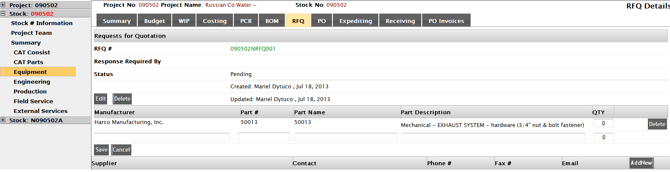
To add a supplier, click ‘Add New’ in the supplier section of the RFQ tab. The window for suppliers search will appear. Search for a supplier and click ‘Add’ next to the supplier you wish to add. To edit information click ‘Edit’. You can list multiple suppliers for a RFQ.
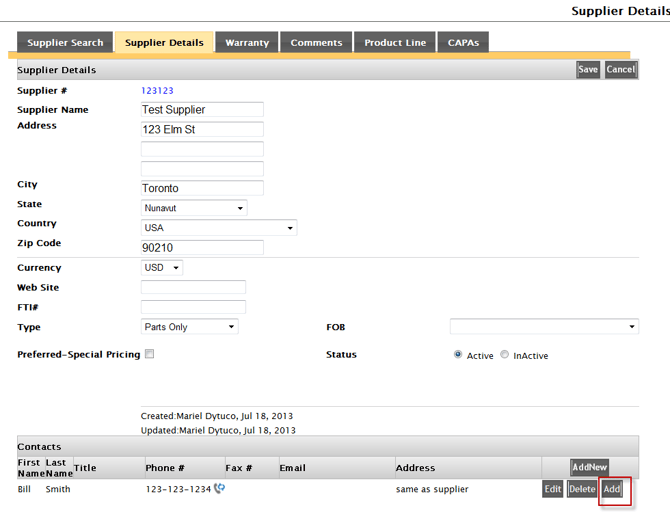
The Supplier Details will appear. You may edit the supplier details by entering information in empty fields and click ‘Save’. To add the supplier to the RFQ list, click ‘Add’ next to the contact name you want to add.
Once you have added the supplier contact, you can click ‘Save’.
To send the RFQ, its status has to change from ‘Pending’ to ‘Issued’. To do so, click ‘Edit’ under status. Enter a date in ‘Response Required By’ and select ‘Issued’ from the drop down list next to status. Then click Save.
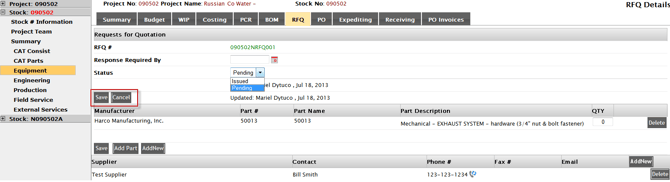
Click OK and it will direct you back to the RFQ screen.
Purchase Orders
Purchase orders can be made for CAT Parts, Equipment, and External Services classes on the project and stock level. The PO tab displays a list of existing purchase orders. To view or edit the PO click on the PO number.

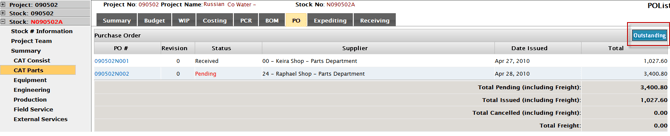
To view outstanding items that need purchase orders, click Outstanding on the top right hand corner. This will display a list of all items to be ordered. You can create a RFQ on this level or create a new PO.
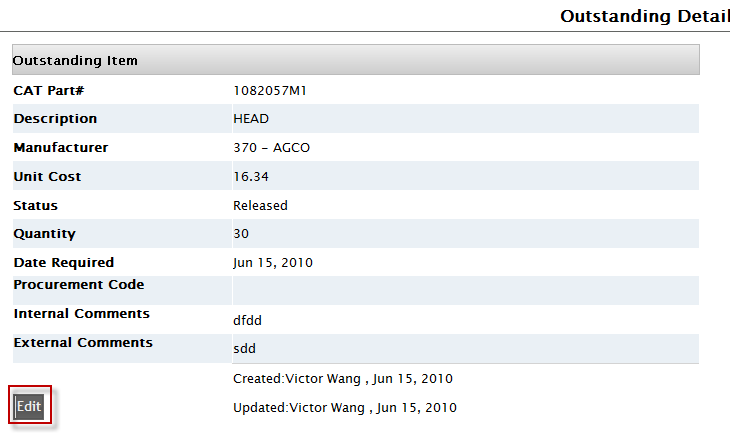
Click view to see the details of an item. To ‘Edit’ details of an item the purchaser can change the status of the item from ‘Released’ to ‘Pending’ back to ‘Released’ to purchase the item.
Click view to see the details of an item. To ‘Edit’ details of an item the purchaser can change the status of the item from ‘Released’ to ‘Pending’ back to ‘Released’ to purchase the item.
To create a New PO, click ‘New PO’ on the top right hand corner of the PO tab.

Enter information in all fields, check mark the parts you want, and click “Save”.

This will default back to the PO tab where you can now update the item information. You may view more details of a part by clicking on the view button.
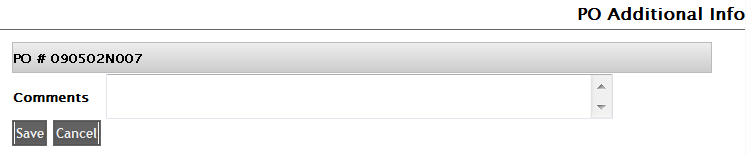
Clicking on ‘Additional Information’, which is up on the top right hand corner will bring you to a window where you can enter comments pertaining to this specific PO#.
To complete the PO process you must change the Purchase Order from Pending to Issued. To do so, click the Edit button and click Save.
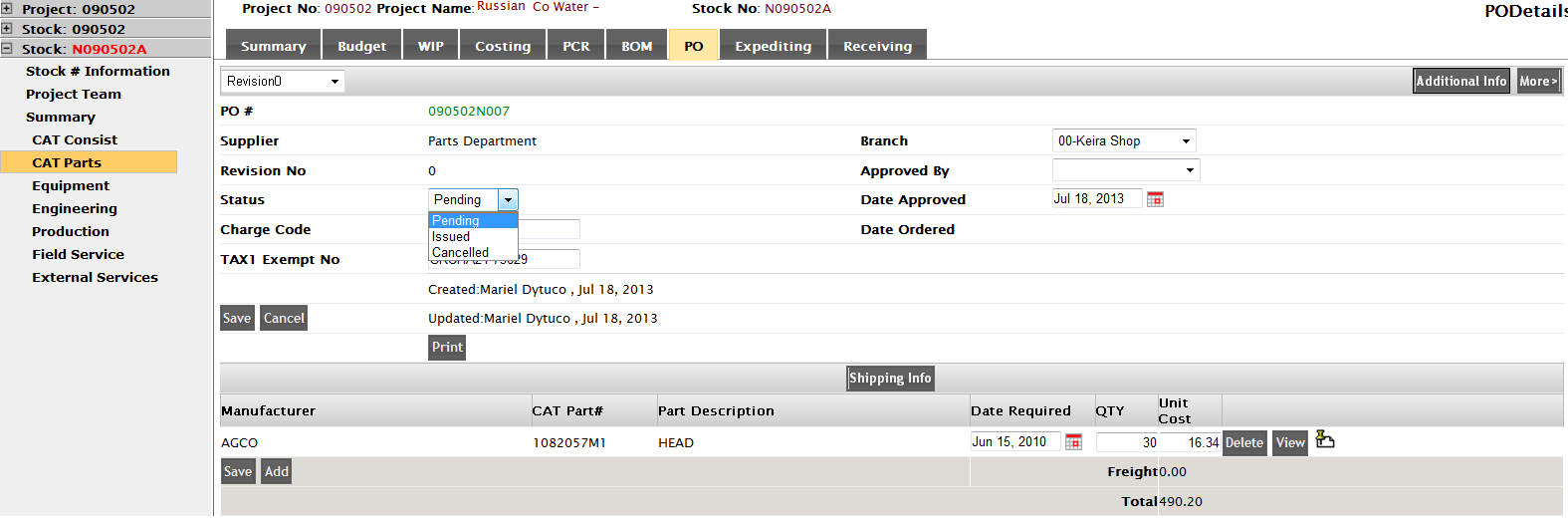
After you have saved the Purchase Order you cannot make any more changes. You may click on the New Revision button and it will assign a revision number. Each revision can be accessed through the drop down menu located on the top left hand corner.
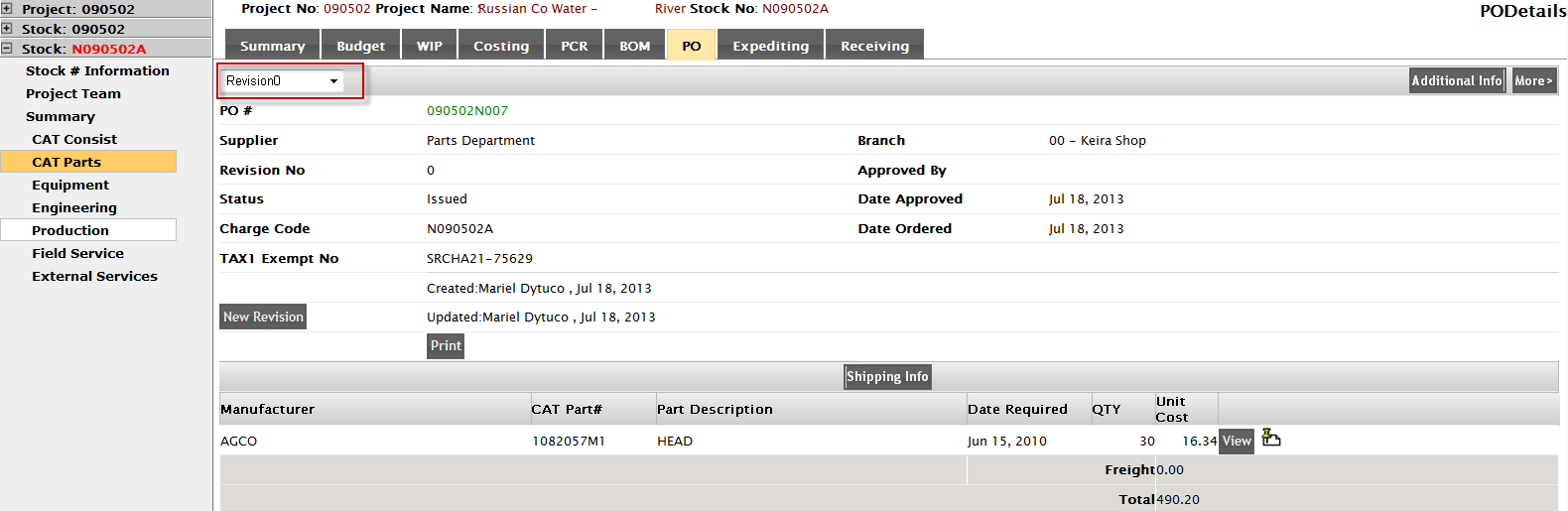
Your purchase order is now complete.
Receiving
Receiving applies to the CAT Consist, CAT Parts, Equipment, and External Services classes on a project and stock number. Every class, but CAT Consist, defaults to a list of purchase orders that have been Issued. The Receiving tab to the CAT Consist defaults to the items on the CAT Consist Order Tab. For all other classes click on the PO # in the Receiving tab. It will be divided into two sections – Outstanding Items and Received Items.
The Receiving List for the CAT Consist lists all the items ordered from DBS. This screen shows the quantity ordered, received, and outstanding by Shipping and Receiving in iMACS.

To receive an item, search for the iMACS issued Purchase Order number by selecting PO Number in the Look For drop down box on the main screen.

To select a PO, click on the PO Number at the left most hand column and the PO will open the within the stock number from which the PO was issued.
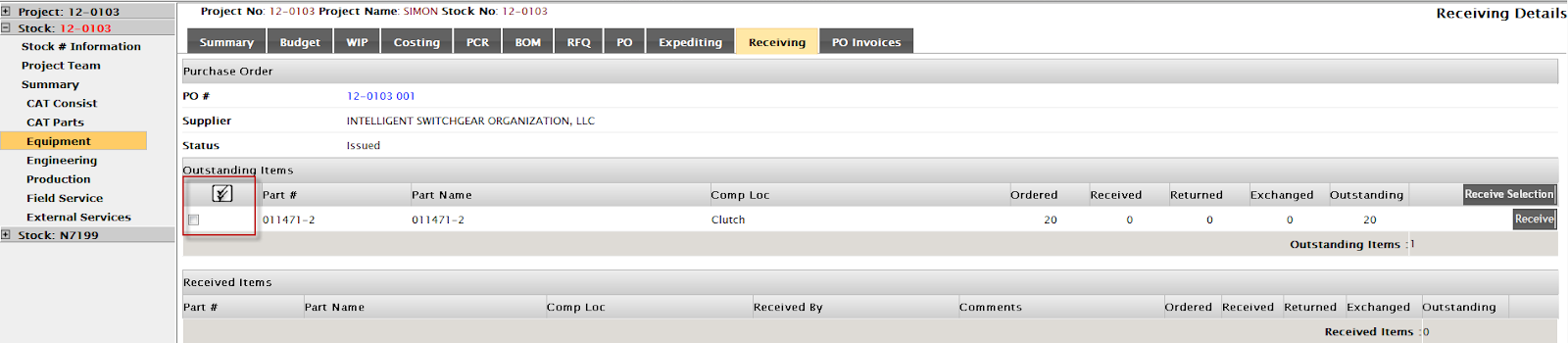
To receive an item, click on the Receiving tab and select the PO number. Or, if you want to receive more than one item at a time choose the items you want to receive and click on the Receive Selection button.
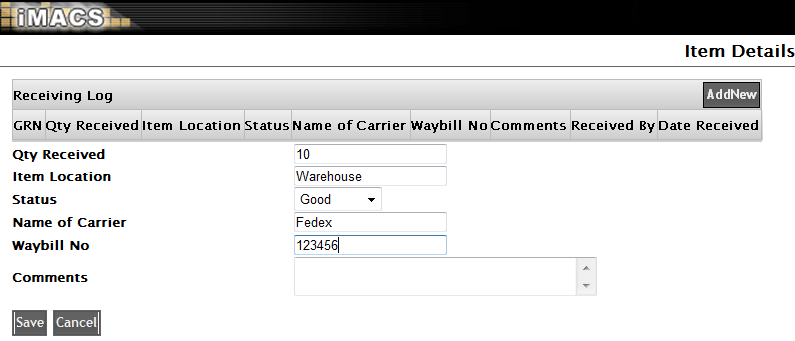
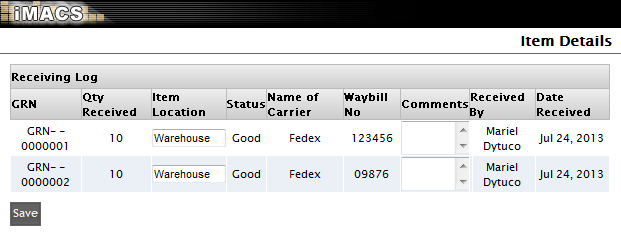
The receiving log window will appear allowing you to enter the item’s information and add comments.
Once the item is received, iMACS will tell you if you still have outstanding items left and which items have been received on that PO. It will also assign a GRN (Goods Received Number). Select ‘View’ beside the Part on the Receiving tab to view the number and additional details.
You also have the option of logging any returns. If you click Return the receiving log will open and you may enter the reason why you returned the item.
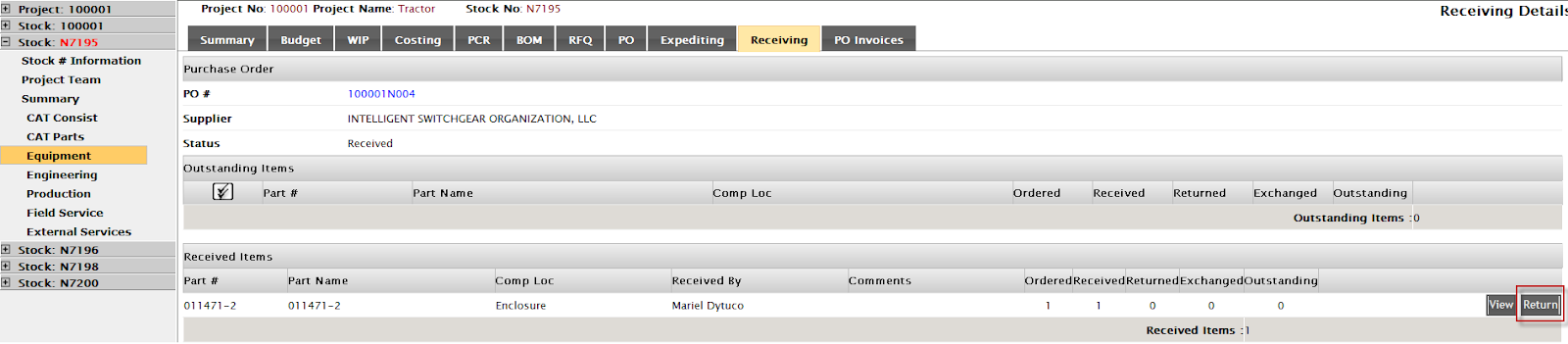
A prompt will open up asking the quantity to be returned. Another prompt will also ask you how many will be exchanged.
To receive the CAT Consist, click on the Receive button in the top right hand corner. You can receive all installed items at once. These are items where the A/I – Assembly Indicator is I. Then follow the above receiving procedures for non-CAT Consist parts.

You can receive an item without having to go through a project by selecting Ship To Receiving off of the Global Menu under Functions.
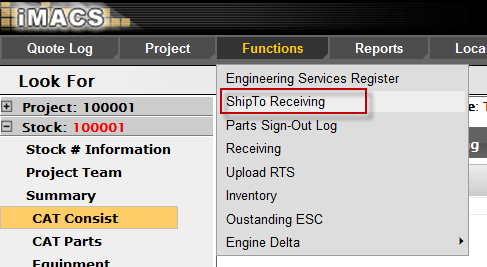
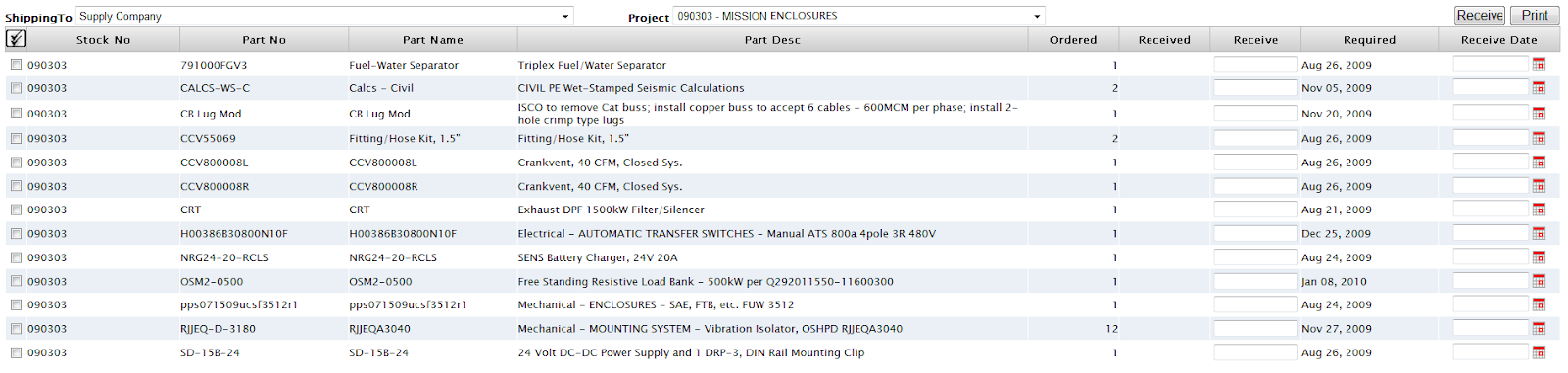
Select a Shipping To company and the Project from the drop down list. The items shown are the items that have not been marked as received in the system. Select the item(s) received, enter the quantity received in the Receive column and enter a received date. Select the ‘Receive’ button and the items will be removed from the list.