
In This Article
Introduction
A Reservation is a pre-Contract document that allows an equipment salesperson to estimate the cost of a potential Contract and reserve equipment at the Group level. Once the client has provided their approval, a Reservation can be converted into a Contract.
View a Reservation
To view the details of an existing Reservation in Rental Management (Next), follow the steps below.
- Log in to Rental Management (Next) and select Bookings → Reservations from the left navigation menu.
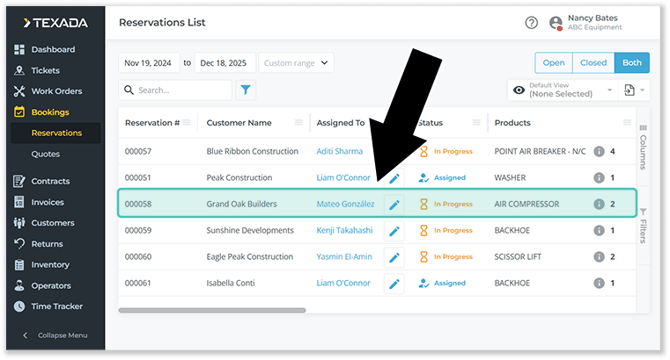
- Use the controls at the top of the the Reservations List page to search the list of Reservations for the one you’d like to view. Once you’ve located it, click on its row to open it.
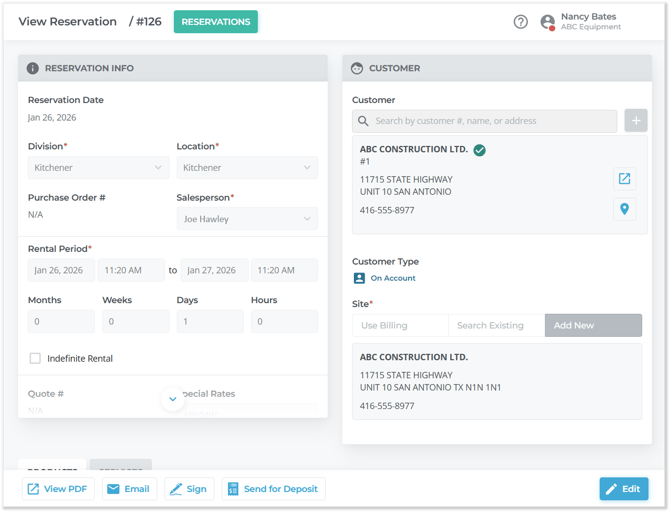
- Selecting a Reservation will open the Reservation Details page. This page will be read-only by default, allowing you to view, but not edit, the Reservation’s information.
Edit a Reservation
To edit a Reservation, first follow the steps to view the Reservation you’d like to edit, then follow the steps below.
- Click the
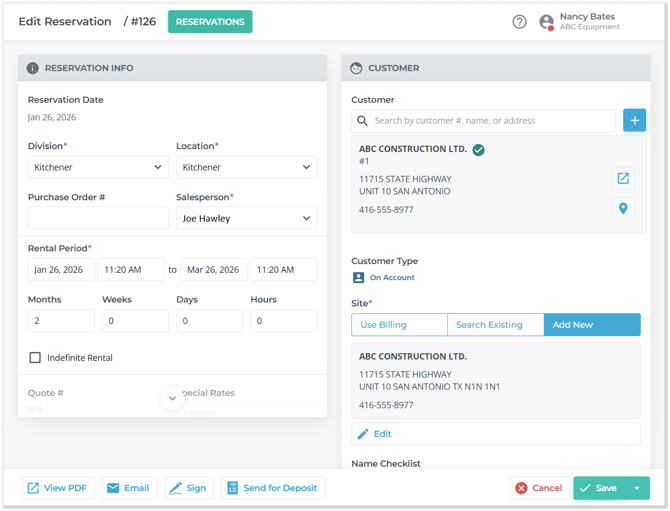
 button in the bottom-right corner of the Reservation Details page. You will know that editing has begun when the fields on this screen are unlocked for editing, and the Edit button is replaced by two new buttons, Save and Cancel.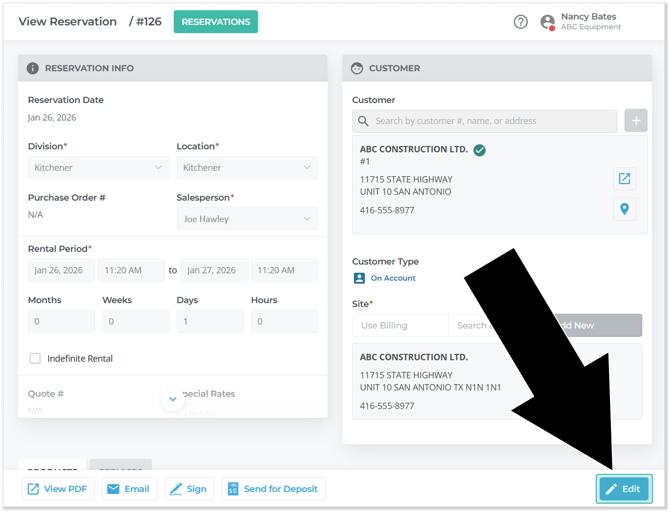
- You can now make your desired edits to the Reservation. Note that not all elements of an existing Reservation can be edited, and some require the proper permissions to edit.
- Once you are finished with your edits:
- Click
 to save all of your changes and lock the fields again. Upon a successful save, you will receive a message that reads “Reservation has been updated.”
 - Click
 to cancel editing without saving your changes.
- Click
For a detailed breakdown of the contents of the Reservation Details page, see “The Contract / Reservation Details Page”.