
In This Article
Introduction
A Reservation is a pre-Contract document that allows an equipment salesperson to estimate the cost of a potential Contract and reserve equipment at the Group level. Once the client has provided their approval, a Reservation can be converted into a Contract.
Reservations can be created in both Rental Management (Classic) and Rental Management (Next). The following article will detail the process of creating a Reservation in Rental Management (Next).
Create a Reservation
To create a new Reservation in Rental Management (Next), follow the steps below.
- Initialization
Log in to Rental Management (Next) and select Bookings → Create Reservation in the left navigation menu.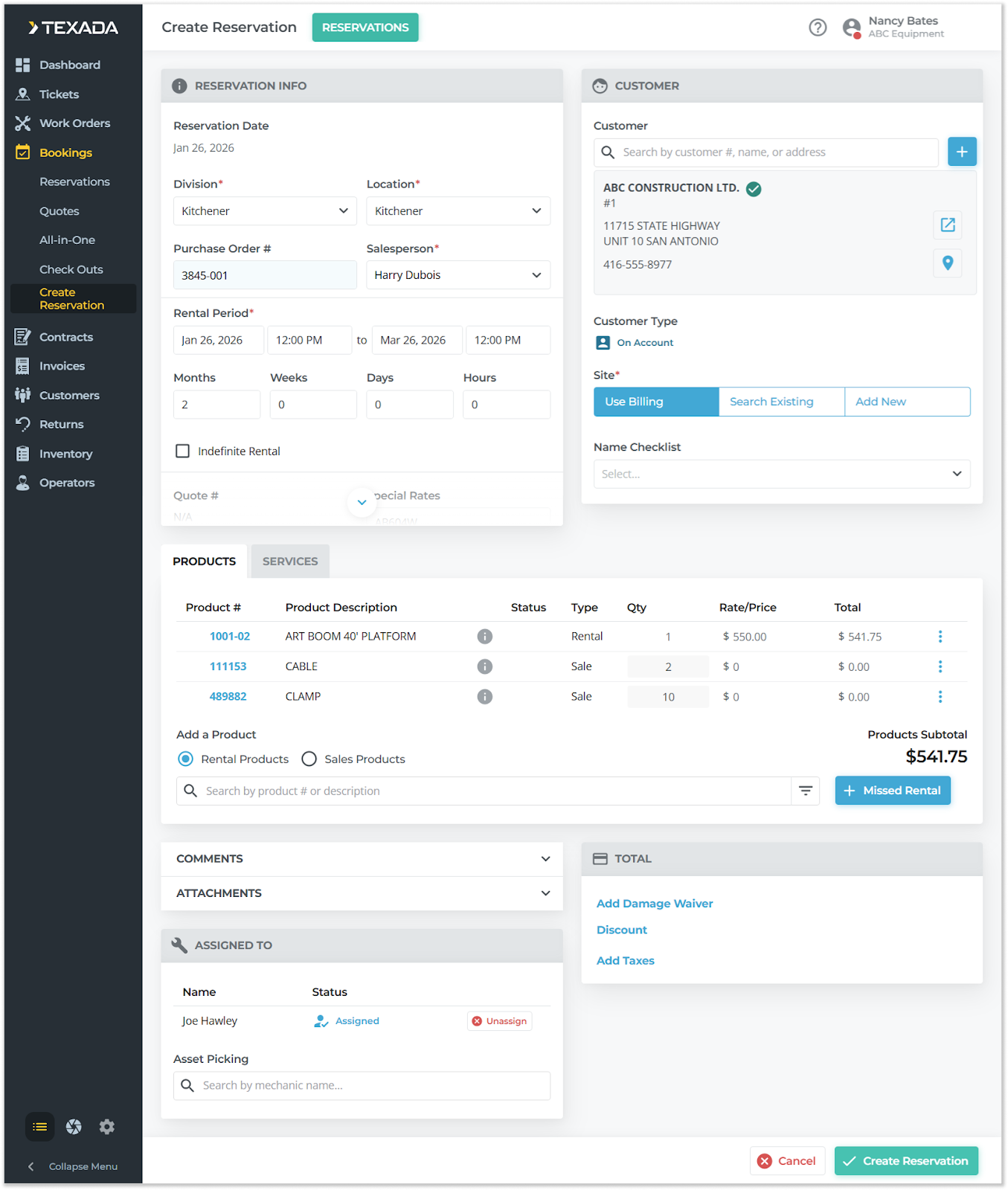
- Enter Reservation Information
On the Create Reservation screen, fill out all the information for your Reservation, including at minimum:- A Division and Location.
- The Salesperson responsible for securing the Reservation.
- A Rental Period.
- A Customer and Customer Site.
- At least one Product (Rental or Sale).
- Create Reservation
Once you have entered all relevant information for the Reservation, click the “Create Reservation” button to save it.
Once you have created a Reservation, it can be viewed via the Reservation List page.
For a detailed breakdown of the contents of the Create Reservation page, see “The Contract / Reservation Details Page".
For information on converting a Reservation to a Contract, see “Convert a Reservation to a Contract in Rental Management (Next)”.