
In This Article
- Introduction
- Via the Reservation List
- Via the Edit Reservation Page
- Convert to Contract
- Add Products to Contract
Introduction
A Reservation is a pre-Contract document that allows an equipment salesperson to estimate the cost of a potential Contract and reserve equipment at the Group level. Once the client has provided their approval, a Reservation can be converted into a Contract.
There are two ways to convert a Reservation into a Contract in Rental Management (Next):
Via the Reservation List
- Log in to Rental Management (Next) and open select Bookings → Reservations from the left navigation menu.
- Hover over the three dots
 next to a Reservation on the left side of the Reservation List, then click the “Convert to Contract” button.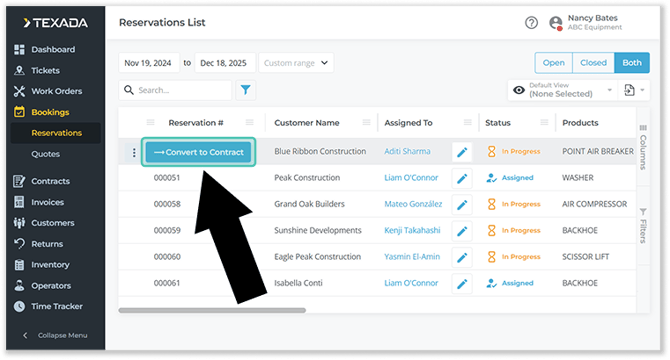
- See “Convert to Contract” for the remaining steps.
Via the Edit Reservation Page
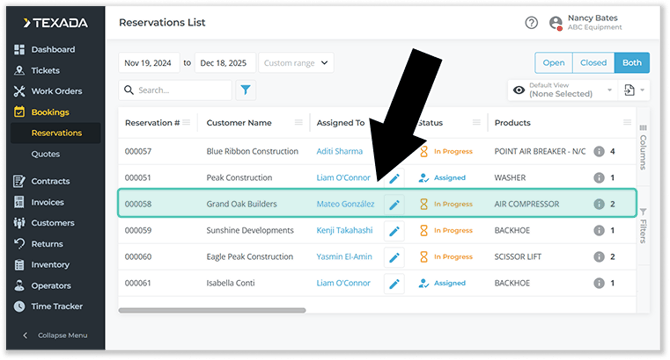
- Log in to Rental Management (Next) and select Bookings → Reservations from the left navigation menu. Locate the Reservation you’d like to convert and click on it to open its details page.
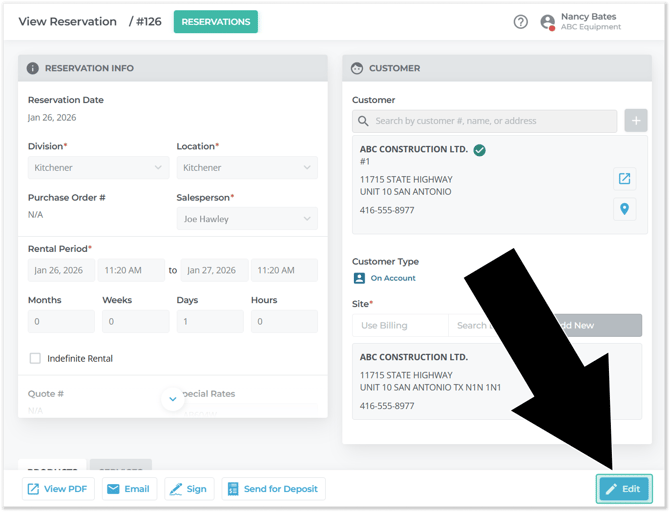
- Click the “Edit” button in the bottom-right corner of the View Reservation page to edit it.
- Click the drop-down arrow
 next to the “Save” button, then click “Convert to Contract”.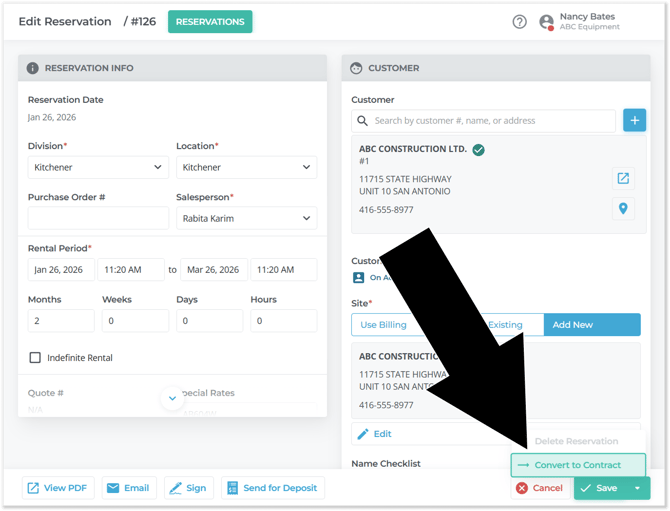
- See “Convert to Contract” for the remaining steps.
Convert to Contract
Once you have located the Reservation you’d like to convert and clicked the “Convert to Contract” button, follow the steps below to complete the conversion process.
- If the Reservation you selected has previously been converted into a Contract, the Honored Reservation Documents window will appear. This window lists the Contracts that have been created from this Reservation and helps prevent duplicates from being created.
Click on a Contract’s number to view its details. Once you have reviewed the list of Contracts, click “Proceed” to proceed to the Add Products to Contract window, or click “Cancel” to cancel.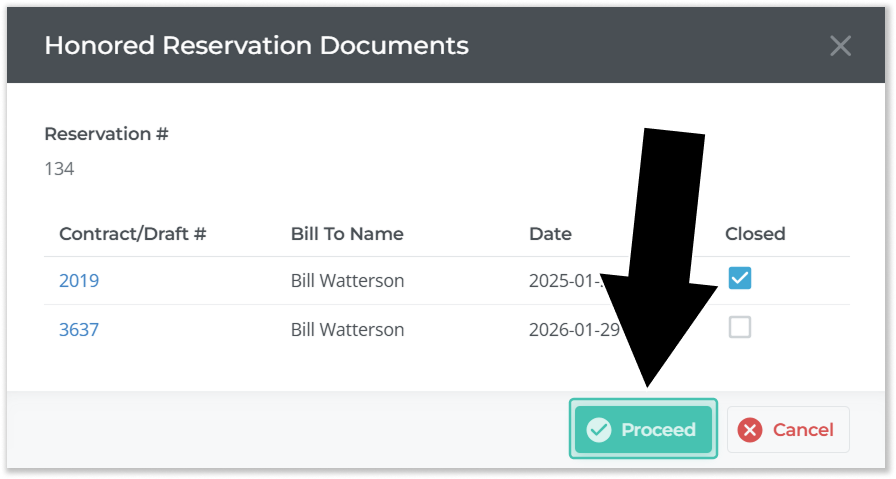
- In the “Add Products to Contract” window, select which Products will be used to fulfill the Group-level Reservation. For more information on this process, see “Asset Staging”.
Once you’re finished adding Products, click “Save” to create a Contract. If the “Delete Reservation” checkbox is checked, the original Reservation will also be deleted at this time.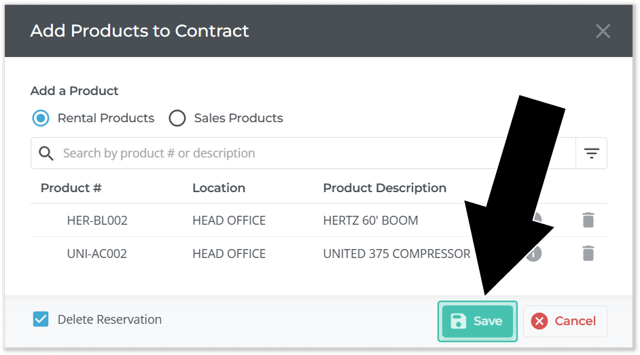
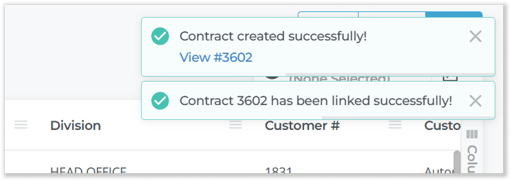
- Once the Contract has been successfully created, a pop-up will appear in the top-right corner of the screen. Click on the Contract’s number to quickly jump to its details page.
Add Products to Contract
Whether converting a Reservation from the Reservation List or Edit Reservation page, the last step in the conversation process will be the Add Products to Contract window. This window allows the user to perform Asset Staging, deciding which Products will go out on the final Contract to fulfill the Group-level Reservation.
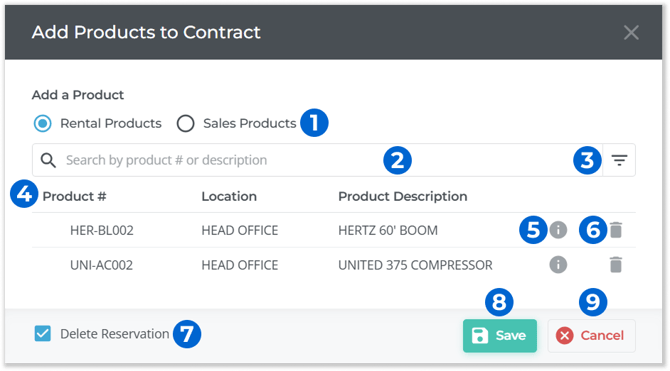
- Rental Products / Sales Products Toggle
Use this to toggle between searching for Rental Products (Assets) and Sales Products (Parts). This will affect the results returned by the Search Bar (2). - Search Bar
Begin typing to search for Products to add to the Contract. This will search by Product #, Description, Class, and Group. Once a Product has been found, click on it to add it to the Contract. - Filter Results
Click to access filtering options such as Location, Class, Manufacturing Year, Kits, and more. Check the “Show Available First” checkbox to show available Products at the top of the search results. - Products on Contract
Products that will be included on the created Contract are listed here. - More Information
Hover over the information icon next to a Product to view more detailed information about it. - Remove Product
Click the bin icon next to a Product to remove it from the created Contract. - Delete Reservation Checkbox
If this box is checked when the “Save” button is clicked, the Reservation will be deleted when the Contract is created.
This option allows you to delete Reservations as you create Contracts to keep the Reservation list organized. On the other hand, keeping the original Reservation allows it to be re-used in case similar Contracts need to be created in the future. - Save Button
Click to create a Contract with the currently-selected Products. - Cancel Button
Click to close the window without saving your changes.