.png?width=365&height=50&name=Texada%20Logo%20(Black).png)
In This Article
Introduction
An upgraded Labor Approval screen is now available in Service Management CD!
The new Labor Approval screen shows pending labor approvals and technician allowances in a split view, bringing more context to the supervisor approval process. Instead of reviewing technician labor and allowances separately, managers can now see them together on the same screen, making it easier to verify submissions, spot inconsistencies, and approve or reject entries with a clearer view of the technician’s day.
Labor Approval Screen Split View
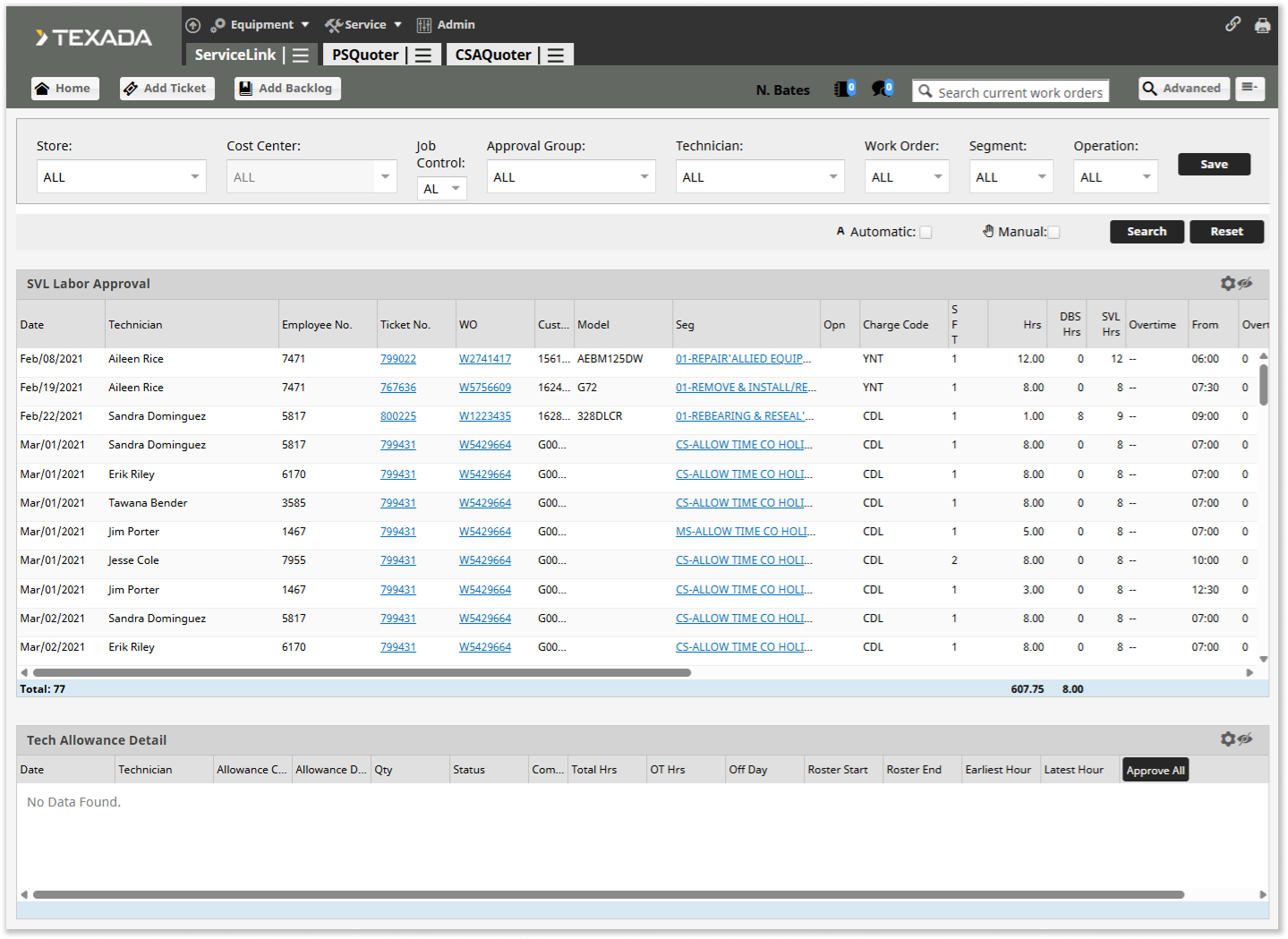
With this update, the Labor Approval screen now includes two tables: the existing Labor Approval table at the top of the screen, and a new Tech Allowance Detail table at the bottom. When you first navigate to this page, the Tech Allowance Detail table will be blank.
Click on an entry in the Labor Approval table to populate the Tech Allowance Detail table with any allowances relevant to the selected entry. This will provide you with information previously only visible from the Technician Allowance screen, such as the allowance’s Date, Code, Description, Status, and Comments:
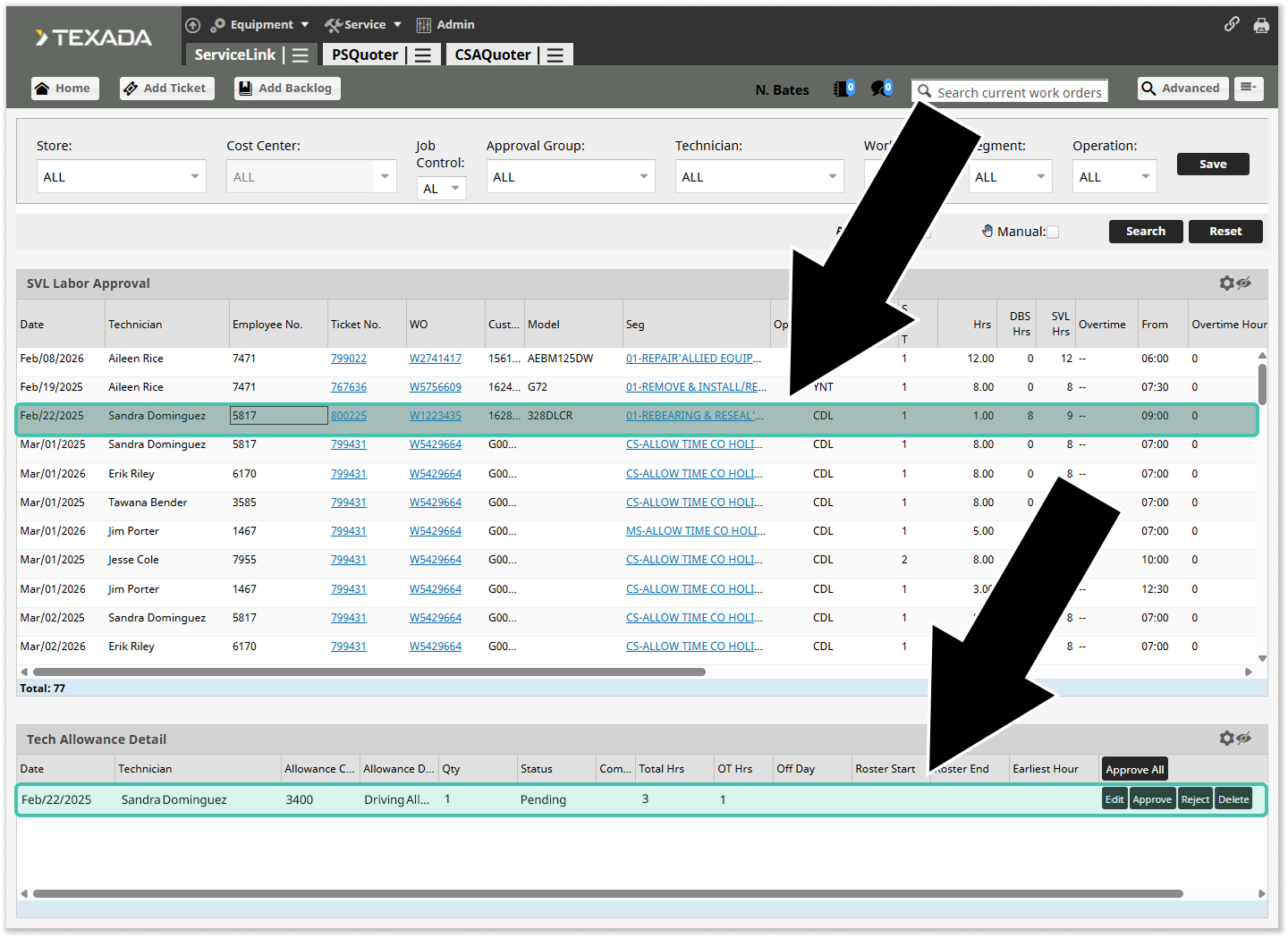
Allowances that have already been approved will not be displayed in the Tech Allowance Detail table.
By combining labor and allowance information into a single, convenient view, the new Labor Approval screen gives supervisors the insight they need to approve or reject entries with confidence. Both labor and allowance entries can be approved or rejected directly from this screen!
Configuration
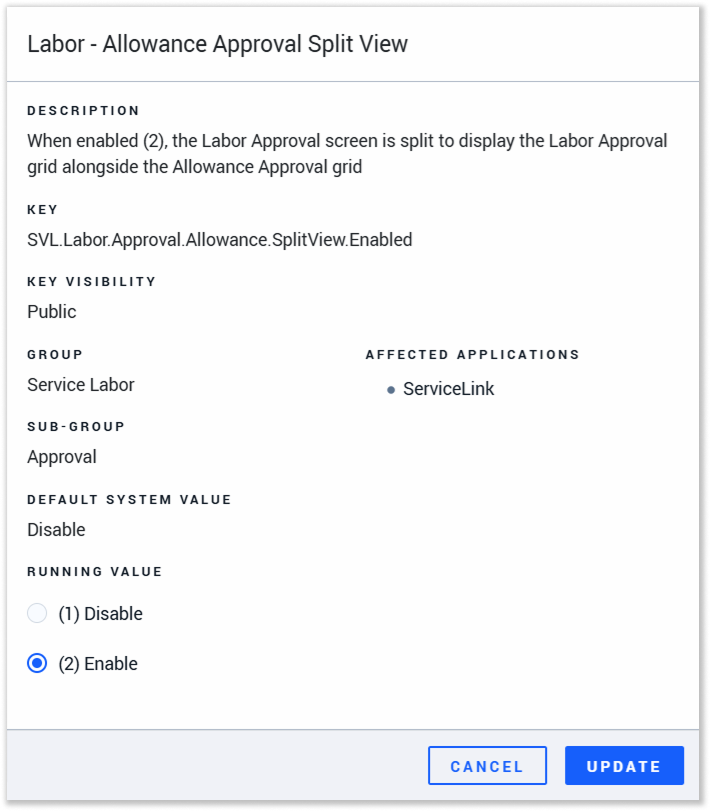
The new split view for the Labor Approval screen can be enabled and disabled via the Labor - Allowance Approval Split View (SVL.Labor.Approval.Allowance.SplitView.Enabled) configuration key in CloudLink Console. This key has two possible values:
- (1) Disable: The original Labor Approval screen will be used.
- (2) Enable: The new split view Labor Approval screen will be used.
For more information on modifying configuration keys in CloudLink Console, see “Manage Configuration Keys”.