
In This Article
Introduction
The Mechanic Performance page in Service Management (Next) gives service managers a single place to review each mechanic’s productivity and profitability for a selected period. This page reports logged hours, billable hours, and a calculated tech efficiency (the ratio of billable to logged hours) derived from labor lines on Work Orders.
To reach this page, log in to Service, Rental, and Financials (Next), then select Operators → Mechanic Efficiency from the left navigation menu.
Mechanic Performance
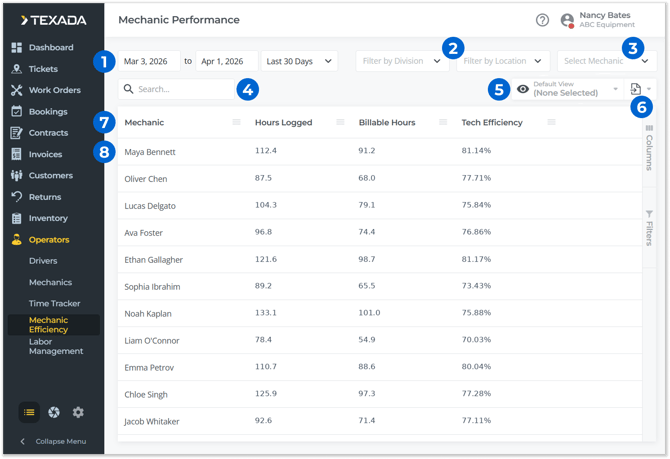
- Date Selector
The range of dates for which mechanic performance will be calculated. Use the start and end date selectors to create a custom date range, or use the drop-down to pick from a list of ranges. - Filter by Division / Filter by Location
Select one or more Divisions or Locations from the drop-downs to filter the Mechanic Performance table by those locations. - Select Mechanic
Select one or more Mechanics from the drop-down to filter the Mechanic Performance table by those Mechanics. - Search Bar
Enter a Mechanic’s name into the search bar to filter the Mechanic Performance table by that Mechanic. - View Manager
Click to manage views for the Mechanic Performance table. See “The View Manager” for more information. - Export Button
Click to export the contents of the Mechanic Performance table. See “Exporting the Contents of a Table” for more information. - Mechanic Performance Table
Mechanics matching the currently selected filters are listed in this table. See “Working with Tables” for information on customizing this table. - Mechanic
Click on a Mechanic to view a detailed breakdown of their Work Order history. See “Work Order Performance List” for more information.
Mechanic Performance Table - Columns
The Mechanic Performance table comprises the following columns:
- Mechanic: The Mechanic’s name (first and last).
- Hours Logged: The number of labor hours (billable and non-billable) logged by the Mechanic during the selected time period.
- Billable Hours: The number of billable labor hours logged by the Mechanic during the selected time period.
- Tech Efficiency: The percentage of hours worked by the Mechanic during the selected time period that were billable. Equal to (Billable Hours / Hours Logged) * 100.
Work Order Performance List
Click on a Mechanics’s row in the Mechanic Performance table to navigate to the Work Order Performance List. This screen provides a detailed view of a single Mechanic’s Work Order activity.
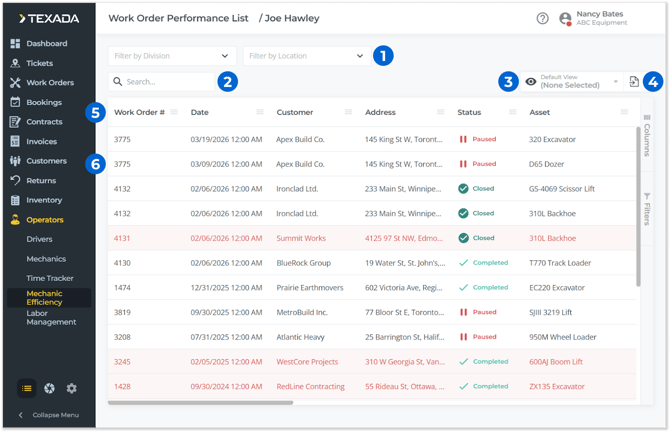
- Filter by Division / Filter by Location
Select one or more Divisions or Locations from the drop-downs to filter the Work Order Performance table by those locations. - Search Bar
Begin typing into the search bar to filter the Work Order Performance table by the text entered. This will search by Work Order #, Customer, and Asset. - View Manager
Click to manage views for the Work Order Performance table. See “The View Manager” for more information. - Export Button
Click to export the contents of the Work Order Performance table. See “Exporting the Contents of a Table” for more information. - Work Order Performance Table
Labor lines appearing on Work Orders assigned to the selected Mechanic are listed in this table. - Labor Line
Each labor line appearing on a Work Order assigned to the selected Mechanic will receive its own row in the Work Order Performance table.
Work Order Performance Table - Columns
The Work Order Performance table comprises the following columns:
- Work Order #: The number of the Work Order to which the labor line belongs.
- Date: The date on which the labor line was created.
- Customer: The customer for which the Work Order was completed.
- Address: The customer’s address.
- Status: The status of the Work Order to which the labor line belongs. See “About Work Order Statuses” for more information.
- Contract #: The Contract associated with the Work Order, if any.
- Asset: The Asset to which the labor line belongs.
- Asset Status: The status of the Asset to which the labor line belongs.
- Division: The Work Order’s Division.
- Location: The Work Order’s Location.
- Flagged: Contains a red flag icon
 if the Work Order was flagged for attention by the assigned Mechanic.
 - Hours Logged: The total number of labor hours (billable and non-billable) logged against this labor line by the assigned Mechanic.
- Billable Hours: The number of billable labor hours logged against this labor line by the assigned Mechanic.
- Mechanic Efficiency: The ratio of billable to non-billable labor hours logged against this labor line by the assigned Mechanic. Equal to (Billable Hours / Hours Logged) * 100.