
In This Article
Introduction
Texada is pleased to announce new functionality for Received, Not Invoiced (RNI) inventory posting in Service, Rental, and Financials (Classic)! This feature expands on (Classic)’s existing warehouse receiving functionality.
When inventory is received but has not yet been invoiced through Accounts Payable, Financials (Classic) can now create the associated General Ledger postings so that these outstanding warehouse receipts are reflected properly in your financial records. This feature helps automate a process that would otherwise need to be handled manually by your accounting team.
This is especially useful for organizations processing a high volume of Purchase Orders or working with suppliers on longer invoicing timelines.
How It Works
While this functionality is enabled, Financials (Classic) will create General Ledger postings for inventory that has been received but not yet invoiced. This allows warehouse receipts and AP invoicing to be reflected in the General Ledger as separate accounting events.
In the below example, you can see how creating a Purchase Order, performing warehouse receiving, then generating an AP invoice is reflected in the various General Ledger accounts.
Step 1: Purchase Order Creation
The process begins when a Purchase Order for a $1,000 rental asset is created. At this stage, no postings will be created.
Step 2: Warehouse Receipt
Next, a warehouse receipt for the value of the Purchase Order ($1,000) is submitted. Postings will now be created in the RNI and RCP accounts during the Daily Close 3 process:
|
Account |
Debit |
Credit |
|
Received Not Invoiced (RNI) Liability Account |
$1,000 |
|
|
Received Not Posted (RCP) Asset Account |
$1,000 |
Step 3: AP Invoice Entry
Finally, an AP Invoice for the transaction is created. Postings will now be created in the Accounts Payable and Inventory Asset accounts:
|
Account |
Debit |
Credit |
|
Received Not Invoiced (RNI) Liability Account |
$1,000 |
|
|
Received Not Posted (RCP) Asset Account |
$1,000 |
|
|
Accounts Payable |
$1,000 |
|
|
Inventory Asset |
$1,000 |
What if the AP Invoice isn’t for the full value of the transaction?
In this case, the difference between the Invoice value and the transaction value will remain in the RNI and RCP accounts. For example, if the AP Invoice in the example above was only for $900, the remaining $100 would remain in the RNI and RCP accounts.
What if there’s a value mismatch?
Accounts Payable usually has an established threshold (for example, a $10 difference on a $10,000 machine) within which Invoices can be processed without a full correction. In the event of a mismatch, the Invoice will be processed by AP, and the user will be prompted to select which account to use for the variance.
Activation
This feature can be enabled and disabled via the “Activate GL Posting For Warehouse Receipts In Progress” checkbox in Service, Rental, and Financials (Classic), located at System Maintenance → Configure System Settings → System → Company Parameters → Posting Parameters.
While this checkbox is enabled, General Ledger postings will be created for inventory that has been received but not invoiced, per the logic outlined under “How It Works”. By disabling this checkbox, you can temporarily pause this functionality without losing your account configurations.
New Account Fields
To support this feature, 2 new fields have been added to Service, Rental, and Financials (Classic):
- Received Not Invoiced (RNI) Liability Account: The temporary liability account used to record the value of goods that have been received but not yet invoiced by the supplier.
- Received Not Posted (RCP) Asset Account: The temporary asset account used to hold the value of received inventory until the final invoice is posted and the transaction is moved to the permanent inventory/accounting accounts.
These accounts can be set at the Class level for both Rental Products and Sales Products. Additionally, you can use the Class Defaults utility to establish default RNI and RCP accounts.
Class Defaults
To establish default RNI and RCP accounts, follow the steps below. These accounts will be used for non-inventory Products, as well as for Products whose Classes have no accounts set.
- Log in to Service, Rental, and Financials (Next) and navigate to System Maintenance → Configure System Settings → Accounting → Class Defaults.
- Enter the desired account numbers into the Received Not Invoiced (RNI) Liability Account and Received Not Posted (RCP) Asset Account fields, or click the search icon
 to search for an account.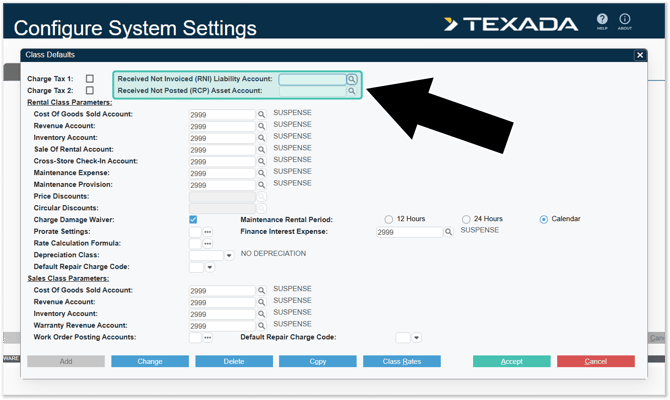
- Click “Accept” to save your changes.
Rental / Sales Class
To establish RNI and RCP accounts for a single Rental or Sales Class, follow the steps below.
- Log in to Service, Rental, and Financials (Next) and navigate to System Maintenance → Configure System Settings → Accounting → Rental Classes or Sales Classes.
- Enter the number of the Class you’d like to edit into the “Product Class” field, then press Enter to load that Class’s details.
- Click “Additional Options”.
- Enter the desired account numbers into the Received Not Invoiced (RNI) Liability Account and Received Not Posted (RCP) Asset Account fields, or click the search icon to search for an account.
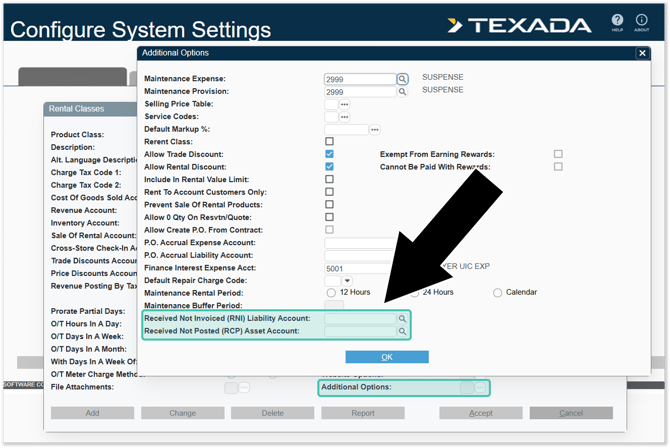
- Click “OK”, then “Accept” to save your changes.