
In This Article
Introduction
Welcome to Field Sales Tracker! This guide introduces the core features you need to get up and running smoothly, from setting up customer records to navigating your daily sales routes.
Let’s get started.
Setting Up Your Accounts
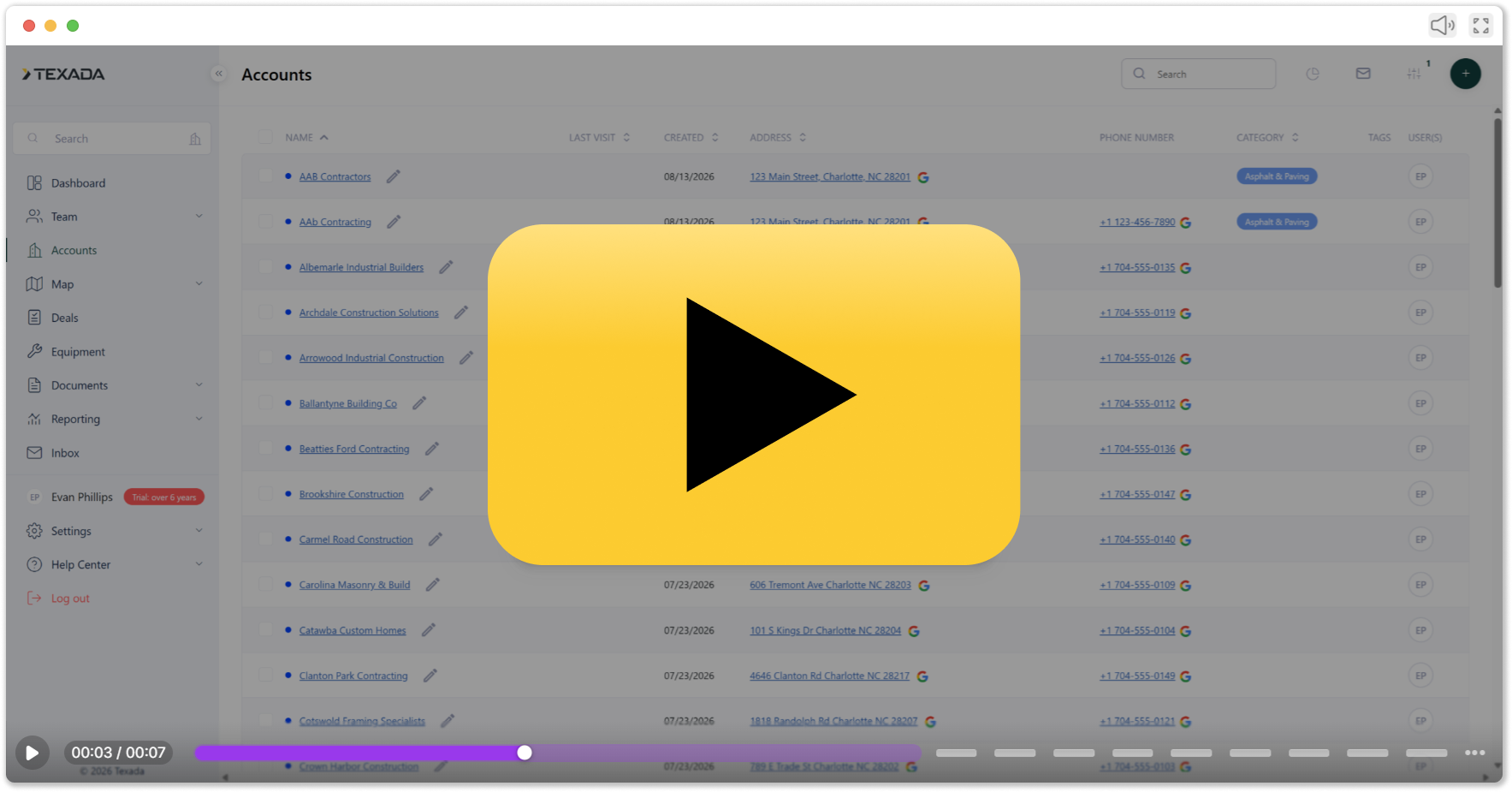
Build your territory database by adding individual customer records on the fly or uploading your existing customer lists in bulk.
Creating Accounts
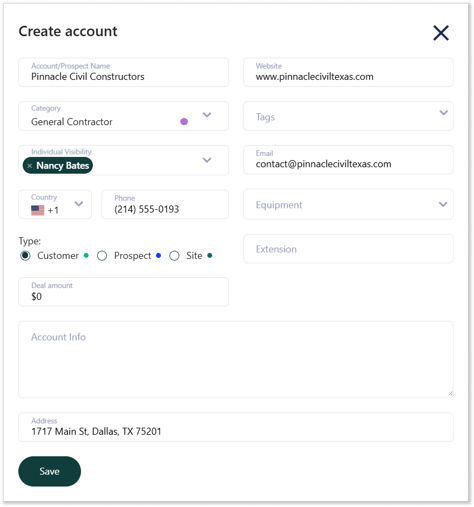
Whether you are working at your desk or out meeting clients in the field, capturing new leads and setting up customer profiles is effortless. You can easily add customers, prospects, and sites on web or mobile. In the mobile app, you can even scan a business card to instantly auto-fill an account's contact details on the spot!

Bulk Importing Accounts
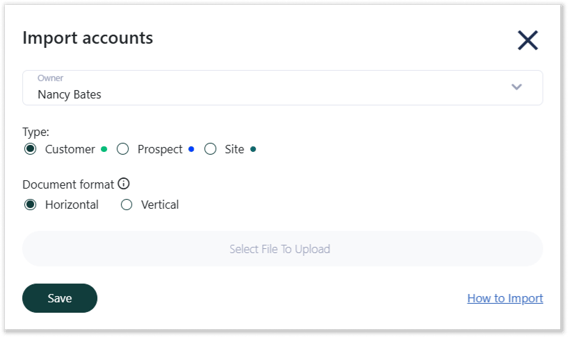
Field Sales Tracker’s bulk import tool lets you upload large spreadsheets of customers, prospects, or sites all at once using flexible templates. Intelligent field mapping and built-in error checking ensure your dataset stays clean and accurate without creating duplicate records.
Managing Your Field Operations
Maximize productivity on the road by organizing account locations into efficient travel itineraries.
Planning Daily Routes
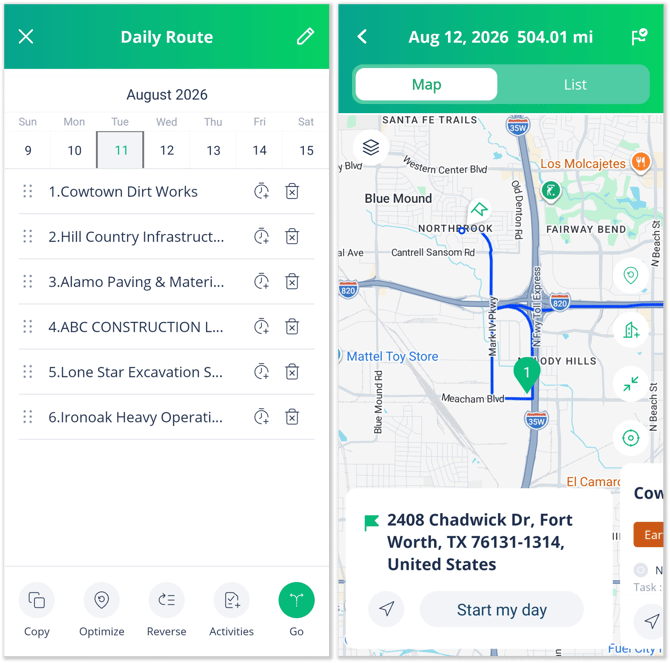
Daily routes take the guesswork out of field travel by transforming planned customer visits into structured, time-saving itineraries on both web and mobile. Simply set your start and end locations, tap "Optimize" to auto-arrange the most efficient path, launch turn-by-turn navigation, and save your top itineraries as reusable route templates.
Selecting Accounts with Area Draw
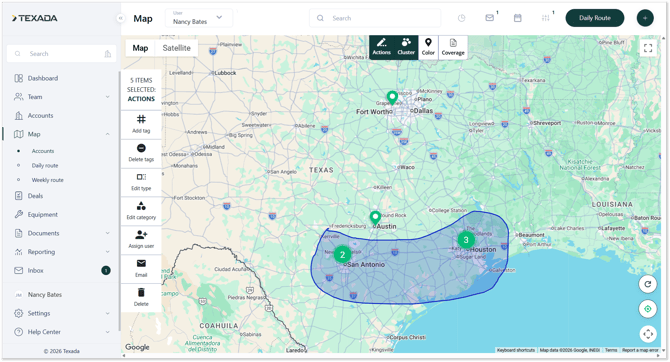
Draw a circle directly around account pins on the map to manage nearby locations in bulk. Use Area Draw on the web to update account tags, categories, or assigned sales reps, or use it on mobile to add an entire geographical cluster straight to your daily route.