
In This Article
Web
Find Activities
- Log in to Field Sales Tracker and select Accounts from the left navigation menu. Locate the Account for which you’d like to view Activities, then click on it to open its details.
You can also open an Account directly by entering its name into the Search bar in the left navigation menu.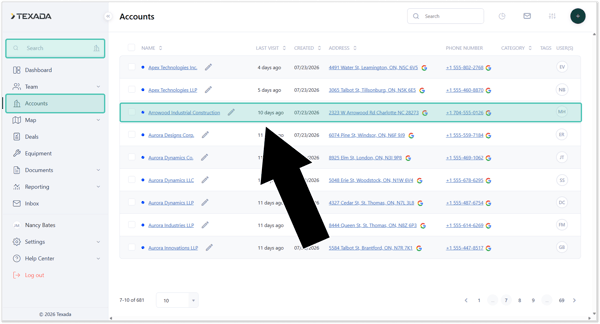
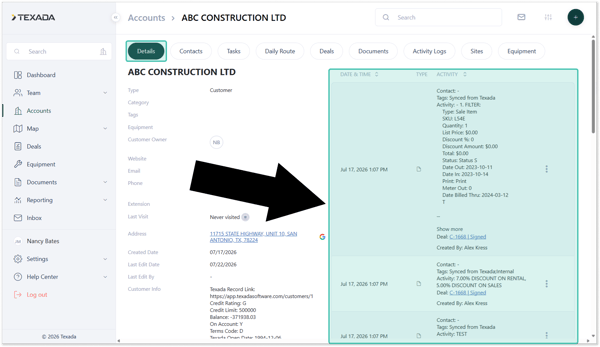
- Select the Details tab from the top menu. On the right side of this page, you can view all previously completed Activities associated with the Account.
Log a New Activity
- Open the Account’s details page and click the
 (Plus) icon in the top-right corner of the screen.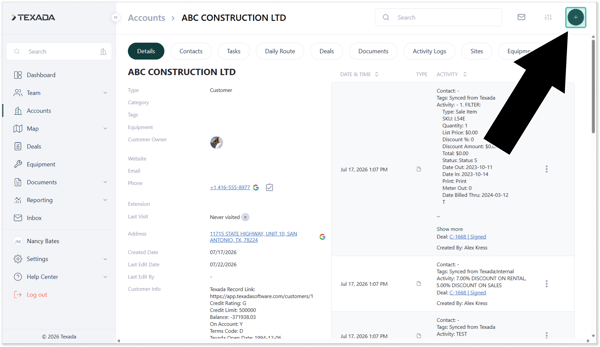
- Enter the Activity’s details, including a description, type, Contact, Deal, Equipment, Tags, and Attachments. See “Activity Types Explained” for a breakdown of the differences between the various Activity types.
Once you are finished, click Save to update the Activity log.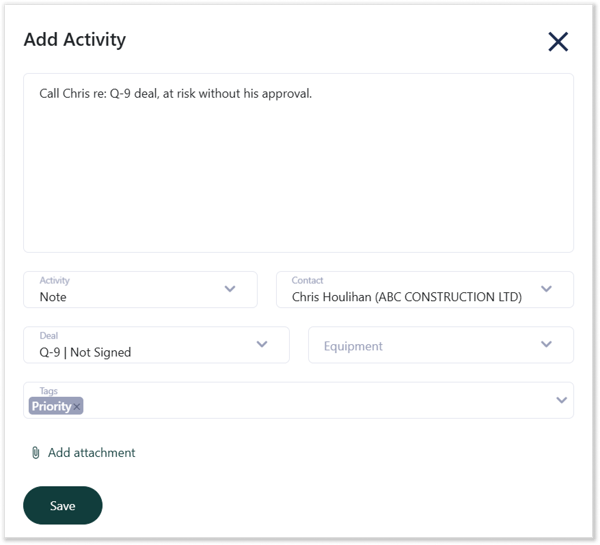
Mobile
Find Activities
- Log in to the Field Sales Tracker mobile application and navigate to Home → List, then tap on the Account you’d like to view to open its details.
You can also search for an Account by tapping the Search icon in the top menu.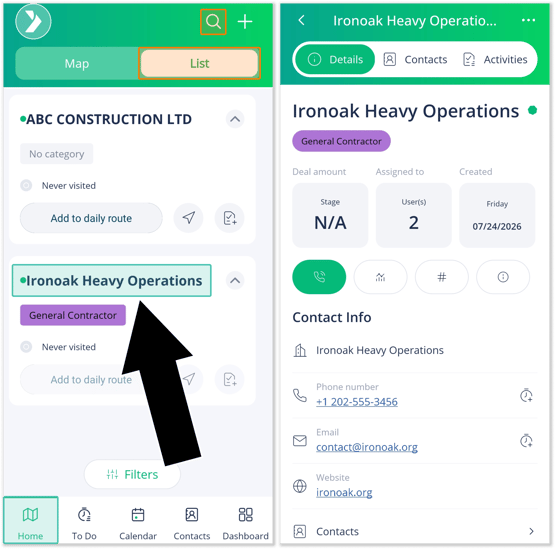
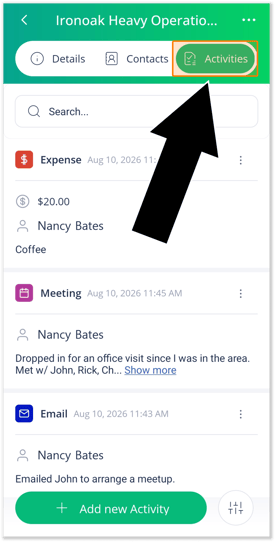
- Select the Activities tab at the top of the screen to view Activities for that Account.
Log a New Activity
- From the Map (left): Navigate to Home → Map. Tap the pin of the Account for which you’d like to add an Activity, then tap the Add Activity icon
 .
.
From the Account details screen (right): Navigate to Home → List → select an Account → Activities, then tap the “Add new Activity” button at the bottom of the screen.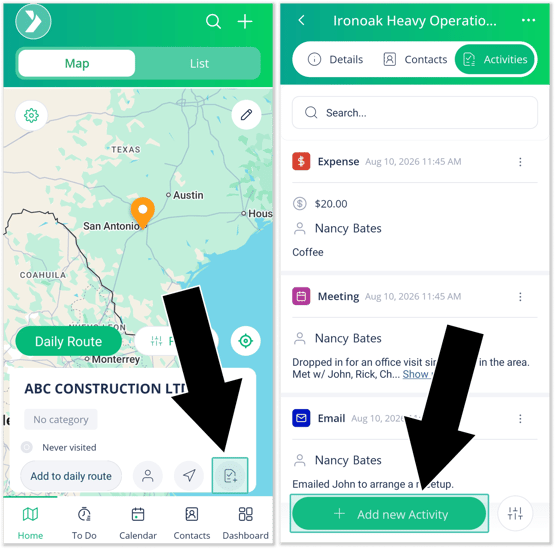
- Select the activity type. See “Activity Types Explained” for a breakdown of the differences between the various Activity types.
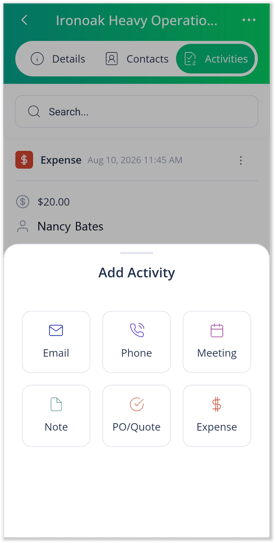
- Enter the Activity’s details. Once you are finished, tap Save to update the activity log.
Activity Types Explained
There are 7 different types of Activity in Field Sales Tracker, each representing a specific kind of client interaction.
- Visit
An in-person visit with the client. Note that visits can only be logged from the Map screen, not from the Account details page. Logging a visit will update the Account’s Last Visit Date.
- Email
An email sent to the client. These Activities are useful for keeping all email logs in one place.
- Phone
A phone call with the client. Use phone calls to create a call log with notes and outcomes.
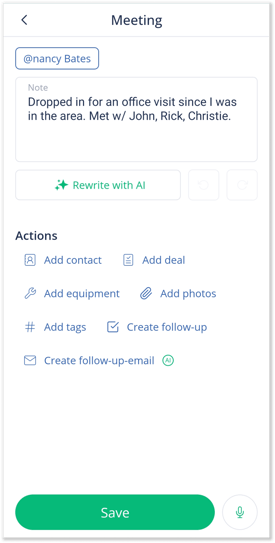
- Meeting
A formal meeting with the client. Use meetings to record meeting details like date, time, and a summary of what was discussed.
- Note
A quick note or internal comment about the Account.
- PO / Quote
A Purchase Order or Quote. These Activities are useful for keeping pricing and order documents tied to the client’s Account.
- Expense
An expense related to the Account. Expenses help track costs tied to deals or customers, and can be used to create expense reports.