To add Contacts, you first have to Create Accounts/Prospects.
Web-based Dashboard
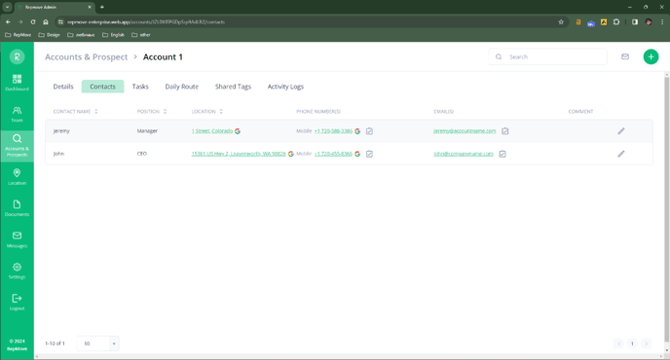
- Go to your Field Sales Tracker Web-based Dashboard and select Accounts & Prospects. Select an Account.
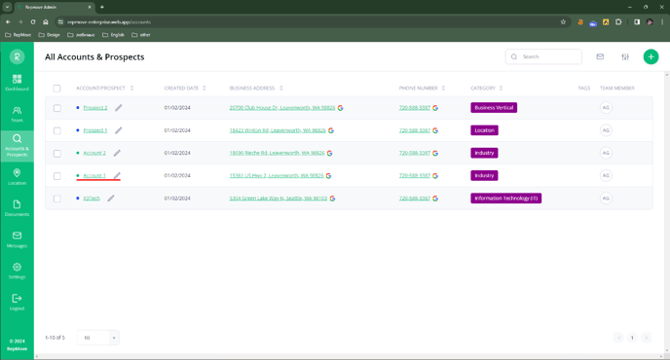
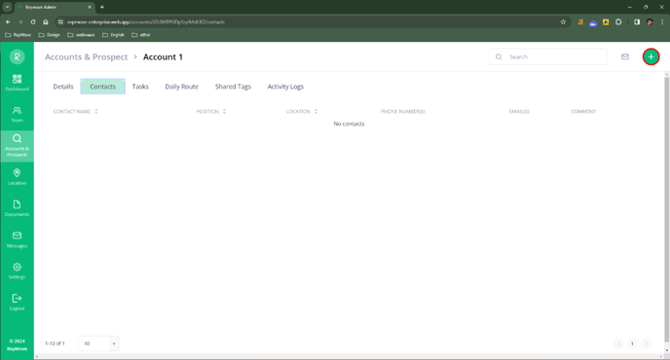
- Go to Contacts.
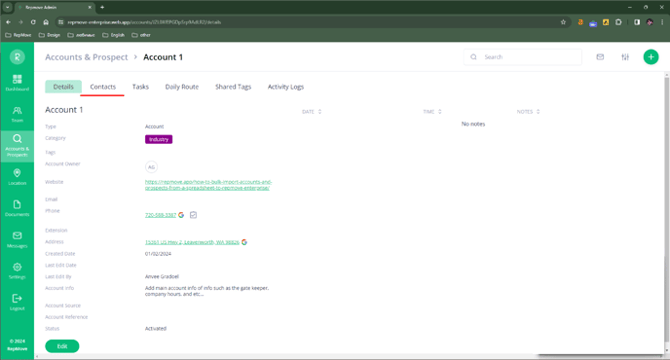
- Hit the green '+' icon in the top left.
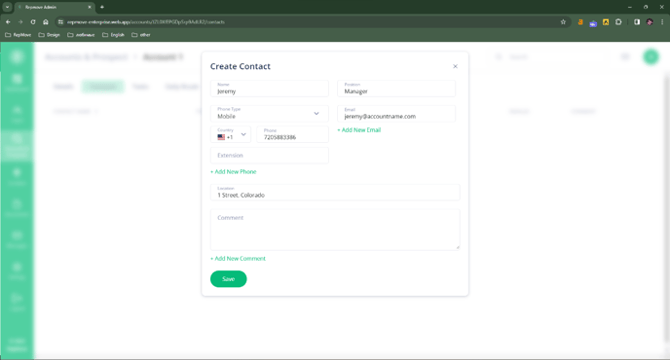
- Populate the Data and hit Save.
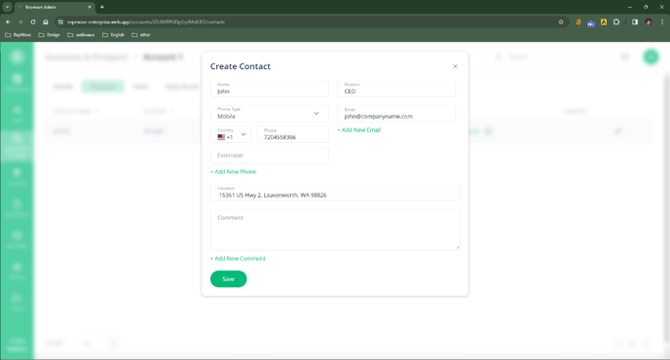
- If you want to add another Contact, hit the green 'icon' and repeat the process.
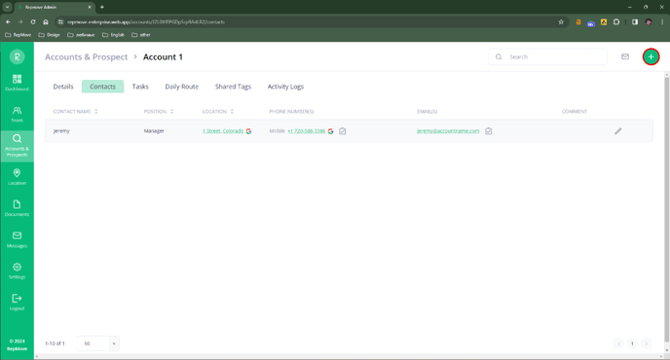
- Now you have your Contacts saved under your Account. You can edit and delete them at any time by hitting the 'pencil' icon.
Mobile
- Open your Field Sales Tracker app and go to your account List.
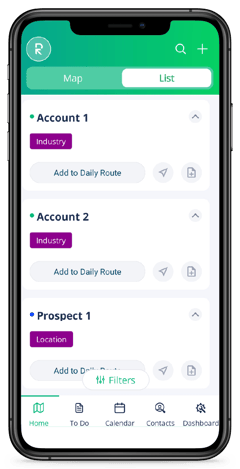
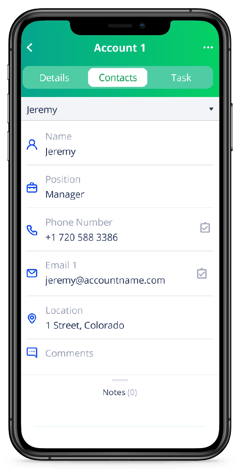
- Select an Account and tap Contacts to open the Contact List.
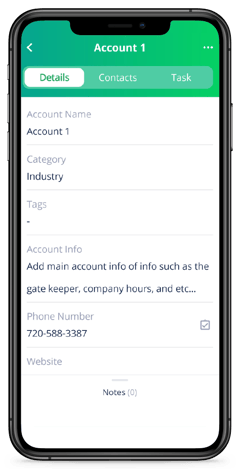
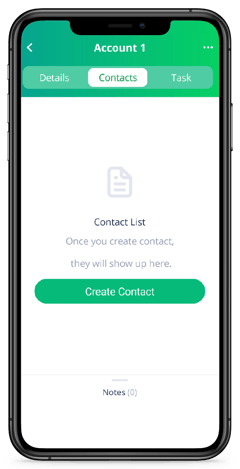
- Tap Create Contact and populate the data or scan a business card. Then tap Save.
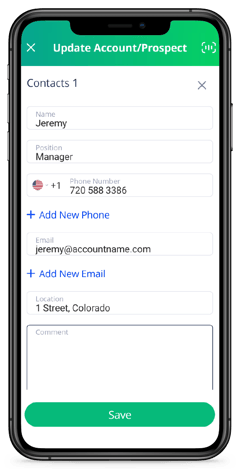
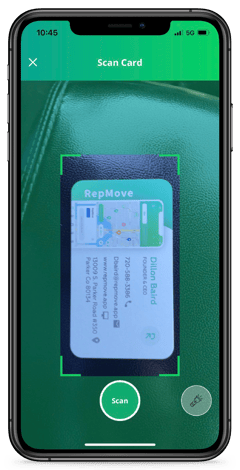
- Your Contact will appear in the list. To add another one, tap the 'three dots' symbol in the top right corner and select Manage Contacts.
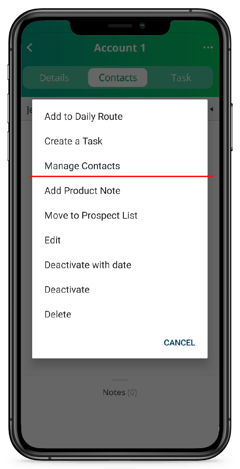
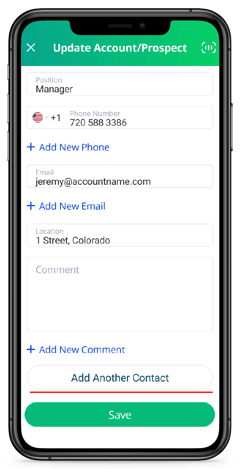
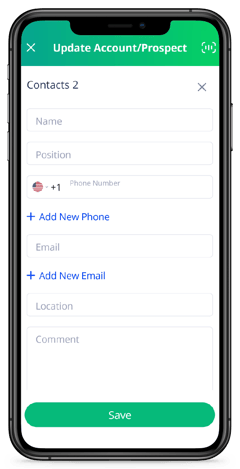
- Scroll down and hit Add Another Contact, populate the data, and hit Save.