In This Article
Introduction
A Contact is an employee of a customer company. All Contacts in Field Sales Tracker must belong to a parent customer Account. To add Contacts, you must first Create an Account.
Create a Contact (Web)
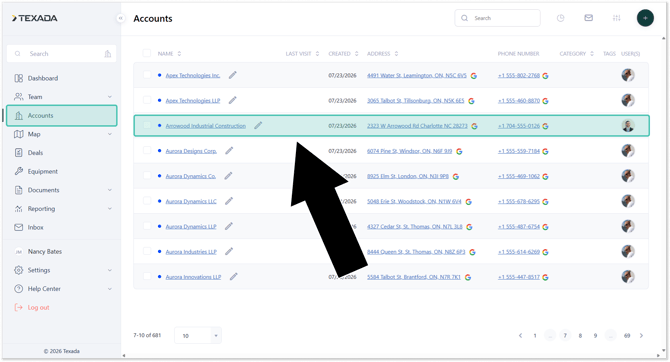
- Log in to Field Sales Tracker and select Accounts from the left navigation menu. Click on an Account to open its details page.
- Select the Contacts tab, then click the plus icon
 in the top-right corner of the screen to open the Create Contact window.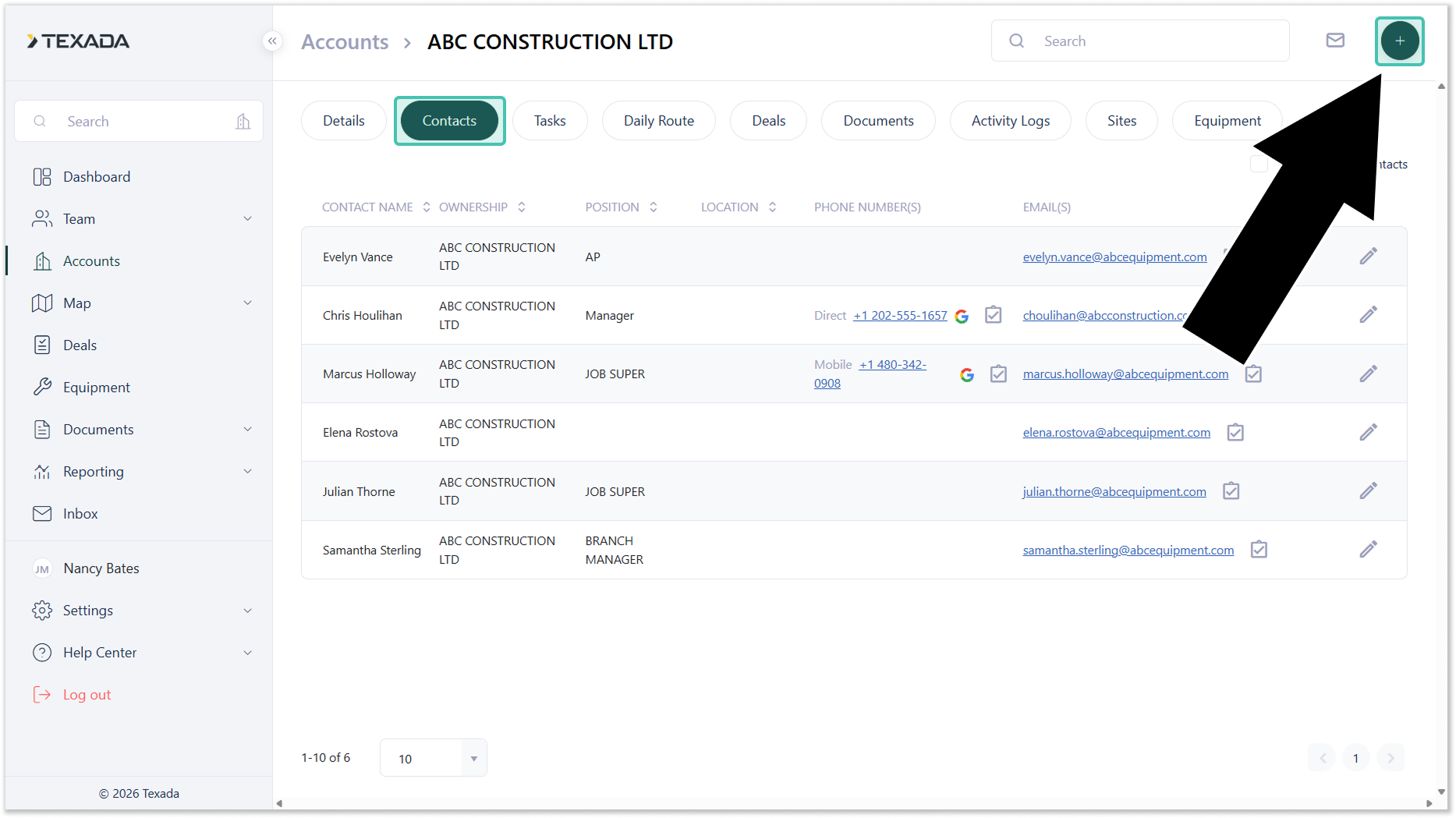
- Fill out the information for your Contact, then click the Save button to create the Contact record and add it to the customer Account.
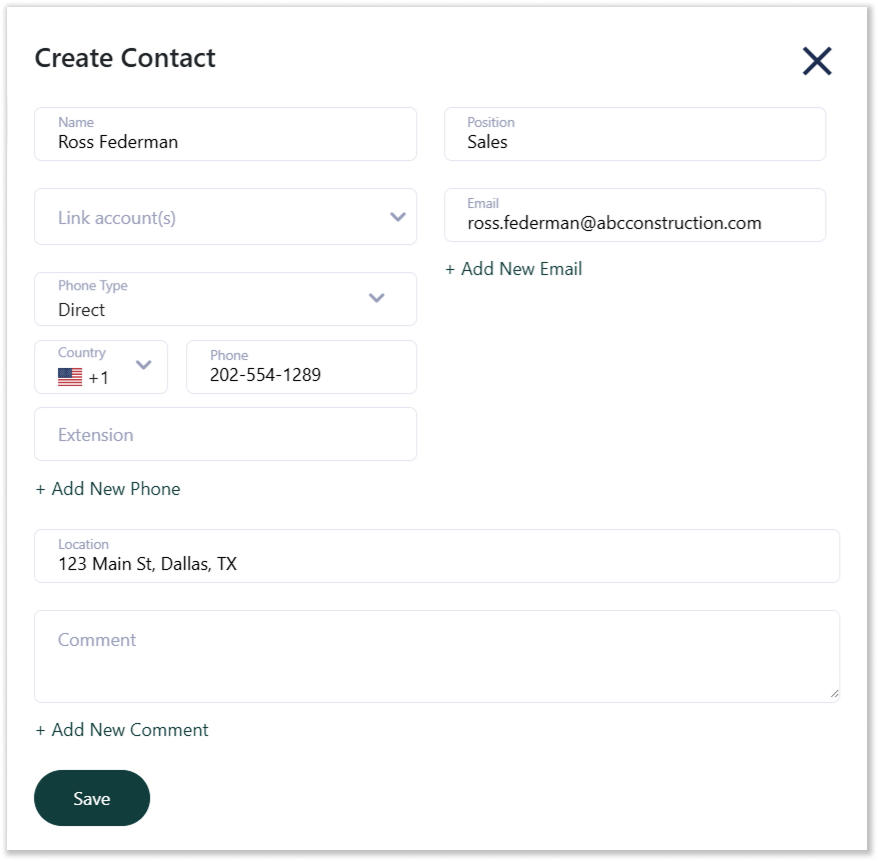
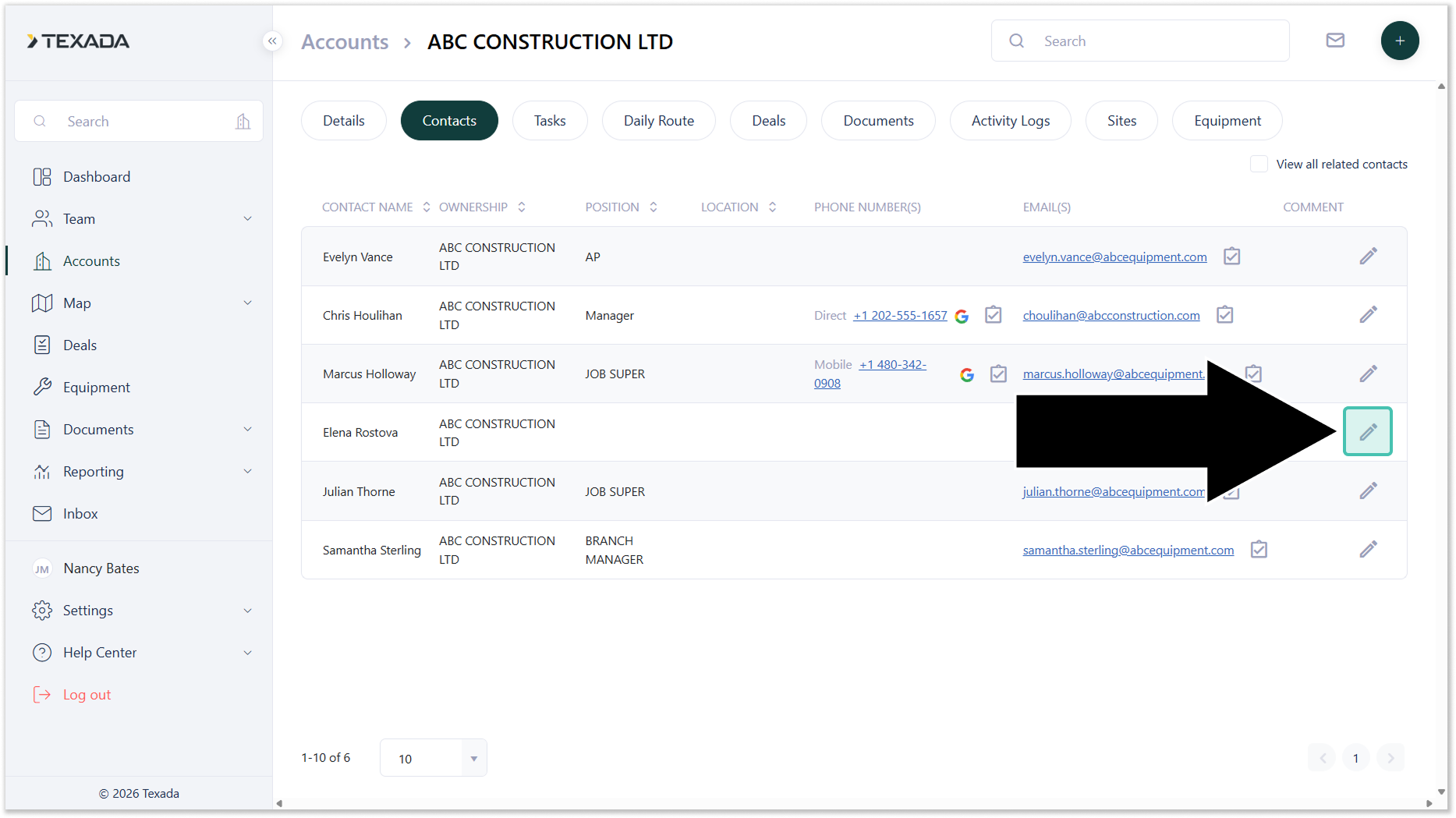
- You will be redirected to the Contacts screen. To edit an existing Contact record, click the pencil icon
 .
.
Create a Contact (Mobile)
- Open the Field Sales Tracker mobile application and navigate to Home → List (left). Locate the Account to which you’d like to add a Contact and tap it to open its details.
Select the Contacts tab at the top of the screen (right), then tap Add new contact.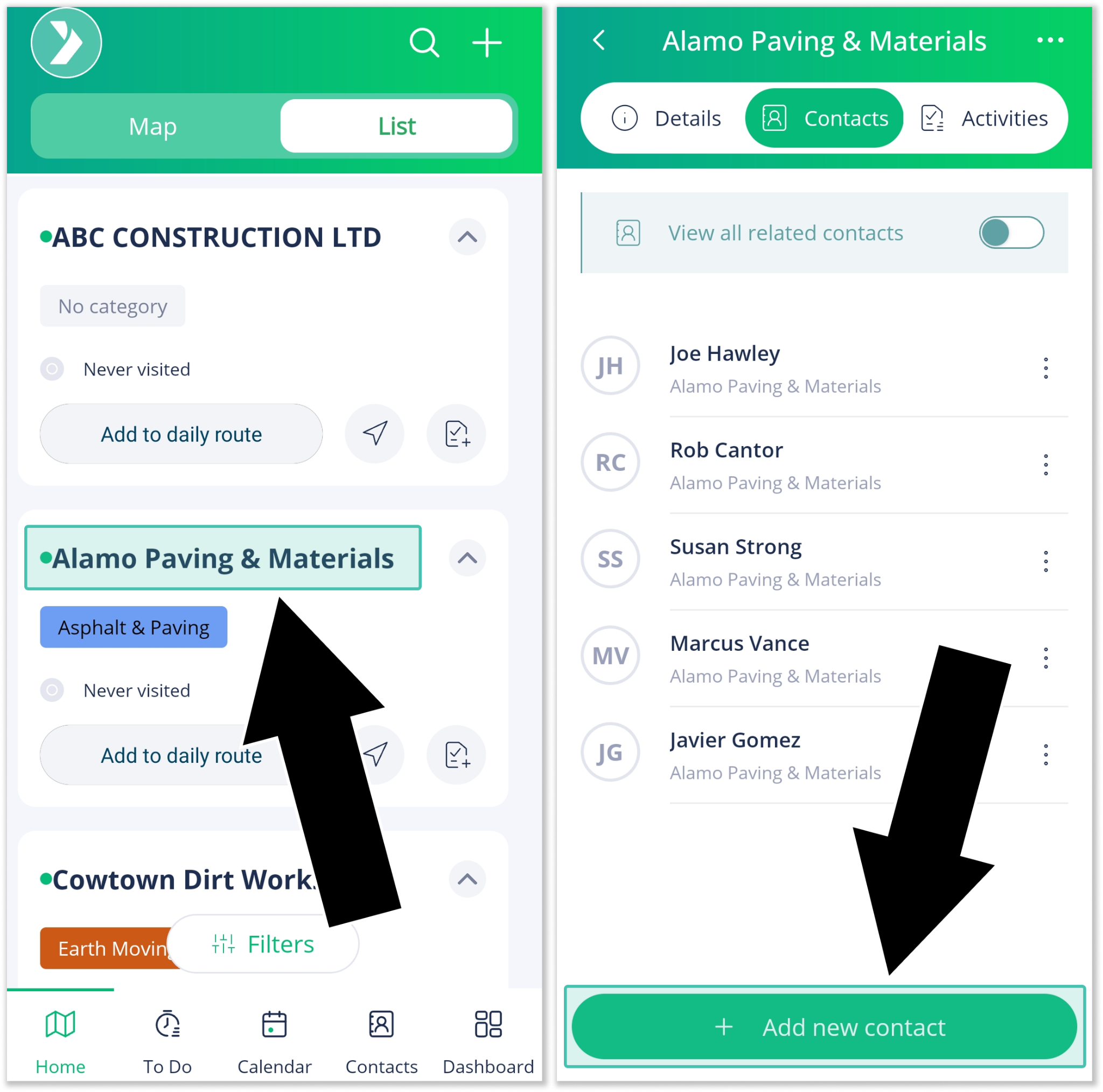
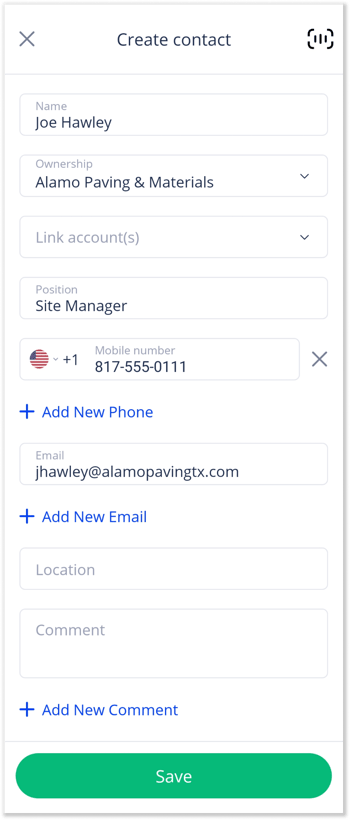
- Fill out the information for your new Contact. You can also tap the scan icon
 in the top-right corner of the screen to scan a business card and load the included information automatically.
Once you are finished, tap Save to create the Contact.