
In This Article
Introduction
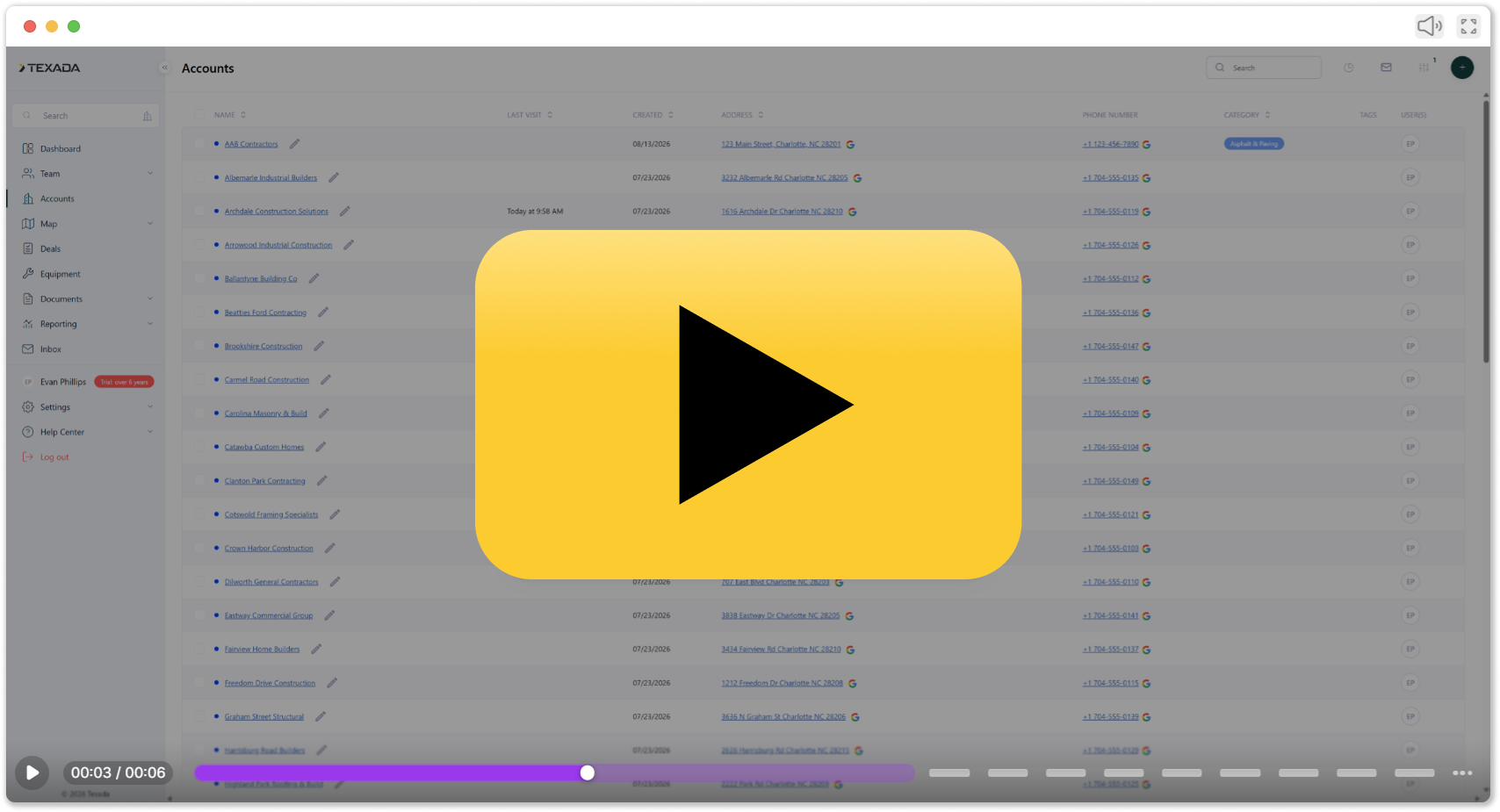
This article describes how to add Jobsites and Satellites and link them to customer Accounts in Field Sales Tracker for web and mobile.
Web
- Go to the Accounts tab
 on the left-hand menu and hit a "plus" in the top right.
 - Select Site/Satellite as the account type and populate the data.
- Look for the related customers and prospects in the "Link Accounts" drop-down.
- Hit Save.
Under an Account, you can go to the Sites/Satellites tab for an overview of all sites attached to this account.
Mobile
- On your Home screen, hit the "plus" button in the top right.
- Select Site/Satellite as the account type and populate the data.
- Hit Link Account(s) to connect the site to related customers or prospects. Hit the checkmark in the top right.
- Add the location for the site to show up on the map. If you're standing at the location of the site, hit the pin with the bar underneath
 , and it will pull up your precise location.
 - Save your Site/Satellite.
When adding a note to the site, you can select linked accounts to populate the note for both the current site and the related account.