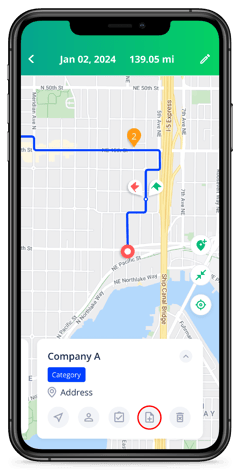
After you have imported or created your Accounts and Prospects, you can now create your daily route.
Web-based Dashboard
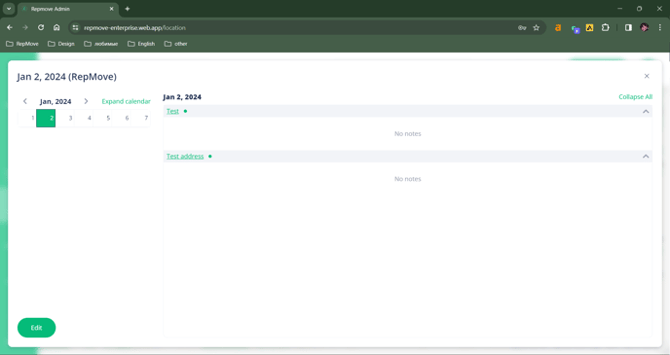
- Go to the Location Tab on the left.
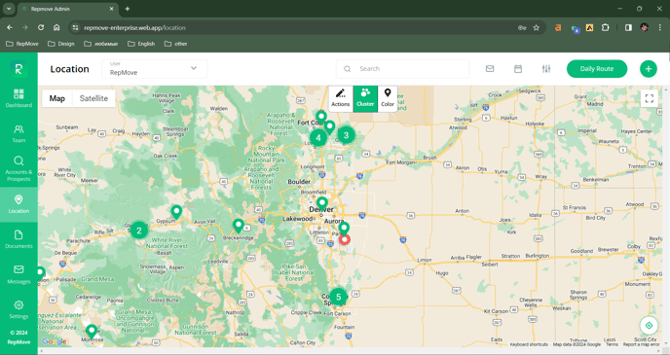
- Click the Daily Route button in the top right.
- Select Create Daily Route.
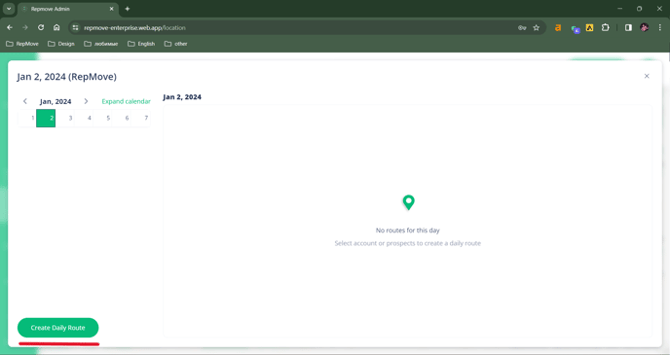
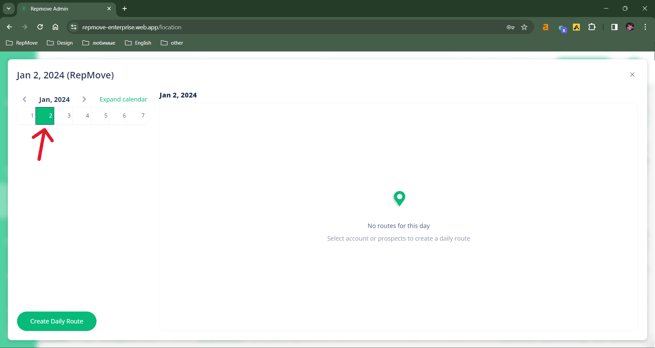
- Select the Date you want to create your daily route for.
- Add a Starting point represented by a green flag and an ending point represented by a red flag. The Optimize button will be available only after you add a start and end.
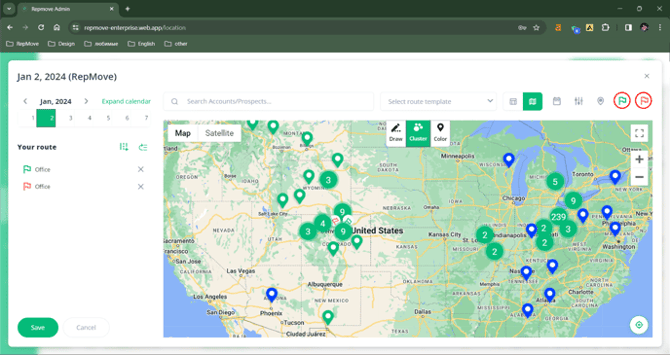
- Select the accounts and prospects you want to add by selecting them on the map and adding them to your route.
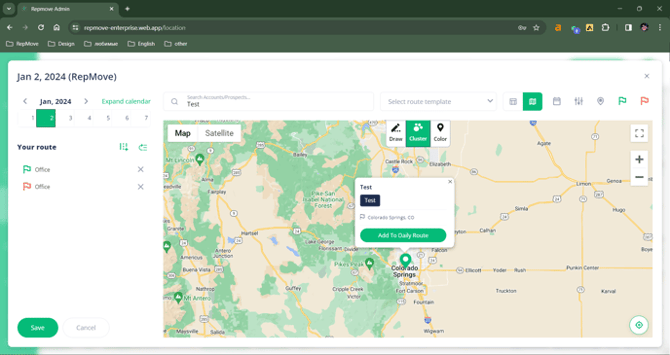
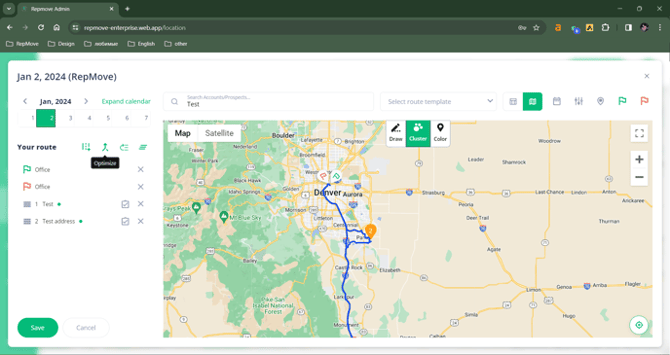
- Once you finished adding your stops click Optimize to create the most efficient route.
- You can save your route as a Route Template under a unique name so you can easily reuse it in the future.
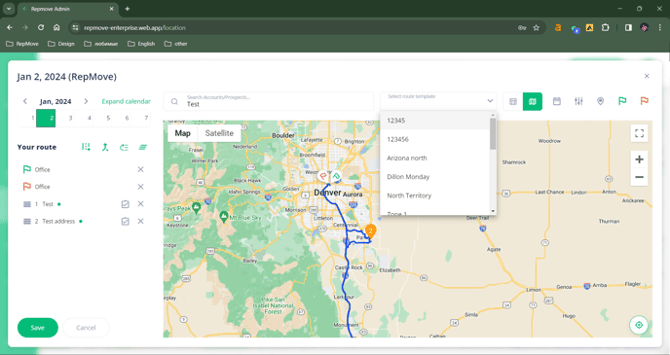
- Save your Route and you're good to go!
Mobile
Option One
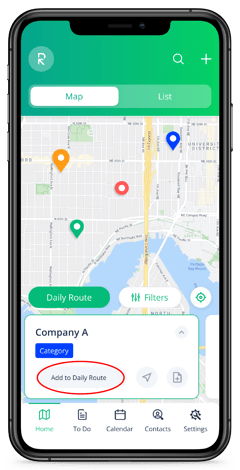
- On your Home tab use the map to find the accounts or prospects you want to add to your daily route and tap Add to Daily Route.
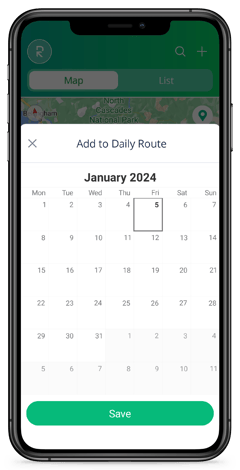
- Select the date for your route and hit Save.
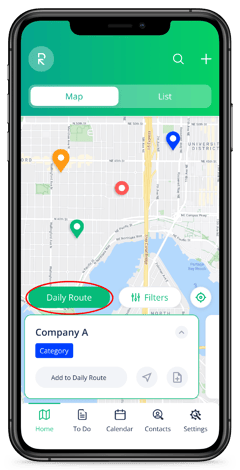
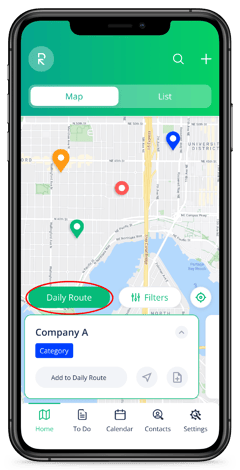
- Once you've selected all the accounts and prospects for the day, tap the green Daily Route button on the Home tab.
- You can tap Optimize, which will reorganize your stops for the most time-effective route, and add tasks to your visits. Then tap Go!
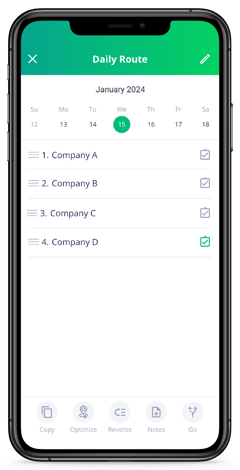
- Slide your start location card to the left and head to your first stop. Add notes to complete your stops as you navigate through your day.
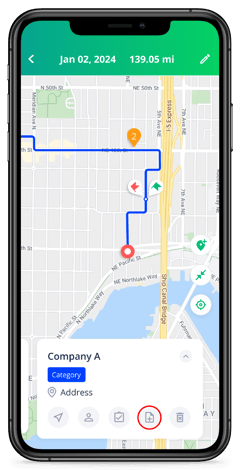
Option Two
- On your Home tab, tap the green Daily Route button over the map.
- Tap Create Daily Route.
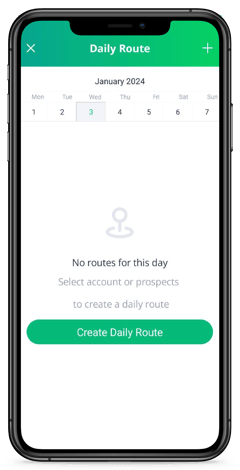
- Add your starting and ending locations represented by green and red flags respectively and then add the accounts or prospects you'd like to add by tapping the checkbox.
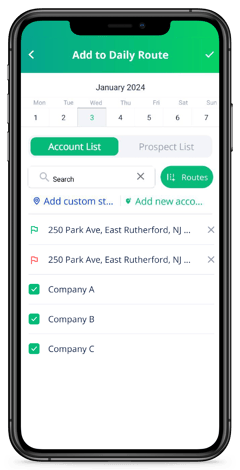
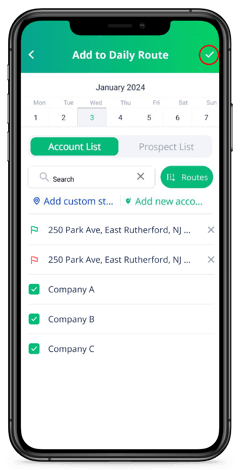
- Hit the check mark in the top right corner when you're done.
- Tap Optimize to create the most time-effective route, add tasks to your visits, and tap Go!
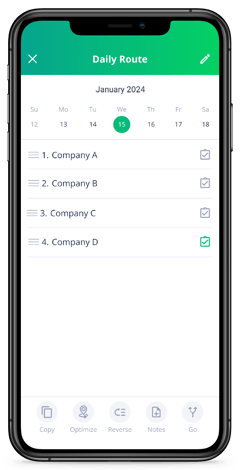
- Slide your start location card to the left and head to your first stop. Add Notes to complete your stops as you navigate through your day.