In This Article
Introduction
The following article will describe how to manage Tasks in Field Sales Tracker for web and mobile, including creating new Tasks, editing and completing existing Tasks, and enabling Task reminders on your mobile device.
Web
Create a Task
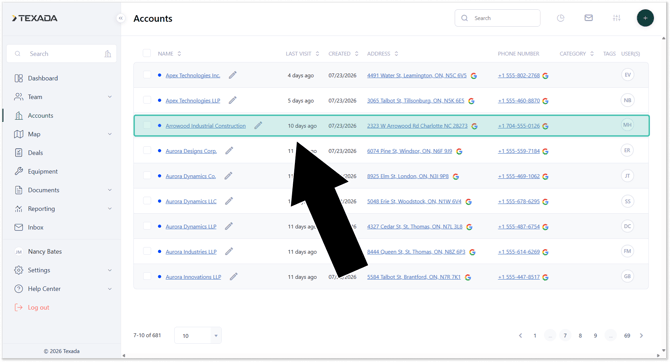
- Log in to Field Sales Tracker. Select Accounts from the left navigation menu, then locate and select the Account you’d like to edit.
- Select the Tasks tab, then click the plus icon
 in the top-right corner of the screen to create a new Task.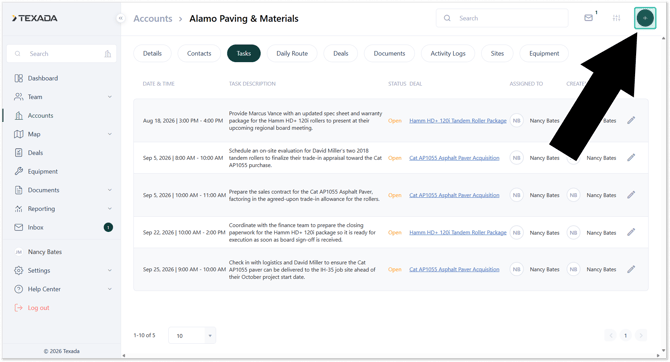
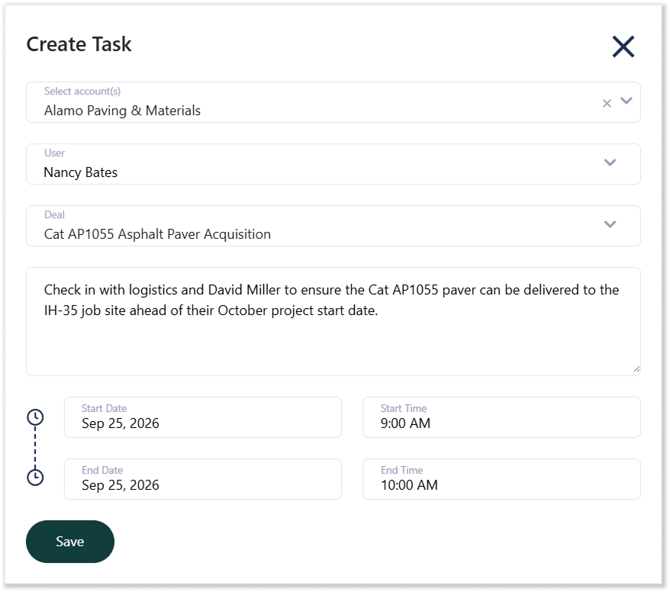
- Fill out the details for your new Task, including the Account, assignee, deal, notes, and start/end dates, then click Save to create the Task.
Edit a Task
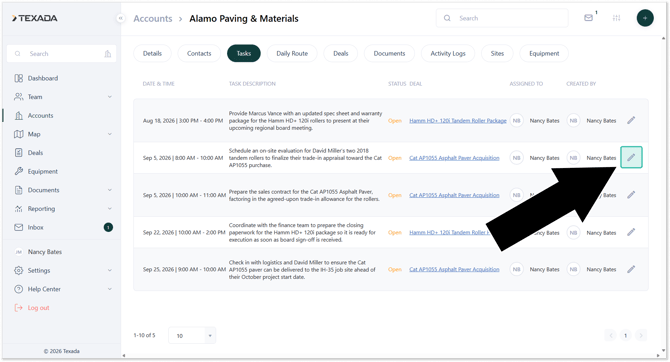
To edit an existing Task, click on the pencil icon  to the right of its row in the Tasks tab.
Viewing Tasks
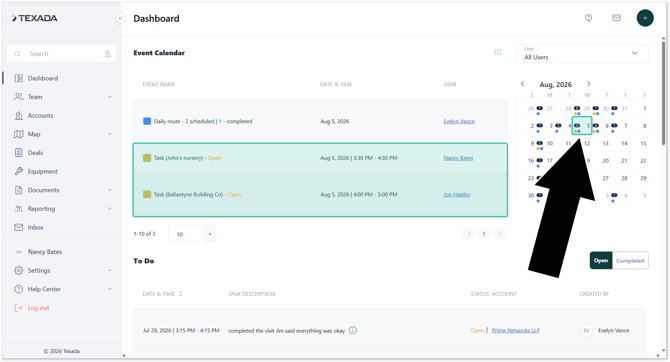
You can see your open tasks on the Dashboard under Event Calendar and To Do List.
Mobile
Enable Task Reminders
To enable push notifications to remind you of upcoming Tasks, follow the steps below.
- Open the Field Sales Tracker mobile application and navigate to Dashboard → Push Notifications (left).
Enable the Task Notification checkbox (right). You can now establish up to three reminders to alert you as your Tasks’ start times approach.
Once you are finished, return to the home screen. Your changes are saved automatically.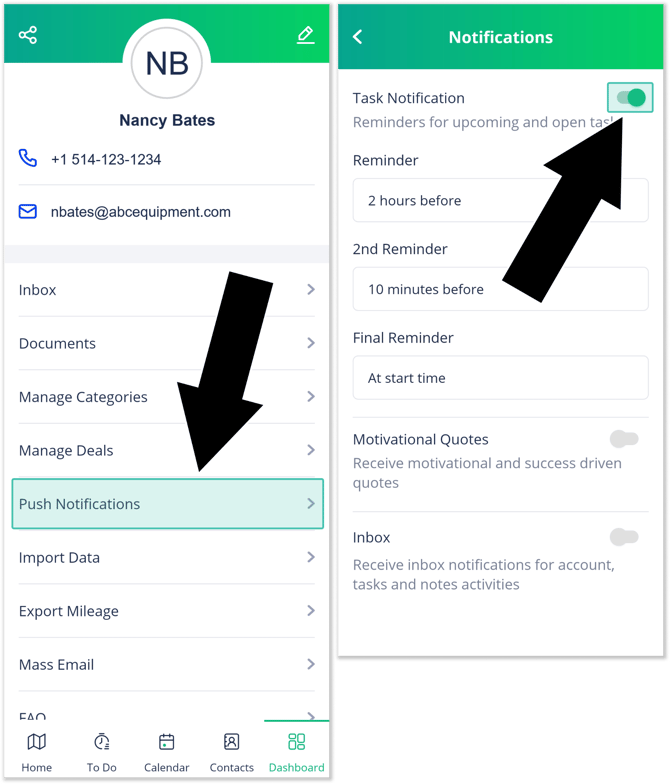
Create a Task from the To Do List
- Open the Field Sales Tracker mobile application and select To Do from the bottom menu (left). Tap the green plus icon
 in the top-right corner of the screen to create a new Task.
Add the Task’s description, associate it with an Account or Prospect, and set the due date and time (right). Once you are finished, tap Save to create the Task.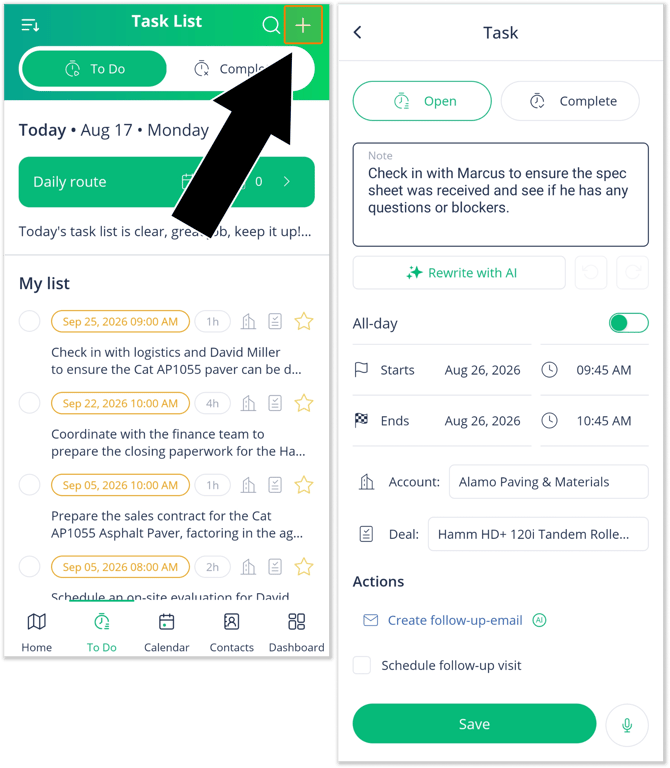
Create a Task from the Account Details Screen
- Open the Field Sales Tracker mobile application and navigate to Home → Map or Home → List, then locate and open the Account to which you’d like to add a Task. Once on the Account details screen (left), tap the graph button
 to switch to the Action tab, then select Tasks.
The Task List screen (right) lists Tasks associated with the current Account. An orange cross indicates an outstanding Task, while a green check mark
  indicates a completed Task.
To create a new Task, tap the Add new task button at the bottom of the screen.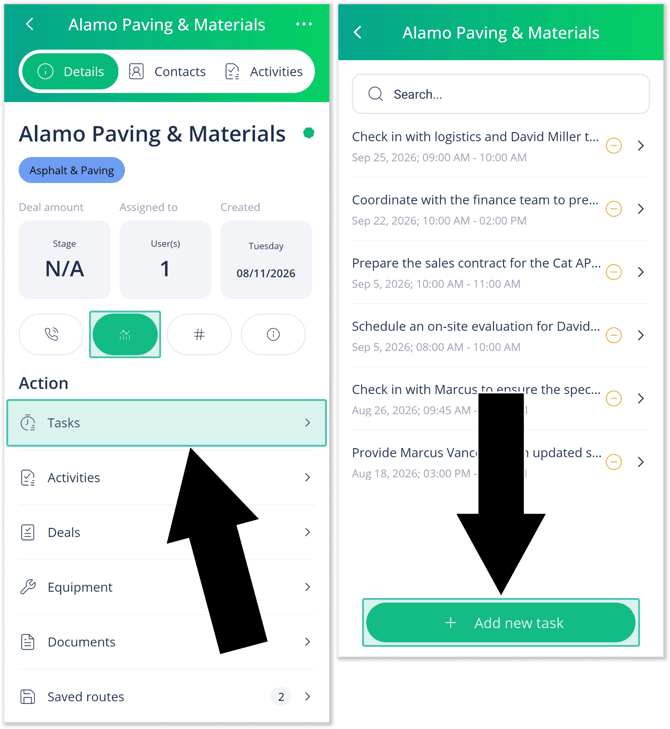
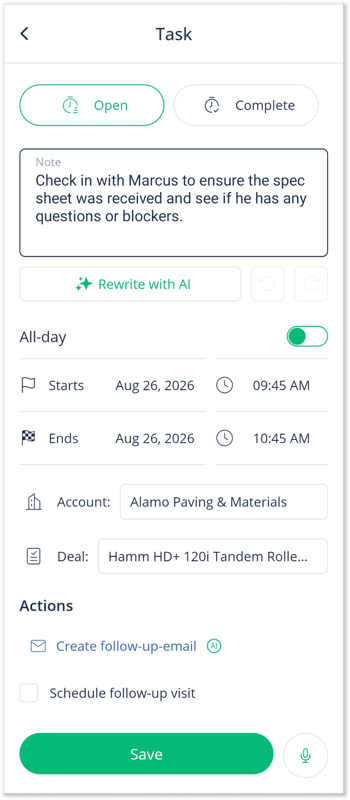
- Add the Task’s description, associate it with an Account or Prospect, and set the due date and time. Once you are finished, tap Save to create the Task.
Complete a Task from the Account Details Screen
- To complete an existing Task, open the Field Sales Tracker mobile application and navigate to Home → Map or Home → List, then locate and open the Account you’d like to edit. Tap the graph button to switch to the Action tab, then select Tasks. From the Task List (left), tap on the Task you’d like to edit.
From the Task details screen (right), tap the three dots in the top-right corner of the screen to open the actions menu. You can also quickly complete a Task by tapping the Not Completed checkbox at the top of the screen.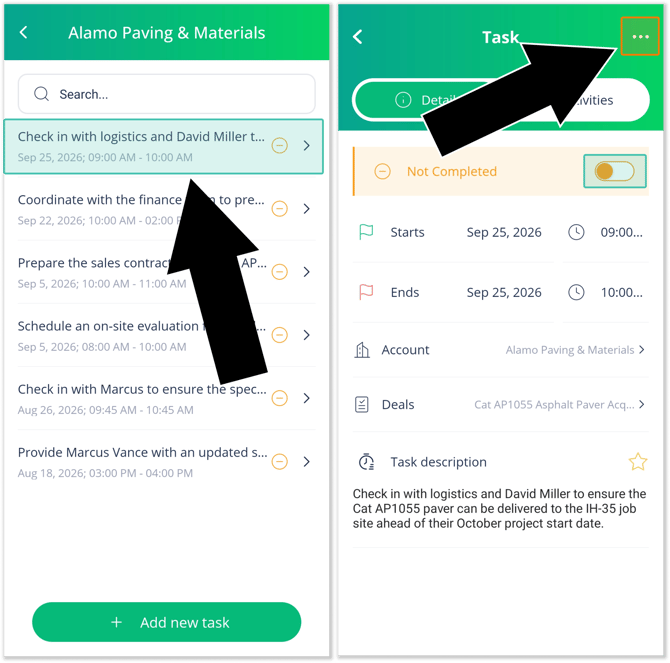
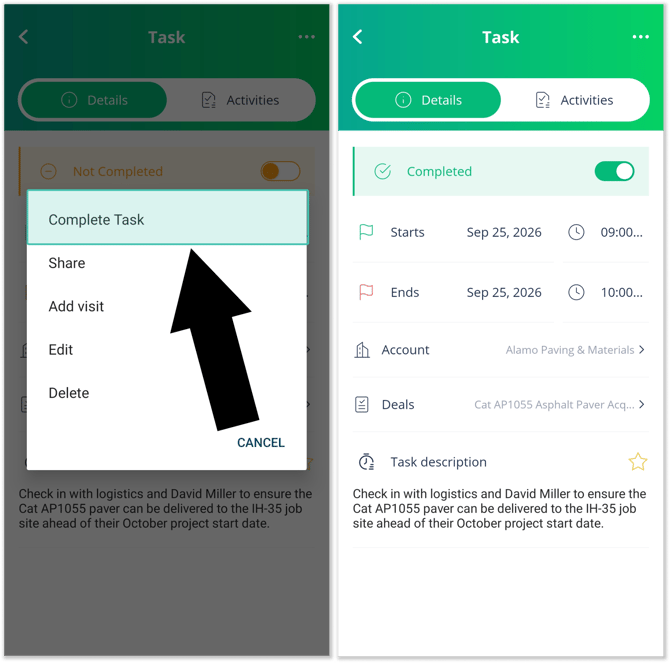
- From the actions menu (left), tap Complete Task to complete the Task and return to the Task details screen (right). The completed Task will show a green bar at the top of the screen.