
In This Article
- Introduction
- Create a Template
- Edit or Delete a Template
- Template Fields
- Using Email Templates in the Mobile Application
- FAQ
Introduction
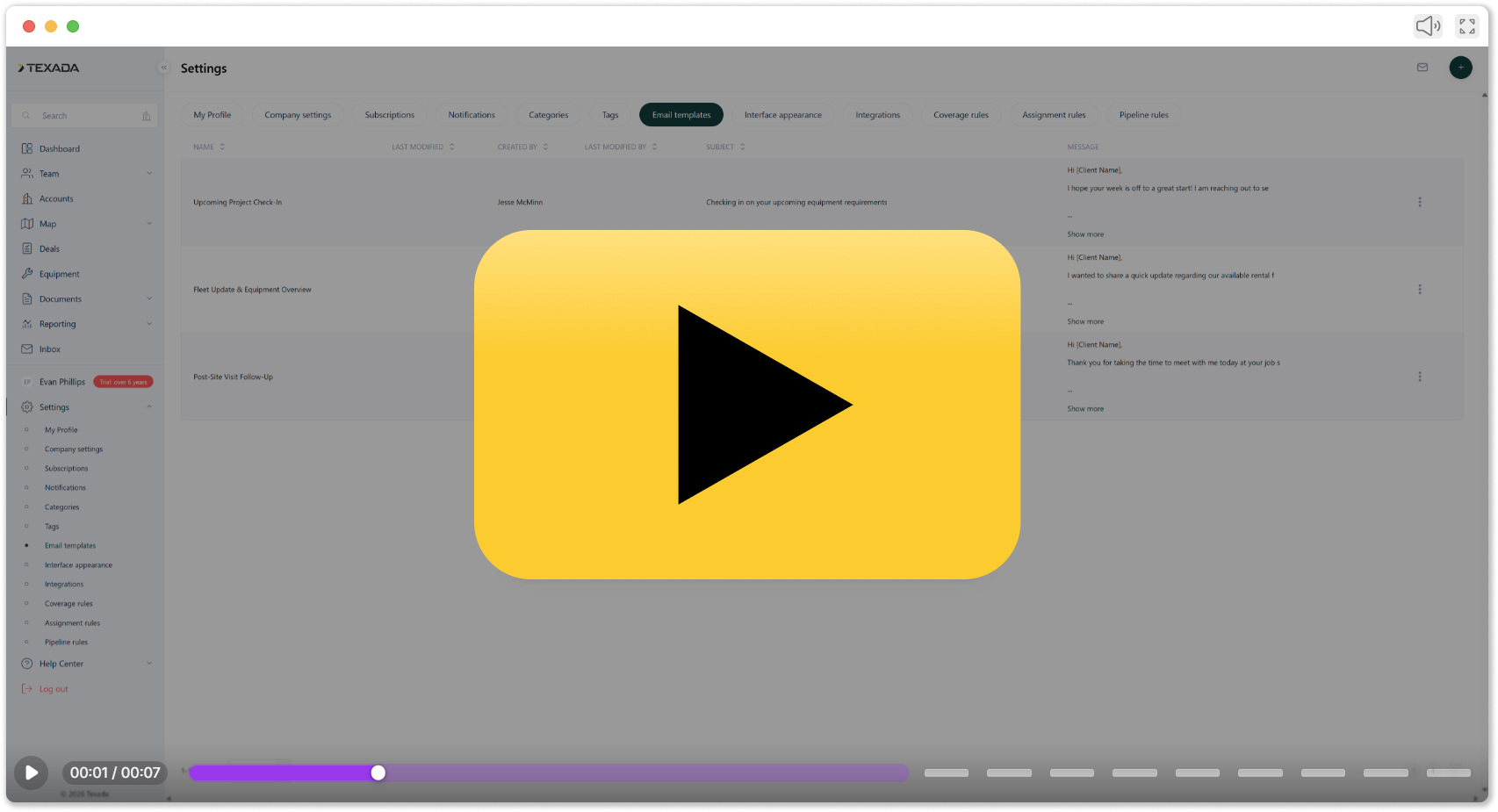
This article explains how admin users can create and manage email templates in Field Sales Tracker, and how field reps can use those templates in the mobile app for sending individual or mass emails.
Create a Template
- Log in to Field Sales Tracker and select Settings → Email Templates from the left navigation menu.
- Click the Plus button
 in the top-right corner of the screen to create a new template.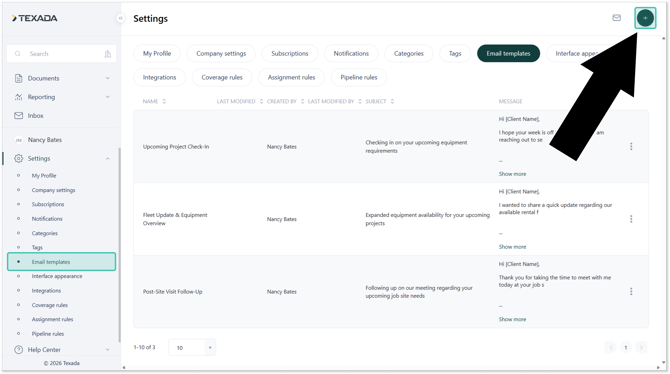
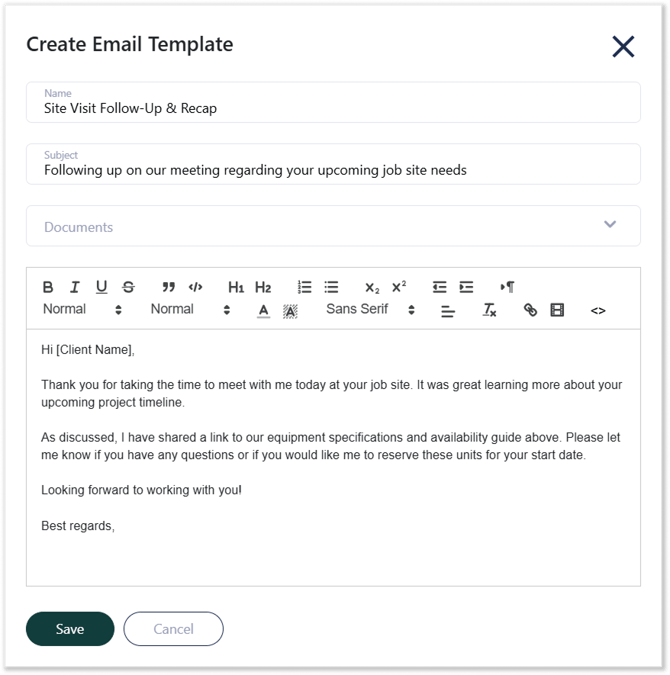
- Fill out the information for your template. Once you are finished, and click “Save” to create the template and make it available for use in the mobile application.
Edit or Delete a Template
- Log in to Field Sales Tracker and select Settings → Email Templates from the left navigation menu.
- Click the three dots
 next to an existing template to edit or delete it.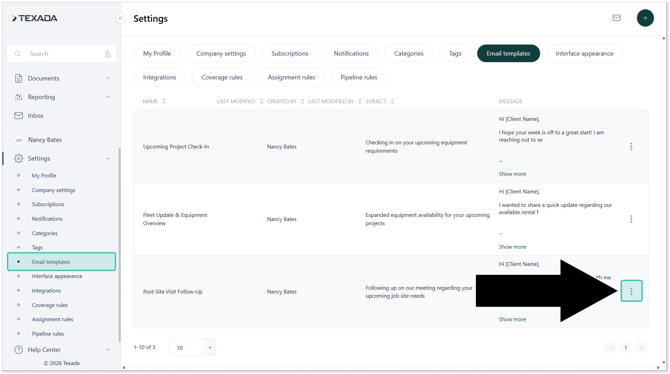
Template Fields
- Name: The template’s internal name. This will NOT be seen by customers.
- Subject Line: The email’s subject line.
- Documents: Select one or more documents previously uploaded to the Documents tool to include in the email. Attached documents will be added to the email body as hyperlinks.
- Email Body: Write your message here. You can include:
- Plain text or rich text formatting
- Hyperlinks
- Embedded video links
- Any custom content relevant to your communication
Using Email Templates in the Mobile Application
Once templates are created in the Field Sales Tracker for web, they are automatically available to field reps using the Field Sales Tracker mobile application.
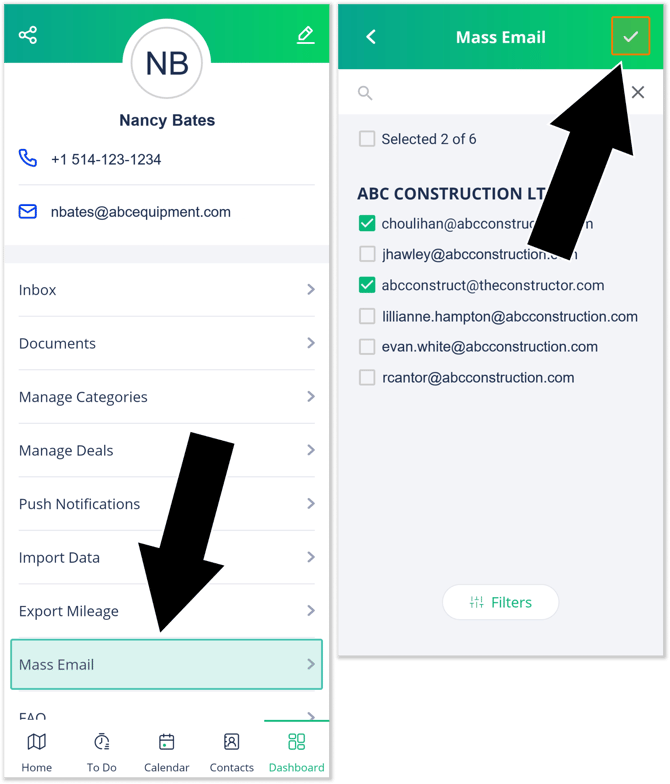
- Open the Field Sales Tracker mobile application and navigate to Dashboard → Mass Email (left). Select the contacts to which you want to send an email (right), then tap the white check mark in the top-right corner of the screen.
- In the pop-up window (left), use the Select Email Template drop-down to select the template on which you want this email to be based. You can also leave this drop-down blank to write an email from scratch. Once you are finished, tap Create Email.
The selected email will now open in your device’s default email client (right). The email's recipients, contents, document links, and your email signature will be added automatically. Modify the email as desired, then tap Send.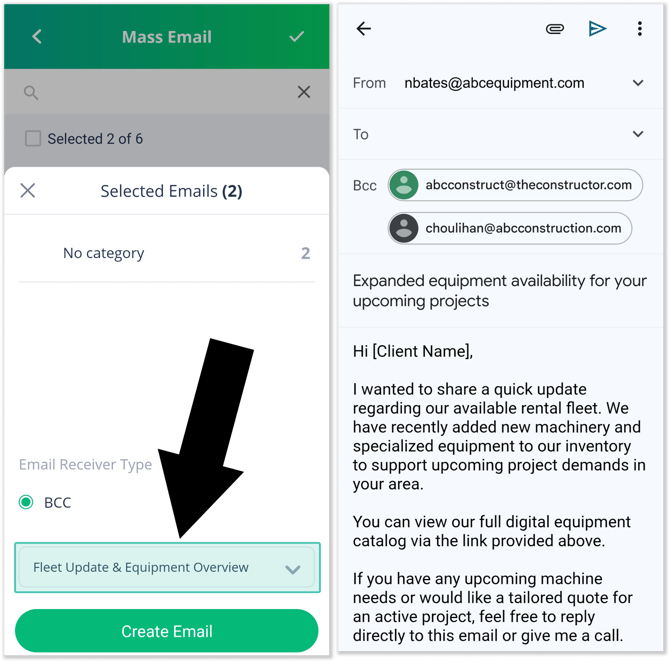
Emails are sent from your own email address. Field Sales Tracker does not send emails directly.
FAQ
Q: Are these templates used for mass emails from the web portal?
A: No. Templates are only used on the mobile app. Web-based mass or single emails do not support templates.
Q: Are documents attached or linked?
A: They are shared as links—not as attachments.
Q: Can reps customize the email before sending?
A: Yes. Since the email opens in their default client, reps can edit the content before sending.