In This Article
Introduction
The following article describes how to integrate your Field Sales Tracker calendar with an external calendar program such as Outlook or Google Calendar.
Generate a Calendar URL
Regardless of which calendar program you intend to integrate with, the first step is to generate a calendar URL in Field Service Tracker. This URL will then be used to complete the integration in your calendar program of choice.
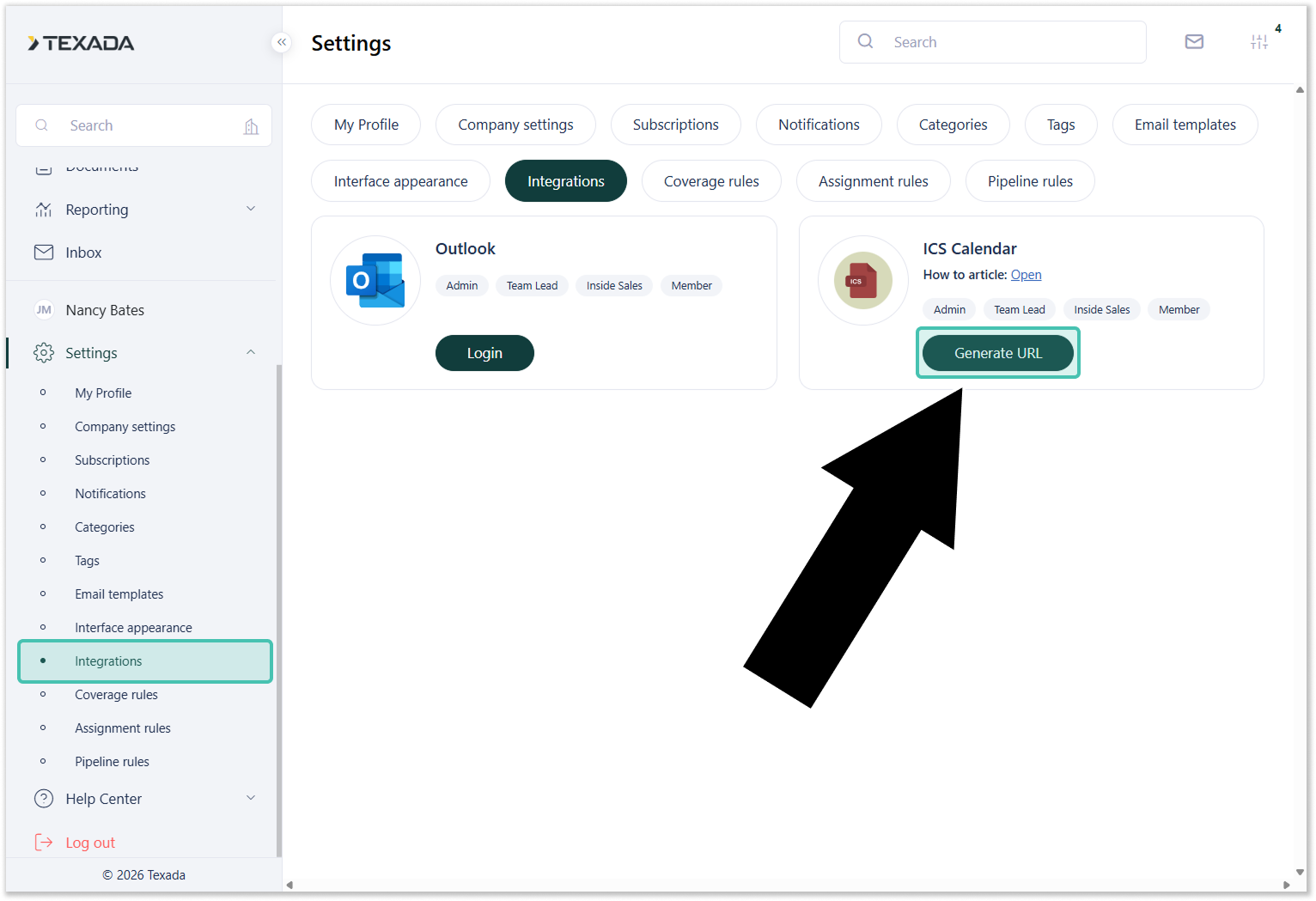
- Log in to Field Sales Tracker and select Settings → Integrations from the left navigation menu. In the ICS Calendar panel, click the “Generate URL” button to generate an Outlook integration URL.
- Click the copy icon
 to copy the generated URL to your clipboard.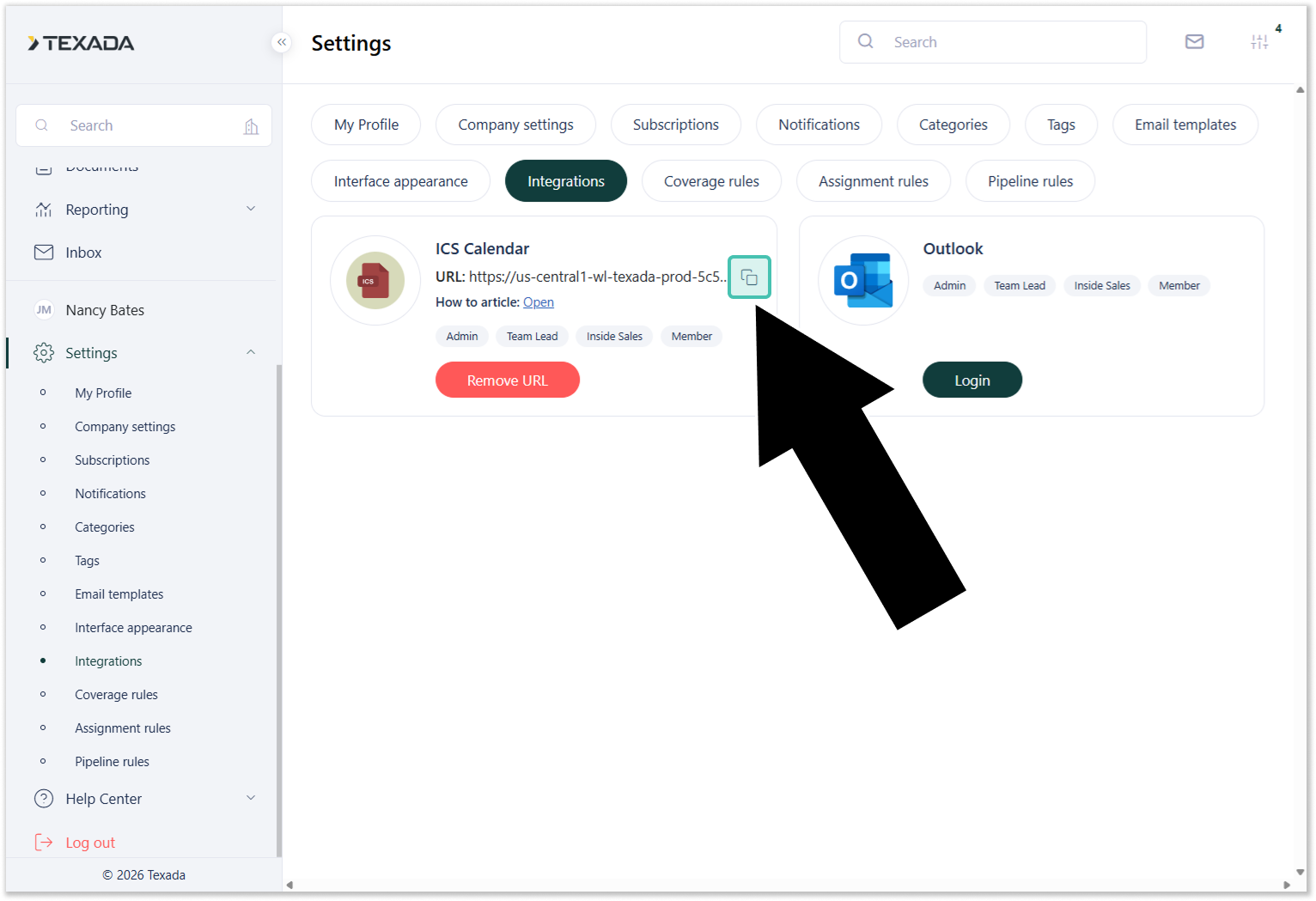
Google Calendar
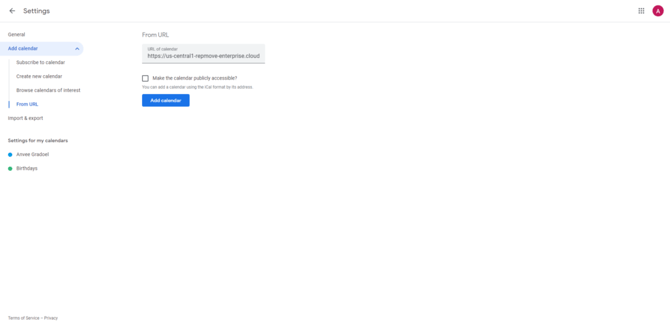
- Log in to Google Calendar, then select Other Calendars → From URL in the left sidebar.
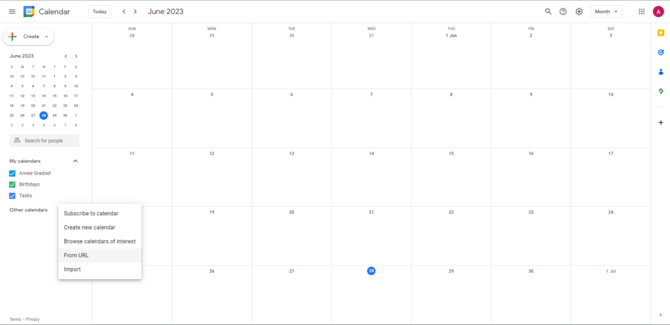
- Paste the URL you generated in “Generate a Calendar URL”, then click “Add calendar”.
Outlook (Web)
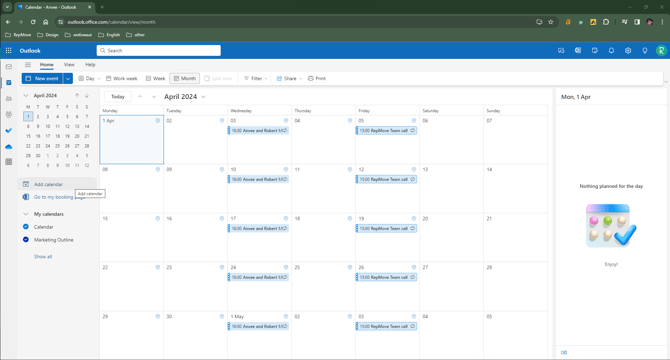
- Launch Microsoft Outlook, then click the calendar button in the left sidebar.
- Select “Add Calendar”.
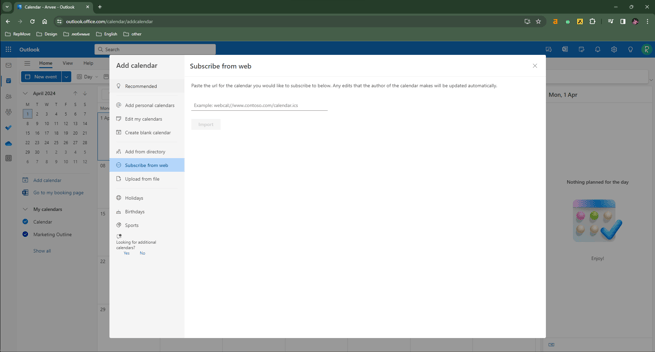
- A pop-up box will appear. Select “Subscribe from Web”.
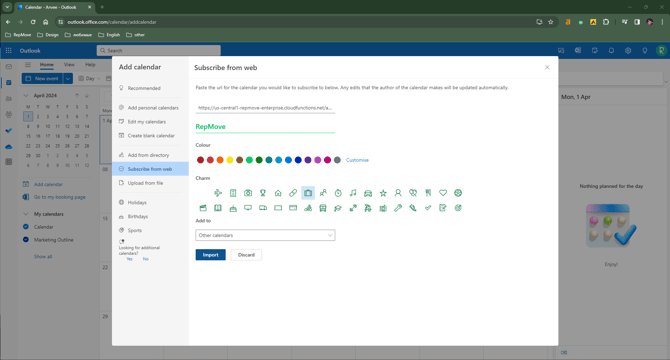
- Paste the URL you generated in “Generate a Calendar URL”, then fill out the rest of the calendar information and click “Import”.
Outlook (iPhone)
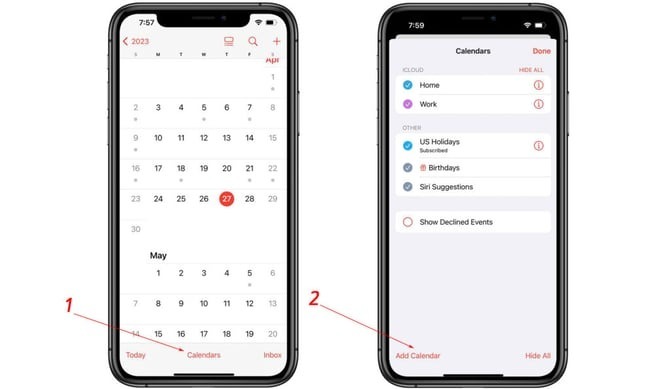
- At the bottom of the Outlook app, tap on the Calendars. This will open the Calendar view.
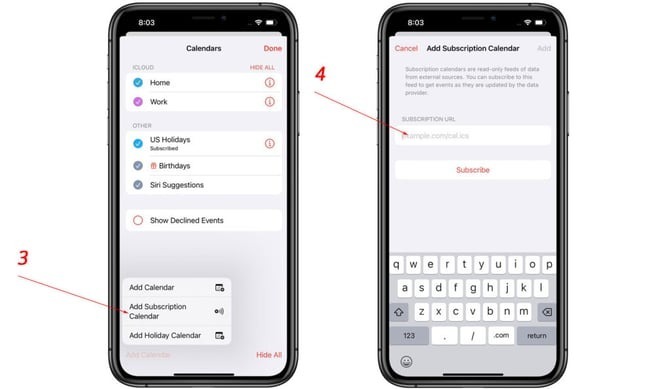
- In the Calendar view, tap on the Add Calendar located at the bottom left corner of the screen.
- In the pop-up menu that appears, choose the From Internet option.
- Paste the URL you generated in “Generate a Calendar URL”, then hit Subscribe.