In This Article
Introduction
The Activity Report feature in Field Sales Tracker allows you to generate a visual report of the Activities in your system. The following article will describe how to use this report.
Generate an Activity Report
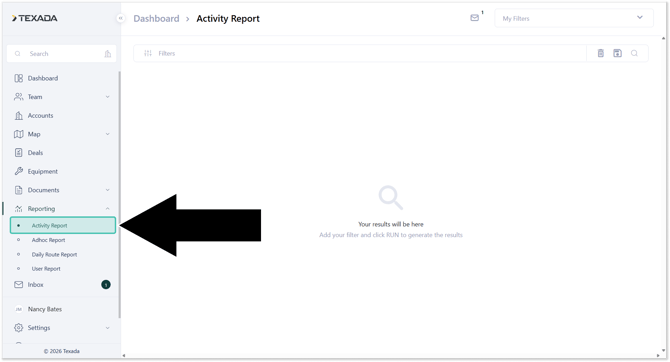
- Log in to Field Sales Tracker and select Reporting → Activity Report from the left navigation menu.
- Click the filters icon
 in the top-left corner of the screen to add filters to your report, tailoring its contents based on various criteria. For example, adding a Created Date Start filter will return only Activities that were created after the specified date.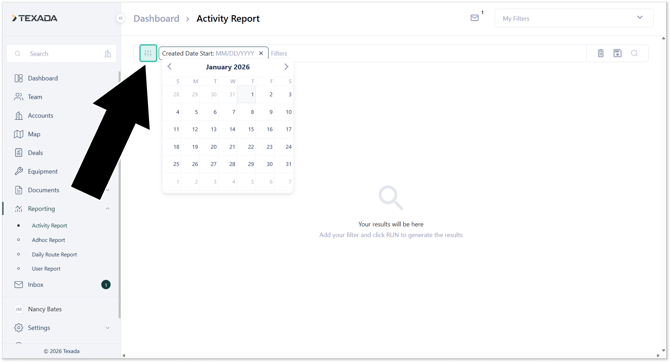
- Click the run button
 to generate the report.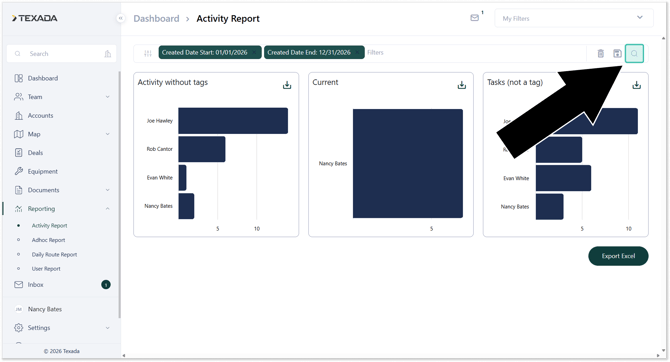
If you're using Tags for your notes, they will be part of your report and show up as individual entries. You can export individual reports for the tags, tasks and notes by clicking the download button  in the top right of every instance.
Only Admin Users and Team Leaders can generate reports for other users.
Download or Email an Activity Report
- Once you have generated an Activity Report, click the Export Excel button in the bottom-right corner of the screen to download or email it.
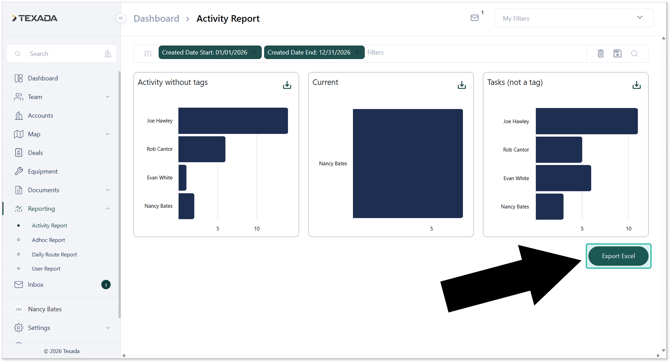
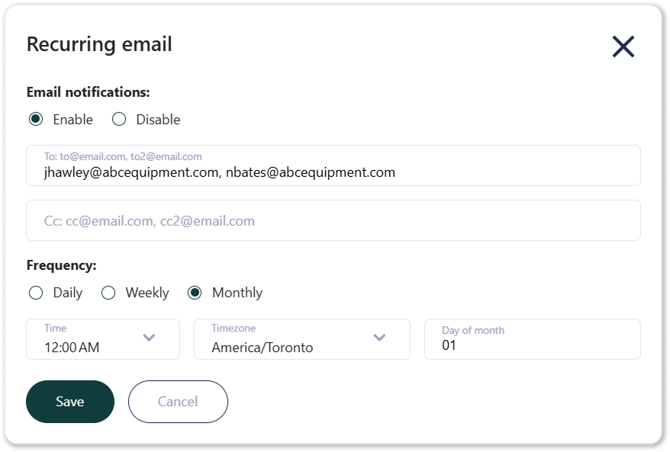
- Click Download Report to download the Activity Report as a Microsoft Excel (.xlsx) file. Or, click Create Email to set up a recurring email for this report (step 3).
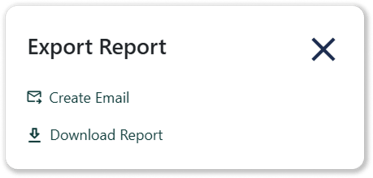
- Use the To: box to choose the recipients for the email. Select a Frequency and Start Date, then click Save to start sending recurring Activity Reports to the chosen addresses.